Overview
The Redwood Quote Runtime UI delivers a simplified and discoverable quoting experience for sales users with predefined and configurable milestone guidance and tracking. It provides in-context guided selling, product selection, and faster access to critical information through improved search & filtering capabilities and the (Ask Oracle) Assist Bar.
The Redwood Quote UI supports existing functionality and provides additional usability, such as:
- Improved navigation and user interface for easier access to quote details, global links, user navigation menus, and user notifications for pending tasks
- Customizable header and sub-header attributes to provide a quick view of key information
- Comprehensive and consolidated view of all relevant information
- Simplified and modernized design to enhance user satisfaction and reduce training time
- Quick access to frequently used actions to streamline the quoting process
- Easy administrator access to Design mode to define the quote layout
Redwood Quote Functionality
- Add Products - The Add Products action allows users to search and then add parts, models, BOMs, and Favorites to a quote from a single consolidated page.
Browse Product Hierarchy (Oracle CPQ 26A) - Users can browse and select configuration models to add to the quote.
AI-Generated Product Recommendations (Oracle CPQ 25C) - Suggest products to be added alongside the current items in the quote.
- Ask Oracle and AI
The Ask Oracle Assist Bar empowers users by providing a streamlined, intuitive interface that will accelerate their workflow.
Generative AI Quote Summaries (Oracle CPQ 25B) - Guide users through the quote summary process and next steps.
AI-Powered Quote Assistance Agent (Oracle CPQ 25C) - Help sales users understand relevant business processes, quoting flows, and newly available product features.
Redwood Quote AI-Powered Rewrite Assistant (Oracle CPQ 25D) - Provides intelligent, context-aware rewriting capabilities for various text entry points including customer emails and Rich Text attributes of a quote.
CPQ Administrator Assistant in Studio AI (Oracle CPQ 26A) - This pre-configured AI Agent Studio template can be copied and used to upload documentation to support chat assist agents that enable users to ask questions and receive precise, context-driven responses derived directly from the uploaded resources.
Deal Pricing AI-Assist Agent (Oracle CPQ 26C) - Helps sales users start with an aggregate deal target, such as total contract value or total discount, and calculate the line-level discount adjustments required to reach the deal target. Refer to Deal Pricing AI-Assist Agent for more information.
Refer to Ask Oracle and AI for more information.
-
Redwood Quote Designer - The Designer is integrated into the quote layout. Administrators can easily switch between Live and Design modes to view real-time changes.
-
Oracle CPQ 26B introduces support for Multiple Quoting Layouts to allow administrators to create, customize, and assign desktop /mobile layouts tailored to various business requirements. Refer to Manage Layouts for more information.
-
- eSignature Grid Support - The Redwood Quote UI Quoting provides support for an e-signature grid feature. This feature will enable users to electronically sign documents within the quoting interface, streamlining the quoting process and improving overall efficiency.
-
Display On Demand Visualizations - The Redwood Quote UI also enables users to add and render visualizations as needed. This feature aligns with the Redwood UI principles, offering an adaptive, user-centric experience that simplifies data interpretation and delivers actionable insights efficiently. With this capability, users can:
-
Add Visualizations: Seamlessly integrate charts, graphs, or dashboards into their workflow by selecting relevant data and visualization types.
-
Render On Demand: Generate and display visualizations only when required, optimizing system performance, and ensuring a clutter-free interface.
-
Enhance Contextual Insights: Provide users with the ability to focus on data relevant to their tasks, improving clarity and decision-making.
-
-
Price Waterfall (Oracle CPQ 25C) - Provides sales teams with clear, real-time insight into how final prices are derived, factoring in base price, discounts, promotions, and manual adjustments.
-
Quote Approval Flow - The Redwood Quote UI streamlines the quote approval process. Users can quickly access approvals, view actions needed, and access approval history.
Line Item Grid
The Redwood Products and Pricing view provides familiar spreadsheet-like interface and functionality for the Line Item Grid. This interface provides the following user functionality:
-
Advanced robust filtering options to quickly locate specific line items based on various criteria.
-
Line item data is dynamically loaded as users scroll, maintaining fast performance even with large data sets.
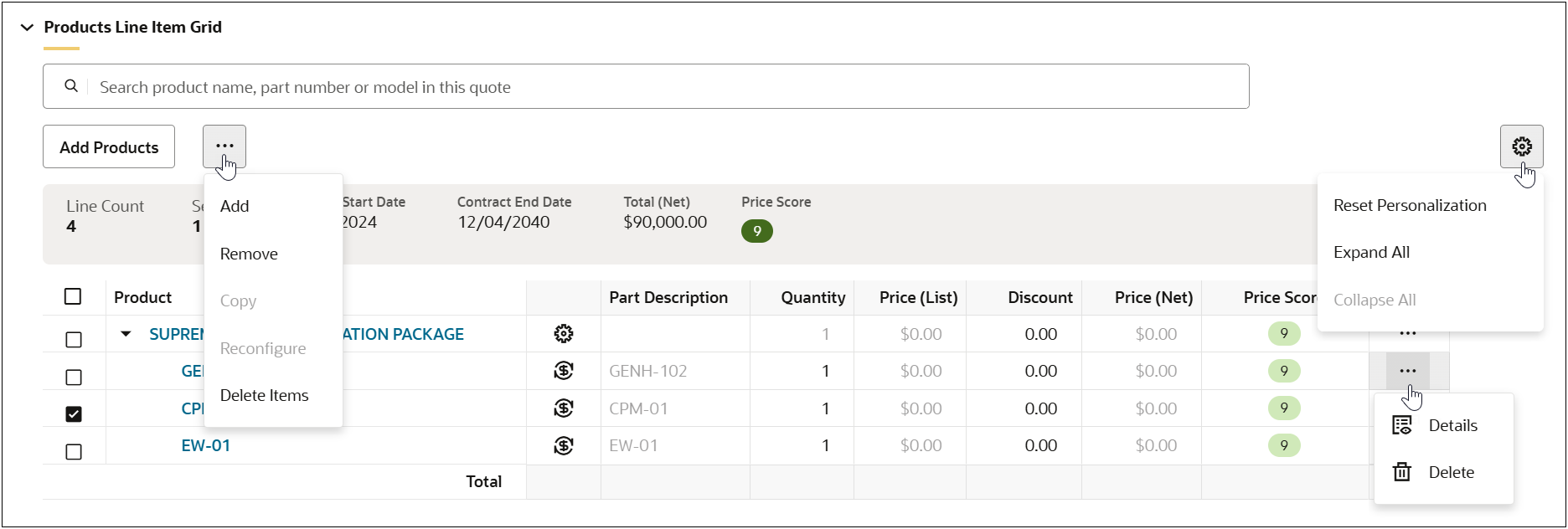
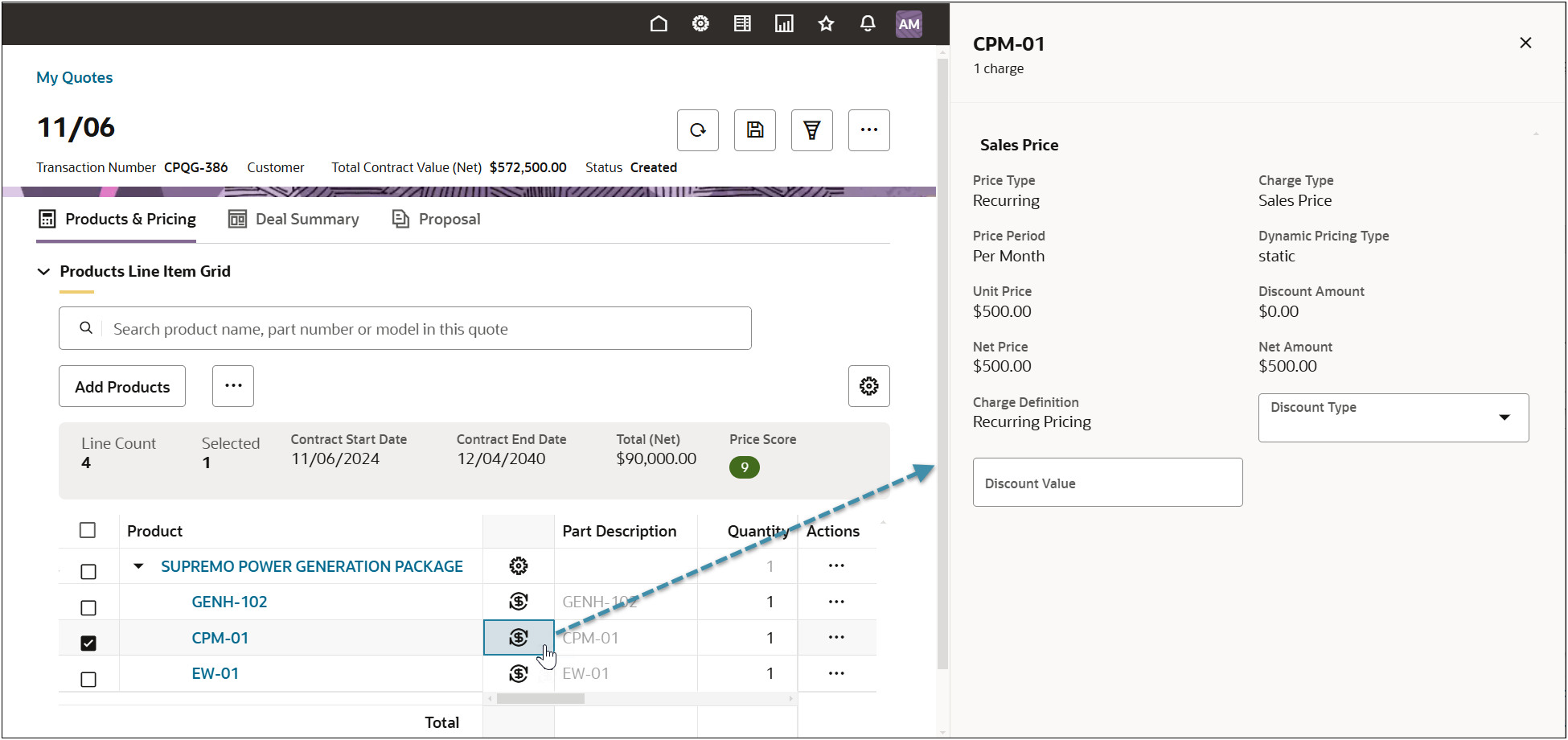
When available, users can quickly access charge information by clicking the Charge icon.
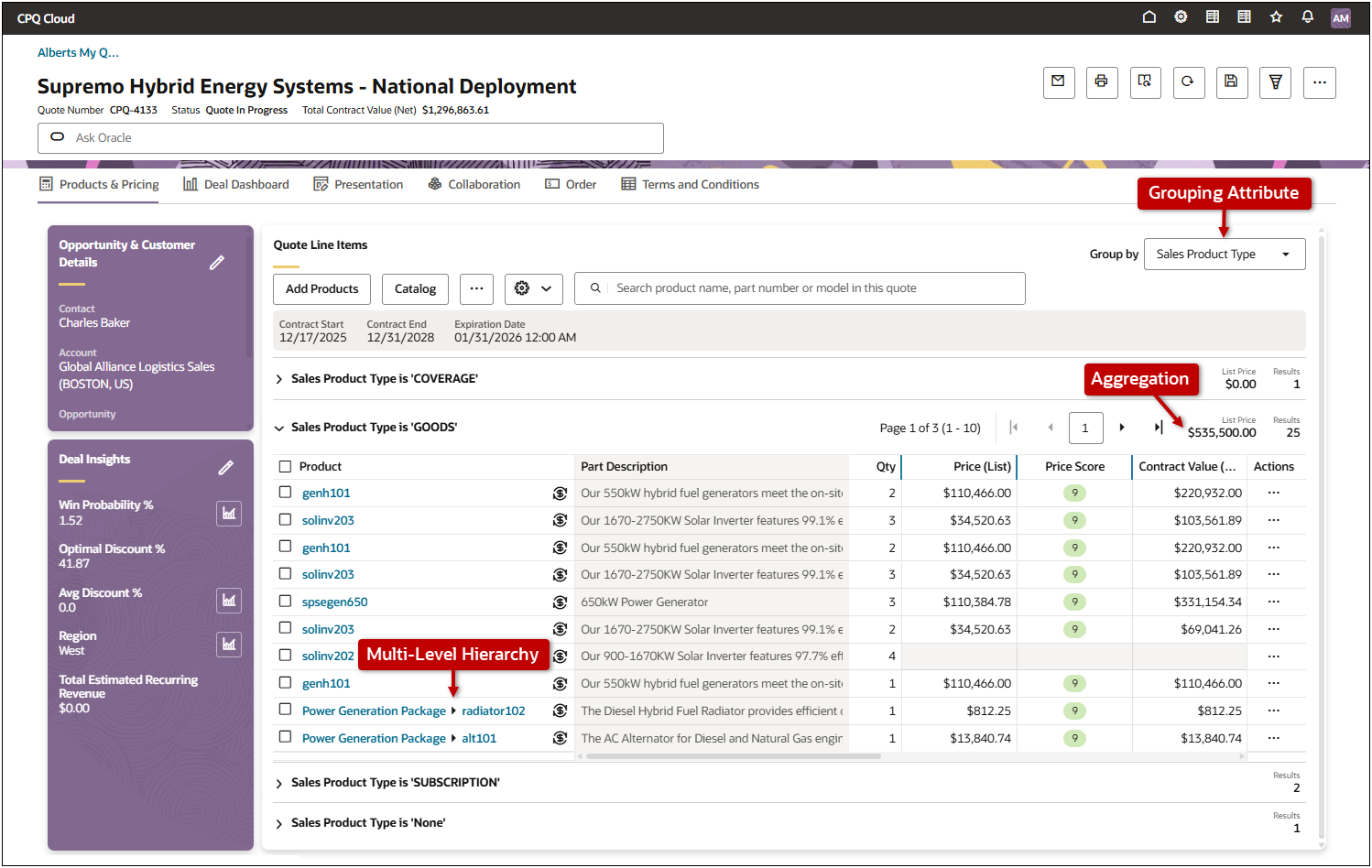
 Line Item Grid Grouping (Oracle CPQ 26A)
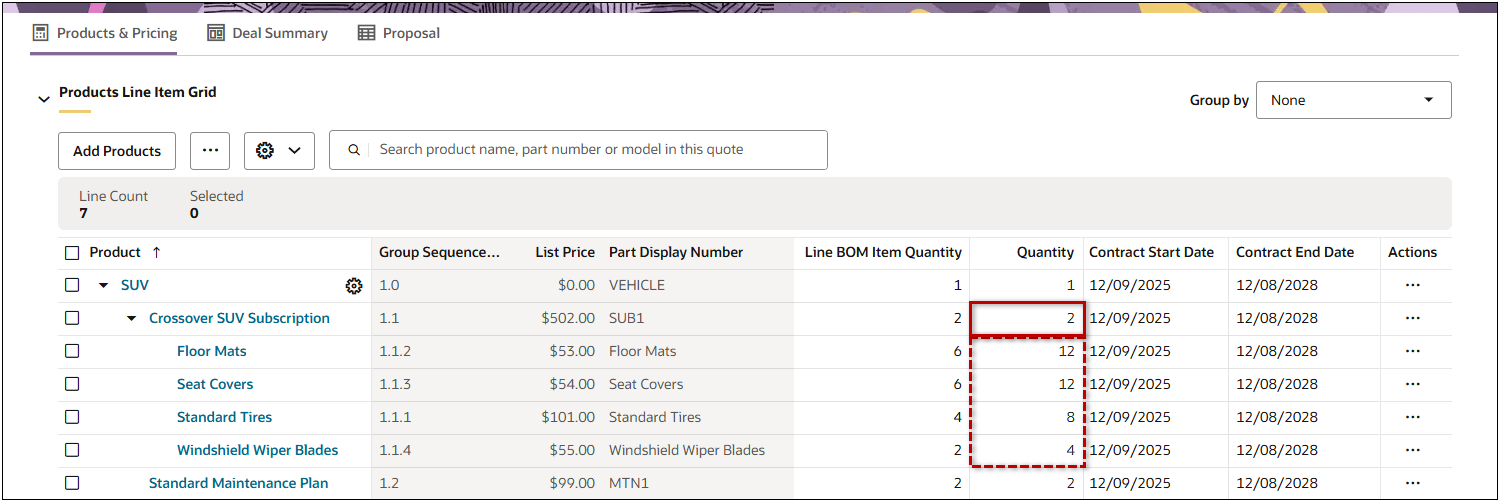
Quantity Explosion for Standard Quote Process (Oracle CPQ 26A)
Support Upfront Charges (Oracle CPQ 26A)
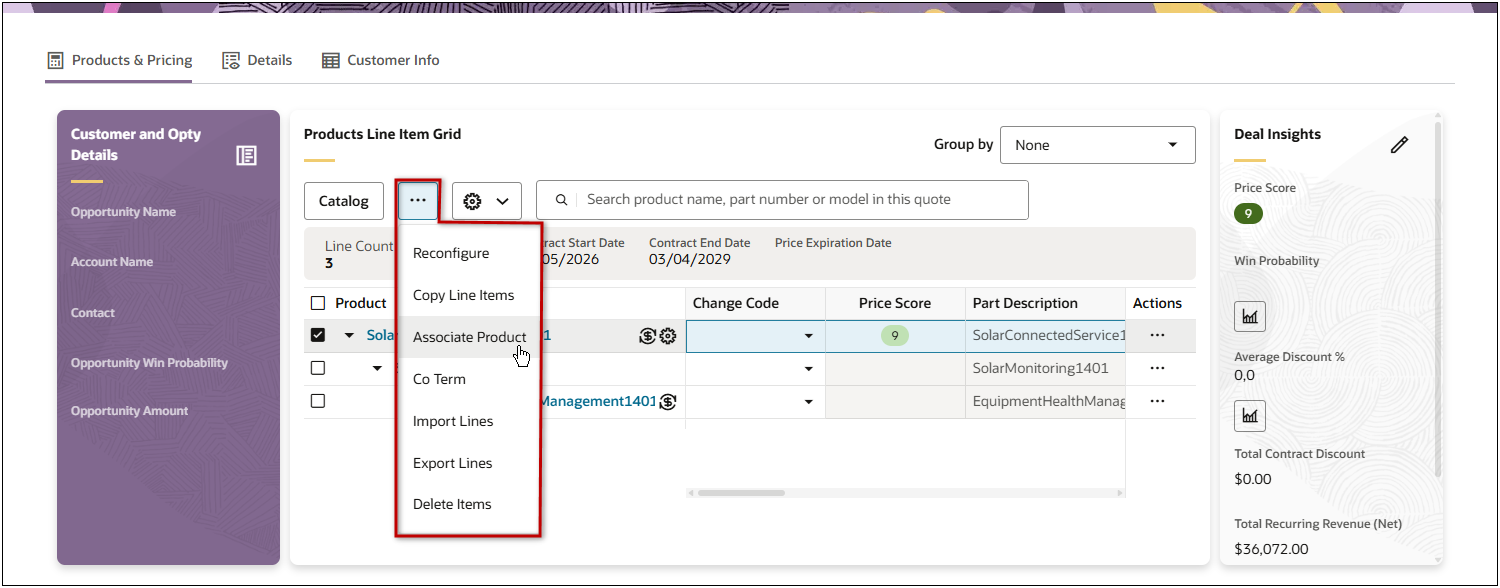
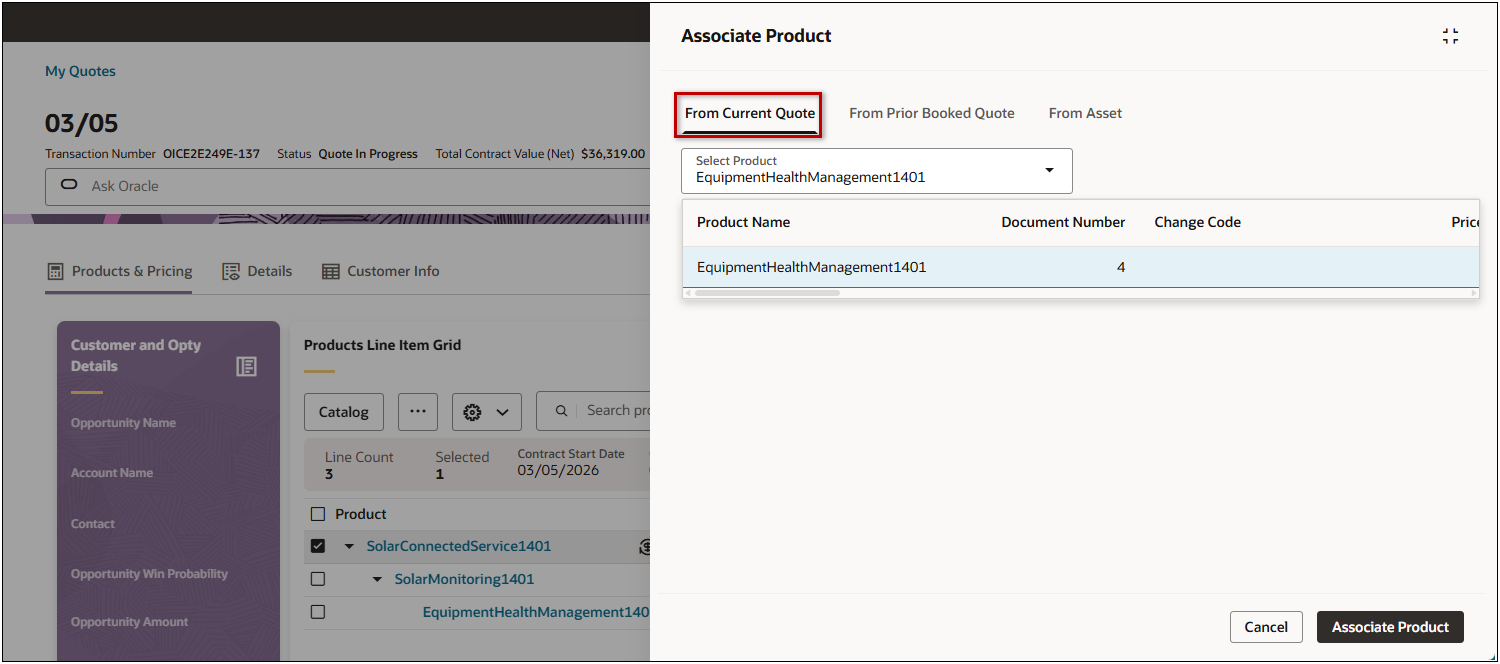
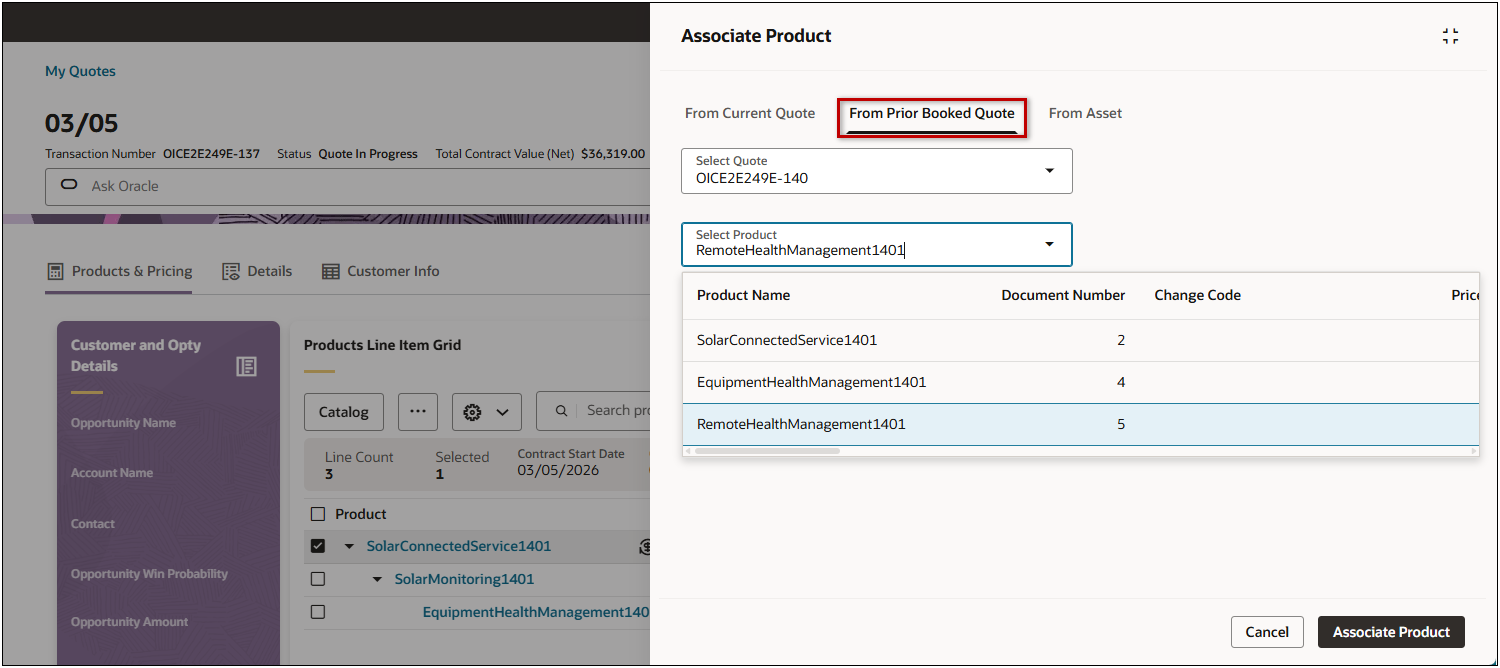
Associate Products (Oracle CPQ 26B)