Overview
Price Waterfall Visualization helps businesses determine the factors impacting net revenue and profitability. In the final pricing for a quoted product, several factors come into play, such as pre-set promotions and special pricing for a selected set of accounts based on status, geography, industry, etc. Additionally, sales users can apply manual discounts as part of the negotiation with the customer. Currently, all of this data is captured on the quote, but it is difficult for users to visualize the full picture.
The Price Waterfall Visualization provides sales teams with clear, real-time insight into how final prices are derived, factoring in base price, discounts, promotions, and manual adjustments. This transparency improves sales efficiency, empowers informed customer conversations, supports effective negotiations, and ensures alignment with pricing strategies. By simplifying complex pricing data into a visual format within the Quote UI, it enhances trust, accelerates deal cycles, and boosts both sales performance and customer satisfaction.
Oracle CPQ 25C introduces a quoting price waterfall for the Redwood Quotes UI. The price waterfall enables sales users to view a detailed Price Waterfall Visualization for each quoted product so that they can understand how the final price was derived from various pricing components (like base price, discounts, promotions, and manual adjustments). When enabled, the price waterfall displays in the charge drawer. The Charge Details View displays the charge information and also displays additional selected attributes for price waterfall.
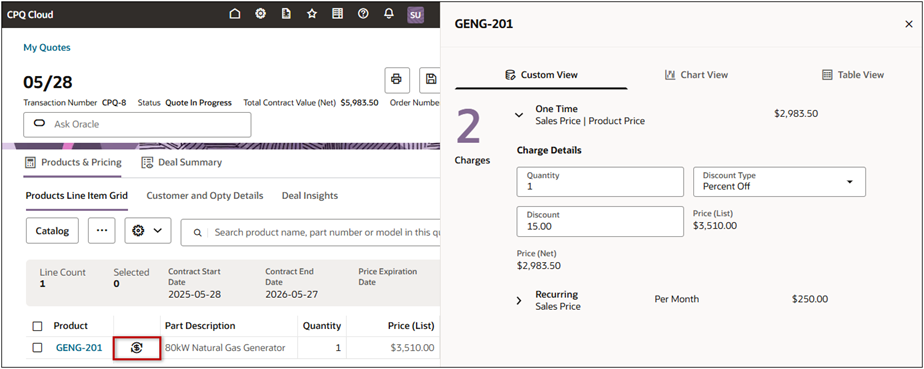
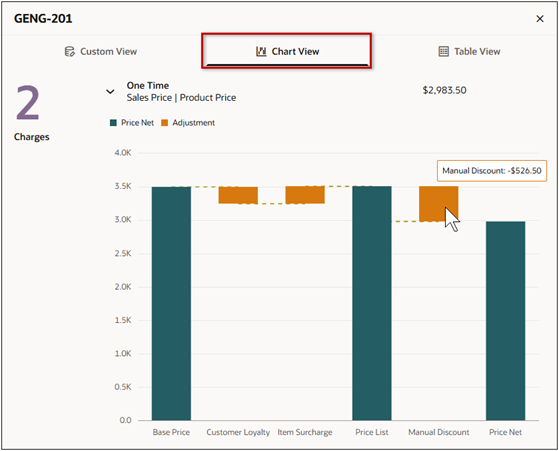
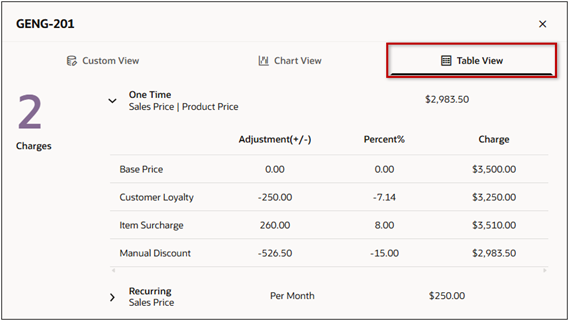
For example, the GENG-201 80kW Natural Gas Generator the base price is $3,500.
-
A Customer Loyalty adjustment, from the Pricing Engine, applies a $250 discount.
-
An Item Surcharge adjustment, from the Pricing Portal, applies an 8% markup.
-
An additional Manual Discount of 15% is also applied by the sales user in the quote.
Users can open the Graph View to display a visualization of the price waterfall. Users can hover over the graph items to display the exact amount for the item.
Users can open the Table View to display a summary of adjustments for the selected charge item.
Administration
 Display Price Waterfall in the Redwood Quote UI


