Overview
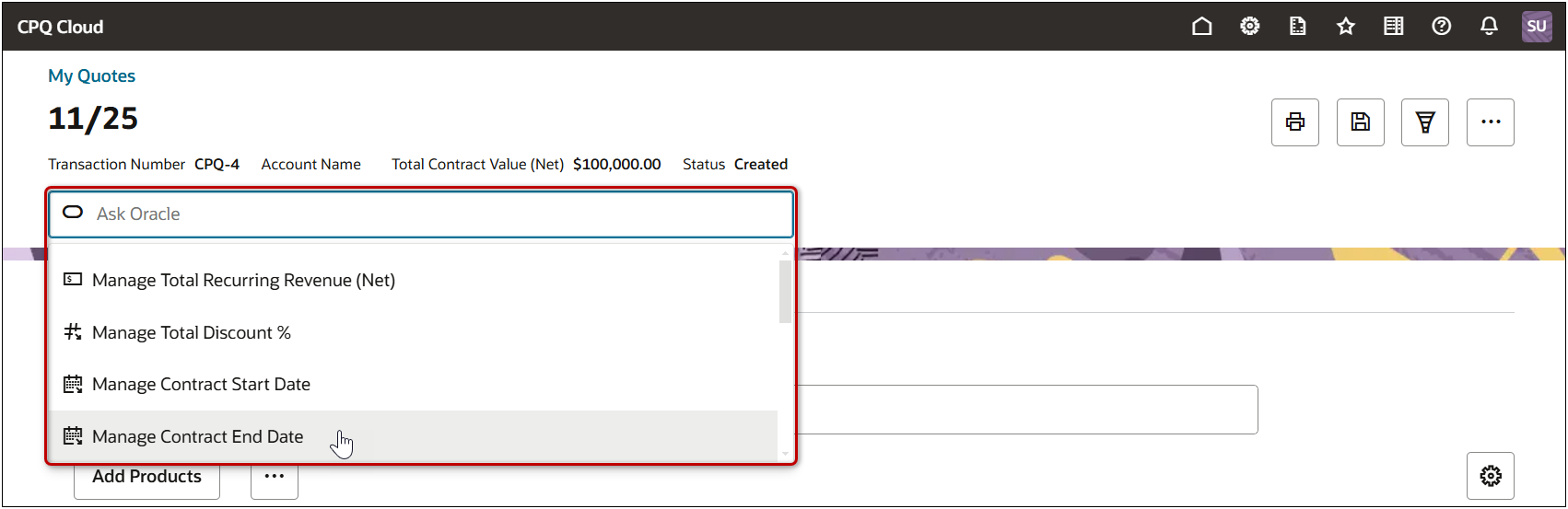
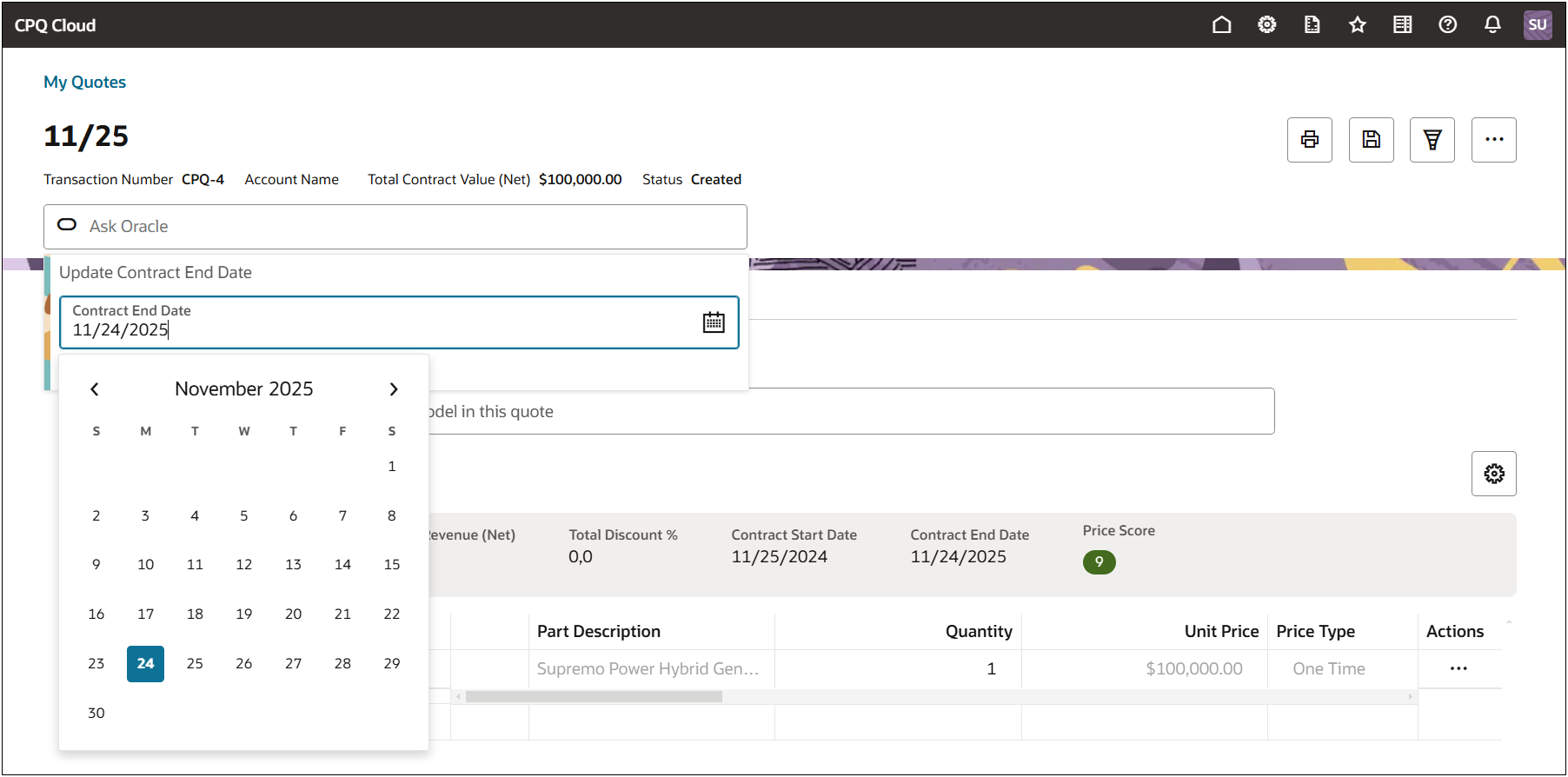
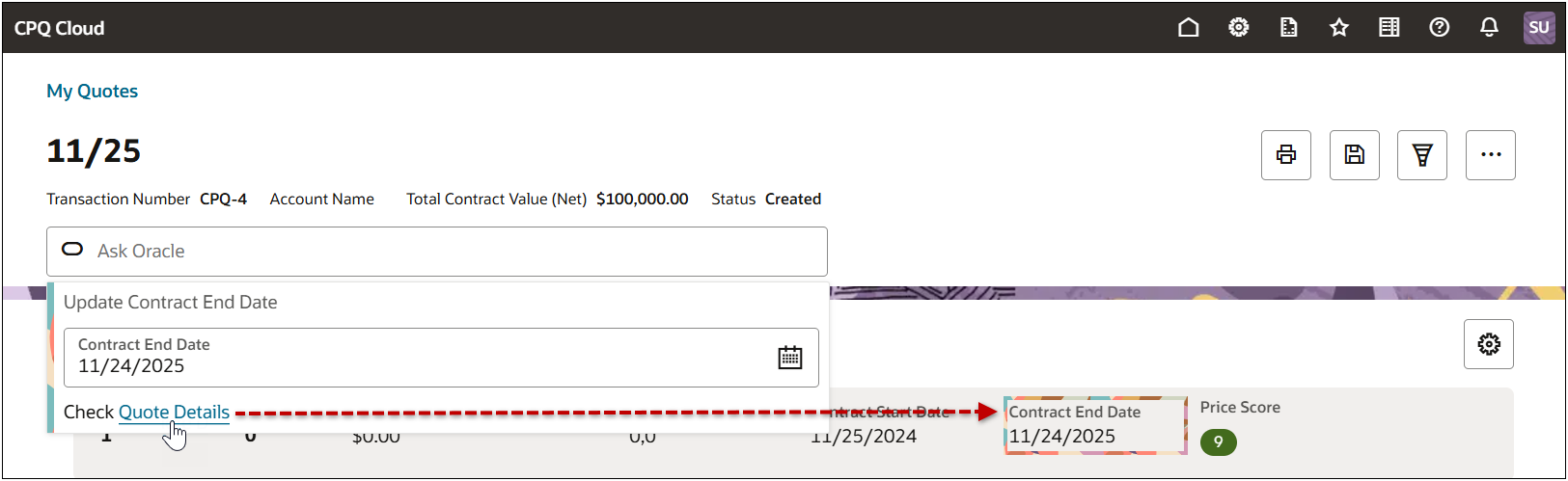
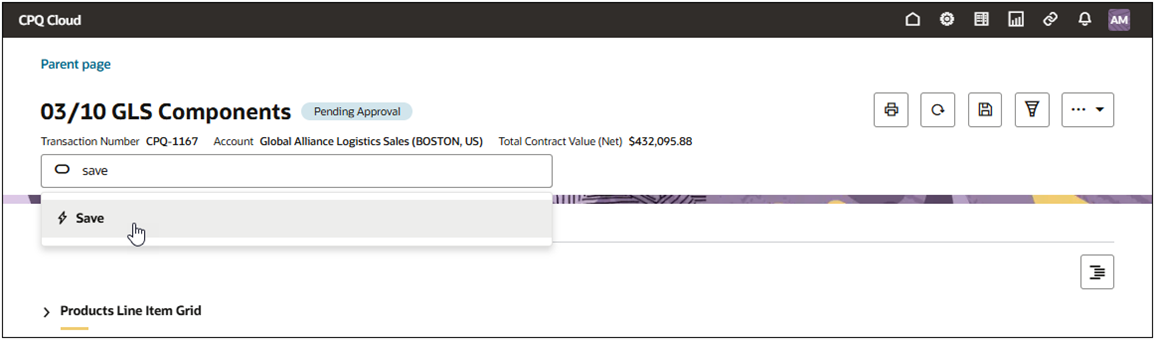
The Assist Bar in the CPQ Redwood Quote UI empowers users by providing a streamlined, intuitive interface that will accelerate their workflow. The Assist Bar serves as a dynamic control center, enabling users to quickly access information and seamlessly modify attribute data and invoke actions without navigating away from their current context.
AI-Powered Quote Assist Agent
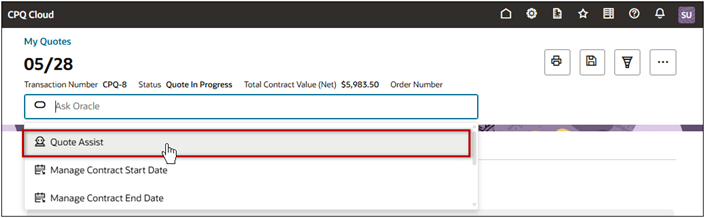
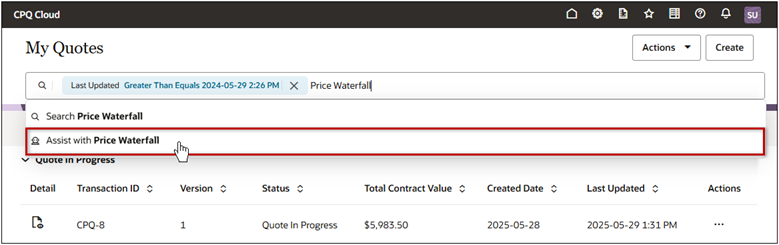
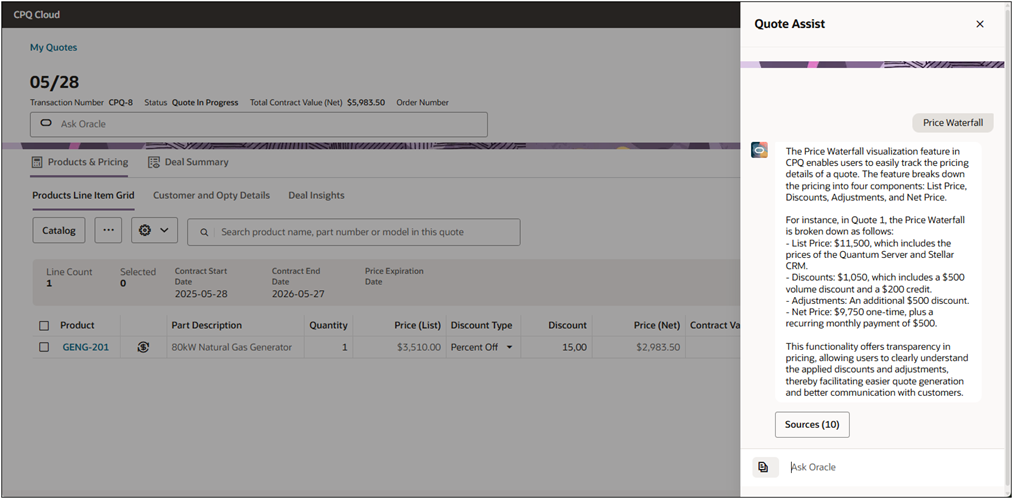
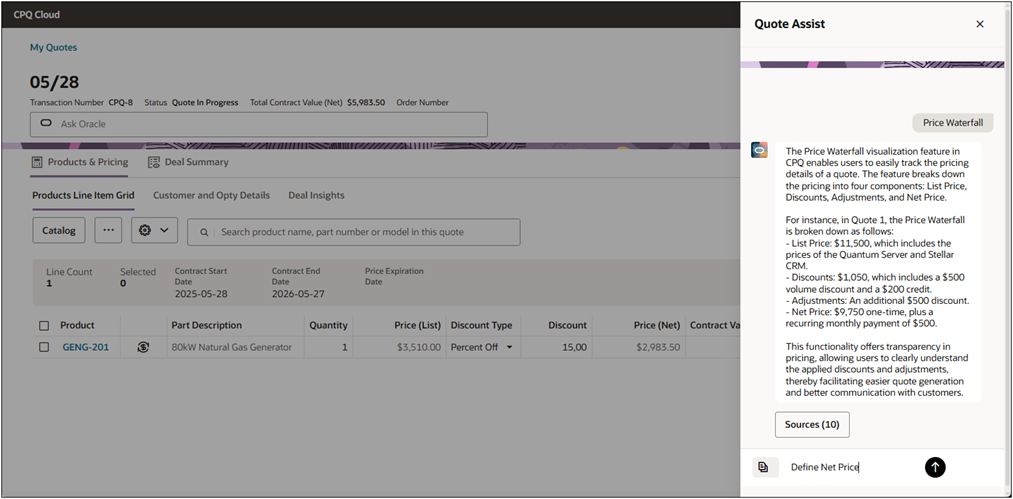
Oracle 25C introduced AI-Powered Quote Assistance Agent to help sales users understand relevant business processes, quoting flows, and newly available product features. The Quote Assist Agent uses natural language to answer questions and allows customers to quickly understand complex concepts like Price Waterfall and Deal Optimization without reading product documentation.
Oracle 26C supports the Oracle CPQ running in Fusion AI-Powered Quote Assistant Agent experience which is able to understand longer, natural language requests to provide suggested quote actions. This feature extends quote assistant coverage across quote support flows such as quote summarization, product identification from user prompts, and guided responses that help users move from request to action faster.
The AI-powered agents provides real-time answers using natural language, based on product documentation and first-party data, enables faster decision-making, improves quoting accuracy, reduces onboarding time, and enhances overall sales efficiency within the quoting flow.
GenAI Quote Summaries
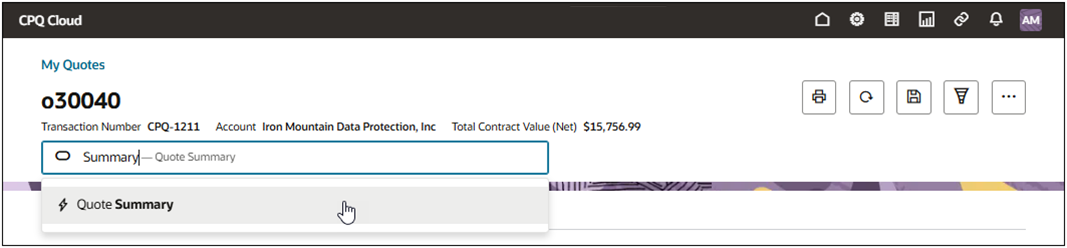
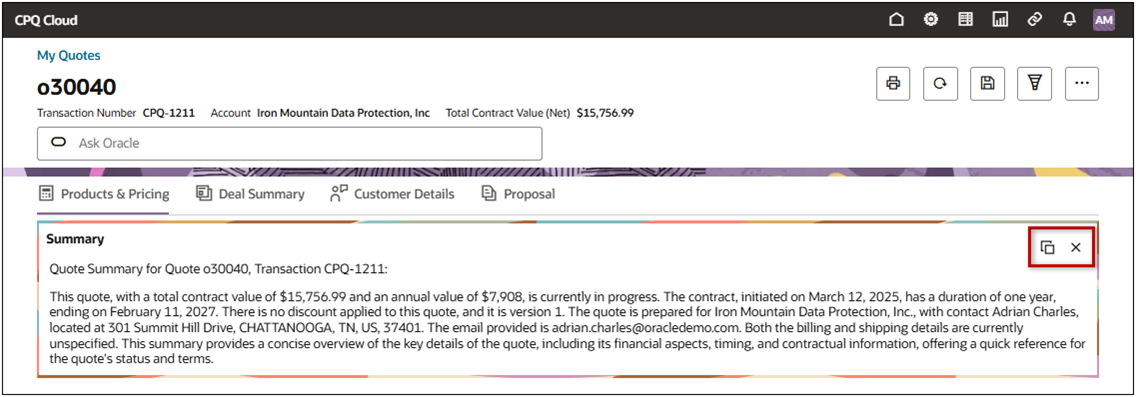
In the Redwood Quote UI, Generative AI (GenAI) quote summaries are incorporated into the Ask Oracle assist bar. Ask Oracle acts as an intelligent assistant, guiding users through the quote summary process, offering real-time suggestions, and providing on-demand insights about key components of the quote, such as pricing, discounts, and terms.
Oracle CPQ leverages Generative AI (GenAI) to automatically generate comprehensive quote summaries. Users can then choose to use the generated quote summary when communicating with customers or internal stakeholders, as needed. The new main document Generate Quote Summary type action is used to retrieve the GenAI summary from an integrated Oracle Sales site. The new GenAI quote summaries are available for Redwood Quote UIs and JET Transaction UIs.
Oracle CPQ 26C enhanced the Quote Summary AI Agent by supporting a configurable AI-agent execution path for quoting workflows. Administrators can configure the agent so sales users can generate quote summaries that include a clear overview of the quote and recommended next steps to help move the opportunity forward. This enhancement provides:
-
AI agent-based quote summary generation that customers can configure for their quoting workflows.
-
Structured output with two sections: Summary and Recommended Next Steps.
-
Context-aware guidance based on the current stage of the quote process.
-
Validation of required fields, with prompts for missing or incomplete information that may block progress.
-
Action-oriented insights that help sales users advance quotes more efficiently.
GenAI quote summaries provide the following business benefits:
-
Enhanced Communication: Providing a rich, GenAI quote summaries improves the clarity and effectiveness of communications with approvers, buyers, and customers.
-
Time Efficiency: Automating the generation of quote summaries reduces the time and effort required by sales representatives and administrators.
-
Consistency: Ensures consistent and accurate presentation of quote details across different scenarios and communication channels.
CPQ Administrator Assistant in Studio AI
Oracle 26A provides the preconfigured CPQ Administrator Assistant template in the Oracle Fusion > Tools > AI Agent Studio. Administrators can copy the template and upload their documentation to support chat assist agents that enable users to ask questions and receive precise, context-driven responses derived directly from the uploaded resources. For more information, refer to How do I use AI Agent Studio?
Administrators can associate a published AI Agent to the Quote Assist agent in the Redwood Quote Designer. The associated AI Agent will be source when users access Quote Assist from Ask Oracle on the Quote List or Quote UI. Refer to Enable a Quote Assistance Agent to enable and set up Quote Assist for the Redwood Quotes List and Quote UI.
AI-Powered Rewrite Assistant
Oracle CPQ 25D and later provides an AI Rewrite Assistant for the Redwood Quote UI to enhance user productivity and communication quality. This feature provides intelligent, context-aware rewriting capabilities for various text entry points including customer emails and Rich Text attributes of a Quote. The goal is to help users quickly refine content for clarity, tone, grammar, and impact - without needing manual edits or external tools. Context-aware re-writing capabilities for text based communications supports the larger vision of smart, user-friendly, and modern CPQ authoring experiences that are both scalable and aligned with Redwood UX.
Key Features & Capabilities:
-
One-click rewrite options using AI (e.g., shorten, elaborate, make formal/informal, fix grammar, etc.)
-
Contextual awareness based on content type (email vs proposal vs template)
-
Seamless integration into existing rich text editors and text input fields
-
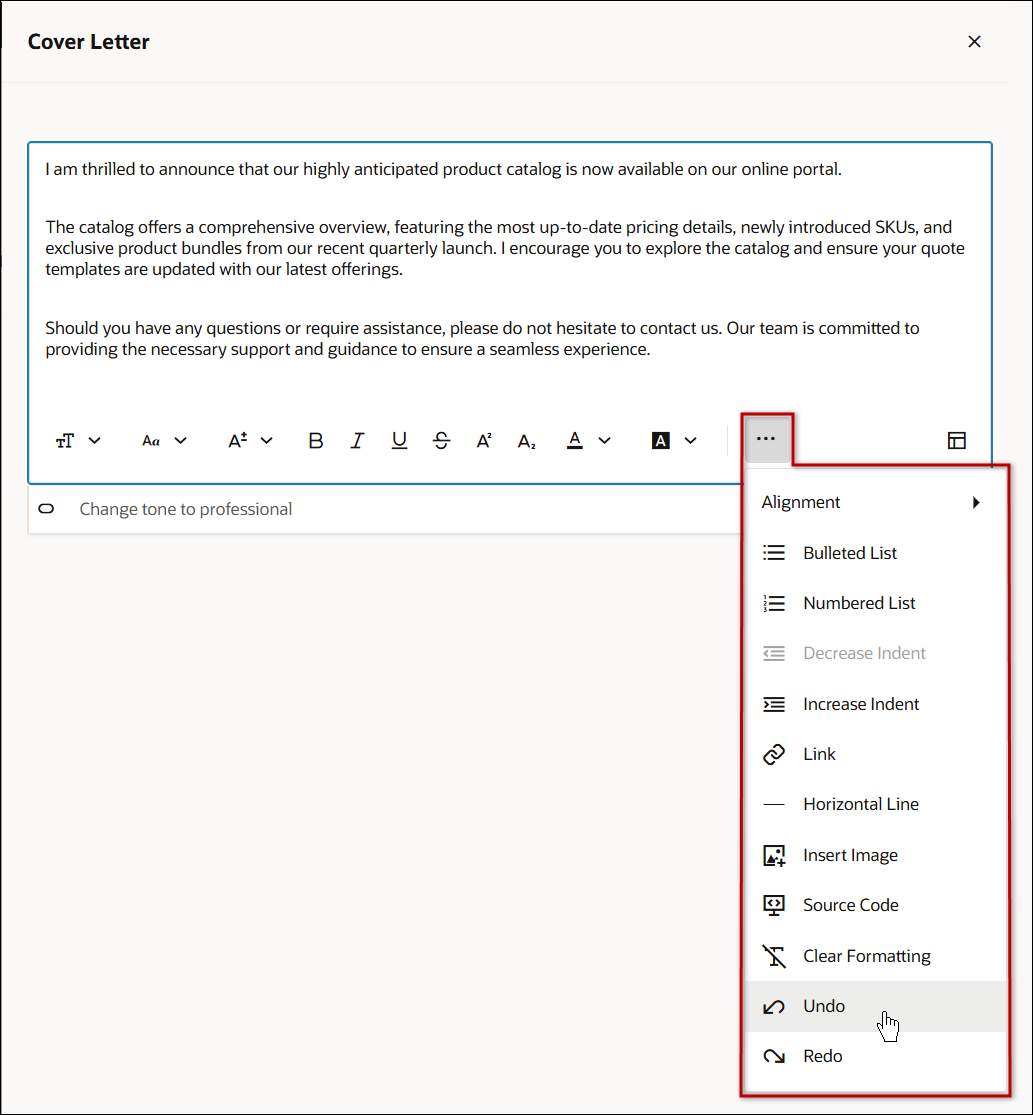
Safe, non-destructive edits with undo and preview options
-
Administration governance: optional toggle to enable/disable rewrite on supported fields
 Generate AI Rewrite for a Rich Text Type Attribute
 icon to select and insert text from a save template.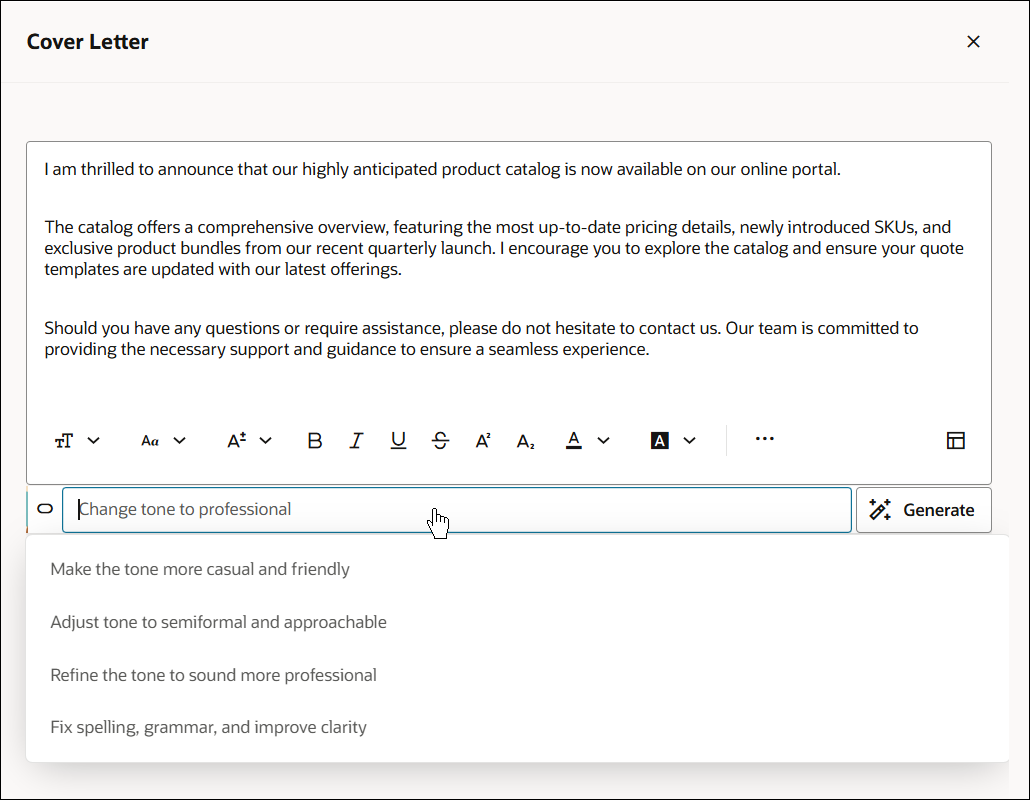
Generate AI Rewrite for an Email
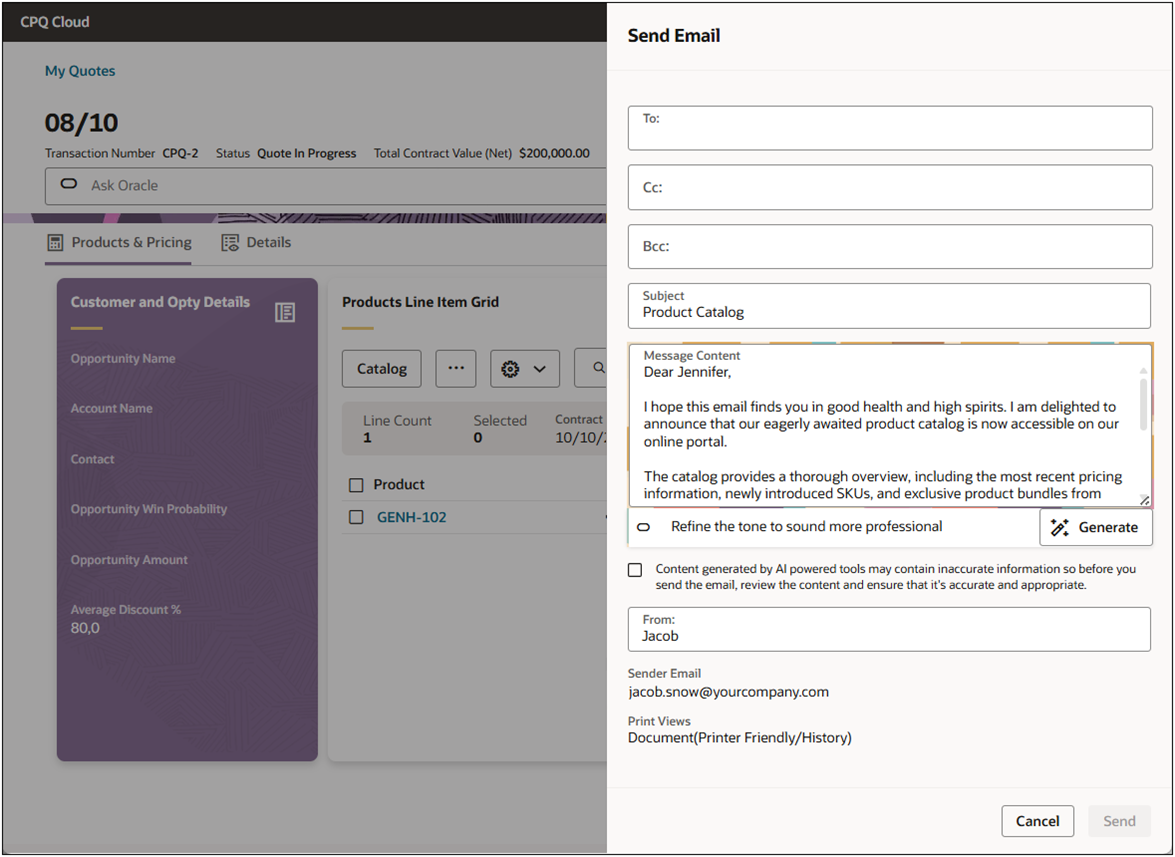
AI-Powered Rewrite Assistant for Administrator
The Oracle CPQ 26C and later Redwood UI Rich Text Editor (RTE) supports AI-assisted rewriting actions for template content. You can request highlight text and request improvements for clarity, tone, grammar, and style while preserving the business intent of the message using the AI Rewrite Tools.
Feature Highlights and Benefits:
-
Rewrite selected template text for clarity and readability.
-
Adjust tone of content for professional, concise, or customer-friendly communication.
-
Expand or shorten content while keeping core meaning intact.
-
Improve grammar and structural consistency across reusable templates.
-
Shortens authoring and review cycles for template content.
-
Improves consistency in customer-facing messaging across quotes and documents.
Generate AI Rewrite for Oracle CPQ RTE Template Editor
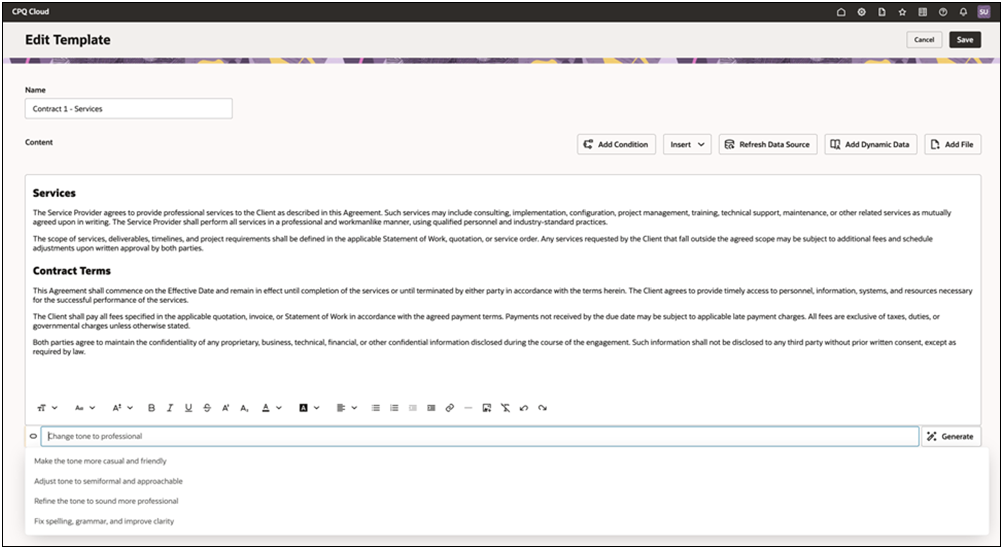
Administration
Create a Generate Quote Summary Action
Enable a Quote Assistance Agent
Enable AI-Powered Rewrite Assistant
Enable AI-Powered Rewrite Assistant for Administrator
Notes
GenAI Quote Summaries
-
The default Prompt Name (
cx.cpq.quote_summary) for the Oracle Fusion Cloud Sales quote summary action will only work with the Standard Process. -
For Blank (i.e non-Standard) Processes you need to modify the prompt in Oracle Fusion Cloud Sales to include your list of attributes. Refer to Administration Interface to Manage Prompts Used for Generative AI Features for more information.
CPQ Administrator Assistant in Studio AI
- Customers must have a provisioned Oracle Fusion environment.
- Administrators must have AI Studio Agent Access and CPQ Application Administrator Permission.
AI-Powered Quote Assistance Agent
- For best results, provide clear business intent and relevant product details when interacting with the Assistant. More context helps the Assistant identify products and recommend appropriate quote action.
- Review AI-generated product suggestions and quote summaries before finalizing quote updates to ensure they align with customer requirements and business policies.
- Product identification results are based on supported products, product categories, and product families available within your Oracle CPQ implementation.
-
The Assistant is designed to accelerate quote preparation and guidance; users remain responsible for validating quote content before submission or approval.


