Redwood Quote - Add Products
Overview
The Add Products action allows users to search and then add parts, models, BOMs, and Favorites to a quote from a single consolidated page. Sales users can browse and select configuration models to add to the quote. This feature unifies the sales user experience for finding, selecting, and adding products to a quote.
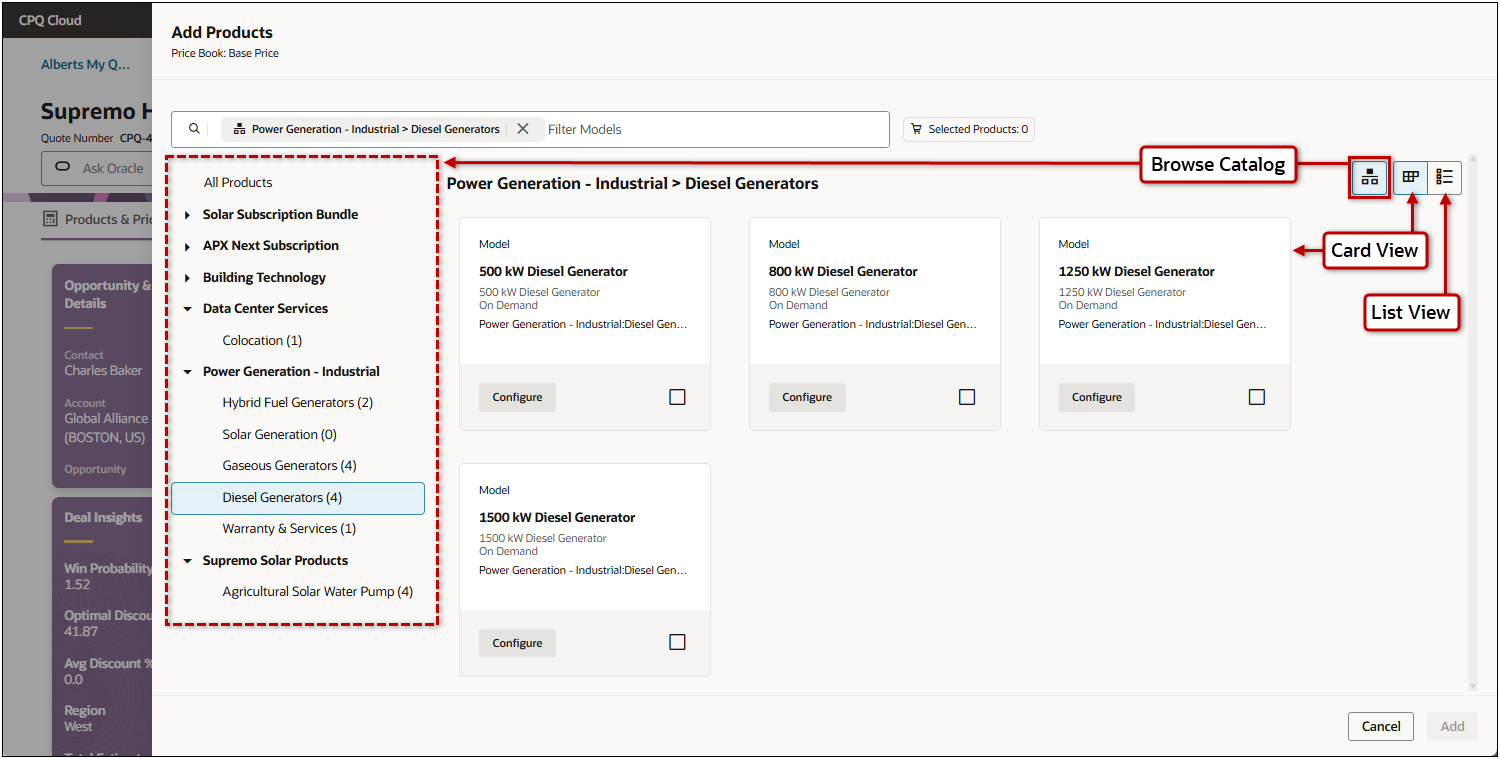
When sales users click Add Products, the Add Products drawer opens. The catalog, which is displayed on the left side of the drawer, allows users to navigate through available product hierarchies. Products can be displayed in a card view or a list view. When a user finds desired products, they can select the products and click Add to add the items to the quote.
 Search and Filter
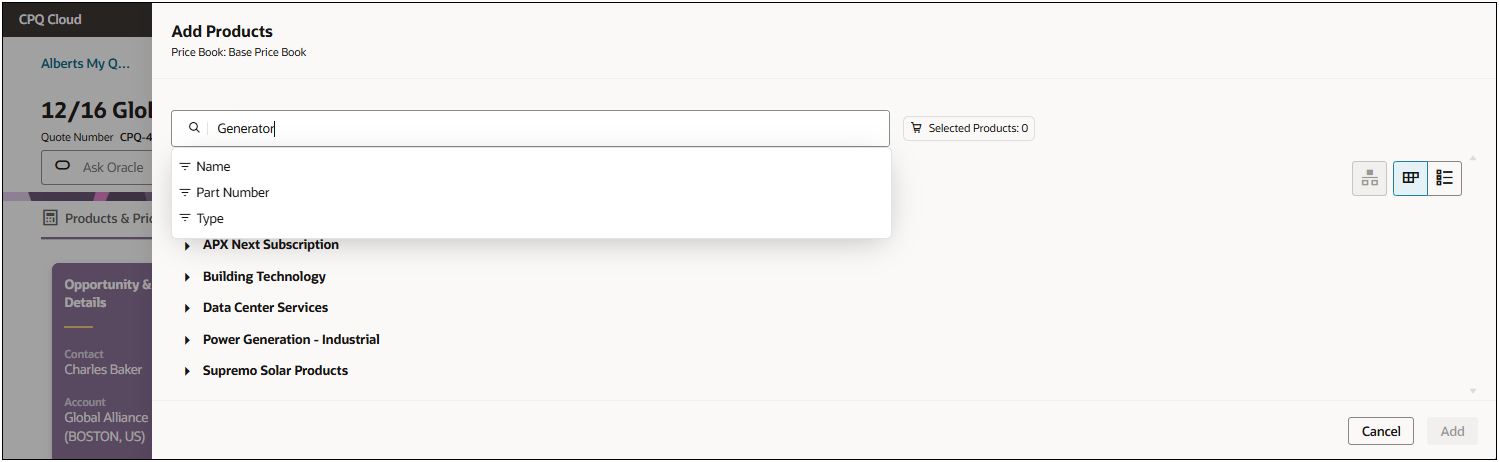
The Add Products drawer allows users to define search criteria and filter results by Name, Part Number, or Type.
Part Custom Fields in Product Search (Oracle CPQ 25B)
Beginning in Oracle CPQ 25B, Add Products in the Redwood Quote UI will also utilize search-enabled Part Custom Fields for product search criteria and display in product search results. Sales users can now use defined Part Custom Fields to further refine product search results when searching for parts to add to a transaction the Redwood Quote UI. View Example
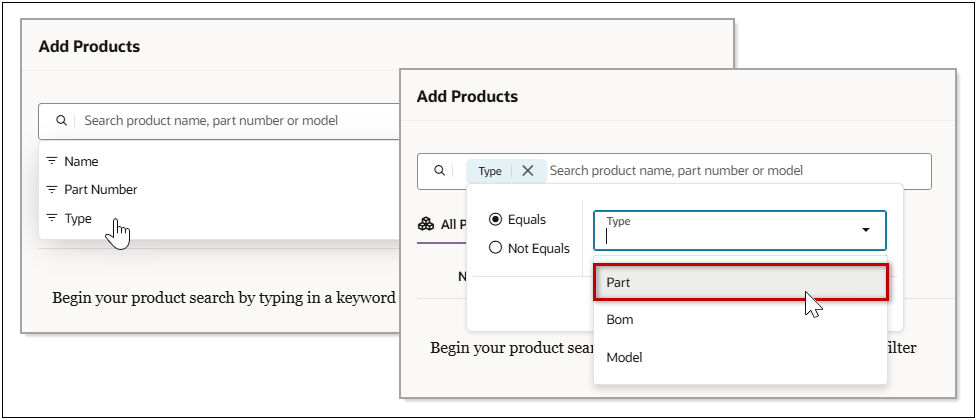
For example, a customer wants their sales users to be able to search parts based on "Size" and "Color". The sales user selects the Type filter, the selects the Parts type.
After the Part type is selected, the "Color" and "Size" Part Custom Fields appear in the filter list.
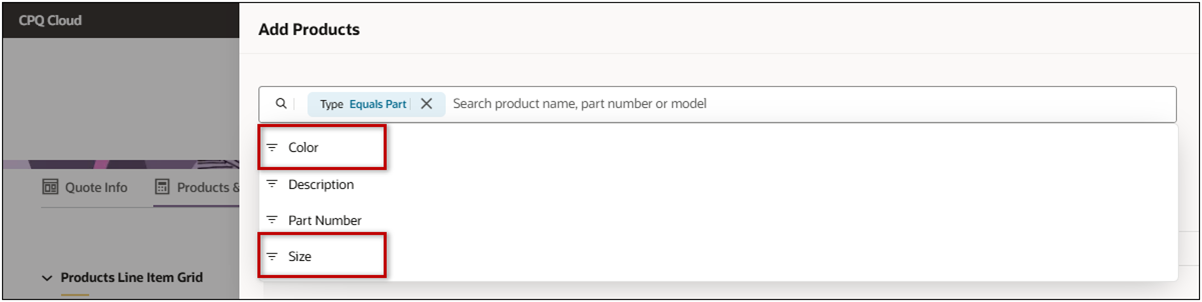
The sales user can select the available filters and define applicable criteria to filter the search results.
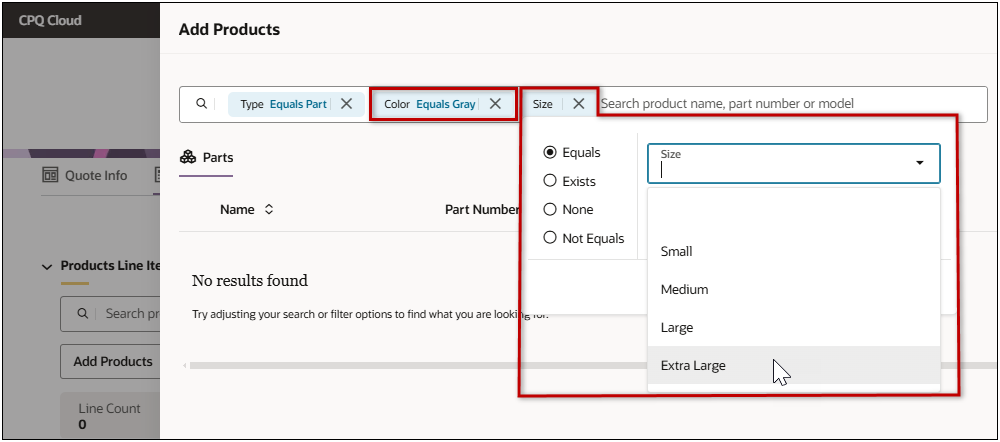
Customers can also display relevant Part Custom Fields in the parts search results. In the following example the "Color", "Size", and "Weight" fields are displayed.
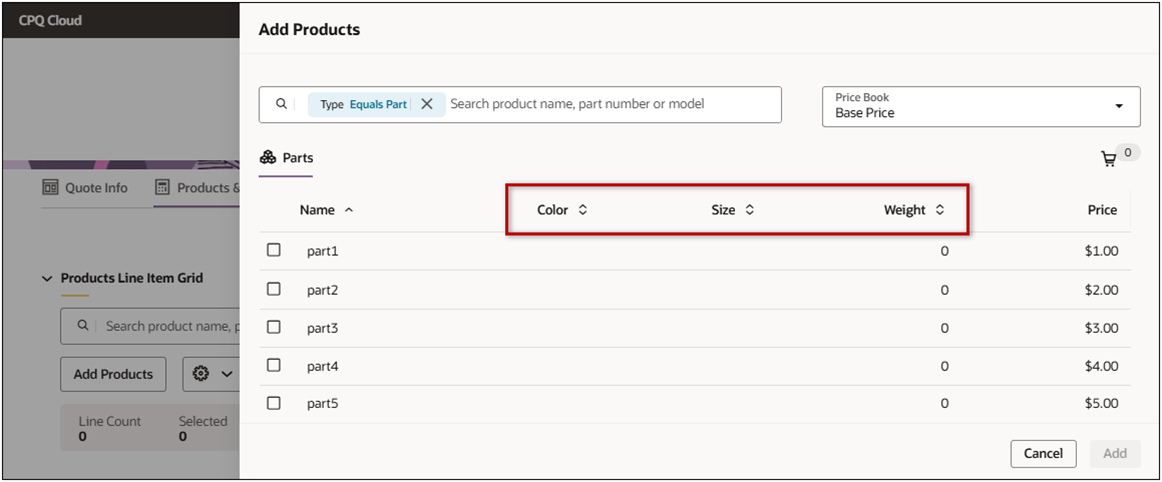
Refer to Part Custom Fields to enable Search Page and Search Page Results for Part Custom Fields.
Configure Products and View Details
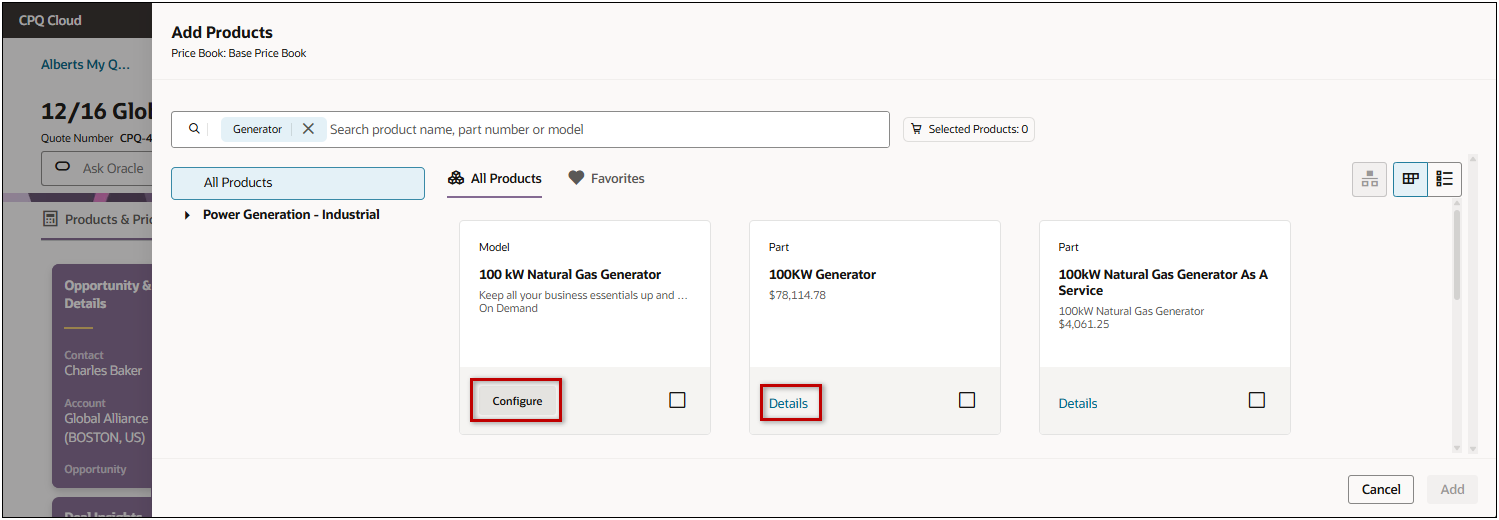
In the card view, users can click Configure to launch the configurator for a model and they can view Details for parts and BOMs.
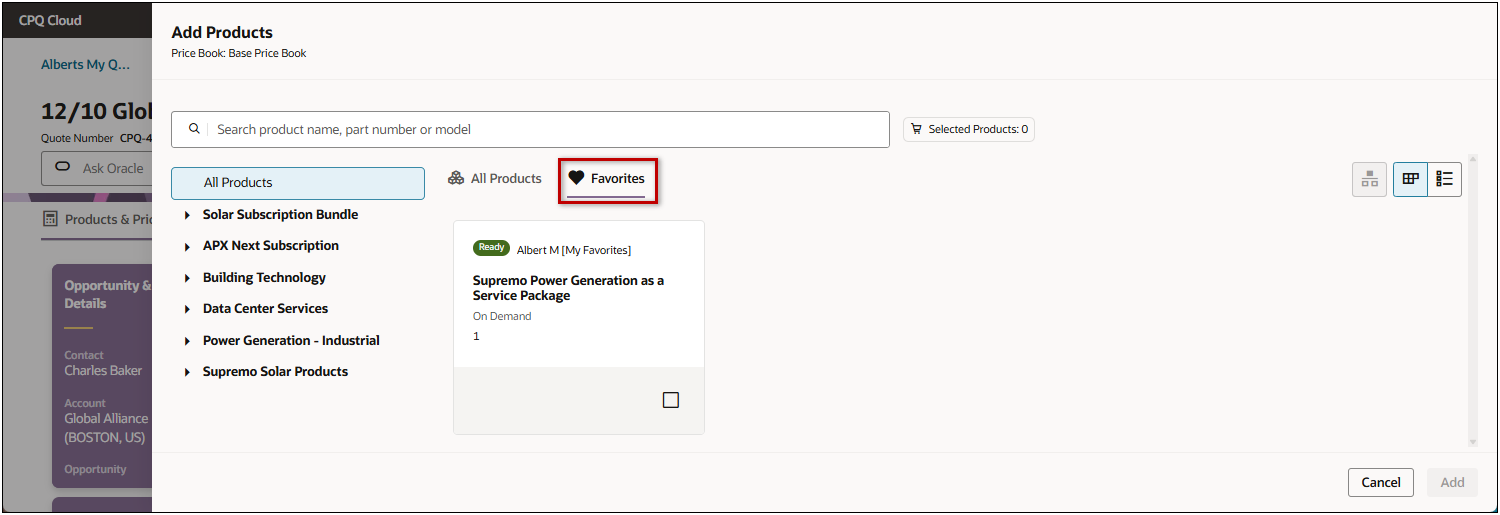
View Favorites
Users can click the Favorites tab to search and add products from their favorite items.
AI-Generated Recommendations
A quoting system that proactively recommends commonly grouped products fulfills critical business needs by enhancing revenue, efficiency, and customer satisfaction. It boosts cross-selling opportunities by suggesting complementary items, increasing order value and profit margins. Customers benefit from a personalized experience, receiving relevant recommendations that simplify decisions. Operationally, the system streamlines quoting processes, reduces manual errors, and improves accuracy. Additionally, it generates data-driven insights, uncovering patterns for inventory management and targeted marketing. Ultimately, this fosters loyalty by positioning the business as a customer-centric partner, offering thoughtful solutions while maintaining competitive differentiation.
AI-Generated Product Recommendations (Oracle CPQ 25C)
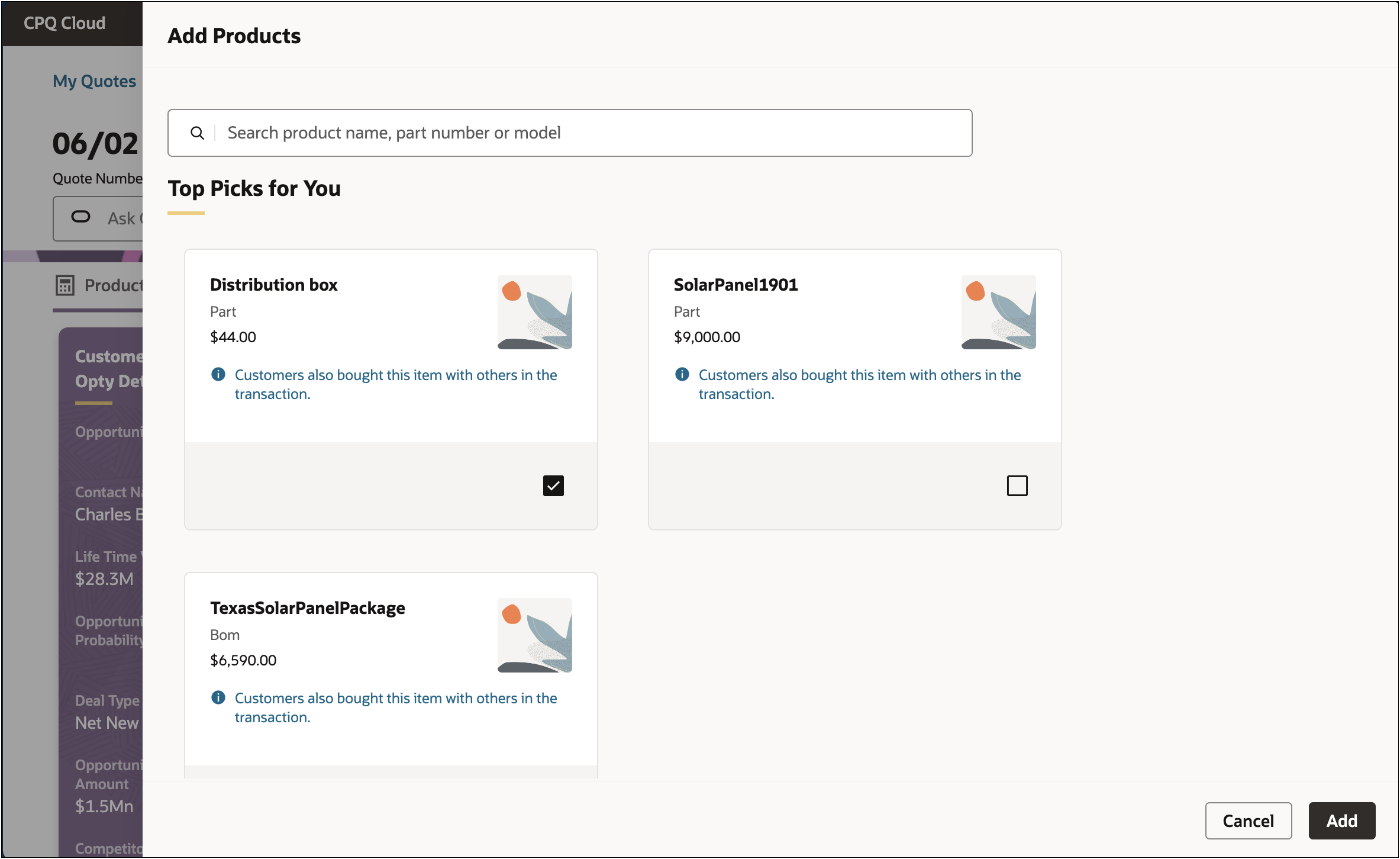
The AI-generated product recommendations suggest products to be added alongside the current items in the quote. The product recommendations are based on the most commonly sold products, in the context of the quote. This makes it easier, and faster, for sales users to find the right products for their customers.
When enabled and deployed, product recommendations are displayed when a user adds at least one product to a quote and then clicks Add Products.
AI-Generated Top-Selling Configurations Recommendations (Oracle CPQ 26B)
Starting with Oracle CPQ 26B, CPQ will use machine learning to recommend top-selling configurations for configurable products, based on actual sales data from past transactions. This dynamic approach offers more commercially accurate and relevant suggestions compared to static Favorites defined by users. Top-Selling Configurations Recommendations provide the following business benefits:
-
Significantly reduces the time sales users spend configuring products from scratch, leading to faster deal closures.
-
Provides quicker, more efficient, and more complete configuration recommendations.
-
Removes the need for manual analysis or custom solutions to identify well-selling product configurations, delivering better sales guidance directly within CPQ
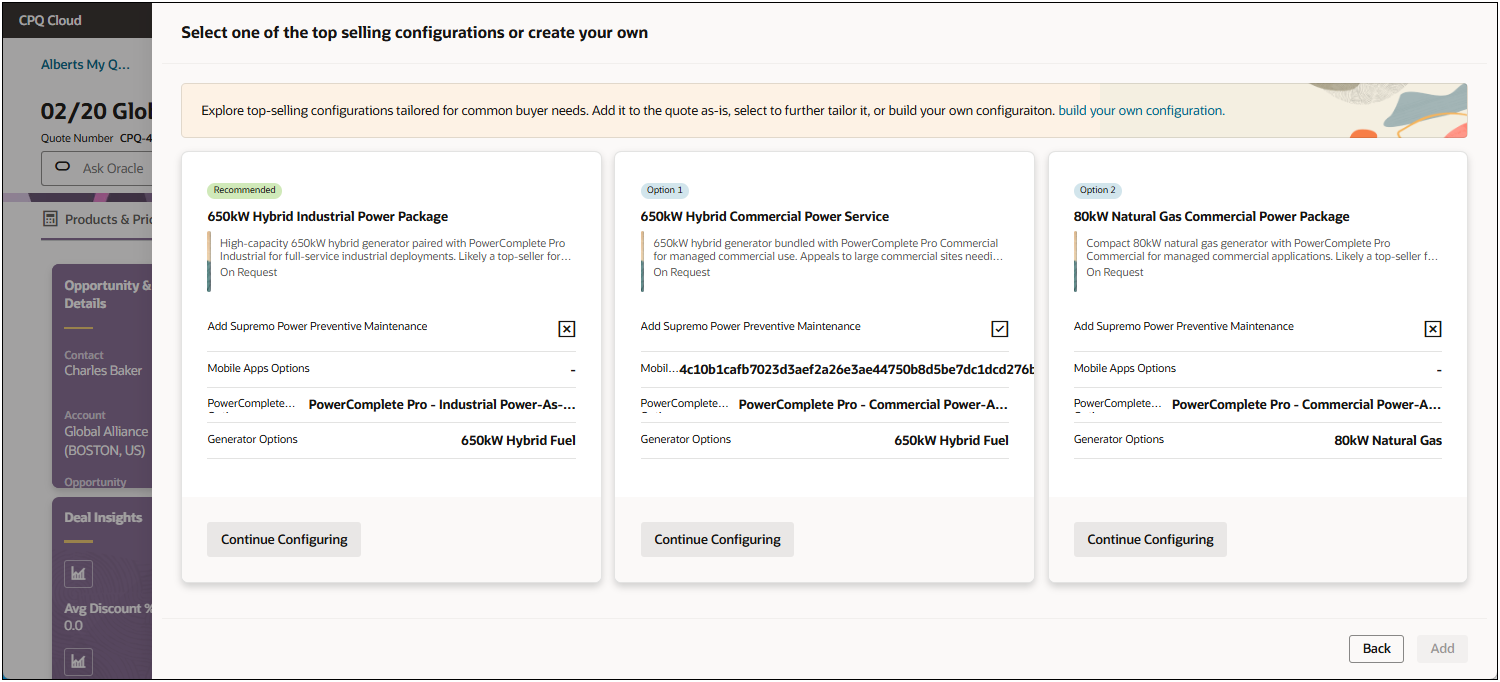
When enabled and deployed, top selling configuration recommendations are displayed when a user clicks Add Products and opts to Configure an applicable model.
The top selling configurations are displayed along with relevant attributes that distinguish each configuration.
-
When users click Continue Configuring, they can review and potentially edit the full proposed configuration before adding it to their quote.
-
If they prefer to discard the recommended configurations, they can click build your own configuration.
AI-Assisted Add Products
Oracle CPQ 26B introduced AI-Assisted Add Products for the Redwood Quote UI. This AI agent automatically identifies and extracts product details from customer-provided documents and converts unstructured data into structured product entries.
Oracle CPQ 26C enhanced the product extraction to enable users to submit and process multiple document formats within a single extraction experience. Users can upload purchase orders and related request documents in common business formats, including Microsoft Word documents, Microsoft Excel spreadsheets, image-based files, and email content. The Product Extraction AI Agent processes both structured and semi-structured content and can extract information from scanned documents using Optical Character Recognition (OCR) technology when necessary. Extracted product information is returned in a structured format that can be reviewed and used as part of quote creation workflows.
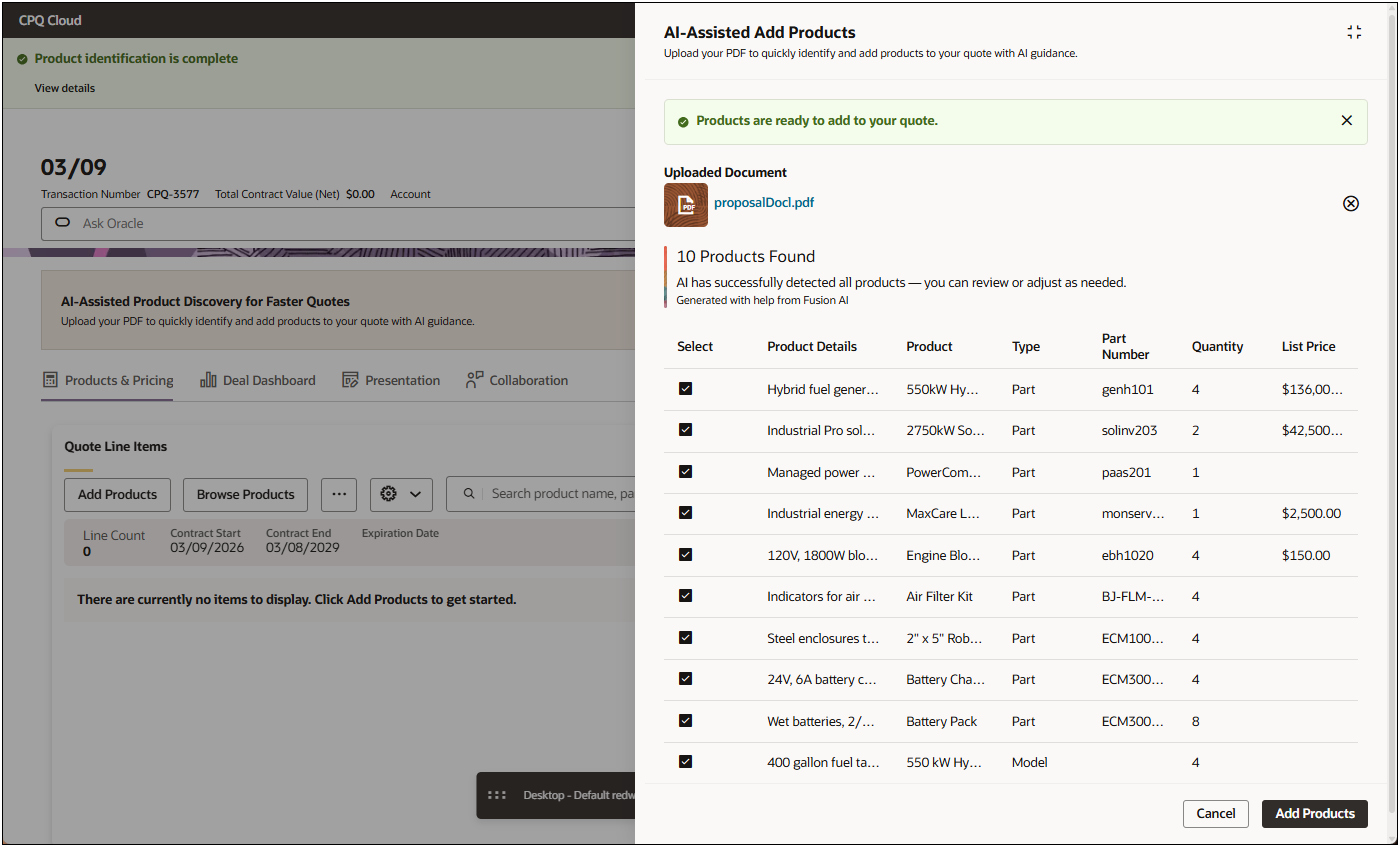
The extracted output can include key product information such as the product identifier or product name, product details, product type, and requested quantity. When available, the extraction can also capture additional commercial information, including unit price and currency, providing users with a more complete view of the extracted product data for quote preparation and review.
This feature provides the following business benefits:
-
Accelerates quote creation by removing the need for manual product entry.
-
Improves data accuracy and consistency in quotes and product catalogs.
-
Reduces the administrative effort for sales teams handling supplier or customer documents.
-
Increases sales productivity and enables faster response times through AI-powered automation.
-
reduces manual data entry from customer documents and accelerates the transition from request intake to quote preparation.
-
provides a consistent identification experience across a variety of customer-submitted content, helping improve efficiency in high-volume quoting scenarios.
When enabled, users can access the AI-Assisted Add Products from the Redwood Quote UI.
-
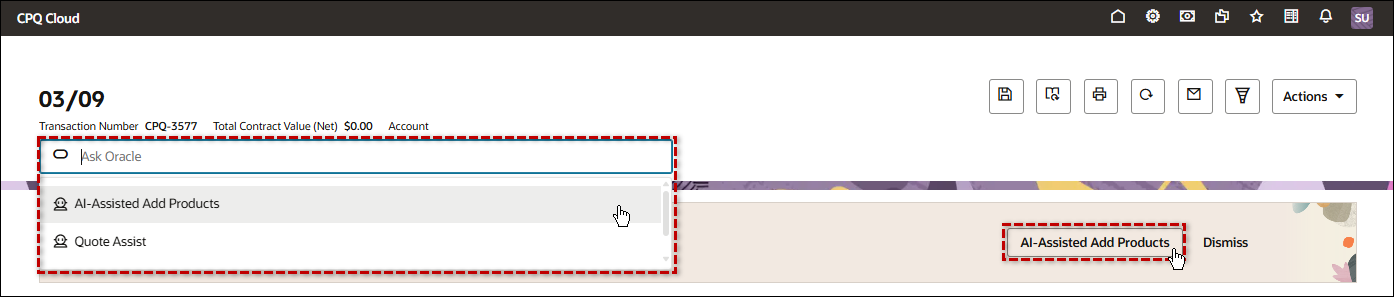
Click AI-Assisted Add Products or select the AI-Assisted Add Products agent from the Ask Oracle drop-down to access this AI agent.
-
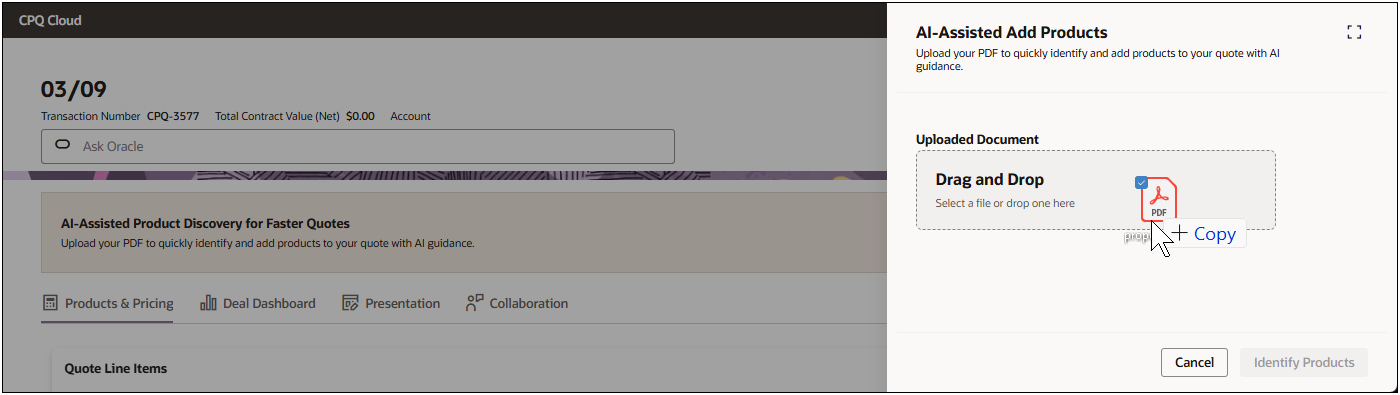
Upload a document to initiate the product extraction process. Drag and drop a file or navigate to and select the desired file.
-
The AI agent scans the uploaded document/email/notes to:
-
Identify product names, SKUs, and quantities.
-
Match extracted products against the CPQ catalog.
-
Highlight any unrecognized products for manual review.
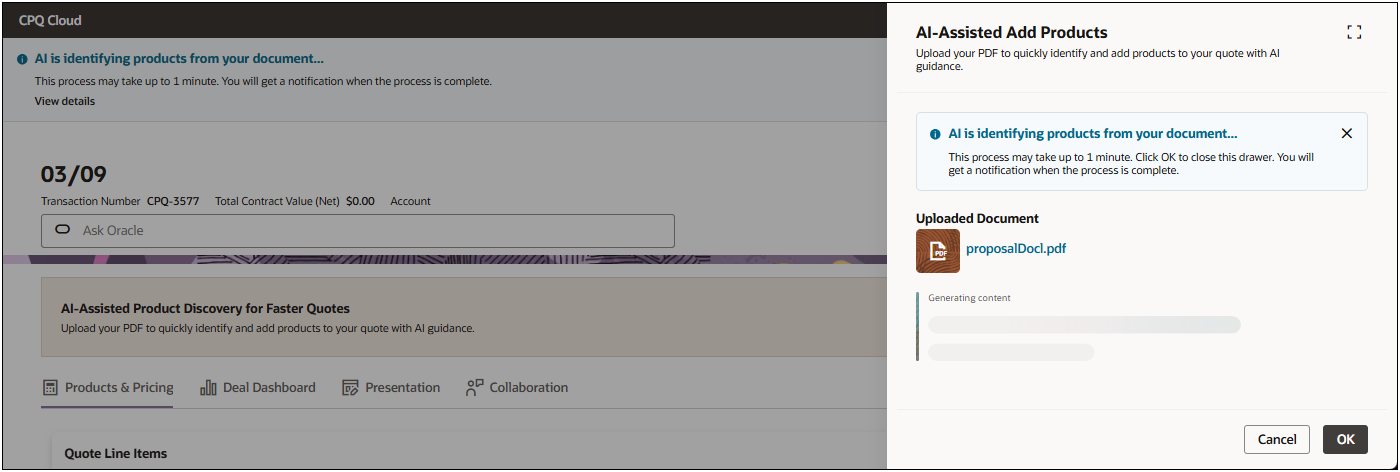
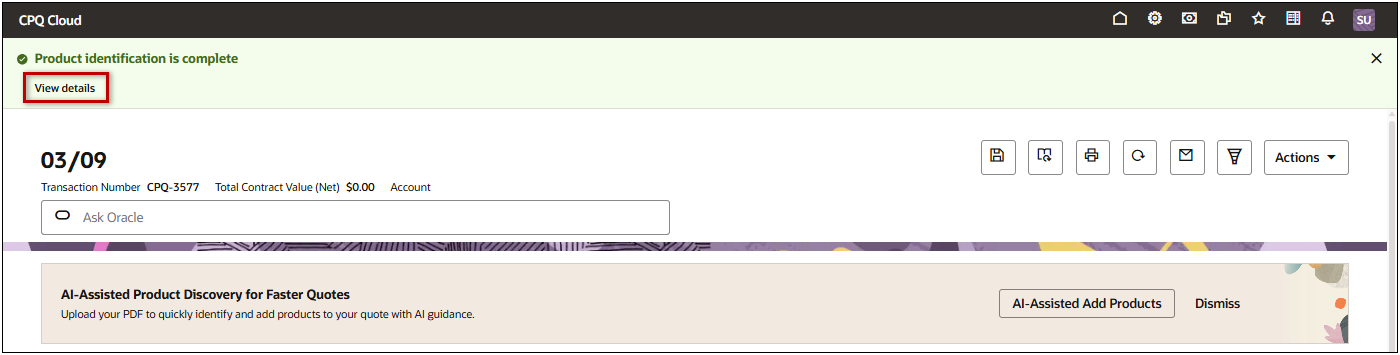
A notification is generated upon completion to provide access to the product details.
-
Review and select products to add to your quote.
-
The selected products are added to your quote, where you can edit quantities and add additional products.
-
Click Save.
Administration
Enable Product Recommendations
Complete the following steps to enable Top Selling Configurations
- Open or create a Redwood quote, navigate to the Line Item Grid, then click Design.
-
Click next to the Line Item Grid actions.
-
Click Customize Actions.
-
Open the Add Products section.
-
Check the Recommendations > Enable Recommendations option.
Note: Refer to Intelligence Portal for the setup and administration of AI-generated Product Recommendations and Top Selling Configurations.
Enable Top Selling Configurations
Complete the following steps to enable Top Selling Configurations
- Open or create a Redwood quote, navigate to the Line Item Grid, then click Design.
-
Click next to the Line Item Grid actions.
-
Click Customize Actions.
-
Open the Add Products section.
-
Check the Recommendations > Enable Top Selling Configurations option.
Note: Refer to Intelligence Portal for the setup and administration of AI-generated Product Recommendations and Top Selling Configurations.
Enable the AI-Assisted Add Products
Prerequisites:
Complete the following steps to enable AI-Assisted Add Products on the Redwood Quote UI.
-
Open or create a Redwood quote, navigate to the Line Item Grid, then click Design.
-
Click next to the Line Item Grid actions.
-
Click Customize Actions.
-
Open the AI-Assisted Add Products section.
-
Check the Enable AI-Assisted Add Products option.
Notes
Notes:
-
To customize the Add Product drawer, refer to Manage Line Item Grid > Customize the Add Products Drawer.
-
Typically, Add Products is enabled when there are no line items in a quote. But the visibility of the Add Products action can also be controlled by the Document Views and Access Rules for the Transaction Update Line Items action.
-
Refer to Intelligence Portal for the setup and administration of AI-generated Product Recommendations and Top Selling Configurations.
Notes:
-
Product extraction accuracy depends on source document quality. Low-resolution, blurry, or heavily distorted files may reduce extraction quality.
-
Review confidence scores and source references as part of your validation process before creating or updating quotes.
-
Email content containing embedded images, forwarded messages, or complex formatting may produce different extraction results depending on how the content is rendered.
-
Although spreadsheets with varying column layouts are supported, using a consistent spreadsheet structure can improve extraction accuracy and streamline bulk line-item processing.
Related Topics
See Also


