Overview
This topic covers administration of commerce attributes using the Redwood interface pages. Refer to Commerce Attributes for administration using the classic interface pages.
Commerce attributes are the foundation for input fields to collect data such as billing, shipping, parts, pricing, and revenue information. They apply to a transaction as a whole, or its specific line items, depending on in which Commerce document the attribute is created. Oracle CPQ provides default attributes as well as default attribute sets, for collecting data such as billing, shipping, and pricing information. You can also create custom Commerce attributes.
In general, for attributes to appear on documents, they must be included in document views on a layout. However, you can change the access to an attribute, choose to hide or show it, use an attribute that isn't on a layout. For more information, see the topic Accessing, Hiding, and Reading Attributes.
Standard Process Attributes
CPQ provides a Standard Process that includes several attributes that were rationalized to remove redundant attributes and to streamline and simplify Commerce integrations. Standard process attributes cannot be deleted or reordered. If required, default values and modify actions can be overridden by administrators to incorporate their customization logic.
Administration Pages
The Attributes tab provides access to main document or sub-document level attributes.
-
To access Commerce attributes, navigate to: Admin Home > Quotes > Process > Manage Transaction or Manage Transaction Line > Attributes
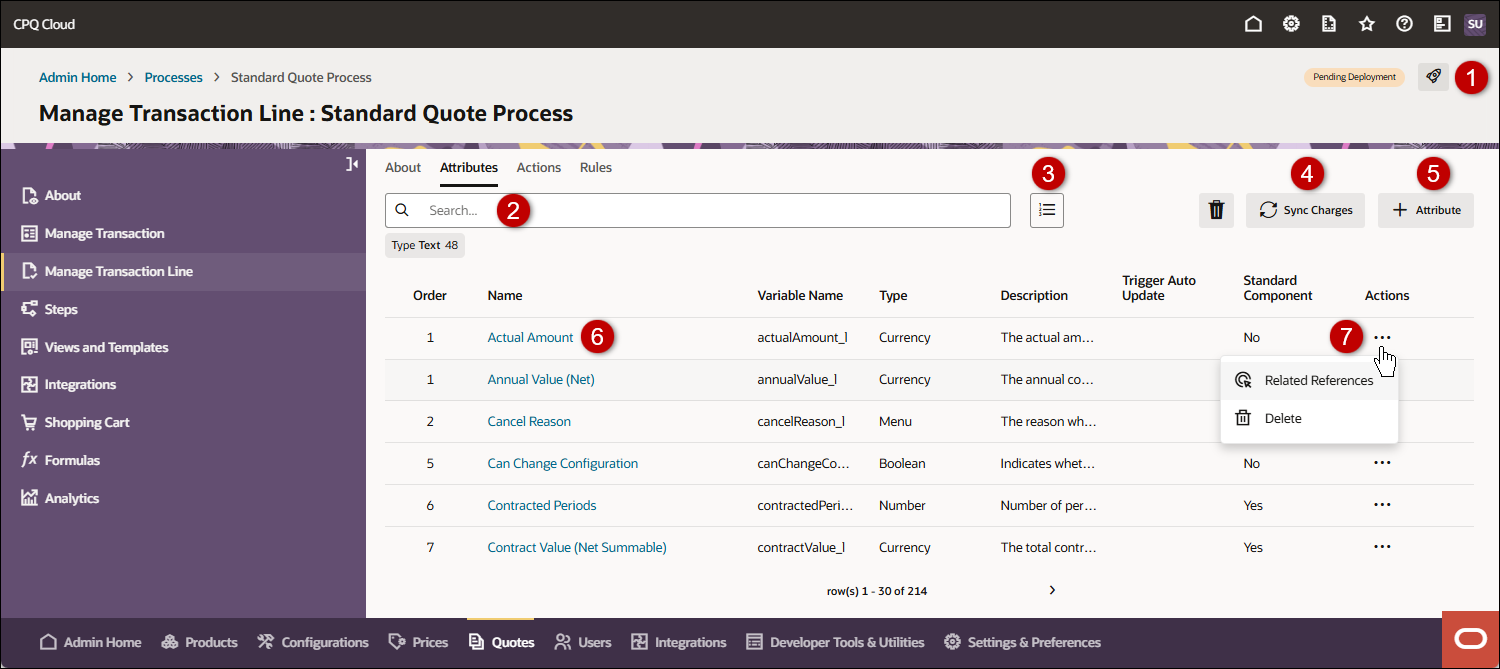
| Item | Description |
|---|---|
|
1 |
Access the Deployment Center. |
|
2 |
Search and filter attributes You can click inside the search field to filter or type in search criteria for attributes. You can also click on pre-defined filters that are provided below the search field. Type Filter - Select Type from the Search filter drop-down and select the type(s) to filter specific attribute types |
|
3 |
Reorder attributes |
|
4 |
Synchronize the Charge Array Set This action is only displayed for Transaction Line Attributes |
|
5 |
Add a new attribute |
|
6 |
View or edit an attribute |
|
7 |
The following options are available from the Actions menu:
|
The attribute drawer is used to manage attributes. The available tabs and options vary based on attribute type.
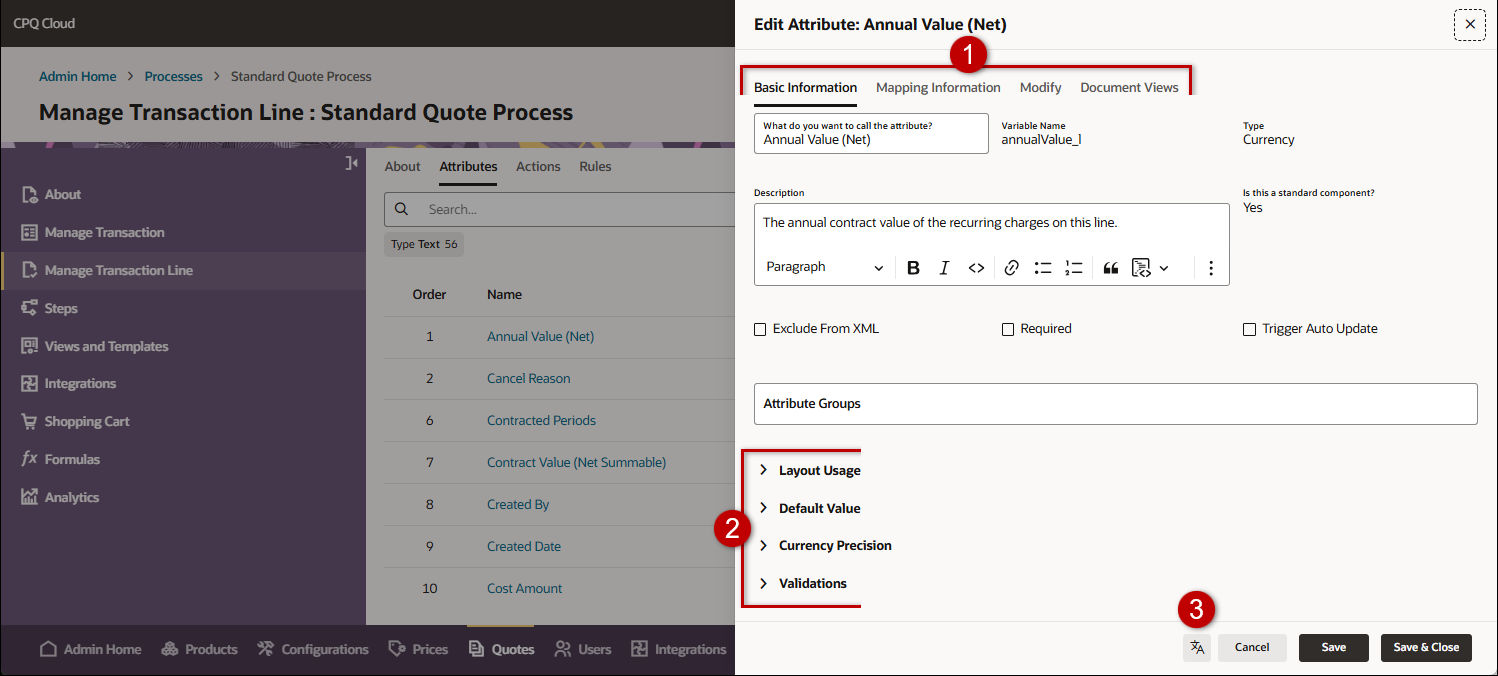
| Item | Description |
|---|---|
|
1 |
Tabs
|
|
2 |
Basic Information Tab Sections: Available sections vary based on attribute type.
|
|
3 |
Click this icon to manage attribute translations. |
Administration
Complete the following steps to create a Transaction (main document) or Transaction Line (sub-document) attribute.
Notes:
- Refer to Menu Attributes to add or edit static and dynamic menu attributes.
- Refer to Array Sets to add or edit array sets.
- Refer to Attribute Sets to add or edit attribute sets.
- Navigate to Admin Home > Quotes > Process > Manage Transaction or Manage Transaction Line.
- Select the Attributes tab.
- To create an attribute, click + Attribute, then enter the following information:
- Type: Select the desired attribute type from the drop-down.
- What is the name of the attribute? This the name of the attribute.
Variable Name: The variable name of the attribute.
Click inside this filed to auto-populate the variable name. Variable names can only contain alpha-numeric characters and underscores. The entry can be changed before saving, but after saving the value is read-only.- Click Create to save changes. or click Cancel to exit without saving changes.
- To edit an attribute, click on the Name of the applicable attribute.
- Select the applicable attribute type for further instructions.
Boolean attributes allow you to define a field as a two choice option. Common uses are to indicate true/false, either/or, valid/invalid or to include/not include. Boolean attributes are available for main documents and sub-documents
-
Select the Basic Information tab to edit general options.
-
What do you want to call this attribute? This is the name of the attribute
-
Description The description of the attribute
-
Is this a standard component? Identifies if this attribute is a Standard Process attribute. This value is read-only.
-
Standard Process attributes cannot be deleted.
-
Administrators can view default values for Standard Process attributes, override values to incorporate custom logic, and remove overrides to easily return to default values.
-
-
Exclude from XML: This selection determines if an attribute is available to include in Email Designer and Document Designer documents. The attribute is available when this option is unselected.
-
Trigger Auto Update: If this option is selected, a change of value of this attribute by the user will trigger updates by the system without the user invoking an action.
Note: Administrators should note that transaction level Auto Update Before Formulas will not execute for attributes without auto-update enabled. So if an attribute with Trigger Auto Update enabled has formula that references an attribute without auto-update, the attribute with Trigger Auto Update enabled will not execute the Auto Update Before Formulas when the attribute without auto-update is modified.
-
True Label and False Label: Text to appear for the 'true' / 'false' options.
-
-
Open the Layout Usage section to view layout references and access JET and mobile layouts (if applicable).
-
Referenced in Redwood Layout? Indicates if this attribute is displayed in the Redwood Quote UI. Refer to the Redwood Quote Designer for the quote layout.
-
JET Layout Path: Specifies the layout path for this attribute.
-
This option is only displayed when a JET layout exists
-
Click Save and Edit JET Responsive Layout to open layout editor.
-
-
Mobile Layout Path: Specifies the layout path for this attribute.
-
This option is only displayed when a mobile layout exists
-
Click Save and Edit Mobile Layout to open layout editor.
-
-
Open the Default Value section to manage the default value for the attribute.
-
Override Standard Default: This option is displayed for Standard Process attributes
-
To customize standard defaults,
Check the Override Standard Default option, and then click Save. -
To return to the standard defaults,
Uncheck the Override Standard Default option, and then click Save.
-
-
If applicable, select one of the following options to set the Default Value.
-
Data - Select this option to define a static value to set the default value.
-
Function - Select this option to define a dynamic default value, click Define Function to create a function that sets the default value into the field.
-
Formula - Select this option to use a formula to set the default value, click Save and Edit Formula to create a formula that sets the default value into the field. Refer to Formula Management for more information.
-
-
-
Open the Validations section to manage validation criteria for attribute values.
-
Select the Validation: None, Must be True, or Must be False.
-
- Refer to the following procedures to manage the applicable tab options:
- Mapping Information Tab: Hide Attributes for Product Types or Product Segments
Modify Tab: Set Modify Behavior for an Attribute
Document Views Tab: Set Document Views to manage attribute visibility or access for specific workflow steps and profiles
-
Click the Translations
 icon to add translations.
 -
Select one of the following:
-
Click Save to save changes and remain on the current page.
-
Click Save & Close to save changes and return to the attributes list page.
-
Click Cancel to return to the attributes list page without saving changes.
-
Currency attributes are floating numbers that are formatted based on the current user's currency preference. Currency attributes are available for main documents and sub-documents
-
Select the Basic Information tab to edit general options.
-
What do you want to call this attribute? This is the name of the attribute
-
Description The description of the attribute
-
Is this a standard component? Identifies if this attribute is a Standard Process attribute. This value is read-only.
-
Standard Process attributes cannot be deleted.
-
Administrators can view default values for Standard Process attributes, override values to incorporate custom logic, and remove overrides to easily return to default values.
-
-
Exclude from XML: This selection determines if an attribute is available to include in Email Designer and Document Designer documents. The attribute is available when this option is unselected.
-
Required: When enabled, users are required to enter a value for this attribute before proceeding.
-
Trigger Auto Update: If this option is selected, a change of value of this attribute by the user will trigger updates by the system without the user invoking an action.
Note: Administrators should note that transaction level Auto Update Before Formulas will not execute for attributes without auto-update enabled. So if an attribute with Trigger Auto Update enabled has formula that references an attribute without auto-update, the attribute with Trigger Auto Update enabled will not execute the Auto Update Before Formulas when the attribute without auto-update is modified.
-
Attribute Groups: This field is used to add an attribute to an Attribute Group. Attribute Groups can contain one or more attributes and can be referenced in SUM and AVG aggregation functions in formulas. Refer to Attribute Groups for more information.
-
-
Open the Layout Usage section to view layout references and access JET and mobile layouts (if applicable).
-
Referenced in Redwood Layout? Indicates if this attribute is displayed in the Redwood Quote UI. Refer to the Redwood Quote Designer for the quote layout.
-
JET Layout Path: Specifies the layout path for this attribute.
-
This option is only displayed when a JET layout exists
-
Click Save and Edit JET Responsive Layout to open layout editor.
-
-
Mobile Layout Path: Specifies the layout path for this attribute.
-
This option is only displayed when a mobile layout exists
-
Click Save and Edit Mobile Layout to open layout editor.
-
-
Open the Default Value section to manage the default value for the attribute.
-
Override Standard Default: This option is displayed for Standard Process attributes
-
To customize standard defaults,
Check the Override Standard Default option, and then click Save. -
To return to the standard defaults,
Uncheck the Override Standard Default option, and then click Save.
-
-
If applicable, select one of the following options to set the Default Value:
-
None - Select this option to not specify a default value.
-
Data - Select this option to define a static value to set the default value.
-
Function - Select this option to define a dynamic default value, click Define Function to create a function that sets the default value into the field.
-
Formula - Select this option to use a formula to set the default value, click Save and Edit Formula to create a formula that sets the default value into the field. Refer to Formula Management for more information.
-
-
-
Open the Currency Precision section to specify how many decimal places are allowed for supported currency types.
-
Open the Validations section to manage validation criteria for attribute values.
-
Maximum Field Length: This value determines the maximum number of characters that can be input into the field. The valid range for this value is 1 through 255.
-
Validation: There are five validation options: Check Currency, Check Currency in Range, Check Currency for Maximum, Check Currency for Minimum, or Check Currency for Non-Negative.
-
Maximum Value: This field contains the maximum monetary value that can be input into the currency attribute.
-
Minimum Value: This field contains the minimum monetary value that can be input into the currency attribute. The minimum value must be less than the maximum value.
-
- Refer to the following procedures to manage the applicable tab options:
- Mapping Information Tab: Hide Attributes for Product Types or Product Segments
Modify Tab: Set Modify Behavior for an Attribute
Document Views Tab: Set Document Views to manage attribute visibility or access for specific workflow steps and profiles
-
Click the Translations
icon to add translations. -
Select one of the following:
-
Click Save to save changes and remain on the current page.
-
Click Save & Close to save changes and return to the attributes list page.
-
Click Cancel to return to the attributes list page without saving changes.
-
The customer Id attribute is used to integrate Accounts data. The Customer Id attribute is only available for main documents. Only one Customer Id attribute can be added per main document.
-
Select the Basic Information tab to edit general options.
-
What do you want to call this attribute? This is the name of the attribute
-
Description The description of the attribute
-
Is this a standard component? Identifies if this attribute is a Standard Process attribute. This value is read-only.
-
Standard Process attributes cannot be deleted.
-
Administrators can view default values for Standard Process attributes, override values to incorporate custom logic, and remove overrides to easily return to default values.
-
-
Exclude from XML: This selection determines if an attribute is available to include in Email Designer and Document Designer documents. The attribute is available when this option is unselected.
-
Required: When enabled, users are required to enter a value for this attribute before proceeding.
-
-
Open the Layout Usage section to view layout references and access JET and mobile layouts (if applicable).
-
Referenced in Redwood Layout? Indicates if this attribute is displayed in the Redwood Quote UI. Refer to the Redwood Quote Designer for the quote layout.
-
JET Layout Path: Specifies the layout path for this attribute.
-
This option is only displayed when a JET layout exists
-
Click Save and Edit JET Responsive Layout to open layout editor.
-
-
Mobile Layout Path: Specifies the layout path for this attribute.
-
This option is only displayed when a mobile layout exists
-
Click Save and Edit Mobile Layout to open layout editor.
-
-
Open the Default Value section to manage the default value for the attribute.
-
Override Standard Default: This option is displayed for Standard Process attributes
-
To customize standard defaults,
Check the Override Standard Default option, and then click Save. -
To return to the standard defaults,
Uncheck the Override Standard Default option, and then click Save.
-
-
If applicable, select one of the following options to set the Default Value:
-
None - Select this option to not specify a default value.
-
System Variable - Select this option to choose a system attribute to auto-populate this field.
-
Data - Select this option to define a static value to set the default value.
-
Function - Select this option to define a dynamic default value, click Define Function to create a function that sets the default value into the field.
-
Formula - Select this option to use a formula to set the default value, click Save and Edit Formula to create a formula that sets the default value into the field. Refer to Formula Management for more information.
-
-
-
Open the Validations section to manage validation criteria for attribute values.
-
Maximum Field Length: This value determines the maximum number of characters that can be input into the field. The valid range for this value is 1 through 255.
-
- Refer to the following procedures to manage the applicable tab options:
- Mapping Information Tab: Hide Attributes for Product Types or Product Segments
Modify Tab: Set Modify Behavior for an Attribute
Document Views Tab: Set Document Views to manage attribute visibility or access for specific workflow steps and profiles
-
Click the Translations
icon to add translations. -
Select one of the following:
-
Click Save to save changes and remain on the current page.
-
Click Save & Close to save changes and return to the attributes list page.
-
Click Cancel to return to the attributes list page without saving changes.
-
Date attributes are displayed as a text box with a date selector tool. This gives the user the option to either enter a date manually or select one from the calendar. An automatic validation runs to ensure that the date complies with the application and user profile information. Date attributes are available for main documents and sub-documents.
-
Select the Basic Information tab to edit general options.
-
What do you want to call this attribute? This is the name of the attribute
-
Description The description of the attribute
-
Is this a standard component? Identifies if this attribute is a Standard Process attribute. This value is read-only.
-
Standard Process attributes cannot be deleted.
-
Administrators can view default values for Standard Process attributes, override values to incorporate custom logic, and remove overrides to easily return to default values.
-
-
Exclude from XML: This selection determines if an attribute is available to include in Email Designer and Document Designer documents. The attribute is available when this option is unselected.
-
Required: When enabled, users are required to enter a value for this attribute before proceeding.
-
Includes Time: If this option is selected, a timestamp is included with the date.
-
-
Open the Layout Usage section to view layout references and access JET and mobile layouts (if applicable).
-
Referenced in Redwood Layout? Indicates if this attribute is displayed in the Redwood Quote UI. Refer to the Redwood Quote Designer for the quote layout.
-
JET Layout Path: Specifies the layout path for this attribute.
-
This option is only displayed when a JET layout exists
-
Click Save and Edit JET Responsive Layout to open layout editor.
-
-
Mobile Layout Path: Specifies the layout path for this attribute.
-
This option is only displayed when a mobile layout exists
-
Click Save and Edit Mobile Layout to open layout editor.
-
-
Open the Default Value section to manage the default value for the attribute.
-
Override Standard Default: This option is displayed for Standard Process attributes
-
To customize standard defaults,
Check the Override Standard Default option, and then click Save. -
To return to the standard defaults,
Uncheck the Override Standard Default option, and then click Save.
-
-
If applicable, select one of the following options to set the Default Value:
-
None - Select this option to not specify a default value.
-
Data - Select this option to define a static value to set the default value.
-
System Variable - Select this option to choose a system attribute to auto-populate this field.
-
Function - Select this option to define a dynamic default value, click Define Function to create a function that sets the default value into the field.
-
Formula - Select this option to use a formula to set the default value, click Save and Edit Formula to create a formula that sets the default value into the field. Refer to Formula Management for more information.
-
-
-
Open the Validations section to manage validation criteria for attribute values.
-
Maximum Field Length: This value determines the maximum number of characters that can be input into the field. The valid range for this value is 1 through 255.
-
Validation: There are three validation options: None, Check for Future Date, Check Date in Range.
-
Start Date: This field contains the start date value that can be input into the date attribute.
-
End Date: This field contains the end date value that can be input into the date attribute.
-
- Refer to the following procedures to manage the applicable tab options:
- Mapping Information Tab: Hide Attributes for Product Types or Product Segments
Modify Tab: Set Modify Behavior for an Attribute
Document Views Tab: Set Document Views to manage attribute visibility or access for specific workflow steps and profiles
-
Click the Translations
icon to add translations. -
Select one of the following:
-
Click Save to save changes and remain on the current page.
-
Click Save & Close to save changes and return to the attributes list page.
-
Click Cancel to return to the attributes list page without saving changes.
-
File attachment attributes are used to include additional documents, such as proposals or eSignature documents. File Attachment attributes are available for main documents and sub-documents
-
Select the Basic Information tab to edit general options.
-
What do you want to call this attribute? This is the name of the attribute
-
Description The description of the attribute
-
Is this a standard component? Identifies if this attribute is a Standard Process attribute. This value is read-only.
-
Standard Process attributes cannot be deleted.
-
Administrators can view default values for Standard Process attributes, override values to incorporate custom logic, and remove overrides to easily return to default values.
-
-
Exclude from XML: This selection determines if an attribute is available to include in Email Designer and Document Designer documents. The attribute is available when this option is unselected.
-
Required: When enabled, users are required to enter a value for this attribute before proceeding.
-
Exclude from PDF Merge: When selected, the file uploaded to this attribute is not merged with the PDF proposal.
-
-
Open the Layout Usage section to view layout references and access JET and mobile layouts (if applicable).
-
Referenced in Redwood Layout? Indicates if this attribute is displayed in the Redwood Quote UI. Refer to the Redwood Quote Designer for the quote layout.
-
JET Layout Path: Specifies the layout path for this attribute.
-
This option is only displayed when a JET layout exists
-
Click Save and Edit JET Responsive Layout to open layout editor.
-
-
Mobile Layout Path: Specifies the layout path for this attribute.
-
This option is only displayed when a mobile layout exists
-
Click Save and Edit Mobile Layout to open layout editor.
-
-
Open the Validations section to manage validation criteria for attribute values.
-
Allowed Extensions Select the file extension types that can be added to this attribute.
-
- Refer to the following procedures to manage the applicable tab options:
- Mapping Information Tab: Hide Attributes for Product Types or Product Segments
Document Views Tab: Set Document Views to manage attribute visibility or access for specific workflow steps and profiles
-
Click the Translations
icon to add translations. -
Select one of the following:
-
Click Save to save changes and remain on the current page.
-
Click Save & Close to save changes and return to the attributes list page.
-
Click Cancel to return to the attributes list page without saving changes.
-
Float attributes are floating point numbers. Float attributes are available for main documents and sub-documents
-
Select the Basic Information tab to edit general options.
-
What do you want to call this attribute? This is the name of the attribute
-
Description The description of the attribute
-
Is this a standard component? Identifies if this attribute is a Standard Process attribute. This value is read-only.
-
Standard Process attributes cannot be deleted.
-
Administrators can view default values for Standard Process attributes, override values to incorporate custom logic, and remove overrides to easily return to default values.
-
-
Exclude from XML: This selection determines if an attribute is available to include in Email Designer and Document Designer documents. The attribute is available when this option is unselected.
-
Required: When enabled, users are required to enter a value for this attribute before proceeding.
-
Trigger Auto Update: If this option is selected, a change of value of this attribute by the user will trigger updates by the system without the user invoking an action.
Note: Administrators should note that transaction level Auto Update Before Formulas will not execute for attributes without auto-update enabled. So if an attribute with Trigger Auto Update enabled has formula that references an attribute without auto-update, the attribute with Trigger Auto Update enabled will not execute the Auto Update Before Formulas when the attribute without auto-update is modified.
-
Decimal Places: This field determines the number of decimal places that will be supported. The maximum number of decimal places that can be supported is 16.
-
Conversion Group: This menu lists available conversion methods.
When a conversion class is associated with a float attribute, users can indicate which units they are using when setting attribute values. Customers can use one of the built in conversion classes or they can create their own. The conversion classes are sets of units of measurement with multipliers that will convert values from one unit type to another. Administrators create two attributes; one for input and another for output. The first attribute, which is associated with a conversion class, is the input attribute. The second attribute is the output attribute. When a user enters a value and selects a unit of measure, the converted value will display in the output attribute.
For more information about, refer to Implement Unit Conversion Use Case.
-
Conversion Unit: When a Conversion Group is selected, this menu lists available conversion units
-
Attribute Groups: This field is used to add an attribute to an Attribute Group. Attribute Groups can contain one or more attributes and can be referenced in SUM and AVG aggregation functions in formulas. Refer to Attribute Groups for more information.
-
-
Open the Layout Usage section to view layout references and access JET and mobile layouts (if applicable).
-
Referenced in Redwood Layout? Indicates if this attribute is displayed in the Redwood Quote UI. Refer to the Redwood Quote Designer for the quote layout.
-
JET Layout Path: Specifies the layout path for this attribute.
-
This option is only displayed when a JET layout exists
-
Click Save and Edit JET Responsive Layout to open layout editor.
-
-
Mobile Layout Path: Specifies the layout path for this attribute.
-
This option is only displayed when a mobile layout exists
-
Click Save and Edit Mobile Layout to open layout editor.
-
-
Open the Default Value section to manage the default value for the attribute.
-
Override Standard Default: This option is displayed for Standard Process attributes
-
To customize standard defaults,
Check the Override Standard Default option, and then click Save. -
To return to the standard defaults,
Uncheck the Override Standard Default option, and then click Save.
-
-
If applicable, select one of the following options to set the Default Value:
-
None - Select this option to not specify a default value.
-
Data - Select this option to define a static value to set the default value.
-
Function - Select this option to define a dynamic default value, click Define Function to create a function that sets the default value into the field.
-
-
-
Open the Validations section to manage validation criteria for attribute values.
-
Maximum Field Length: This value determines the maximum number of characters that can be input into the field. The valid range for this value is 1 through 255.
-
Validation: There are four validation options: Check Numeric, Check Positive, Check in Range, Check Positive or Zero.
-
Maximum Value: This field contains the maximum value that can be input into the float attribute.
-
Minimum Value: This field contains the minimum value that can be input into the float attribute. The minimum value must be less than the maximum value.
-
- Refer to the following procedures to manage the applicable tab options:
- Mapping Information Tab: Hide Attributes for Product Types or Product Segments
Modify Tab: Set Modify Behavior for an Attribute
Document Views Tab: Set Document Views to manage attribute visibility or access for specific workflow steps and profiles
-
Click the Translations
icon to add translations. -
Select one of the following:
-
Click Save to save changes and remain on the current page.
-
Click Save & Close to save changes and return to the attributes list page.
-
Click Cancel to return to the attributes list page without saving changes.
-
 Group Sequence Number Attribute

The Group Sequence Number is an extension of the Sequence Number and represents the hierarchy of each specific line item in the line item grid. For more information, refer to Enabling Group Sequence Number. The Group Sequence Number attribute type is only available for sub-documents. Only one Group Sequence Number attribute can be added per sub-document.
End users can view recommended items and child line items with sequence numbers that are counted based on the parent line item's sequence.
For example, a parent line item can have a group sequence number of 1 and then the child items will have group sequence number of 1.1, 1.2, 1.3... and so on. This functionality is enabled when you add the _group_sequence_number attribute to the attribute list and the line item grid instead of _sequence_number.
-
Select the Basic Information tab to edit general options.
-
What do you want to call this attribute? This is the name of the attribute
-
Description The description of the attribute
-
Is this a standard component? Identifies if this attribute is a Standard Process attribute. This value is read-only.
-
Standard Process attributes cannot be deleted.
-
Administrators can view default values for Standard Process attributes, override values to incorporate custom logic, and remove overrides to easily return to default values.
-
-
Exclude from XML: This selection determines if an attribute is available to include in Email Designer and Document Designer documents. The attribute is available when this option is unselected.
-
Required: When enabled, users are required to enter a value for this attribute before proceeding.
-
-
Open the Layout Usage section to view layout references and access JET and mobile layouts (if applicable).
-
Referenced in Redwood Layout? Indicates if this attribute is displayed in the Redwood Quote UI. Refer to the Redwood Quote Designer for the quote layout.
-
JET Layout Path: Specifies the layout path for this attribute.
-
This option is only displayed when a JET layout exists
-
Click Save and Edit JET Responsive Layout to open layout editor.
-
-
Mobile Layout Path: Specifies the layout path for this attribute.
-
This option is only displayed when a mobile layout exists
-
Click Save and Edit Mobile Layout to open layout editor.
-
-
Open the Default Value section to manage the default value for the attribute.
-
Override Standard Default: This option is displayed for Standard Process attributes
-
To customize standard defaults,
Check the Override Standard Default option, and then click Save. -
To return to the standard defaults,
Uncheck the Override Standard Default option, and then click Save.
-
-
If applicable, select one of the following options to set the Default Value:
-
None - Select this option to not specify a default value.
-
Data - Select this option to define a static value to set the default value.
-
System Variable - Select this option to choose a system attribute to auto-populate this field.
-
Function - Select this option to define a dynamic default value, click Define Function to create a function that sets the default value into the field.
-
Formula - Select this option to use a formula to set the default value, click Save and Edit Formula to create a formula that sets the default value into the field. Refer to Formula Management for more information.
-
-
-
Open the Validations section to manage validation criteria for attribute values.
-
Maximum Field Length: This value determines the maximum number of characters that can be input into the field. The valid range for this value is 1 through 255.
-
- Refer to the following procedures to manage the applicable tab options:
- Mapping Information Tab: Hide Attributes for Product Types or Product Segments
Modify Tab: Set Modify Behavior for an Attribute
Document Views Tab: Set Document Views to manage attribute visibility or access for specific workflow steps and profiles
-
Click the Translations
icon to add translations. -
Select one of the following:
-
Click Save to save changes and remain on the current page.
-
Click Save & Close to save changes and return to the attributes list page.
-
Click Cancel to return to the attributes list page without saving changes.
-
History Attributes are text area fields that append the new input along with the user's name and time. This attribute can not be cleared or edited. This attribute type is not expected to automatically update but rather is updated by other actions. History attributes are available for main documents and sub-documents
-
Select the Basic Information tab to edit general options.
-
What do you want to call this attribute? This is the name of the attribute
-
Description The description of the attribute
-
Is this a standard component? Identifies if this attribute is a Standard Process attribute. This value is read-only.
-
Standard Process attributes cannot be deleted.
-
Administrators can view default values for Standard Process attributes, override values to incorporate custom logic, and remove overrides to easily return to default values.
-
-
Exclude from XML: This selection determines if an attribute is available to include in Email Designer and Document Designer documents. The attribute is available when this option is unselected.
-
-
Open the Layout Usage section to view layout references and access JET and mobile layouts (if applicable).
-
Referenced in Redwood Layout? Indicates if this attribute is displayed in the Redwood Quote UI. Refer to the Redwood Quote Designer for the quote layout.
-
JET Layout Path: Specifies the layout path for this attribute.
-
This option is only displayed when a JET layout exists
-
Click Save and Edit JET Responsive Layout to open layout editor.
-
-
Mobile Layout Path: Specifies the layout path for this attribute.
-
This option is only displayed when a mobile layout exists
-
Click Save and Edit Mobile Layout to open layout editor.
-
- Refer to the following procedures to manage the applicable tab options:
- Mapping Information Tab: Hide Attributes for Product Types or Product Segments
Modify Tab: Set Modify Behavior for an Attribute
Document Views Tab: Set Document Views to manage attribute visibility or access for specific workflow steps and profiles
-
Click the Translations
icon to add translations. -
Select one of the following:
-
Click Save to save changes and remain on the current page.
-
Click Save & Close to save changes and return to the attributes list page.
-
Click Cancel to return to the attributes list page without saving changes.
-
Language attributes are menu type attributes and are used to specify the output language for associated templates when linked to a Print or Email action. Language attributes are only available for main documents.
-
Select the Basic Information tab to edit general options.
-
What do you want to call this attribute? This is the name of the attribute
-
Description The description of the attribute
-
Is this a standard component? Identifies if this attribute is a Standard Process attribute. This value is read-only.
-
Standard Process attributes cannot be deleted.
-
Administrators can view default values for Standard Process attributes, override values to incorporate custom logic, and remove overrides to easily return to default values.
-
-
Exclude from XML: This selection determines if an attribute is available to include in Email Designer and Document Designer documents. The attribute is available when this option is unselected.
-
Required: When enabled, users are required to enter a value for this attribute before proceeding.
-
Trigger Auto Update: If this option is selected, a change of value of this attribute by the user will trigger updates by the system without the user invoking an action.
Note: Administrators should note that transaction level Auto Update Before Formulas will not execute for attributes without auto-update enabled. So if an attribute with Trigger Auto Update enabled has formula that references an attribute without auto-update, the attribute with Trigger Auto Update enabled will not execute the Auto Update Before Formulas when the attribute without auto-update is modified.
-
Constrained Menu Option Behavior: This selection determines if constrained options are hidden or disabled.
-
-
Open the Layout Usage section to view layout references and access JET and mobile layouts (if applicable).
-
Referenced in Redwood Layout? Indicates if this attribute is displayed in the Redwood Quote UI. Refer to the Redwood Quote Designer for the quote layout.
-
JET Layout Path: Specifies the layout path for this attribute.
-
This option is only displayed when a JET layout exists
-
Click Save and Edit JET Responsive Layout to open layout editor.
-
-
Mobile Layout Path: Specifies the layout path for this attribute.
-
This option is only displayed when a mobile layout exists
-
Click Save and Edit Mobile Layout to open layout editor.
-
-
Open the Language Menu Entry section to manage the languages are listed in the language menu.
-
Open the Default Value section to manage the default value for the attribute.
-
Override Standard Default: This option is displayed for Standard Process attributes
-
To customize standard defaults,
Check the Override Standard Default option, and then click Save. -
To return to the standard defaults,
Uncheck the Override Standard Default option, and then click Save.
-
-
If applicable, select one of the following options to set the Default Value:
-
None - Select this option to not specify a default value.
-
Data - Select this option to define a static value to set the default value.
-
Function - Select this option to define a dynamic default value, click Define Function to create a function that sets the default value into the field.
-
Formula - Select this option to use a formula to set the default value, click Save and Edit Formula to create a formula that sets the default value into the field. Refer to Formula Management for more information.
-
-
- Refer to the following procedures to manage the applicable tab options:
- Mapping Information Tab: Hide Attributes for Product Types or Product Segments
Modify Tab: Set Modify Behavior for an Attribute
Document Views Tab: Set Document Views to manage attribute visibility or access for specific workflow steps and profiles
-
Click the Translations
icon to add translations. -
Select one of the following:
-
Click Save to save changes and remain on the current page.
-
Click Save & Close to save changes and return to the attributes list page.
-
Click Cancel to return to the attributes list page without saving changes.
-
Number Attributes are integer type numbers. Number attributes are available for main documents and sub-documents
-
Select the Basic Information tab to edit general options.
-
What do you want to call this attribute? This is the name of the attribute
-
Description The description of the attribute
-
Is this a standard component? Identifies if this attribute is a Standard Process attribute. This value is read-only.
-
Standard Process attributes cannot be deleted.
-
Administrators can view default values for Standard Process attributes, override values to incorporate custom logic, and remove overrides to easily return to default values.
-
-
Exclude from XML: This selection determines if an attribute is available to include in Email Designer and Document Designer documents. The attribute is available when this option is unselected.
-
Required: When enabled, users are required to enter a value for this attribute before proceeding.
-
Trigger Auto Update: If this option is selected, a change of value of this attribute by the user will trigger updates by the system without the user invoking an action.
Note: Administrators should note that transaction level Auto Update Before Formulas will not execute for attributes without auto-update enabled. So if an attribute with Trigger Auto Update enabled has formula that references an attribute without auto-update, the attribute with Trigger Auto Update enabled will not execute the Auto Update Before Formulas when the attribute without auto-update is modified.
-
Array Control Attribute: Array Control Attributes can be used to set the size of an array set. Enabling this option designates the attribute as an Array Control Attribute. Array Control Attributes can be associated with multiple array sets.
-
Attribute Groups: This field is used to add an attribute to an Attribute Group. Attribute Groups can contain one or more attributes and can be referenced in SUM and AVG aggregation functions in formulas. Refer to Attribute Groups for more information.
-
-
Open the Layout Usage section to view layout references and access JET and mobile layouts (if applicable).
-
Referenced in Redwood Layout? Indicates if this attribute is displayed in the Redwood Quote UI. Refer to the Redwood Quote Designer for the quote layout.
-
JET Layout Path: Specifies the layout path for this attribute.
-
This option is only displayed when a JET layout exists
-
Click Save and Edit JET Responsive Layout to open layout editor.
-
-
Mobile Layout Path: Specifies the layout path for this attribute.
-
This option is only displayed when a mobile layout exists
-
Click Save and Edit Mobile Layout to open layout editor.
-
-
Open the Default Value section to manage the default value for the attribute.
-
Override Standard Default: This option is displayed for Standard Process attributes
-
To customize standard defaults,
Check the Override Standard Default option, and then click Save. -
To return to the standard defaults,
Uncheck the Override Standard Default option, and then click Save.
-
-
If applicable, select one of the following options to set the Default Value:
-
None - Select this option to not specify a default value.
-
Data - Select this option to define a static value to set the default value.
-
System Variable - Select this option to choose a system attribute to auto-populate this field.
-
Function - Select this option to define a dynamic default value, click Define Function to create a function that sets the default value into the field.
-
Formula - Select this option to use a formula to set the default value, click Save and Edit Formula to create a formula that sets the default value into the field. Refer to Formula Management for more information.
-
-
-
Open the Validations section to manage validation criteria for attribute values.
-
Maximum Field Length: This value determines the maximum number of characters that can be input into the field. The valid range for this value is 1 through 255.
-
Validation: There are four validation options: Check Numeric, Check Positive, Check in Range, Check Positive or Zero.
-
Maximum Value: This field contains the maximum value that can be input into the attribute.
-
Minimum Value: This field contains the minimum value that can be input into the attribute. The minimum value must be less than the maximum value.
-
-
Open the Deal Negotiation section to manage the price score option.
-
Enable Price Score: When enabled, administrators can select the Price Score Method and the attributes used in the calculation.
-
For more information, refer to the Deal Management Price Score topic.
-
- Refer to the following procedures to manage the applicable tab options:
- Mapping Information Tab: Hide Attributes for Product Types or Product Segments
Modify Tab: Set Modify Behavior for an Attribute
Document Views Tab: Set Document Views to manage attribute visibility or access for specific workflow steps and profiles
-
Click the Translations
icon to add translations. -
Select one of the following:
-
Click Save to save changes and remain on the current page.
-
Click Save & Close to save changes and return to the attributes list page.
-
Click Cancel to return to the attributes list page without saving changes.
-
These attributes are used to display read-only text or HTML content. They can be used to display Analytics, BOM Hierarchies, and Visualizations. Read-only text or HTML attributes are available for main documents and sub-documents
-
Select the Basic Information tab to edit general options.
-
What do you want to call this attribute? This is the name of the attribute
-
Description The description of the attribute
-
Is this a standard component? Identifies if this attribute is a Standard Process attribute. This value is read-only.
-
Standard Process attributes cannot be deleted.
-
Administrators can view default values for Standard Process attributes, override values to incorporate custom logic, and remove overrides to easily return to default values.
-
-
Exclude from XML: This selection determines if an attribute is available to include in Email Designer and Document Designer documents. The attribute is available when this option is unselected.
-
-
Open the Layout Usage section to view layout references and access JET and mobile layouts (if applicable).
-
Referenced in Redwood Layout? Indicates if this attribute is displayed in the Redwood Quote UI. Refer to the Redwood Quote Designer for the quote layout.
-
JET Layout Path: Specifies the layout path for this attribute.
-
This option is only displayed when a JET layout exists
-
Click Save and Edit JET Responsive Layout to open layout editor.
-
-
Mobile Layout Path: Specifies the layout path for this attribute.
-
This option is only displayed when a mobile layout exists
-
Click Save and Edit Mobile Layout to open layout editor.
-
-
Open the Default Value section to manage the default value for the attribute.
-
Override Standard Default: This option is displayed for Standard Process attributes
-
To customize standard defaults,
Check the Override Standard Default option, and then click Save. -
To return to the standard defaults,
Uncheck the Override Standard Default option, and then click Save.
-
-
If applicable, select one of the following options to set the Default Value:
-
None - Select this option to not specify a default value.
-
Data - Select this option to define a static value to set the default value.
-
System Variable - Select this option to choose a system attribute to auto-populate this field.
-
Function - Select this option to define a dynamic default value, click Define Function to create a function that sets the default value into the field.
-
Transaction Analytics: Select this option to choose an analytic to display.
-
BOM Hierarchy Display: Select this option to display a multi-level structure of root and child items associated with BOM-derived line items. This option is only available for main documents
-
Visualization: Select this option to choose and define a bar gauge to display.
-
-
- Refer to the following procedures to manage the applicable tab options:
- Mapping Information Tab: Hide Attributes for Product Types or Product Segments
Modify Tab: Set Modify Behavior for an Attribute
Document Views Tab: Set Document Views to manage attribute visibility or access for specific workflow steps and profiles
-
Click the Translations
icon to add translations. -
Select one of the following:
-
Click Save to save changes and remain on the current page.
-
Click Save & Close to save changes and return to the attributes list page.
-
Click Cancel to return to the attributes list page without saving changes.
-
The Revenue Category attribute identifies the category of revenue for the sales transaction (e.g. renewal versus new business). The Revenue Category attribute is only available for main documents. Only one Revenue Category attribute can be added per main document.
When an administrator adds a new Revenue Category type attribute, the Revenue Category (_revenueCategory_t) is generated. This is a single select menu with standard menu options.
-
Select the Basic Information tab to edit general options.
-
What do you want to call this attribute? This is the name of the attribute
-
Description The description of the attribute
-
Is this a standard component? Identifies if this attribute is a Standard Process attribute. This value is read-only.
-
Standard Process attributes cannot be deleted.
-
Administrators can view default values for Standard Process attributes, override values to incorporate custom logic, and remove overrides to easily return to default values.
-
-
Exclude from XML: This selection determines if an attribute is available to include in Email Designer and Document Designer documents. The attribute is available when this option is unselected.
-
Required: When enabled, users are required to enter a value for this attribute before proceeding.
-
Trigger Auto Update: If this option is selected, a change of value of this attribute by the user will trigger updates by the system without the user invoking an action.
Note: Administrators should note that transaction level Auto Update Before Formulas will not execute for attributes without auto-update enabled. So if an attribute with Trigger Auto Update enabled has formula that references an attribute without auto-update, the attribute with Trigger Auto Update enabled will not execute the Auto Update Before Formulas when the attribute without auto-update is modified.
-
Constrained Menu Option Behavior: This selection determines if constrained options are hidden or disabled.
-
-
Open the Layout Usage section to view layout references and access JET and mobile layouts (if applicable).
-
Referenced in Redwood Layout? Indicates if this attribute is displayed in the Redwood Quote UI. Refer to the Redwood Quote Designer for the quote layout.
-
JET Layout Path: Specifies the layout path for this attribute.
-
This option is only displayed when a JET layout exists
-
Click Save and Edit JET Responsive Layout to open layout editor.
-
-
Mobile Layout Path: Specifies the layout path for this attribute.
-
This option is only displayed when a mobile layout exists
-
Click Save and Edit Mobile Layout to open layout editor.
-
-
Open the Menu Definition section to manage the revenue menu options.
This attribute includes the following standard menu options with "New", "Expansion", "Renew", "Modification". and "Termination" menu options.
-
You can modify the Displayed Text, reorder, and provide translations for standard menu options.
-
You can't delete standard menu options or modify the variable names.
-
You can also add, edit, and delete custom revenue category menu options.
-
Menu items appear in the order they are listed.
To reorder menu options, click on the Reorder icon, drag-and-drop the menu options into the desired order, then click Save.
 -
To add custom menu options, click Add Entry, enter the Displayed Text and Variable Name, then click Save.
-
To delete custom menu options, click on the associated Delete
 icon.
icon.
-
-
Open the Default Value section to manage the default value for the attribute.
-
Override Standard Default: This option is displayed for Standard Process attributes
-
To customize standard defaults,
Check the Override Standard Default option, and then click Save. -
To return to the standard defaults,
Uncheck the Override Standard Default option, and then click Save.
-
-
If applicable, select one of the following options to set the Default Value:
-
None - Select this option to not specify a default value.
-
Data - Select this option to define a static value to set the default value.
-
Function - Select this option to define a dynamic default value, click Define Function to create a function that sets the default value into the field.
-
-
- Refer to the following procedures to manage the applicable tab options:
- Mapping Information Tab: Hide Attributes for Product Types or Product Segments
Modify Tab: Set Modify Behavior for an Attribute
Document Views Tab: Set Document Views to manage attribute visibility or access for specific workflow steps and profiles
-
Click the Translations
icon to add translations. -
Select one of the following:
-
Click Save to save changes and remain on the current page.
-
Click Save & Close to save changes and return to the attributes list page.
-
Click Cancel to return to the attributes list page without saving changes.
-
Rich text attributes allow with styling like bold, italics, colors, and fonts. They can also be populated with selected templates. Rich Text attributes are available for main documents and sub-documents
The Rich Text Editor is used to edit attributes and associated templates. For more information, refer to Rich Text Editor.
-
Select the Basic Information tab to edit general options.
-
What do you want to call this attribute? This is the name of the attribute
-
Description The description of the attribute
-
Is this a standard component? Identifies if this attribute is a Standard Process attribute. This value is read-only.
-
Standard Process attributes cannot be deleted.
-
Administrators can view default values for Standard Process attributes, override values to incorporate custom logic, and remove overrides to easily return to default values.
-
-
Exclude from XML: This selection determines if an attribute is available to include in Email Designer and Document Designer documents. The attribute is available when this option is unselected.
-
Required: When enabled, users are required to enter a value for this attribute before proceeding.
-
Manage Templates: Allows the user to create a new template or edit an existing template. Full access users can choose to save a template in the Shared Template folder. This makes the template available for other rich text type attributes within the process. The template can also be saved in a folder created automatically for this attribute. This ensures that the template is available for this attribute only. The name of the folder is the same as the variable name of the attribute.
-
Number of Characters to Show: This option determines how many characters are displayed for the attribute summary
-
-
Open the Layout Usage section to view layout references and access JET and mobile layouts (if applicable).
-
Referenced in Redwood Layout? Indicates if this attribute is displayed in the Redwood Quote UI. Refer to the Redwood Quote Designer for the quote layout.
-
JET Layout Path: Specifies the layout path for this attribute.
-
This option is only displayed when a JET layout exists
-
Click Save and Edit JET Responsive Layout to open layout editor.
-
-
Mobile Layout Path: Specifies the layout path for this attribute.
-
This option is only displayed when a mobile layout exists
-
Click Save and Edit Mobile Layout to open layout editor.
-
-
Open the Default Value section to manage the default value for the attribute.
-
Override Standard Default: This option is displayed for Standard Process attributes
-
To customize standard defaults,
Check the Override Standard Default option, and then click Save. -
To return to the standard defaults,
Uncheck the Override Standard Default option, and then click Save.
-
-
If applicable, select one of the following options to set the Default Value:
-
None - Select this option to not specify a default value.
-
Function - Select this option to define a dynamic default value, click Define Function to create a function that sets the default value into the field.
Note: BML functions can't be used to populate an RTE attribute, they can only be used to select an existing template that is available for the specified attribute.
-
Template: Select this option to choose a template to populate the default value into this field. Refer to Rich Text Editor for information about shared templates.
-
-
-
Open the Validations section to manage validation criteria for attribute values.
-
Maximum Field Length: This value determines the maximum number of characters that can be input into the field. The valid range for this value is 1 through 255.
-
Validation: There are four validation options: Check Numeric, Check Positive, Check in Range, Check Positive or Zero.
-
Maximum Value: This field contains the maximum value that can be input into the attribute.
-
Minimum Value: This field contains the minimum value that can be input into the attribute. The minimum value must be less than the maximum value.
-
- Refer to the following procedures to manage the applicable tab options:
- Mapping Information Tab: Hide Attributes for Product Types or Product Segments
Modify Tab: Set Modify Behavior for an Attribute
Document Views Tab: Set Document Views to manage attribute visibility or access for specific workflow steps and profiles
-
Click the Translations
icon to add translations. -
Select one of the following:
-
Click Save to save changes and remain on the current page.
-
Click Save & Close to save changes and return to the attributes list page.
-
Click Cancel to return to the attributes list page without saving changes.
-
Captures the entry in memory, masking its appearance on the page as it is entered. For more information refer to Secure Attributes. Secure text attributes are only available for main documents.
-
Select the Basic Information tab to edit general options.
-
What do you want to call this attribute? This is the name of the attribute
-
Description The description of the attribute
-
Is this a standard component? Identifies if this attribute is a Standard Process attribute. This value is read-only.
-
Standard Process attributes cannot be deleted.
-
Administrators can view default values for Standard Process attributes, override values to incorporate custom logic, and remove overrides to easily return to default values.
-
-
Exclude from XML: This selection determines if an attribute is available to include in Email Designer and Document Designer documents. The attribute is available when this option is unselected.
-
Required: When enabled, users are required to enter a value for this attribute before proceeding.
-
-
Open the Layout Usage section to view layout references and access JET and mobile layouts (if applicable).
-
Referenced in Redwood Layout? Indicates if this attribute is displayed in the Redwood Quote UI. Refer to the Redwood Quote Designer for the quote layout.
-
JET Layout Path: Specifies the layout path for this attribute.
-
This option is only displayed when a JET layout exists
-
Click Save and Edit JET Responsive Layout to open layout editor.
-
-
Mobile Layout Path: Specifies the layout path for this attribute.
-
This option is only displayed when a mobile layout exists
-
Click Save and Edit Mobile Layout to open layout editor.
-
-
Open the Validations section to manage validation criteria for attribute values.
-
Maximum Field Length: This value determines the maximum number of characters that can be input into the field. The valid range for this value is 1 through 255.
-
- Refer to the following procedures to manage the applicable tab options:
- Mapping Information Tab: Hide Attributes for Product Types or Product Segments
Document Views Tab: Set Document Views to manage attribute visibility or access for specific workflow steps and profiles
-
Click the Translations
icon to add translations. -
Select one of the following:
-
Click Save to save changes and remain on the current page.
-
Click Save & Close to save changes and return to the attributes list page.
-
Click Cancel to return to the attributes list page without saving changes.
-
The Sequence Number (variable name _sequence_number) identifies the line number sequence. The Sequence Number attribute is only available for sub-documents. Only one Sequence Number attribute can be added per sub-document.
End users can view recommended items and child line items with sequence numbers that are counted based on the parent line item's sequence.
For example, a parent line item can have a group sequence number of 1 and then the child items will have group sequence number of 1.1, 1.2, 1.3... and so on. This functionality is enabled when you add the _group_sequence_number attribute to the attribute list and the line item grid instead of _sequence_number.
-
Select the Basic Information tab to edit general options.
-
What do you want to call this attribute? This is the name of the attribute
-
Description The description of the attribute
-
Is this a standard component? Identifies if this attribute is a Standard Process attribute. This value is read-only.
-
Standard Process attributes cannot be deleted.
-
Administrators can view default values for Standard Process attributes, override values to incorporate custom logic, and remove overrides to easily return to default values.
-
-
Exclude from XML: This selection determines if an attribute is available to include in Email Designer and Document Designer documents. The attribute is available when this option is unselected.
-
Required: When enabled, users are required to enter a value for this attribute before proceeding.
-
Order By: Sequence Number
-
Attribute Groups: This field is used to add an attribute to an Attribute Group. Attribute Groups can contain one or more attributes and can be referenced in SUM and AVG aggregation functions in formulas. Refer to Attribute Groups for more information.
-
-
Open the Layout Usage section to view layout references and access JET and mobile layouts (if applicable).
-
Referenced in Redwood Layout? Indicates if this attribute is displayed in the Redwood Quote UI. Refer to the Redwood Quote Designer for the quote layout.
-
JET Layout Path: Specifies the layout path for this attribute.
-
This option is only displayed when a JET layout exists
-
Click Save and Edit JET Responsive Layout to open layout editor.
-
-
Mobile Layout Path: Specifies the layout path for this attribute.
-
This option is only displayed when a mobile layout exists
-
Click Save and Edit Mobile Layout to open layout editor.
-
-
Open the Default Value section to manage the default value for the attribute.
-
Override Standard Default: This option is displayed for Standard Process attributes
-
To customize standard defaults,
Check the Override Standard Default option, and then click Save. -
To return to the standard defaults,
Uncheck the Override Standard Default option, and then click Save.
-
-
If applicable, select one of the following options to set the Default Value:
-
None - Select this option to not specify a default value.
-
Data - Select this option to define a static value to set the default value.
-
System Variable - Select this option to choose a system attribute to auto-populate this field.
-
Function - Select this option to define a dynamic default value, click Define Function to create a function that sets the default value into the field.
-
Formula - Select this option to use a formula to set the default value, click Save and Edit Formula to create a formula that sets the default value into the field. Refer to Formula Management for more information.
-
-
-
Open the Validations section to manage validation criteria for attribute values.
-
Maximum Field Length: This value determines the maximum number of characters that can be input into the field. The valid range for this value is 1 through 255.
-
Validation: Check Positive
-
- Refer to the following procedures to manage the applicable tab options:
- Mapping Information Tab: Hide Attributes for Product Types or Product Segments
Modify Tab: Set Modify Behavior for an Attribute
Document Views Tab: Set Document Views to manage attribute visibility or access for specific workflow steps and profiles
-
Click the Translations
icon to add translations. -
Select one of the following:
-
Click Save to save changes and remain on the current page.
-
Click Save & Close to save changes and return to the attributes list page.
-
Click Cancel to return to the attributes list page without saving changes.
-
Text attributes are used to capture short strings of text. Text attributes are available for main documents and sub-documents
-
Select the Basic Information tab to edit general options.
-
What do you want to call this attribute? This is the name of the attribute
-
Description The description of the attribute
-
Is this a standard component? Identifies if this attribute is a Standard Process attribute. This value is read-only.
-
Standard Process attributes cannot be deleted.
-
Administrators can view default values for Standard Process attributes, override values to incorporate custom logic, and remove overrides to easily return to default values.
-
-
Exclude from XML: This selection determines if an attribute is available to include in Email Designer and Document Designer documents. The attribute is available when this option is unselected.
-
Required: When enabled, users are required to enter a value for this attribute before proceeding.
-
-
Open the Layout Usage section to view layout references and access JET and mobile layouts (if applicable).
-
Referenced in Redwood Layout? Indicates if this attribute is displayed in the Redwood Quote UI. Refer to the Redwood Quote Designer for the quote layout.
-
JET Layout Path: Specifies the layout path for this attribute.
-
This option is only displayed when a JET layout exists
-
Click Save and Edit JET Responsive Layout to open layout editor.
-
-
Mobile Layout Path: Specifies the layout path for this attribute.
-
This option is only displayed when a mobile layout exists
-
Click Save and Edit Mobile Layout to open layout editor.
-
-
Open the Default Value section to manage the default value for the attribute.
-
Override Standard Default: This option is displayed for Standard Process attributes
-
To customize standard defaults,
Check the Override Standard Default option, and then click Save. -
To return to the standard defaults,
Uncheck the Override Standard Default option, and then click Save.
-
-
If applicable, select one of the following options to set the Default Value:
-
None - Select this option to not specify a default value.
-
System Variable - Select this option to choose a system attribute to auto-populate this field.
-
Data - Select this option to define a static value to set the default value.
-
Function - Select this option to define a dynamic default value, click Define Function to create a function that sets the default value into the field.
-
Formula - Select this option to use a formula to set the default value, click Save and Edit Formula to create a formula that sets the default value into the field. Refer to Formula Management for more information.
-
-
-
Open the Validations section to manage validation criteria for attribute values.
-
Maximum Field Length: This value determines the maximum number of characters that can be input into the field. The valid range for this value is 1 through 255.
-
- Refer to the following procedures to manage the applicable tab options:
- Mapping Information Tab: Hide Attributes for Product Types or Product Segments
Modify Tab: Set Modify Behavior for an Attribute
Document Views Tab: Set Document Views to manage attribute visibility or access for specific workflow steps and profiles
-
Click the Translations
icon to add translations. -
Select one of the following:
-
Click Save to save changes and remain on the current page.
-
Click Save & Close to save changes and return to the attributes list page.
-
Click Cancel to return to the attributes list page without saving changes.
-
Text area attributes are used to capture text strings greater than 255 characters in length. Text area attributes are available for main documents and sub-documents
-
Select the Basic Information tab to edit general options.
-
What do you want to call this attribute? This is the name of the attribute
-
Description The description of the attribute
-
Is this a standard component? Identifies if this attribute is a Standard Process attribute. This value is read-only.
-
Standard Process attributes cannot be deleted.
-
Administrators can view default values for Standard Process attributes, override values to incorporate custom logic, and remove overrides to easily return to default values.
-
-
Exclude from XML: This selection determines if an attribute is available to include in Email Designer and Document Designer documents. The attribute is available when this option is unselected.
-
Required: When enabled, users are required to enter a value for this attribute before proceeding.
-
-
Open the Layout Usage section to view layout references and access JET and mobile layouts (if applicable).
-
Referenced in Redwood Layout? Indicates if this attribute is displayed in the Redwood Quote UI. Refer to the Redwood Quote Designer for the quote layout.
-
JET Layout Path: Specifies the layout path for this attribute.
-
This option is only displayed when a JET layout exists
-
Click Save and Edit JET Responsive Layout to open layout editor.
-
-
Mobile Layout Path: Specifies the layout path for this attribute.
-
This option is only displayed when a mobile layout exists
-
Click Save and Edit Mobile Layout to open layout editor.
-
-
Open the Default Value section to manage the default value for the attribute.
-
Override Standard Default: This option is displayed for Standard Process attributes
-
To customize standard defaults,
Check the Override Standard Default option, and then click Save. -
To return to the standard defaults,
Uncheck the Override Standard Default option, and then click Save.
-
-
If applicable, select one of the following options to set the Default Value:
-
None - Select this option to not specify a default value.
-
System Variable - Select this option to choose a system attribute to auto-populate this field.
-
Data - Select this option to define a static value to set the default value.
-
Function - Select this option to define a dynamic default value, click Define Function to create a function that sets the default value into the field.
-
Formula - Select this option to use a formula to set the default value, click Save and Edit Formula to create a formula that sets the default value into the field. Refer to Formula Management for more information.
-
-
- Refer to the following procedures to manage the applicable tab options:
- Mapping Information Tab: Hide Attributes for Product Types or Product Segments
Modify Tab: Set Modify Behavior for an Attribute
Document Views Tab: Set Document Views to manage attribute visibility or access for specific workflow steps and profiles
-
Click the Translations
icon to add translations. -
Select one of the following:
-
Click Save to save changes and remain on the current page.
-
Click Save & Close to save changes and return to the attributes list page.
-
Click Cancel to return to the attributes list page without saving changes.
-
Notes:
- Document attributes can be edited at any time.
- Edits are not visible until the process is deployed.
Set Modify Behavior for an Attribute
Complete the following steps to set modify behavior for a main document or sub-document attribute.
-
Navigate to Admin Home > Quotes > Process > Manage Transaction or Manage Transaction Line > Attributes
- Select the applicable attribute.
-
Select the Modify tab.
-
Select which actions you want to modify: Process Actions, Transaction, or Transaction Line.
Note: Standard modify behavior is provided for auto-generated Standard Process attributes.
- To customize the modify behavior, select the Override Standard Default option, then click Apply.
- To quickly return to the standard modify behavior, simply uncheck the Override Standard Default option, then click Apply.
-
Select the applicable action.
-
Select one of the following options from the Behavior menu.
-
Use Specified Value: Select this option to specify a specific value for an attribute's value when the associated modify action is invoked.
Specify the value in the Use Specific Value field. -
Leave Value Unchanged - Select this option to leave the attribute's value when the associated modify action is invoked.
-
Revert to Default - Select this option to use the default value set for the attribute itself. This option is useful for picking up the current date and time, one of the many uses you can choose this option for.
-
Save from Form - Select this option to saves values that were entered by the user.
-
Define Function - Select this option to define a dynamic default value, click Define Function to create a function that sets the default value into the field.
-
Use Formula - Select this option to modify the action based on a formula created using Formula Management.
-
-
Select one of the following:
-
Click Save to save changes and remain on the current page.
-
Click Save & Close to save changes and return to the attributes list page.
-
Click Cancel to return to the attributes list page without saving changes.
-
Complete the following steps to reorder main document or sub-document attributes.
- Navigate to Admin Home > Quotes > Process > Manage Transaction or Manage Transaction Line > Attributes
- Click on the Reorder
 icon.
icon. -
Drag and drop the attributes into the desired order.
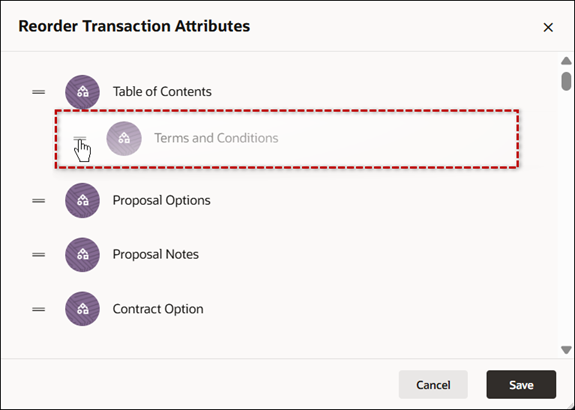
-
Click Save.
Note: Standard process attributes cannot be reordered, you can only reorder custom attributes.
Custom attributes are added after the last Standard Process attribute. If multiple custom attributes are added, the custom attributes can be reordered.
Complete the following steps to delete a main document or sub-document attribute.
-
Navigate to Admin Home > Quotes > Process > Manage Transaction or Manage Transaction Line > Attributes
-
Select Delete from the attribute Actions menu.
- Click Delete.
-
Click Save.
Warnings:
- When an attribute is deleted, it is simultaneously deleted from all document views. It is not possible to recover the deleted data.
- System attributes cannot be deleted. nor can you delete individual attributes from within an attribute set.
Notes:
- You can't delete auto-generated attributes from a Standard Process. Custom attributes created in a Standard Process can be removed.
- If you delete attributes after deploying, re-map and repopulate your data columns. Otherwise, the Transaction Manager will not work correctly.
Add Commerce System Variables to Documents
You can display Commerce System attributes on documents or make them hidden and only use them in document calculations. When Commerce System attributes are mapped to document attributes, the variable values are determined once, at document creation time. To gain access to System attribute values at other times in a document's existence, you can return them in functions associated with Modify Commerce actions.
-
Navigate to the Attributes tab.
Admin Home > Quotes > Process > Manage Transaction or Manage Transaction Line > Attributes
- Select the applicable attribute.
- Associate a system variable value with the attribute.
Text attributes:
Open the Default Value section, then select System Variable from the Default Value menu.
Select the desired variable from the System Variable menu.
Numeric attributes:
Open the Default Value section, select Function from the Default Value menu, then click Define Function.
Select the system variable you want to display, then click Next.
- Enter
return <_variable_name>; - Click Save and Close in the editor window.
- Click Save and Close in the Edit Attribute drawer.
Notes:
- You can use Numeric attribute types to store Commerce system variables, as long as the variable value is converted from string type to numeric type.
- When Commerce system variables are included in a document, the system variable values are also included in the XML generated for the document. The values appear in XML tags named with the attribute variable names used to store system variable values. View XML Example
<current_date><![CDATA[ 05/31/2002 12:54PM ]]></current_date>
<supplier_base_currency><![CDATA[ USD ]]></supplier_base_currency>
<user_currency_pref><![CDATA[ AUD ]]></user_currency_pref>
<currency_conv_rate><![CDATA[ 1.79624 ]]></currency_conv_rate>
To enable Group Sequence Numbers complete the following steps.
-
Navigate to Admin Home > Quotes > Process > Manage Transaction Line > Attributes
-
Verify there is a sub-document (Transaction Line) Group Sequence Number attribute (
_group_sequence_number).If the Group Sequence Number attribute does not exist, complete the following steps to add the attribute:
- Click + Attribute.
- Select Group Sequence Number Attribute from the Type menu.
- Enter the Name and Variable Name.
- Click Create.
-
Add the Group Sequence Number to the Line item Grid in the layout editor.
For detailed instructions, refer to Line Item Tables in the Redwood Quote Designer, JET Responsive Editor, or Legacy Desktop Editor.
Notes:
- Group Sequence Number functionality is independent of Sequence Number.
- Group Sequence Number should not be used in conjunction with Sequence Number.
Prevent Posting of Read-Only Fields
An internal property gives Oracle CPQ customers the option to prevent Commerce read-only fields from being posted back to the server after a Commerce action is invoked.
While enabling this property will have nominal impact on performance, it is recommended not to post information back to the server when the data will not have changed since it was last posted.
To enable this property, open a ticket on My Oracle Support.
Notes
- The Summation attribute was deprecated in Oracle CPQ 2016 R1.
- You cannot change the type of a Menu attribute if it is already on a layout.
- User are prevented from creating or adding Quotes from Configuration to Commerce if mandatory items are missing.
- NULL and blank Integer values are treated as separate values:
- NULL= 0
- Blank = ""
- Using NULL as an attribute value is strongly discouraged.
- If you use logic that tests for NULL values in rule conditions or BML, confirm that the logic takes this difference into account.
Notes:
- It is not possible to copy attributes from one document to another.
- Composite and Read-only text or HTML attributes are not editable by the user.
-
Transaction data is stored indefinitely unless archived. This includes file attachments, which are treated the same as transaction data.
Refer to Archiving Transactions for additional information. - Attribute range calculations are validated on the Value Punch-In.
- Example: If a value was passed in the URL to Configuration, it will be validated and an error message will appear.
- This affects both Mobile and Desktop.
Custom Variable Name Conventions Oracle CPQ appends the "_c" suffix to custom variable names to provide more consistency for integrations with Oracle Sales.
Customers can submit a Service Request (SR) on My Oracle Support to disable the "_c" suffix on variable names for custom Commerce entities
- When the "_c" is disabled, the "_c" variable name suffix will not be required for newly created custom Commerce entities.
- Disabling the "_c" variable name suffix for custom Commerce entities will not change existing variable names.
- The "_c" suffix setting will not impact existing variable names when cloning a Commerce process or migrating Commerce items. Target variable names will be the same as the variable names from the source Commerce process.


