Header
The header is displayed at the top of the transaction / quote. The header can contain the following items:
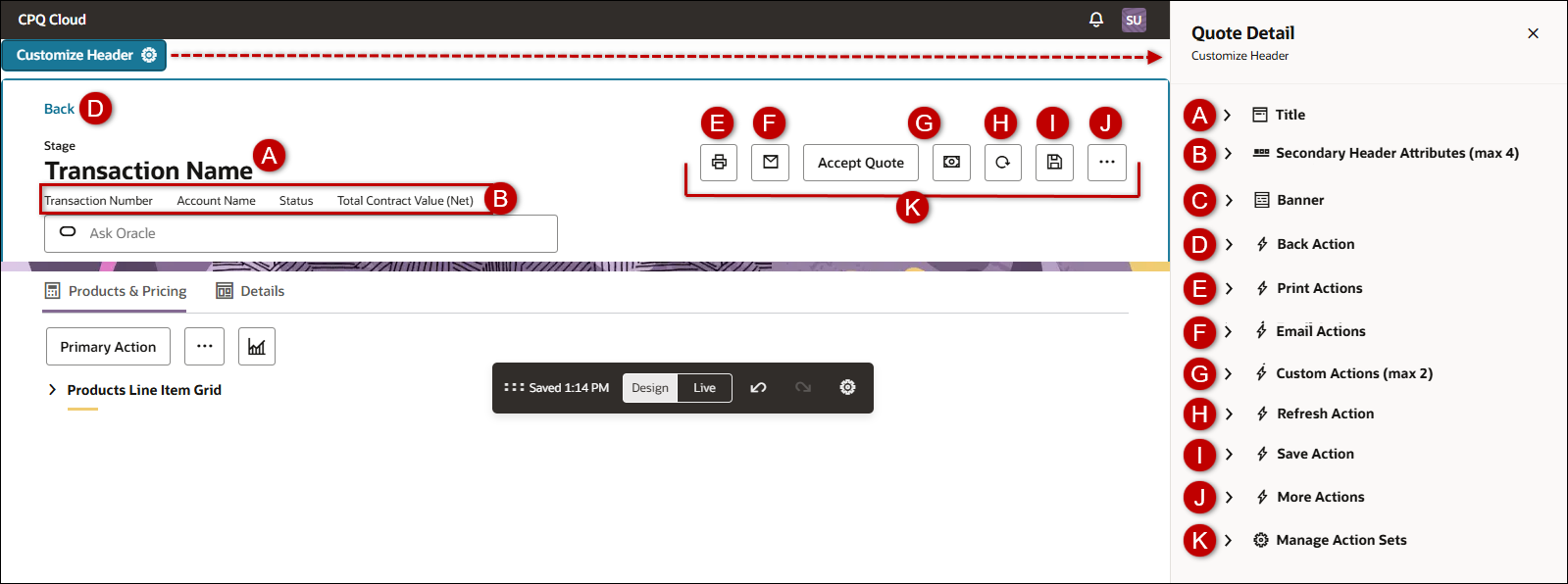
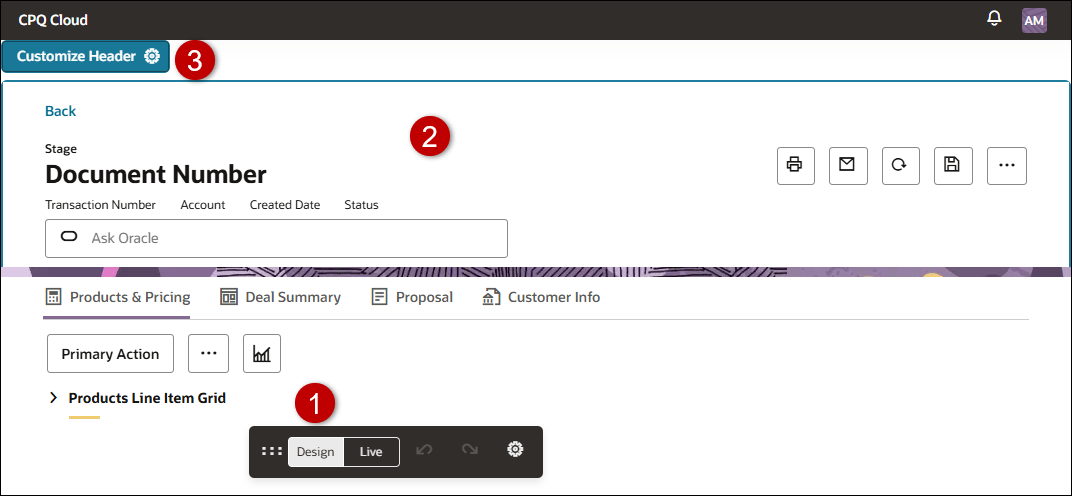
To access Customize Header settings:
-
Open or create a Redwood quote, then click Design.
-
Click inside the quote header section.
-
Click Customize Header

A. Title
-
Click Title.
-
Select the applicable attribute from the Header Title drop-down.
-
To update the label for the header title attribute, click the
icon.Notes: Attribute labels are modified in Commerce administration.
- The applicable commerce process must be deployed before attribute label changes are available to sales users on the Redwood Quote UI.
- Refer to Commerce Attributes for Commerce attribute administration.
-
Click the Delete
 icon to remove the header title.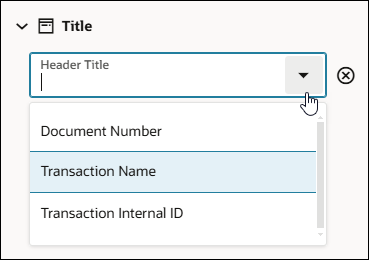
B. Secondary Header Attributes
-
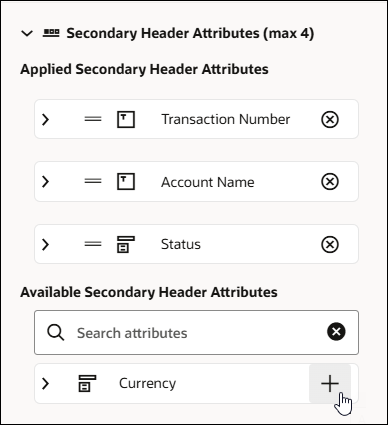
Click Applied Secondary Header Attributes to view attributes displayed in the quote header section.
-
To update the label for an attribute, click the Manage link.
- The applicable commerce process must be deployed before attribute label changes are available to sales users on the Redwood Quote UI.
- Refer to Commerce Attributes for Commerce attribute administration.
-
Click the attribute Delete
icon to remove an attribute from the header. -
Click Available Secondary Header Attributes to view attributes that can be added to the header.
-
Click the attribute Add + icon to add an available attribute to the header.
Notes: Attribute labels are modified in Commerce administration.
C. Banner
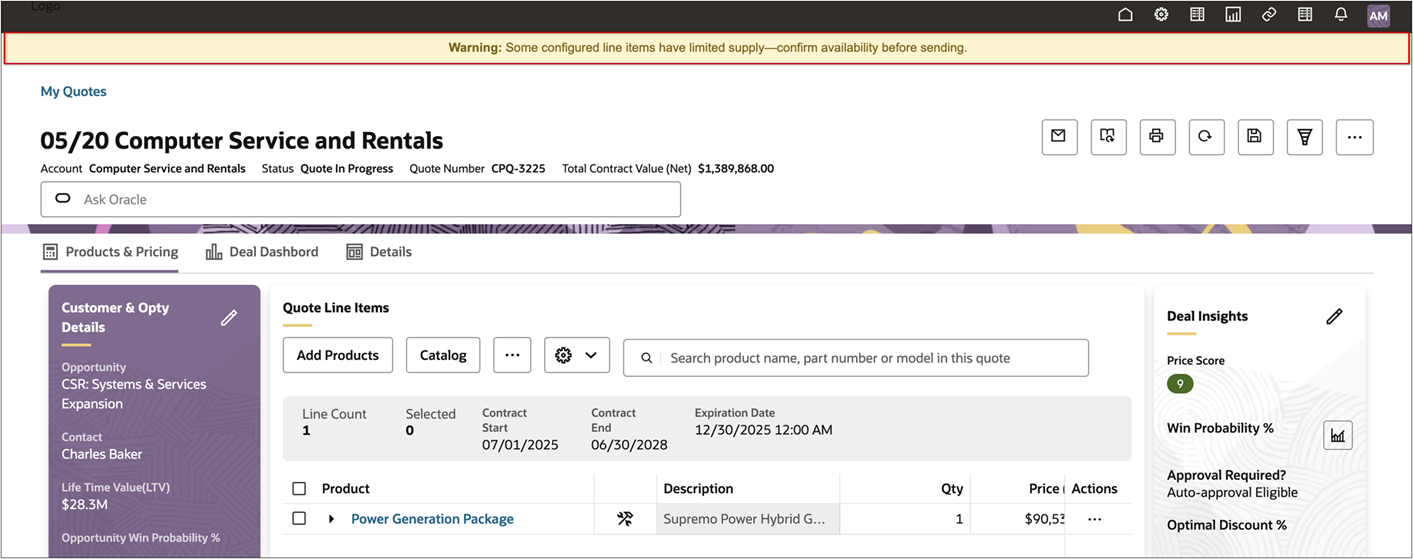
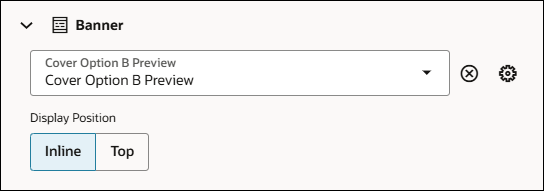
In the Redwood Quote Designer, administrators can now enhance the quote header by adding a Banner using the Customize Header option. The banner can be positioned either Inline or at the top, allowing teams to highlight important information, brand elements, or contextual messages directly within the quote layout.
-
Click Banner.
-
Select the applicable HTML type attribute from the Banner drop-down.
-
Click the action Delete
icon to remove the banner from the header. -
Select the Display Position.
-
Inline
-
Top
-
D. Back Action
 Customize the Header Back Action
-
Click Back Action.
-
Select the applicable Back type action from the Back Action drop-down.
-
To update the label for the back action, click the
icon.Notes: Action labels are modified in Commerce administration.
- The applicable commerce process must be deployed before action label changes are available to sales users on the Redwood Quote UI.
- Refer to Document Actions for Commerce action administration.
-
Click the Delete
icon to remove the back action.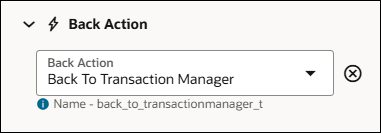
E. Print Actions
Customize Header Print Actions
-
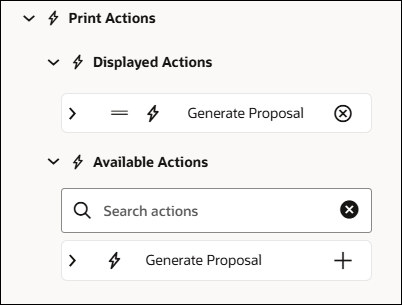
Click Print Actions.
-
Click Displayed Actions to view print actions displayed in the header.
-
Click the action Delete
icon to remove a print action from the header. -
Click Available Actions to view print actions that can be added to the header.
-
Click the action Add + icon to add an available print action to the header.
-
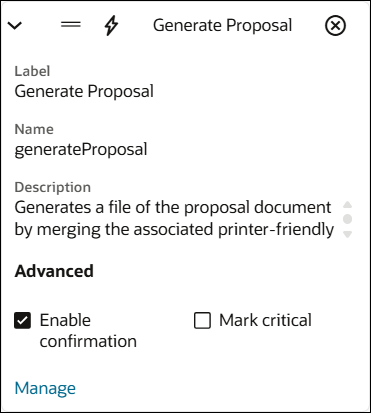
Open the print action to enable a user confirmation prompt or change the action label.
-
Select Enable confirmation to display a Confirm Action dialog when the action is invoked.
-
Select Mark critical to display a critical Confirm Action dialog when the action is invoked.
-
To update the label for a print action, click the Manage link.
Notes: Action labels are modified in Commerce administration.
- The applicable commerce process must be deployed before action label changes are available to sales users on the Redwood Quote UI.
- Refer to Document Actions for Commerce action administration.
-
F. Email Actions
Customize Header Email Actions
-
Click Email Actions.
-
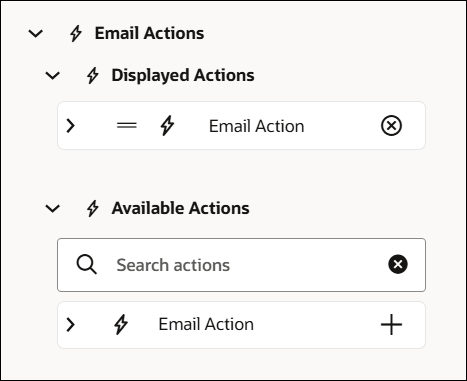
Click Displayed Actions to view email actions displayed in the header.
-
Click the action Delete
icon to remove an email action from the header. -
Click Available Actions to view email actions that can be added to the header.
-
Click the action Add + icon to add an available email action to the header.
-
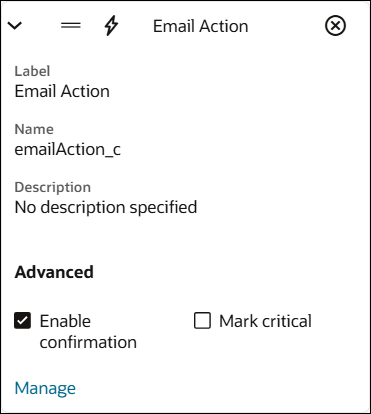
Open the email action to enable a user confirmation prompt.
-
Select Enable confirmation to display a Confirm Action dialog when the action is invoked.
-
Select Mark critical to display a critical Confirm Action dialog when the action is invoked.
-
To update the label for an email action, click the Manage link.
Notes: Action labels are modified in Commerce administration.
- The applicable commerce process must be deployed before action label changes are available to sales users on the Redwood Quote UI.
- Refer to Document Actions for Commerce action administration.
-
G. Custom Actions
Customize Header Custom Actions
-
Click Custom Actions.
-
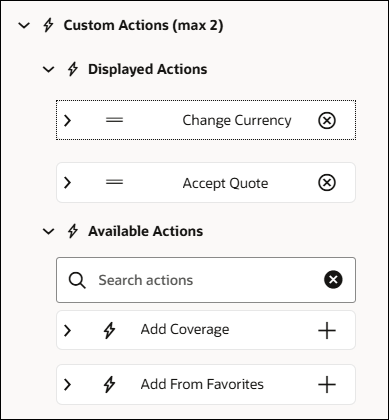
Click Displayed Actions to view custom actions displayed in the header.
-
Click the action Delete
icon to remove an action from the header. -
Click Available Actions to view actions that can be added to the header.
-
Click the attribute Add + icon to add an available action to the header.
-
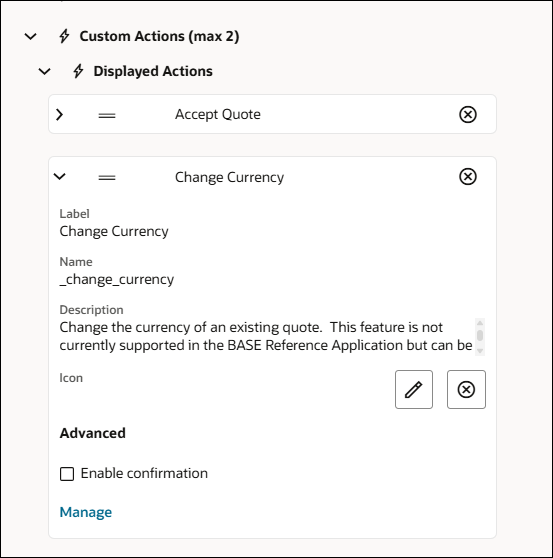
Edit a custom action:
-
Custom actions can be displayed as text or as an icon.
-
Click the Edit
 icon to select or update an icon.
 -
Click the Delete
icon to remove the icon.
-
-
Enable a user confirmation prompt.
-
Select Enable confirmation to display a Confirm Action dialog when the action is invoked.
-
Select Mark critical to display a critical Confirm Action dialog when the action is invoked.
-
-
To update the label for a custom action, click the Manage link.
Notes: Action labels are modified in Commerce administration.
- The applicable commerce process must be deployed before action label changes are available to sales users on the Redwood Quote UI.
- Refer to Document Actions for Commerce action administration.
-
-
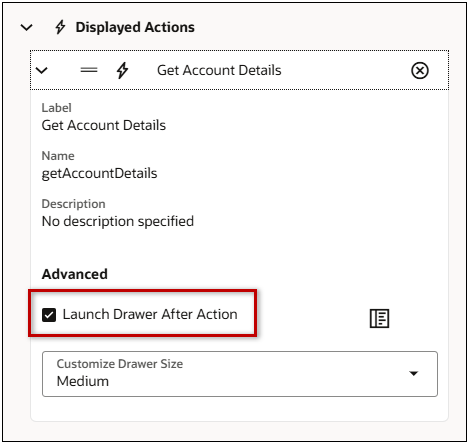
The Launch Drawer After Action setting is available for modify-type actions.
To open a drawer when the user invokes this action:-
Select the Launch Drawer After Action setting.
-
Select the desired size from the Customize Drawer Size drop-down.
-
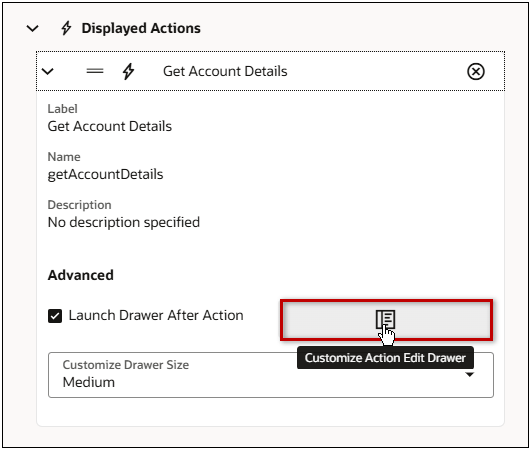
Click the Customize Action Edit Drawer to customize the drawer.
Refer to Quote Designer > Redwood Quote Sections for information about adding items and customizing the action drawer.
-
H. Refresh Action
Customize the Header Refresh Action
-
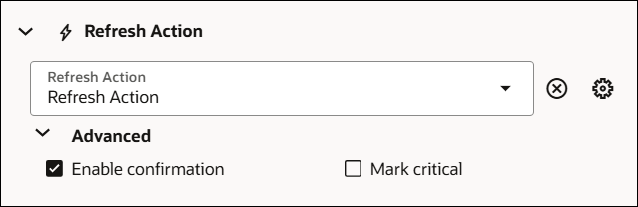
Click Refresh Action.
-
To display a refresh action in the quote header section, select and action from the Refresh Action drop-down.
-
To update the label for the refresh action, click the
icon.Notes: Action labels are modified in Commerce administration.
- The applicable commerce process must be deployed before action label changes are available to sales users on the Redwood Quote UI.
- Refer to Document Actions for Commerce action administration.
-
Click the action Delete
icon to remove the refresh action from the header. -
Click Advanced to enable a user confirmation prompt.
-
Select Enable confirmation to display a Confirm Action dialog when the action is invoked.
-
Select Mark critical to display a critical Confirm Action dialog when the action is invoked.
-
I. Save Action
Customize the Header Save Action
-
Click Save Action.
-
To display a save action in the header, select and action from the Save Action drop-down.
-
To update the label for the save action, click the
icon.Notes: Action labels are modified in Commerce administration.
- The applicable commerce process must be deployed before action label changes are available to sales users on the Redwood Quote UI.
- Refer to Document Actions for Commerce action administration.
-
Click the action Delete
icon to remove the save action from the header.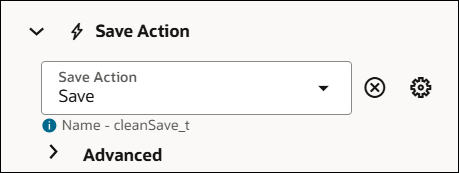
-
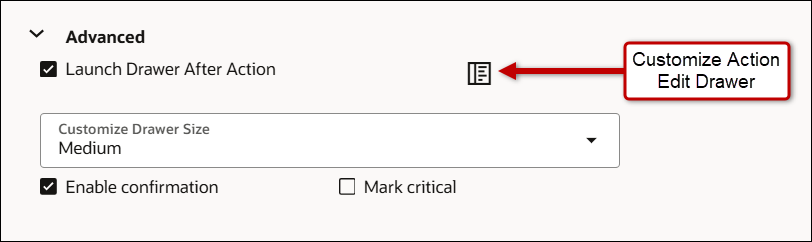
Click Advanced to enable a user confirmation prompt or to launch a drawer after the user click Save.
-
Open a drawer when the user invokes this action.
-
Select the Launch Drawer After Action setting.
-
Select the desired size from the Customize Drawer Size drop-down.
-
Click the Customize Action Edit Drawer to customize the drawer.
-
Refer to Quote Designer > Redwood Quote Sections for information about adding items and customizing the action drawer.
-
-
Enable a user confirmation prompt.
-
Select Enable confirmation to display a Confirm Action dialog when the action is invoked.
-
Select Mark critical to display a critical Confirm Action dialog when the action is invoked.
-
J. More Actions
Customize the Header More Actions Drop-Down
-
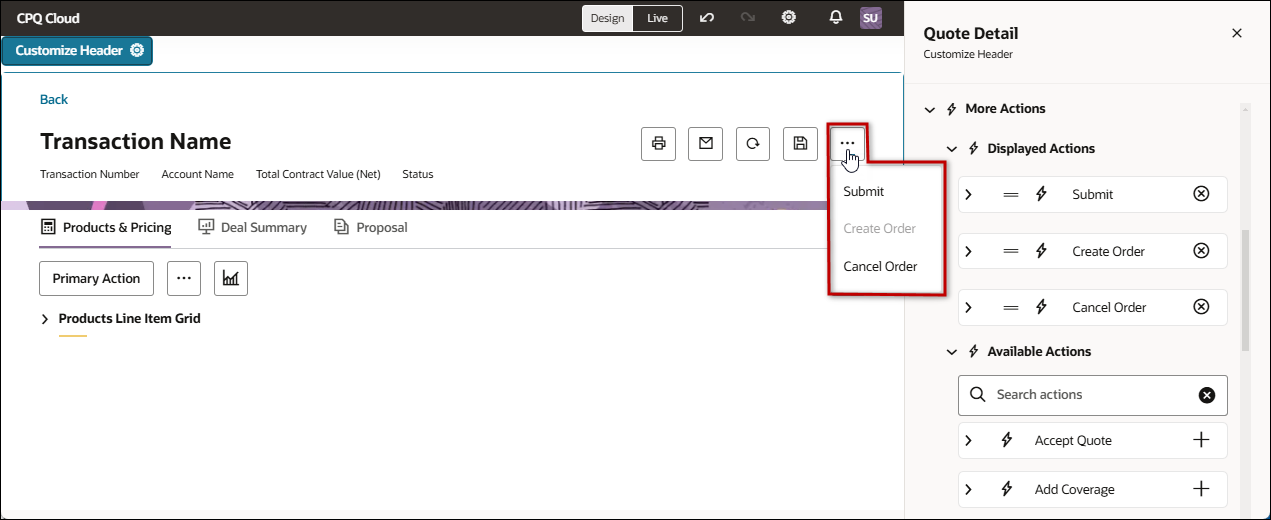
Click More Actions.
-
Click Displayed Actions to view actions displayed in the header More Action drop-down.
-
To update the label for an action, click the Manage link.
Notes: Action labels are modified in Commerce administration.
- The applicable commerce process must be deployed before action label changes are available to sales users on the Redwood Quote UI.
- Refer to Document Actions for Commerce action administration.
-
Click the action Delete
icon to remove an action from the header More Action drop-down. -
Click Available Actions to view actions that can be added to the header More Action drop-down.
-
Click the action Add + icon to add an available action to the header More Action drop-down.
Custom Header Banner (Oracle CPQ 25C)
In the Redwood Quote Designer, administrators can now enhance the quote header by adding a Banner using the Customize Header option. The banner can be positioned either Inline or at the top, allowing teams to highlight important information, brand elements, or contextual messages directly within the quote layout.
Administration
Complete the following steps to enable the Redwood Quote UI for a Commerce Process.
-
Navigate to the Admin page.
-
Click Process Definition in the Commerce and Documents section.
-
Click on the Name link for the applicable Commerce process.
-
Select the Redwood Layout UI.

-
Use the Order Priority fields to define the priority of each layout. Sales users with access to multiple layouts can view the layouts based on the defined priority.
-
Click Apply or Update.
Notes:
-
After enabling the Redwood layout, an Access Rights link displays next to the Redwood option.
-
The Access Rights link is only available for enabled layouts and is not available for default layouts.
-
-
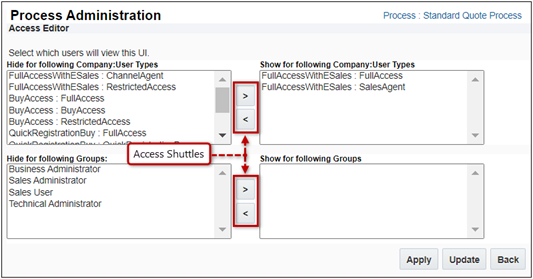
If applicable, click the Access Rights link to open the Process Administration Access Editor.
-
Use the access shuttles to specify which the user types and groups have access to the layout.
-
To add access, select and move the user type or group into the applicable Show list.
-
To remove access, select and move the user type or group into the applicable Hide list.
-
-
Click Apply or Update to save changes to the access permissions.
-
Ask Oracle Assist Bar
Customize Ask Oracle Assist Bar
To access Customize Ask Oracle settings:
-
Open or create a Redwood quote, then click Design.
-
Click inside the Ask Oracle Assist Bar.
-
Click Customize Ask Oracle
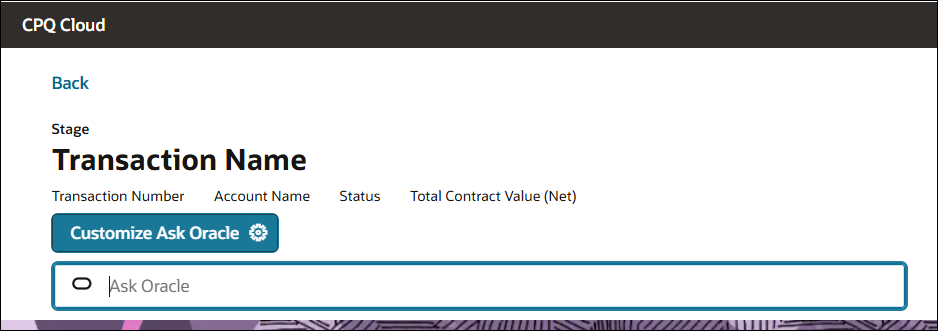
Customize Ask Oracle
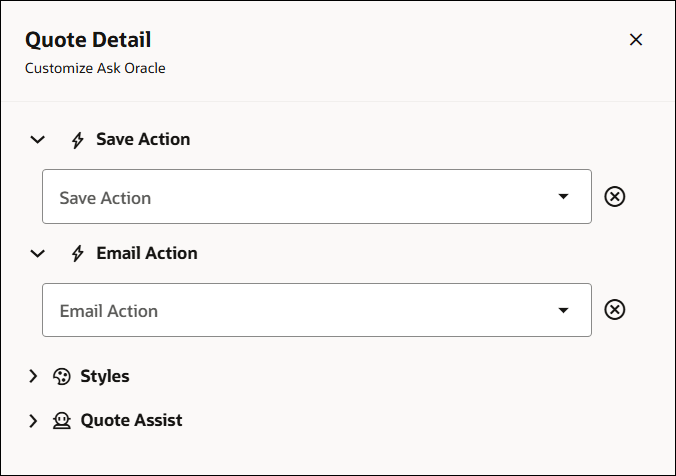
Save Action
Click Save Action.
-
To display a save action in the Ask Oracle assist bar, select an action from the Save Action drop-down.
-
To update the label for the Ask Oracle save action, click the
icon.Notes: Action labels are modified in Commerce administration.
- The applicable commerce process must be deployed before action label changes are available to sales users on the Redwood Quote UI.
- Refer to Document Actions for Commerce action administration.
-
Click the action Delete
icon to remove the save action from the Ask Oracle assist bar. -
Click Advanced to enable a user confirmation prompt or to launch a drawer after the user clicks Save.
-
Open a drawer when the user invokes this action.
-
Select the Launch Drawer After Action setting.
-
Select the desired size from the Customize Drawer Size drop-down.
-
Click the Customize Action Edit Drawer to customize the drawer.
-
Refer to Quote Designer > Redwood Quote Sections for information about adding items and customizing the action drawer.
-
-
Enable a user confirmation prompt.
-
Select Enable confirmation to display a Confirm Action dialog when the action is invoked.
-
Select Mark critical to display a critical Confirm Action dialog when the action is invoked.
-
Email Action
Click Email Action.
-
To display an email action the Ask Oracle assist bar, select an action from the Email Action drop-down.
-
To update the label for the Ask Oracle email action, click the
icon.Notes: Action labels are modified in Commerce administration.
- The applicable commerce process must be deployed before action label changes are available to sales users on the Redwood Quote UI.
- Refer to Document Actions for Commerce action administration.
-
Click the action Delete
icon to remove the email action from the Ask Oracle assist bar. -
Click Advanced to enable a user confirmation prompt.
-
Select Enable confirmation to display a Confirm Action dialog when the action is invoked.
-
Select Mark critical to display a critical Confirm Action dialog when the action is invoked.
-
Quote Assist
Refer to Enable Quote Assist Agent to enable a conversational chat experience for the Redwood Quote UI.
You can enable a conversational chat experience embedded within transactional pages by uploading PDF document resources. This enables users to ask questions and receive precise, context-driven responses derived directly from the uploaded resources. For more information, refer to How do I set up AI Agents for Redwood pages?
Prior to enabling the Quote Assist Agent in CPQ, you need to set up an AI Agent for Redwood pages.
Set Up AI Agents for Redwood Pages
Complete the following tasks to set up an HCM Agent, configure options as noted below:
-
Access - Grant privileges for the user to access the Configure HCM Agents Admin page.
-
Privilege: HRC_MANAGE_AI_AGENT_PRIV
-
-
Profile Options - Verify the following profiles options are set to Y at the site level:
-
Profile Option Code: ORA_HCM_VBCS_PWA_ENABLED
-
-
Configure Tool - Configure the AI Agent to add documents.
-
Configure Agent - Create an agent and bind it to the tool.
-
Note: For the Agent Category select Other
-
-
Run ESS Process - Ingest the attachments.
Enable the Quote Assistance Agent in the Redwood Quote UI & Redwood Quote List
Complete the following steps to enable the Assist Bar in the Redwood Quote UI and the Redwood Quote List.
-
Open or create a transaction in the Redwood Quote UI.
-
Click Design to open the Redwood Quote Designer.
-
Click inside the Ask Oracle Assist Bar.
-
Click Customize Ask Oracle.
-
Open the Quote Assist section.
-
Enable the Quote Assist option.
-
Enable the New Agent Studio powered Agent available – Try it now! option.
-
Open the Associate Agent section.
-
Select the applicable agent from the Agent menu.
Note: The Agent menu lists published AI Studio Agents for the "CPQ and Commerce" product type.
Notes
Notes: Action and attribute labels are modified in Commerce administration.
- The applicable commerce process must be deployed before action or attribute label changes are available to sales users on the Redwood Quote UI.
- Refer to Document Actions for Commerce action administration.
- Refer to Commerce Attributes for Commerce attribute administration.


