Overview
This topic covers administration of Commerce document actions using the Redwood interface pages. Refer to Document Actions for administration using the classic interface pages.
Commerce document actions trigger events within their respective main document or sub document to occur. Users usually perform Commerce actions, but timers can be set up so the system can automatically perform Commerce actions after specified periods of time. The Commerce system creates a default set of actions for use in each process and document. It also generates additional actions when Commerce documents include certain attribute types. Additionally, the Standard Process provides several actions that come with predefined functional logic that is ready for customers' use. If required, seeded logic can be overridden by administrators to incorporate their customization logic.
For addition information, refer to the following topics:
- Commerce Actions describes action types, action tabs, and order of operations.
- Process Actions covers administration of process actions.
- Standard Process Transaction Actions lists Transaction (main document) actions provided in the Standard Process.
- Standard Process Transaction Line Actions lists Transaction Line (sub document) actions provided in the Standard Process.
Commerce Action Pages
The Actions tab provides access to transaction or transaction line level actions.
-
To access the transaction actions, navigate to: Admin Home > Quotes > Process > Manage Transaction or Manage Transaction Line > Actions
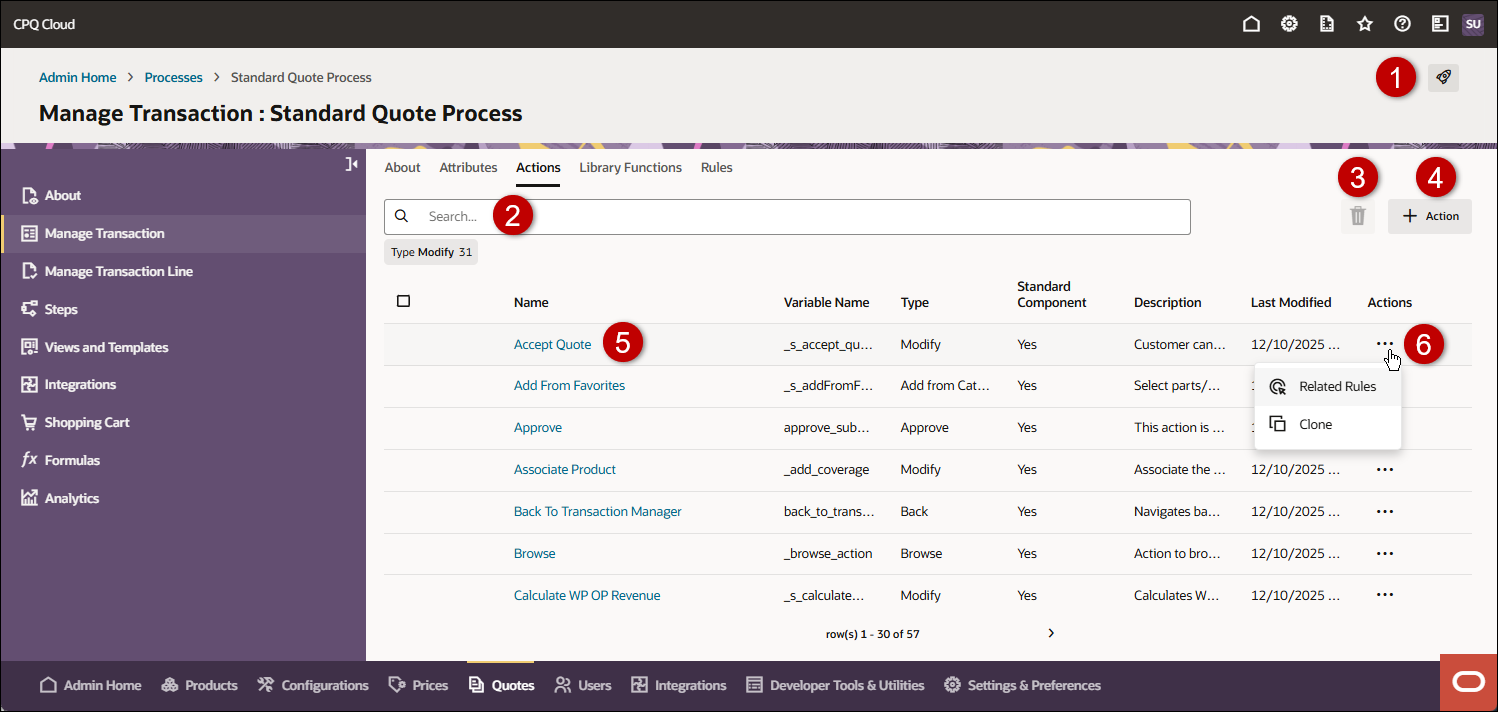
| Item | Description |
|---|---|
|
1 |
Access the Deployment Center |
|
2 |
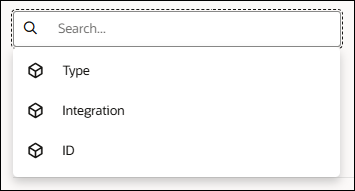
Search and filter actions You can click inside the search field to filter or type in search criteria for actions. You can also click on pre-defined filters that are provided below the search field.
|
|
3 |
Delete selected actions |
|
4 |
Add a new action |
|
5 |
View or edit an action |
|
6 |
View Related Rules, Clone, or Delete an action. Delete is not available for Standard Process actions. |
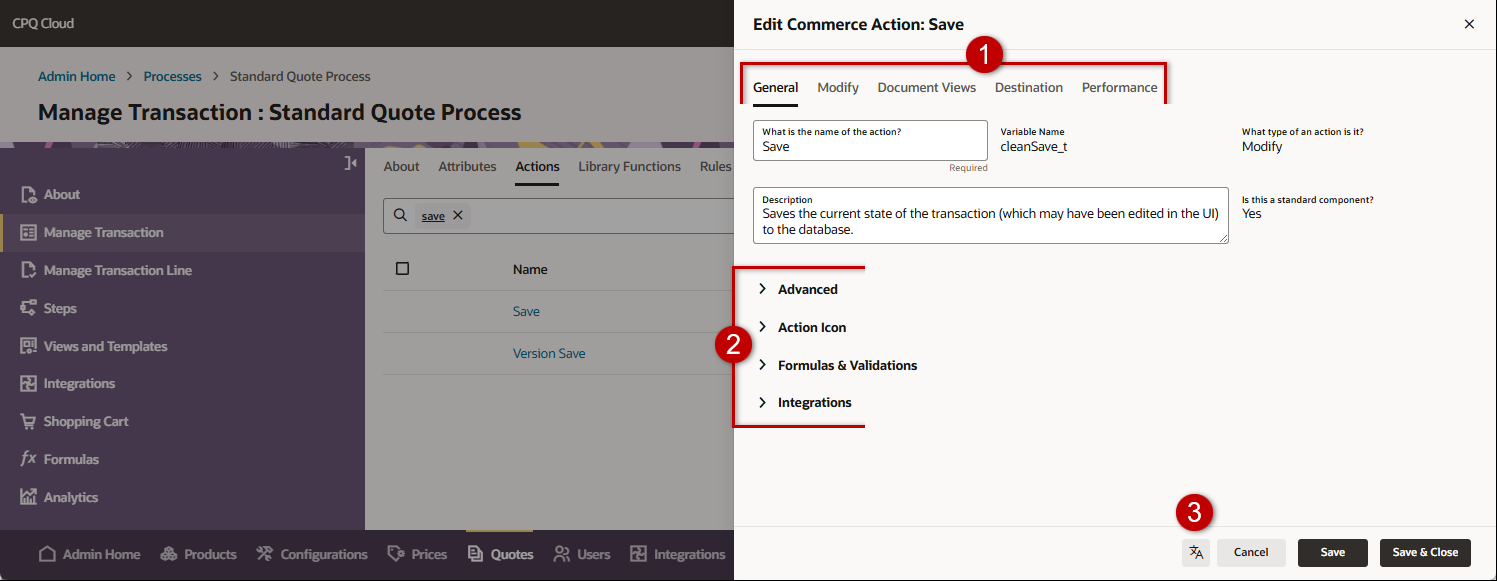
The Edit Action drawer opens when an administrator clicks on an action. The available tabs and sections will vary based on the document and action type, refer to Commerce Actions for more information.
| Item | Description |
|---|---|
|
1 |
Close the edit action drawer |
|
2 |
Because actions are required to carry out operations based on the business logic, they are comprised of components. The components of an action are organized in tabs. Tabs will vary based on the action type. |
|
3 |
In the General tab, this field shows the text label that is displayed on the action button. |
|
4 |
In the General tab, this field displays the variable name of the action |
|
5 |
In the General tab, this field Identifies the action type |
|
6 |
In the General tab, this field shows the action description |
|
7 |
In the General tab, this field identifies if the action is provided in the Standard Process |
|
8 |
In the General tab, content is organized in sections. Sections will vary based on the action type. |
|
9 |
Click this icon to manage action translations. |
Administration
Complete the following steps to create a transaction or transaction line action.
- Navigate to Admin Home > Quotes.
- Select the applicable Process.
- Select Manage Transaction or Manage Transaction Line in the left navigation section.
- Select the Actions tab.
- Create or edit an action.
- To create an action:
- Click + Action.
- Enter the following information:
- What is the name of the action? This the text label that is displayed on the action button.
Variable Name.
The Variable Name field populates automatically. Variable names can only contain alpha-numeric characters and underscores. The entry can be changed before saving, but after saving the value is read-only.
- What type of an action is it? Select the desired action type from the drop-down.
- Click Create to save changes. or click Cancel to exit without saving changes.
To edit an existing action, click on the desired action.
- To create an action:
-
Edit the available tabs and options.
Option Description What is the name of the action? Text label that is displayed on the action button. Variable Name Displays the action variable name, after saving an action this value is read-only. What type of an action is it? Displays the action type, after saving an action this value is read-only. Description (optional) Enter a description of the action. Is this a standard component? Identifies if this action is a Standard Process action. This value is read-only.
-
Standard Process actions cannot be deleted.
-
Administrators can view seeded logic for Standard Process functions, override functions to incorporate custom logic, and remove overrides to easily return to default values.
Approval Comment Mapping Specify a text area or history type attribute for approval comments.
Email Notification Keyword Multiple keywords can be associated with an action. All possible values can be separated with a tilde in the Email Notification Keyword field.
- A keyword has to be unique.
- A keyword can have alphabets, numbers and underscore.
- A keyword cannot have multi-byte characters
- A keyword can be associated with only one action within a process
Show Loading Dialog? This option turns on or off a loading dialog on the commerce side when the user clicks on the action. The image and text for the loading dialog can be customized in the site settings.
-
Select Yes to enable loading dialog for this action.
-
Select No to disable loading dialog for this action.
Run Validation Before Modify? Enable this option to set validation rules to run before Advanced Modify. If validation fails, an error message is generated and associated integrations will not occur. This prevents integrations from being triggered before validation occurs.
Always Run Pricing of All Lines? Enable this option to always reprice all line items when this action is invoked, even if no changes have been made to any price attributes. Pricing is invoked between Before Formula and Formula during the modify action. Action Timeout (optional) Enter a timeout threshold in minutes.
When an Action Timeout is specified it takes precedence over the general Commerce setting. This allows the administrator to isolate performance issues on a single Commerce action.
Execute Action if Associated Integrations Timeout? Select this option to specify this action will execute if an associated Integration times out. Associated integrations are specified in the Integration Section. Referenced in Redwood Layout? Identifies if this action is displayed in the Redwood Quote UI. Refer to the Redwood Quote Designer for the quote layout.
JET Layout Path This option is only displayed when a JET layout exists
Specifies the layout path for this action.
Click Save and Edit JET Responsive Layout to open layout editor.
Mobile Layout Path This option is only displayed when a mobile layout exists
Specifies the layout path for this action.
Click Save and Edit Mobile Layout to open layout editor.
 Number of CopiesThis section is only available for Copy Line Items action
Option Description Default to Quantity If the FullAccess user selects this option, then the number of copies field in the Copy Line Item pop-up is pre-populated with the quantity of the selected line item(s). If the quantity of the selected line items is greater than the maximum number of copies specified by the FullAccess user, then the Number of Copies field is pre-populated with the maximum number of copies.
Maximum Number
of CopiesSpecifies the maximum number of copies a user can make.
If you choose a number greater than one, a pop-up appears and the user can input the desired number of copies. The FullAccess user can map the attributes that are displayed on the pop-up by selecting Display in pop-up for Copy Line Item in the Admin Column page for Line Item Columns.
Submit Action OptionsThese options are only available for Submit action sets
Submit Action Type Option Description Submit Approval Sequence -
Use Approvals - Select this option to use CPQ Approval Sequences
-
Use Remote - Select this option if you are using a remote approval system.
Edit Approvals Select this option to manage the reasons a quote should be approved and who is responsible for approving the quotes. For more information, refer to Edit Approvals.
Submit Attributes Lists attributes associated with the submit actions
Request for Approval Auto Submit If the Auto-Submit option is enabled, then all Quotes must go through the approval process.
Revise Reset Reasons -
Simple Reset (All Reasons): If this option is selected, the reason will be reset.
The default setting is for no reasons to be reset.
-
Define Advanced Reset: Select this option and click Define Function. Write an advanced function that will return the reasons that should be reset. The return format can be an array or delimited string of the reason variable names.
For more information, refer to Revising a Sub-Action (Reset Reasons)
Click the Select Icon
 to specify an icon that is displayed on the transaction action button.Formulas & Validations Section
Option Description Override Standard Advanced Modify - Before Formulas This option is displayed for Standard Process actions
-
To customize standard defaults,
Check the Override Standard Advanced Modify-Before Formulas option, and then click Save.
-
To return to the standard defaults,
Uncheck the Override Standard Advanced Modify-Before Formulas option, and then click Save.
Advanced Modify - Before Formulas When a function is defined, the advanced modification will be run before the formulas created in Formula Management are used.
-
To define a advanced modify functions:
Click Advanced Modify - Before Formulas, and then click Define Function to specify the function.
-
To disable advanced modify functions:
Uncheck Advanced Modify - Before Formulas
Override Standard Advanced Modify - After Formulas This option is displayed for Standard Process actions
-
To customize standard defaults,
Check the Override Standard Advanced Modify-After Formulas option, and then click Save.
-
To return to the standard defaults,
Uncheck the Override Standard Advanced Modify-After Formulas option, and then click Save.
Advanced Modify - After Formulas When a function is defined, the advanced modification will be run after the formulas created in Formula Management are used.
-
To define a advanced modify functions:
Click Advanced Modify - After Formulas, and then click Define Function to specify the function.
-
To disable advanced modify functions:
Uncheck Advanced Modify - After Formulas
Define Validation Validation refers to an action’s capability to validate the attribute values in the context of the current document and its associated parent/ child, when the user clicks on the action.
For example, the user can validate an attribute on a sub-document using an advanced validation function on the main document and vice-verse. Basic data type validation is always done for all attribute types.
The system supports the following types of validation settings for Commerce actions:
- Simple Validation: System checks attribute values using individual attribute validations. Default validation setting for document attributes. Simple validations can include checks for numeric values, numbers in a range, required attribute values, or any other type of check that can be set for an individual attribute.
- Define Validation Rules: Deprecated- Use Commerce Rules.
System performs cross-validations in addition to simple validations. Cross-validations between attribute values can be created using the Script Editor. Example: create validation at the document level that prohibits discounts in excess of 20% when a purchase price is under $1000. This type of validation can also be created as a constraint configuration rule. -
Save Without Validating: Turns off all checks on attribute values when the action is being performed and saves the document data. This option guarantees that an action will succeed and is useful for actions set up on timers, such as an Expiration action.
Error messages for invalid values are not displayed when Advanced Validation is set to Save without Validating for actions that modify a transaction array or line item attributes.
- Modify Without Saving or Validating: This option is similar to the "Avoid All Validation (Save)" action, only document data is not saved when the action is performed. This validation method might be selected for a Modify action set up to copy data from one set of fields to another.
The Integration section (displayed only if the site is integrated to a partner) determines the order in which data is exchanged between Oracle CPQ and a partner application. The order in which the integrations are specified in this tab determines the order in which data is either sent to or received from the partner.
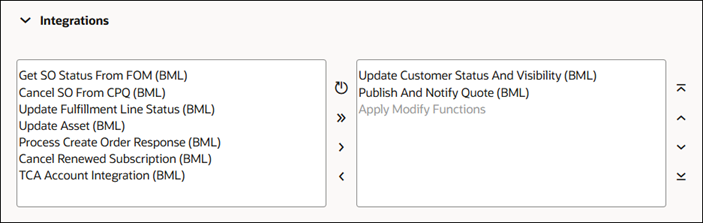
The Apply Modify Functions value in this tab cannot be removed. All integrations can be ordered around it. Also, no integration can be performed without performing a Modify tab operation.
XSL Views SectionThis tab is only available for Display History, Email, Export Attachment and Print type actions
-
These action types must be used in conjunction with an XSL template file to produce a commerce side output. Such actions can be associated with one or more XSL views. If multiple XSL views are available, users can select an XSL template from the ones available. The XSL views option enables you to support custom forms and page displays using XSL and XSL-FO.
-
The Email action contains a special tab called the XSL Views tab. This action type must be used in conjunction with an XSL format file that contains the email-friendly format you want to associate with that particular Email action. The XSLs displayed on this tab come from the Printer Friendly/History XSL Views section. This action can be associated with one or more XSL views. If multiple XSL views are available, users can select an email form from the ones available.
Notes:
-
When adding a new Print or Email action, a default XSL view will display in the XSL Views tab for that action; however, the default value does not take effect until the Apply or Update is selected from the Admin Action page.
-
When associating a Print action with an XSL view that outputs data as PDF, end users may have to configure a setting in Adobe Acrobat to be able to view the resulting document. The setting turns off browser display for PDF documents.
-
This tab is available for all 'Modify’ type actions (system-generated or user-defined). This tab controls the manner in which a transaction gets its data; it allows you to manipulate the values in the attributes by specifying behavior in this tab. The Modify tab contains a list of all attributes available in the current tab with five options for each attribute.
Option Description Override Standard Modify This option is displayed for Standard Process actions
-
To customize standard defaults,
Check the Override Standard Modify option, and then click Save.
-
To return to the standard defaults,
Uncheck the Override Standard Modify option, and then click Save.
Define Function The user must define a function that calculates the attribute value.
-
Click Define after selecting the radio button.
Use the Script Editor to create a function that sets the attribute value. You can use this option to determine current system variables, such as the currency conversion rate or system date.
Use Specified Value The attribute will get its value specified in the corresponding field. Enter a value in the value field next to the radio button. Leave Value Unchanged The attribute will retain its current value, whether its a user input or system defined. Revert to Default The attribute value will be reset to its default value. Save from Form This is the default option. The attribute will always retrieve its value from the user input on the commerce side. Notes:
-
When setting modify rules for the Autofill type Commerce action, the options set on the Modify tab have a higher precedence than mapping rules set on the Mapping tab. To force the system to use mapping rules for auto-filling fields instead of modify rules, use the Leave Value Unchanged setting. If this setting is used and mapping rules are not available for a field, then the system populates the field using the attribute's default value.
-
You can configure all listed attributes the same way by choosing an option and selecting the Select All radio button at the bottom of the column.
Initialization TabThis tab is only available for Copy Line Items action
Use this tab to specify how to populate attribute values in when line items are copied.
Option Description Override Standard Initialize This option is displayed for Standard Process actions
-
To customize standard defaults,
Check the Override Standard Advanced Modify-After Formulas option, and then click Save.
-
To return to the standard defaults,
Uncheck the Override Standard Advanced After-Before Formulas option, and then click Save.
Define Function Use this option to define an advanced function for setting an attribute's value. Use Specified Value Use this option to hard-code an attribute's value using the available text field. Revert to Default Use this option to use the default value set for the attribute itself. This option is useful for picking up the current date and time, one of the many uses you can choose this option for. Copy from Original Use this option to set the attribute's value using the value set in the original document. When this option is used, mapping settings associated with the Create Commerce action are not used Mappings TabThis tab is only available for or Auto Fill and Select Alternate Address type actions
Available only for actions related to the accounts section. Account fields and commerce attributes are mapped in this tab. When the user selects a customer account ID and clicks on a relevant action, the mapping specified in the respective action will populate the commerce attributes with data from the corresponding accounts fields. Mapping rules are used to link data from one document to another in the same process, or from the Account database to a commerce document. Example: use mapping rules to link Account customer records to a commerce document's ’Bill To/Ship To’ fields.
Mapping rules have a higher precedence than an attribute's default value, however, they have a lower precedence than Modify rules. To force the system to use mapping rules when a user performs an Autofill or Select Address action, use the Leave Value Unchanged setting on the Modify tab.When a user performs an Autofill, Browse or Populate action, the system uses the mapping set up for the Autofill action. When a user performs a Select Address action, the system uses the mapping set up for the Select Address action.Destination TabThis tab is only available for Add From Catalog, Back, and Modify type actions
This tab contains different options depending on the combination of the type of action and type of document:
Options Description Override Standard Destination This option is displayed for Standard Process actions
Standard Process actions have predefined functional logic for destination options. If required, seeded logic can be overridden by administrators to incorporate their customization logic.
-
To view or customize destination options,
Check the Override Standard Destination option, and then click Save
-
To return to the standard destination options,
Uncheck the Override Standard Destination option, and then click Save
Modify and Back Type Actions Parent Page Upon clicking the action, the user will be taken to the top level page.
Example: on a Modify action called Save on the main document; the destination could be set to the parent page. Upon clicking this action, the user is taken to the top level page..
Same Page Upon clicking the action, the user will remain on the current page.
Example: on a Modify action called Save on the main document; the destination could be set to same page. Upon clicking this action, the user would remain on the current document.
Custom Destination Upon clicking the action, the user will be taken to the URL specified in this field. A valid value for this field is the relative path to any page on the Oracle CPQ application. In addition, this field may be a complete URL for a destination external to the Oracle CPQ application.
Example: The value
/commerce/buyside/commerce_list.jspwould be valid for the custom destination, as the user will be taken to their Favorites page.External Object ID Attribute Upon clicking the action, the user will be punched-in to the appropriate object on the partner site. A valid value for this field would be the variable name of the attribute which stores the partner object Id information.
Example: If a Commerce attribute with variable name
partner_opportunity_idcontained the partner opportunity ID, this attribute variable name would be in the Partner Object Id attribute field.Define Destination Rule Upon clicking the Define Function action, the user will be taken to the URL returned by running a BML function. The valid value return value for this function is a string. Any URL whose relative path is a page on the Oracle CPQ application would be a valid return value.
Example: The value
/commerce/buyside/commerce_list.jspwould be valid, as the user will be taken to their Favorites page.Rules-Based Destination using an Advanced Function
A destination script can be used to send an Add from Catalog action to one page or another. This script appends the appropriate model name into a URL string, which is returned as the destination link. Example:
model_name="";
for a in quote_detail {
if( a._document_number == _system_current_document_number ) {
model_name=a._model_name;
}
}
if( model_name == "Big Pump" ) {
model_name = "Big%20Septic%20Tank";
}
if( model_name == "Big Septic Tank" ) {
model_name = "Big%20Pump";
}
return "acme.oracle.com/commerce/new_equipment/products/ model_configs.jsp?segment=Mega%20Pumps&product_line=Gamera%20Pumps%20and%20Tanks&model=" + model_name;
Close Parent Window Upon clicking this action, the current embedded Transaction will close and the user will be taken to the parent site. Using this method provides the following benefits:
- Simplifies integration by removing dependency upon the "Return To Oracle Sales" BML script, which required administrators to specify and maintain multiple return URLs.
- Improves the user experience by retaining user context when a user is directed back to Oracle Sales from CPQ. Previously the web page was refreshed to generic return URL, and the user's navigation history was lost.
Add From Catalog Type Actions Simple Destination Used to hard-code a specific destination page, either a page in the catalog or the Commerce List page. Must enter the destination URL.Supports a single destination page. Define Destination Rule Used to define rules that instruct the system where to take the user based on a condition. Supports different destinations. Click Define Function. Can pass attribute values with a Reconfigure action. Rules-Based Destination using an Advanced FunctionA destination script can be used to send an Add from Catalog action to one page or another. This script appends the appropriate model name into a URL string, which is returned as the destination link. Example:
model_name="";
for a in quote_detail {
if( a._document_number == _system_current_document_number ) {
model_name=a._model_name;
}
}
if( model_name == "Big Pump" ) {
model_name = "Big%20Septic%20Tank";
}
if( model_name == "Big Septic Tank" ) {
model_name = "Big%20Pump";
}
return "acme.oracle.com/commerce/new_equipment/products/ model_configs.jsp?segment=Mega%20Pumps&product_line=Gamera%20Pumps%20and%20Tanks&model=" + model_name;
Email Fields TabThis tab is only available for Email type actions
The Email action also contains a special tab called the Email Fields tab. Email field rules instruct the system to auto-populate fields in the Email pop-up window. With the fields populated by the system, users can sent out emails quickly. The following fields can be auto-populated:
- From Address
- To Address
- CC Address
- BCC Address
- Subject
- Comments
- Attachment Name
- Additional Attachments
The Document Views tab allows the FullAccess user to control the display of an action to users in different steps of the transaction. The FullAccess user can make the action active or inactive in a certain step to a particular participant profile.
-
-
Click the Translations
 icon to add translations.
 -
Select one of the following:
- Cancel exit without saving changes.
- Save: saves changes and remains on the page.
- Save & Close: saves changes and returns to the Actions List page.
Complete the following steps to clone a transaction or transaction line action.
- Navigate to Admin Home > Quotes.
- Select the applicable Process.
- Select Manage Transaction or Manage Transaction Line in the left navigation section.
- Select the Actions tab.
-
For the action you want to clone, select Clone from the Actions menu.
- Enter the following information:
- What is the name of the action? This the text label that is displayed on the action button.
Variable Name.
The Variable Name field populates automatically. Variable names can only contain alpha-numeric characters and underscores. The entry can be changed before saving, but after saving the value is read-only.
- Click Clone.
Complete the following steps to delete transaction or transaction line action(s).
- Navigate to Admin Home > Quotes.
- Select the applicable Process.
- Select Manage Transaction or Manage Transaction Line in the left navigation section.
- Select the Actions tab.
- To delete a single action:
Select Delete from the Actions menu.
- Click Delete in the confirmation dialog.
-
To delete a transaction action, or multiple transaction actions:
-
Check the Select option for the actions you wish to delete, then click the Delete
 icon.
icon. 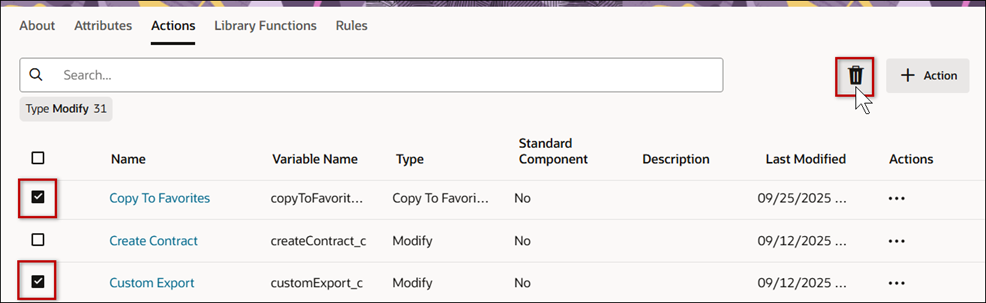
-
Click Delete in the confirmation dialog.
-
Use caution when deleting a Commerce action because it is not possible to recover the deleted data. Upon a deletion, all associated rules within the Commerce action are also deleted.
Notes:
- It is not possible to delete default, system-generated actions. For default actions created in association with document attributes, the system deletes these actions automatically when the corresponding attribute is deleted.
- Standard Process actions cannot be deleted, but the action functions can be viewed, overridden, and easily returned to their default values Most Standard Process actions can be removed from the layout if a customer does not want to use them.
Generate a Document Action Performance Analysis
To generate a Commerce action performance analysis, perform the following steps:
- Navigate to Admin Home > Quotes.
- Select the applicable Process.
- Select Manage Transaction or Manage Transaction Line in the left navigation section.
- Select the Actions tab.
-
Click on the name of the applicable action.
- Click on the Performance tab.
-
Enter the applicable information:
-
For main document actions, enter the Transaction ID.
-
For sub-documents, enter the Transaction ID and Document #.
-
-
Click Generate.
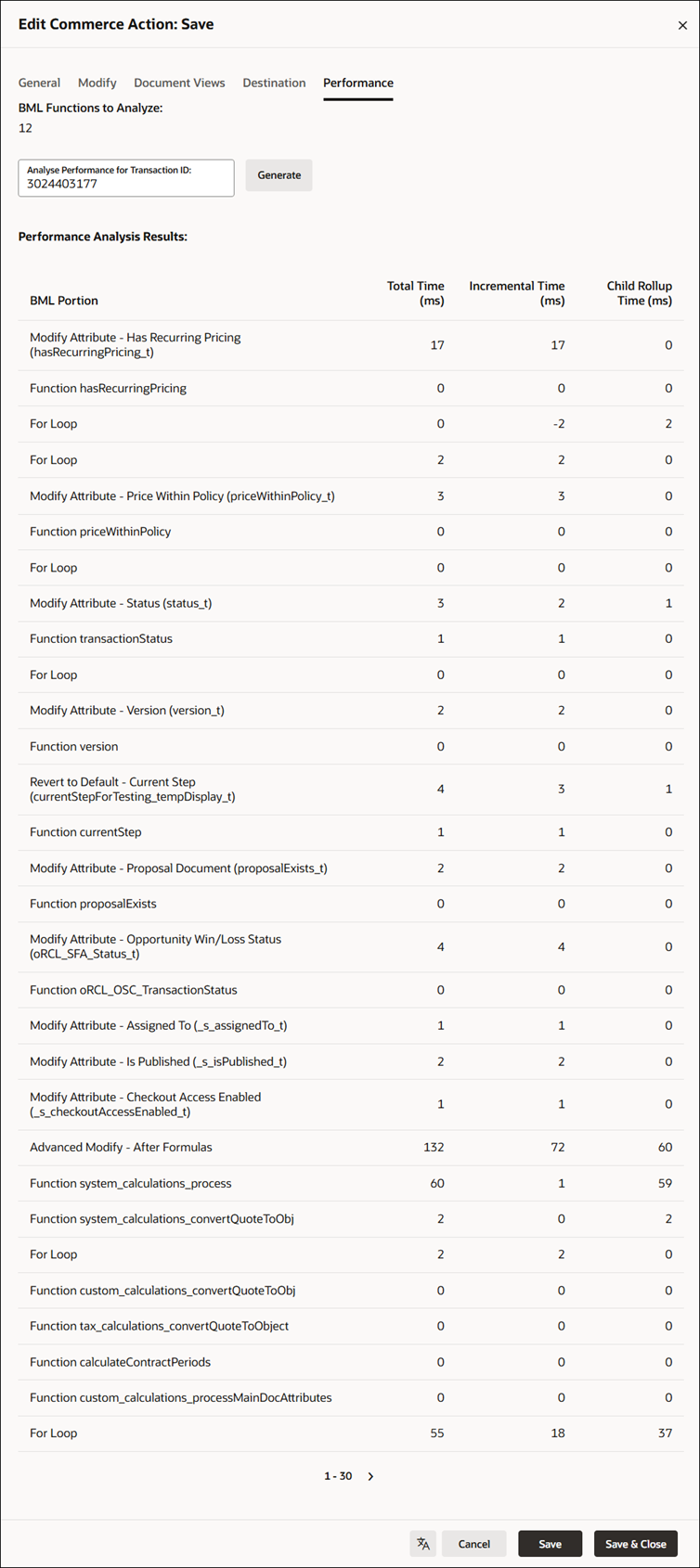
The performance analysis operation includes BML functions in Advanced Modify Before and After Formulas, Advanced Validation, Modify options, Destination options, and BML integrations. Upon execution, the Commerce action Performance tab displays the following times for associated BML loops, BMQL, URL data calls, library calls, and JSON parsing.
- Total Time: Total time taken, in milliseconds, to execute the nested BML, including any time spent executing BML items that have their own entries.
- Incremental Time: Time taken, in milliseconds, to execute the nested BML, excluding time spent executing BML items that have their own entries.
- Child Rollup Time: Total combined time taken, in milliseconds, for all BML items called from this BML item.
Notes:
- Actions that do not have BML functions will not show the Performance tab.
- The run-time breakdowns are specific to BML functions and do not reflect non-BML execution times.
- Generating a Performance Analysis does not save changes to the quote.
- The external integrations defined in the Integration tab are not executed when generating a Performance Analysis, but calls from other BML using the urldata functions will execute and may modify external systems
Formulas in Reconfiguration Scenarios
The Reconfigure action is split into one parent (Reconfigure) and one sub-action (Reconfigure Inbound). This eliminates the need for conditionals to segregate logic.
- The parent action (Reconfigure) contains all things common to both Reconfigure actions and its own identifiers: Label, Variable Name, Description, Action Icon, Show Loading Dialog, Layout Path, and Document Views Tab.
- The sub-action (Reconfigure Inbound) only contains what is specific to it.
- This allows administrators to execute a formula per attribute on:
- Outbound paths from a Commerce Transaction.
The Formula will run immediately after the user clicks the Reconfigure action in Commerce, and before the user enters Configuration.
- Inbound paths to a Commerce Transaction.
The Formula runs after the user clicks Save in the Reconfiguration, and before the user returns to the Commerce page.
- Formula execution is consistent with the existing order of operations for inbound and outbound executions.
Notes
Notes:
- In order for any action to appear on a commerce document, it must be included in the document view.
- Commerce actions can be created, deleted, and edited one document at a time.
- User will be prevented from creating or adding Quotes from Configuration to Commerce if mandatory items are missing.
Custom Variable Name Conventions Oracle CPQ appends the "_c" suffix to custom variable names to provide more consistency for integrations with Oracle Sales.
Customers can submit a Service Request (SR) on My Oracle Support to disable the "_c" suffix on variable names for custom Commerce entities
- When the "_c" is disabled, the "_c" variable name suffix will not be required for newly created custom Commerce entities.
- Disabling the "_c" variable name suffix for custom Commerce entities will not change existing variable names.
- The "_c" suffix setting will not impact existing variable names when cloning a Commerce process or migrating Commerce items. Target variable names will be the same as the variable names from the source Commerce process.
Best Practice Recommendation
Oracle CPQ recommends avoiding actions that call other actions on the same quote through BML. If this is implemented, the advanced validation of the parent action should be "modify without saving or validating".


