Overview
This topic covers administration of process actions using the Redwood interface pages. Refer to Process Actions for administration using the classic interface pages.
Process actions trigger events within a Commerce Process. CPQ provides a standard set of process action with predefined functional logic for each Commerce Process. Process actions cannot be deleted, but some action settings can be modified. For process actions provided in the Standard Process, functions can be viewed, overridden, and easily returned to their default values.
|
Action Name |
Variable Name |
Type |
Description |
Navigation |
|---|---|---|---|---|
|
Copy |
_action_process_resubmit |
Copy |
Used to copy a process transaction |
Sequence List |
|
|
_action_process_email_print |
|
Sends a document via email/fax |
|
|
Export File Attachments |
_action_export_file_attachments |
Export File Attachments |
Exports file attachments via Web Services |
|
|
Forward |
_action_process_forward |
Forward |
Used to forwards documents to other users |
|
|
Import File Attachments |
_action_import_file_attachments |
Import File Attachments |
Imports file attachments via Web Services |
|
|
Move |
_action_process_move |
Move |
Used to move documents between folders |
|
|
New Transaction |
_action_new_transaction |
New Transaction |
Used to create a new transaction with no line items |
Access Rights |
|
Open Transaction |
_open_transaction |
Open Document |
Used to open a transaction that was previously saved to the system. |
|
|
|
_action_process_print |
|
Generates documents in printer friendly format |
|
|
Unlock |
_action_process_unlock |
Unlock |
Used to unlock all selected Transactions in a Commerce process that are locked for editing. |
Access Rights |
Manage Process Actions Page
The Manage Process page is used to manage process level actions.
-
To access data columns, navigate to: Admin Home > Quotes > Process > About > Manage Process Actions
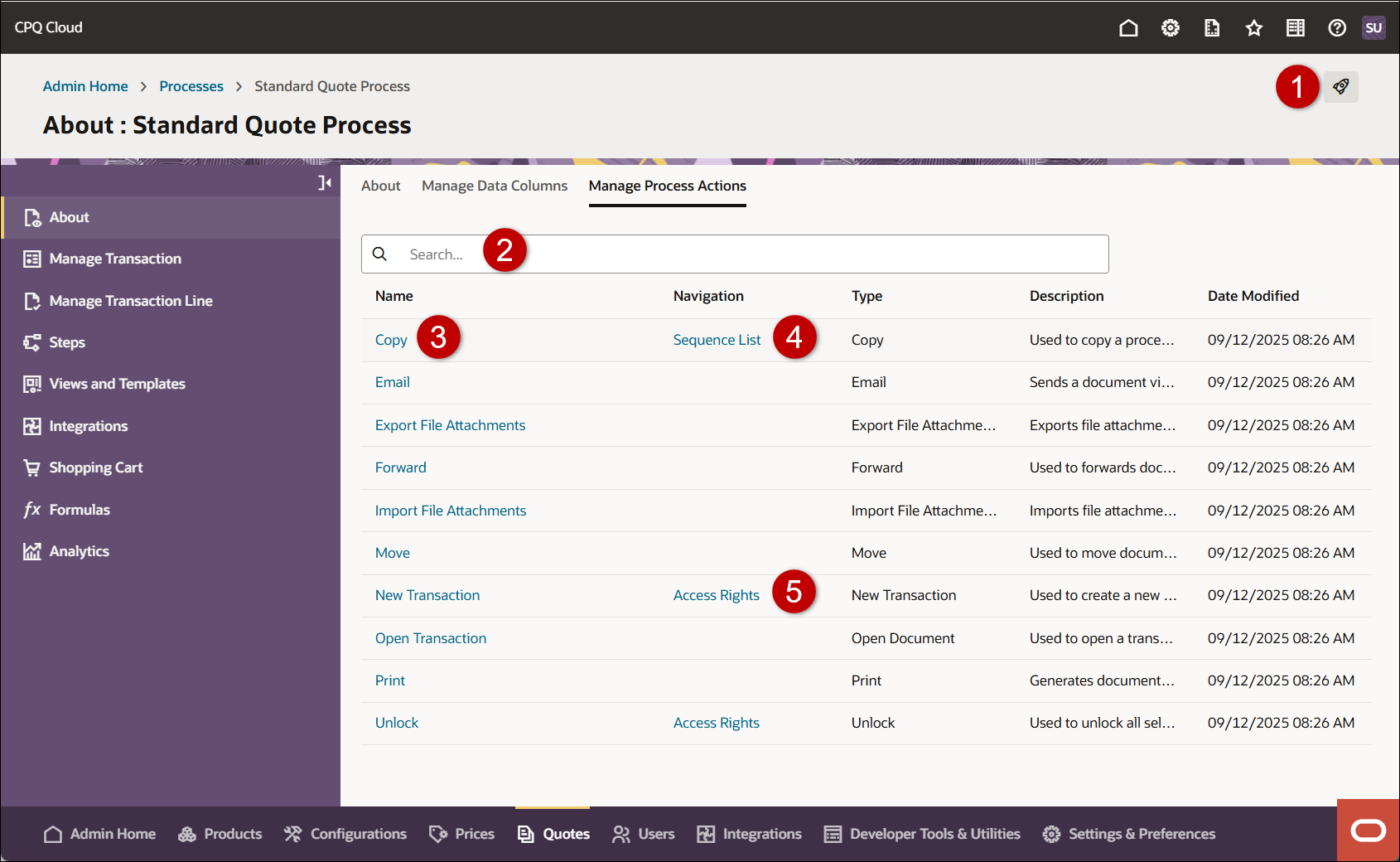
| Item | Description |
|---|---|
|
1 |
Access the Deployment Center |
|
2 |
Search for process actions |
|
3 |
Edit a process action |
|
4 |
Edit the Sequence List. A sequence informs the system which Commerce actions to perform while copying a Transaction and who should have access to the Copy action. Users only see the Copy options they have access rights to.
|
|
5 |
Edit Access Rights specify which company and user types can access this action |
Administration
Complete the following steps to add a data column.
- Navigate to Admin Home > Quotes.
- Select the applicable Process.
- Select the Manage Process Actions tab.
- Click on the applicable process action.
-
Refer to the following table to identify available tabs and editable options for each action.
Action Name Available Tabs Available Options Copy
General
Use this tab to manage general settings
- What is the name of the action? the label text that is displayed for this action
- Description (optional) the description for the action
- Show Action?
- Enable this option to always show this action for all users.
- Disable this option to always hide this action for all users.
- Action timeout in minutes (optional) when a timeout threshold is specified for an action it takes precedence over the general Commerce setting. This allows the administrator to isolate performance issues on a single Commerce action.
Initialization
Use this tab to specify how to populate attribute values in documents copied from other Transactions.
-
Select which attributes you want to initialize
Select Transaction or Transaction Line to manage how the system populates document attributes during a Copy process.
- Use the Search field to filter and locate attributes
- Override Standard Initialize Use this option to override default settings for process actions in a Standard Process.
-
Behavior
- Use Specified Value: Use this option to hard-code an attribute's value using the available text field.
- Revert to Default: Use this option to use the default value set for the attribute itself. This option is useful for picking up the current date and time, one of the many uses you can choose this option for.
- Copy from Original: Use this option to set the attribute's value using the value set in the original document. When this option is used, mapping settings associated with the Create Commerce action are not used.
- Define Function: Use this option to define an advanced function for setting an attribute's value.
Process Views
Use this tab to specify if an action is active or inactive on a transaction for selected Steps and Participant Profiles.
Performance
Use this tab to view the performance analysis for this action to troubleshoot performance issues or benchmark BML performance before and after implementing a script change. Sequence List
Refer to Manage Copy Action Sequence Lists to add and manage sequence lists.
Email
General
Use this tab to manage general settings
- What is the name of the action? the label text that is displayed for this action
- Description (optional) the description for the action
- XSL Views: Use this tab to associate XSL view(s) with the Email action. If multiple XSL views are made available with the action, users can choose the email form they want to use. To link XSL Stylesheets with these actions, the XSL files must be developed offline and then uploaded into the XSL administration area.
Process Views
Use this tab to specify if an action is active or inactive on a transaction for selected Steps and Participant Profiles. Export File Attachments
General
Use this tab to manage general settings
- What is the name of the action? the label text that is displayed for this action
- Description (optional) the description for the action
Process Views
Use this tab to specify if an action is active or inactive on a transaction for selected Steps and Participant Profiles. Forward
General
Use this tab to manage general settings
- What is the name of the action? the label text that is displayed for this action
- Description (optional) the description for the action
- Execute Action If Associated Integrations Timeout when this option is enabled this action will be executed even if the associated integration is timed out.
- Show Action?
- Enable this option to always show this action for all users.
- Disable this option to always hide this action for all users.
- Action timeout in minutes (optional) when a timeout threshold is specified for an action it takes precedence over the general Commerce setting. This allows the administrator to isolate performance issues on a single Commerce action.
-
Integration: Use this tab to determines the order in which data is exchanged between CPQ and a partner application. This tab is only displayed only if your site is integrated to a partner application.
Modify
Use this tab to specify how to populate attribute values in documents when this action is invoked.
-
Select which attributes you want to modify
Select Transaction or Transaction Line to manage how the system populates document attributes.
- Use the Search field to filter and locate attributes
- Override Standard Modify Use this option to override default settings for process actions in a Standard Process.
-
Behavior
- Use Specified Value: Use this option to hard-code an attribute's value using the available text field.
- Revert to Default: Use this option to use the default value set for the attribute itself. This option is useful for picking up the current date and time, one of the many uses you can choose this option for.
- Copy from Original: Use this option to set the attribute's value using the value set in the original document. When this option is used, mapping settings associated with the Create Commerce action are not used.
- Define Function: Use this option to define an advanced function for setting an attribute's value.
Process Views
Use this tab to specify if an action is active or inactive on a transaction for selected Steps and Participant Profiles.
Performance
Use this tab to view the performance analysis for this action to troubleshoot performance issues or benchmark BML performance before and after implementing a script change. Import File Attachments
General
Use this tab to manage general settings
- What is the name of the action? the label text that is displayed for this action
- Description (optional) the description for the action
Process Views
Use this tab to specify if an action is active or inactive on a transaction for selected Steps and Participant Profiles. Move
General
Use this tab to manage general settings
- What is the name of the action? the label text that is displayed for this action
- Description (optional) the description for the action
New Transaction
General
Use this tab to manage general settings
- What is the name of the action? the label text that is displayed for this action
- Description (optional) the description for the action
- Action timeout in minutes (optional) when a timeout threshold is specified for an action it takes precedence over the general Commerce setting. This allows the administrator to isolate performance issues on a single Commerce action.
Access Rights
Refer to Set Access Rights for Process Actions to specify access rights based on company type and user type.
Open Transaction
General
Use this tab to manage general settings
- What is the name of the action? the label text that is displayed for this action
- Description (optional) the description for the action
- Execute Action If Associated Integrations Timeout when this option is enabled this action will be executed even if the associated integration is timed out.
- Modify Without Saving? When enabled, changes to the document will not be saved when the action is performed, and transition rules will not trigger.
- Action timeout in minutes (optional) when a timeout threshold is specified for an action it takes precedence over the general Commerce setting. This allows the administrator to isolate performance issues on a single Commerce action.
-
Integration: Use this tab to determines the order in which data is exchanged between CPQ and a partner application. This tab is only displayed only if your site is integrated to a partner application.
Modify
Use this tab to specify how to populate attribute values in documents when this action is invoked.
-
Select which attributes you want to modify
Select Transaction or Transaction Line to manage how the system populates document attributes.
- Use the Search field to filter and locate attributes
- Override Standard Modify Use this option to override default settings for process actions in a Standard Process.
-
Behavior
- Use Specified Value: Use this option to hard-code an attribute's value using the available text field.
- Revert to Default: Use this option to use the default value set for the attribute itself. This option is useful for picking up the current date and time, one of the many uses you can choose this option for.
- Copy from Original: Use this option to set the attribute's value using the value set in the original document. When this option is used, mapping settings associated with the Create Commerce action are not used.
- Define Function: Use this option to define an advanced function for setting an attribute's value.
Process Views
Use this tab to specify if an action is active or inactive on a transaction for selected Steps and Participant Profiles.
Performance
Use this tab to view the performance analysis for this action to troubleshoot performance issues or benchmark BML performance before and after implementing a script change. Print
General
Use this tab to manage general settings
- What is the name of the action? the label text that is displayed for this action
- Description (optional) the description for the action
- XSL Views: Use this tab to associate XSL view(s) with the Email action. If multiple XSL views are made available with the action, users can choose the email form they want to use. To link XSL Stylesheets with these actions, the XSL files must be developed offline and then uploaded into the XSL administration area.
Process Views
Use this tab to specify if an action is active or inactive on a transaction for selected Steps and Participant Profiles. Unlock
General
Use this tab to manage general settings
- What is the name of the action? the label text that is displayed for this action
- Description (optional) the description for the action
Access Rights
Refer to Set Access Rights for Process Actions to specify access rights based on company type and user type.
-
Click the Translations
 icon to add translations.
 -
Click Save or Save & Close to save your changes.
 Set Access Rights for Process Actions
Complete the following steps to specify which company and user types can access this action.
- Navigate to Admin Home > Quotes.
- Select the applicable Process.
- Select the Manage Process Actions tab.
- Click the Access Rights for the applicable action.
- In the Company Type drop-down, select which companies will be able to perform the action.
- In the User Types drop-down, select which users will be able to perform the action.
- Click the greater than symbol (>) to move the Company Type: User Types set to the Access Rights list box.
- To remove a Company Type: User Types set from the Access Rights list box, select the set and click the less than symbol ( < ).
- Click Apply to save your changes. Click Update to return to the Process Action List page. Click Back to return to the Process Action List page without saving changes.
Manage Copy Action Sequence Lists
The Copy action lets you define how much of a Transaction is copied when the action is performed. You can offer different copying options to different user types. When multiple copy options are present, users can choose how much of a Transaction they want copied. This flexibility is possible through the use of an administration component called the Sequence List.
A sequence informs the system which Commerce actions to perform while copying a Transaction and who should have access to the Copy action. Users only see the Copy options they have access rights to.
-
When more than one sequence exists for a user type, a dialog box lets the user choose a copy option.
-
When no sequence exists, the system performs the default copy behavior: to copy the first step of the first document in a Transaction.
Complete the following steps to manage sequence lists for the copy action
- Navigate to Admin Home > Quotes.
- Select the applicable Process.
- Select the Manage Process Actions tab.
-
Click the Sequence List link for the Copy action.
-
Click Add. to create a new sequence list.
- Enter information in the Name and Description fields.
-
In the Action Sequence section, choose the actions you want Oracle CPQ to perform for the Copy action.
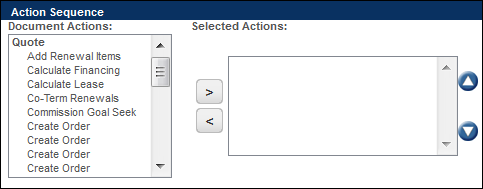
- Choose an action name from the Document Actions list box.
- Click the greater than symbol ( > ) to move the selected action to the Selected Actions list box.
-
To order the actions in the way they would be performed in a Transaction workflow.
-
Choose the action in the Selected Actions list box
-
Click the up and down arrows to move the actions up or down within the list.
-
-
To remove actions from the Selected Actions list box by choosing the action name and clicking the less than symbol ( < ).
-
Click Add to save your changes and return to the Copy Sequence List page. Click Back to return to the Copy Sequence List page without saving any changes.
The last Commerce action performed by the system for a Copy action should leave the document in a step where data can be saved.
If the copy Process takes the Transaction through to the end, without letting the user perform a Save (Modify) Commerce action, the document will not be saved.
Notes
Notes:
-
Only FullAccess users can manage process actions.
-
Edits are not visible until the Process is deployed. Before deploying a new Commerce Process, administrate all of its components.
-
The sequence name and description should enable users to distinguish one type of Copy action from another. If there are multiple copy options available to a user, the sequence name and description distinguish one copy option from another in a dialog box whenever they click the Copy Process action.


