Overview
This topic covers managing configuration layouts for Classic (JET and Legacy) pages. Refer to Layout Editor for Redwood for updating Redwood pages.
The Configuration Layout Editor for Classic (JET and Legacy) is for administrators managing configuration layout using the Redwood Admin interface for updating Classic JET and legacy user-side configuration pages. We continue to support this layout editor but encourage administrators to transition to the latest Configuration Layout Editor for Redwood.
Once you have created your configuration flow, you can open the Configuration Layout Editor for Classic (JET & Legacy) and to layout the user-side configuration pages. Administrators can create easily create configuration layouts using this Configuration Layout Editor, which provides a graphical drag & drop feature for creating and managing the display of the model configuration pages. You have the ability to create multiple views and grids; and flexibility in laying out UI elements.
Configuration Layout Editor (JET & Legacy)
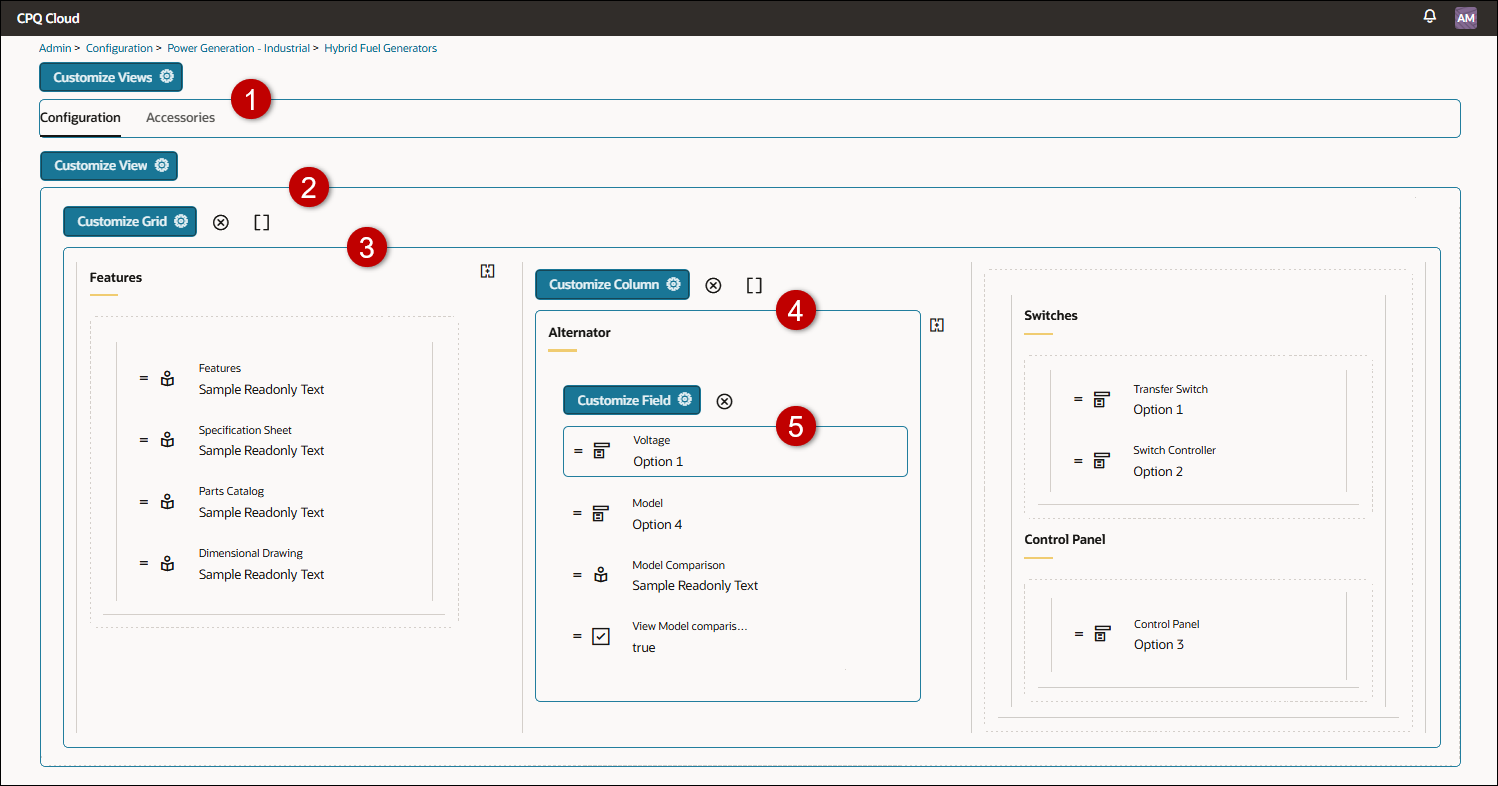
| Item | Description |
|---|---|
|
1 |
Views: The first step in organizing your configuration layout is to create views (i.e. tabs). You can add as many views as you’d like. |
|
2 |
View: Each view contains a title and at least one grid. You can add optional information, such as a heading and help text at the top and/or bottom of the view. You can also specify a CSS style, add a background image and manage the status of your view. |
|
3 |
Grid: You can add an optional title to your grid, specify the number of columns and rows, and set the width for your columns. You can a grid to a view or a column. |
|
4 |
Columns: All of your display and configurable attributes are placed inside columns. You can also add spacers, actions, and nested grids inside the columns. |
|
5 |
Fields: Attributes are contained within fields, which are used to set the display properties for the attribute. |
Administration
 Access the Redwood Configuration Layout Editor
 icon for the desired level.



Refer to the following topics to customize the Configuration UI:
| Topic | Procedures |
|---|---|
|
|
|
The layout properties are used to identify when the configuration flow is evaluated, stylesheets, and sidebar behavior. It is also used to mange the display of item lists and the price table for JET configuration UIs. |
|
|
|
|
|
|


