Administration
Configuration actions provide a dedicated object (a button) with predictable behavior that can be used as an input to trigger recommendation rules. When a configuration action is added to the condition of recommendation rules, invoking the action will trigger the recommendation rule.
Actions can be added to a column within a grid.
Complete the following steps to add an action to the configuration layout.
-
 Navigate to the desired configuration flow.
-
To access a recently modified flow:
-
Navigate to Admin Home > Configurations
-
Select the item from the Continue configuring rules and flows section.
-
-
To access a configuration flow from product configuration:
-
Navigate to the desired product level.
- All Product Families: Admin Home > Configurations
- Product Family: Admin Home > Configurations > Product Family
- Product Line: Admin Home > Configurations > Product Family > Product Line
- Model: Admin Home > Configurations > Product Family > Product Line > Model
-
Click the Edit
 icon for the desired level.
-
Open the Configuration Flows administration page:
-
Product Family: Select Flows in the left navigation, then click on the Configuration Flows tab.
-
Product Line or Model: Configuration Flows in the left navigation.
-
-
-
Click on the desired configuration flow.
-
-
Click on the desired view.
-
Click on the Add
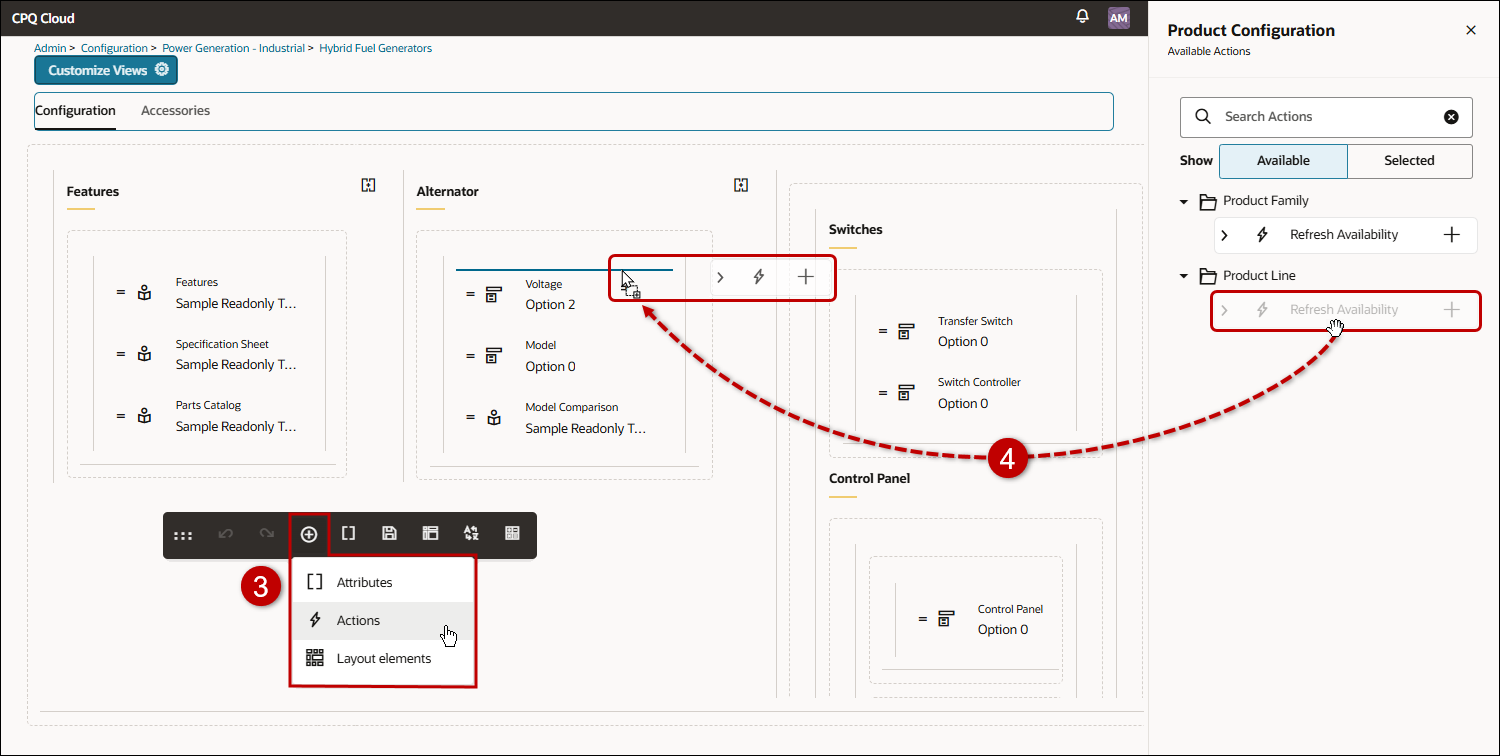
 icon in the layout editor toolbar, then select Actions from the menu.
-
Drag and drop the action into the desired location.
-
Click the Save
 icon in the layout editor toolbar.
Complete the following steps to locate an action in the configuration layout.
-
Navigate to the desired configuration flow.
-
To access a recently modified flow:
-
Navigate to Admin Home > Configurations
-
Select the item from the Continue configuring rules and flows section.
-
-
To access a configuration flow from product configuration:
-
Navigate to the desired product level.
- All Product Families: Admin Home > Configurations
- Product Family: Admin Home > Configurations > Product Family
- Product Line: Admin Home > Configurations > Product Family > Product Line
- Model: Admin Home > Configurations > Product Family > Product Line > Model
-
Click the Edit
icon for the desired level. -
Open the Configuration Flows administration page:
-
Product Family: Select Flows in the left navigation, then click on the Configuration Flows tab.
-
Product Line or Model: Configuration Flows in the left navigation.
-
-
-
Click on the desired configuration flow.
-
-
Click inside the configuration layout.
-
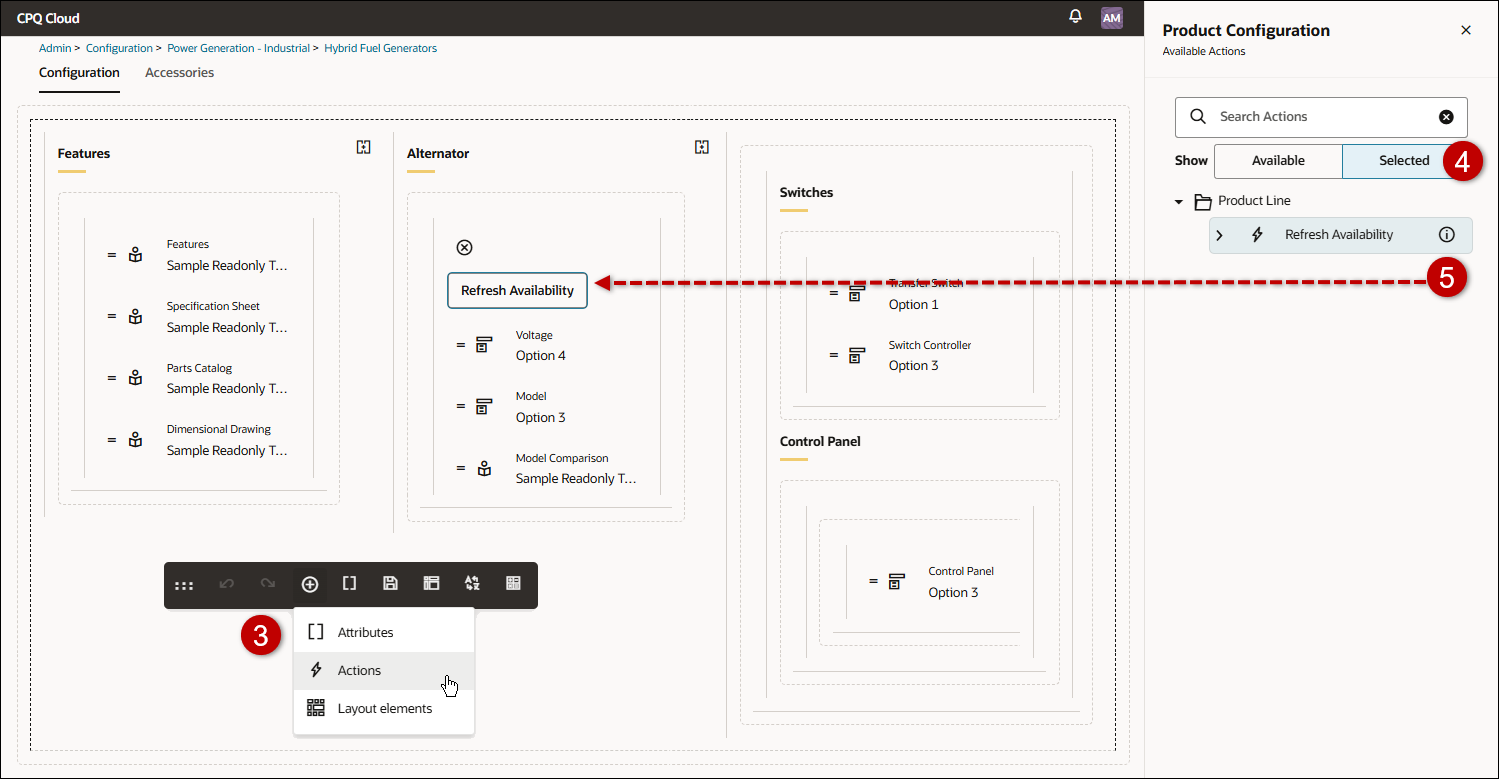
Click on the Add
icon in the layout editor toolbar, then select Actions from the menu. -
Select Show Selected.
-
Click on the action Locate
 icon.
The configuration layout will open the applicable view and highlight the action.
Complete the following steps to delete an action.
-
Navigate to the desired configuration flow.
-
To access a recently modified flow:
-
Navigate to Admin Home > Configurations
-
Select the item from the Continue configuring rules and flows section.
-
-
To access a configuration flow from product configuration:
-
Navigate to the desired product level.
- All Product Families: Admin Home > Configurations
- Product Family: Admin Home > Configurations > Product Family
- Product Line: Admin Home > Configurations > Product Family > Product Line
- Model: Admin Home > Configurations > Product Family > Product Line > Model
-
Click the Edit
icon for the desired level. -
Open the Configuration Flows administration page:
-
Product Family: Select Flows in the left navigation, then click on the Configuration Flows tab.
-
Product Line or Model: Configuration Flows in the left navigation.
-
-
-
Click on the desired configuration flow.
-
-
Click on the desired view.
-
Click on the action you want to delete.
-
Click on the Delete
 icon for the action.
-
Click Delete in the confirmation dialog.
-
Click the Save
icon in the layout editor toolbar.


