Administration
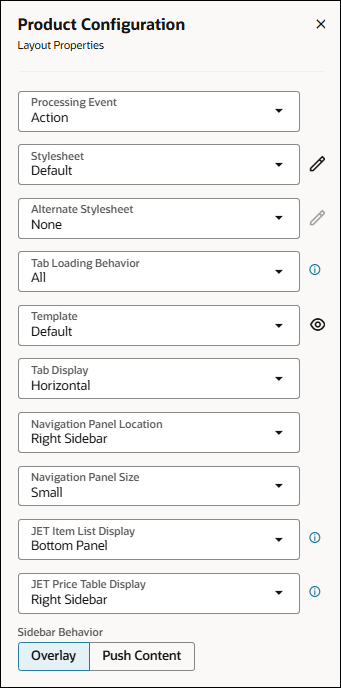
The layout properties are used to identify when the configuration flow is evaluated, stylesheets, and sidebar behavior. It is also used to mange the display of item lists and the price table for JET configuration UIs.
Complete the following steps to manage configuration layout properties.
-
Click inside the configuration layout.
-
Click on the Layout Properties icon in the layout editor toolbar.

-
If desired, update the following layout properties, then click the Save
 icon in the layout editor toolbar.
 Navigate to the desired configuration flow
 icon for the desired level.
|
Option |
Description |
|
|---|---|---|
|
Processing Event |
Specify the Processing Event:
|
|
|
Stylesheet |
Select a Stylesheet from the drop-down. Click the pencil icon |
|
|
Alternate Stylesheet |
Select an Alternate Stylesheet from the drop-down. Click the pencil icon |
|
|
Tab Loading Behavior |
Select a tab loading behavior.
Loading only the active tab on page load causes all other tabs to be loaded only when switching tabs. This option improves performance and initial load times on larger flows, especially on mobile devices. However, switching tabs will take a little longer. |
|
|
Template |
Select a template for Legacy layouts. The layout Template is only used for Legacy layouts. Templates do not control the layout for Redwood or JET Configuration UIs. |
|
|
Tab Display |
Select the placement for tabs on the JET Configuration UI
|
|
| Navigation Panel Location |
Select the location of the System Navigation Panel
|
|
| Navigation Panel Size |
Set the size of the System Navigation Panel to Small, Medium, or Large. The medium panel size is the only option available when the System Navigation Panel is displayed in the right sidebar. |
|
|
JET Item List Display |
This option controls whether items lists (e.g. recommended items, mandatory items, and BOM items) are displayed in the right sidebar or the bottom panel. |
|
|
JET Price Table Display |
This option controls whether price tables are displayed in the right sidebar, bottom panel, or hidden. When item lists are displayed in the right sidebar, the price table can only be displayed in the right sidebar or hidden. |
|
|
Sidebar Behavior |
This option controls sidebar behavior. Overlay or push content behavior can be selected. |
|


