Intelligence Portal
Overview
The Intelligence Portal is used to manage the machine learning definitions for the following AI-generated recommendations:
-
Product Recommendations suggest products to be added alongside the current items in the quote. The product recommendations are based on the most commonly sold products, in the context of the quote. This makes it easier, and faster, for sales users to find the right products for their customers.
Note: Product recommendation intelligence models are automatically created when a new Commerce process is deployed. Customers cannot manually create new intelligence models.
-
Top-Selling Configurations recommend top-selling configurations for configurable products, based on actual sales data from past transactions.
The Intelligence Portal shows the current intelligence models, the deployment status, and the data source for the recommendations. The intelligence model status can be:
-
Draft: indicates there is not a deployed training session for this intelligence model, or
-
Ready: indicates there is a deployed training session for this intelligence model.
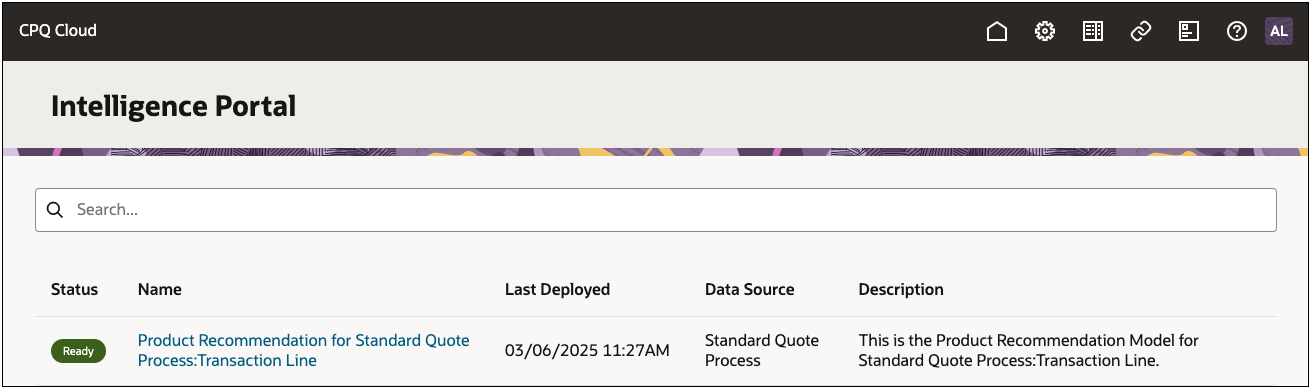
The Intelligence Portal provides a task-oriented process for intelligence model administration. The process includes the following tasks:
 Basic Details
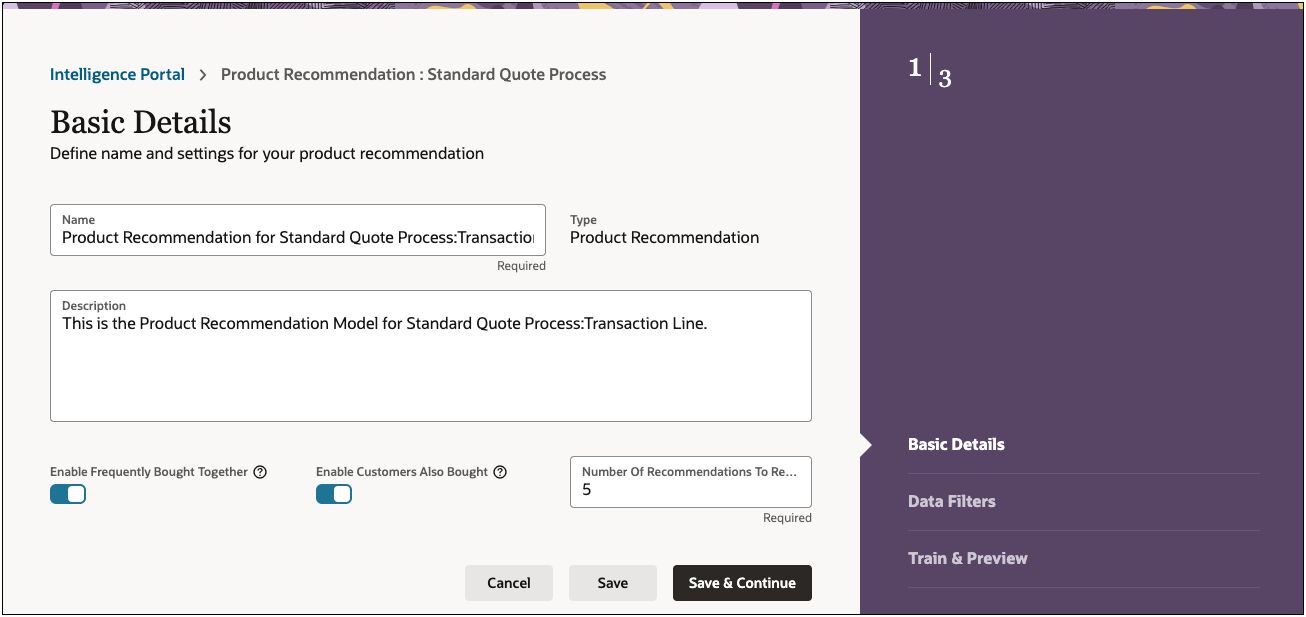
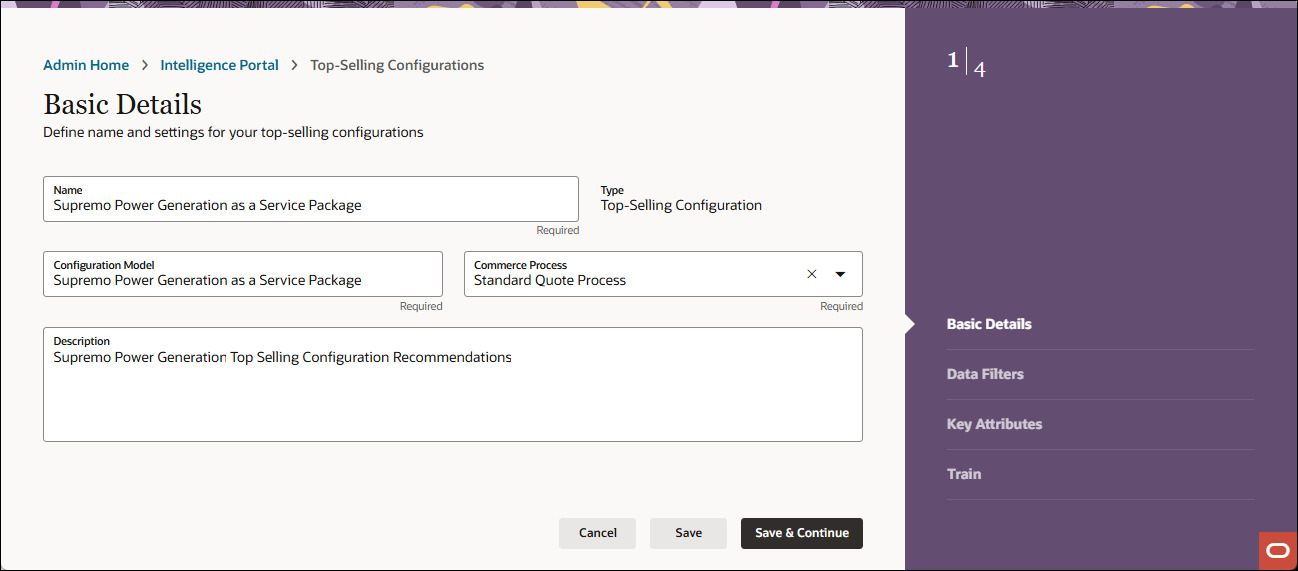
The Basic Details page is used to define settings for your recommendations:
-
Product Recommendations basic details include Frequently Bought Together, Customers also bought, and the number of recommendations to return.
-
Top Selling Configuration basic details include the target Commerce Process.
Data Filters
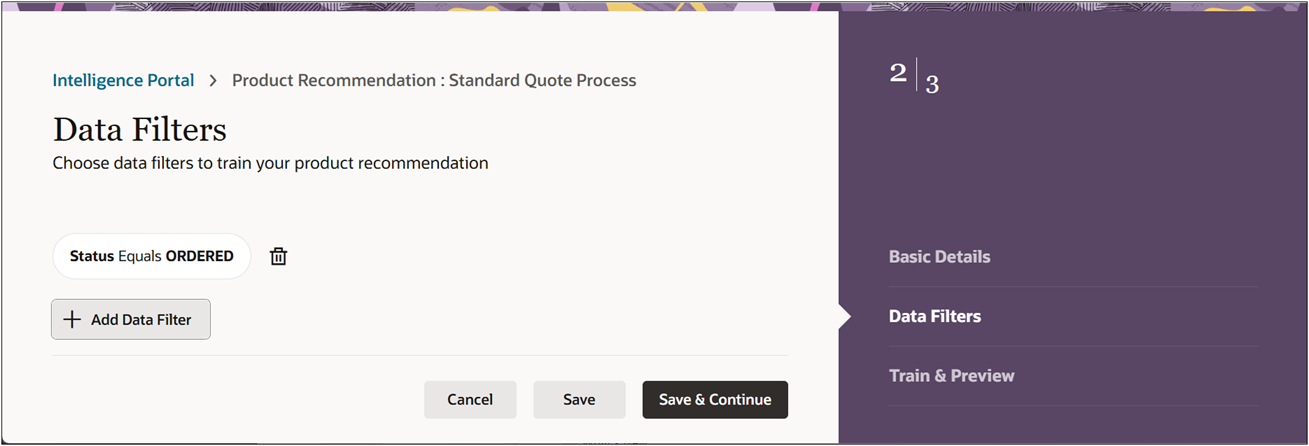
The Data Filters page is used to specify data criteria for the training sessions. For example, you can specify only transactions where the Status is ORDERED should be used for training.
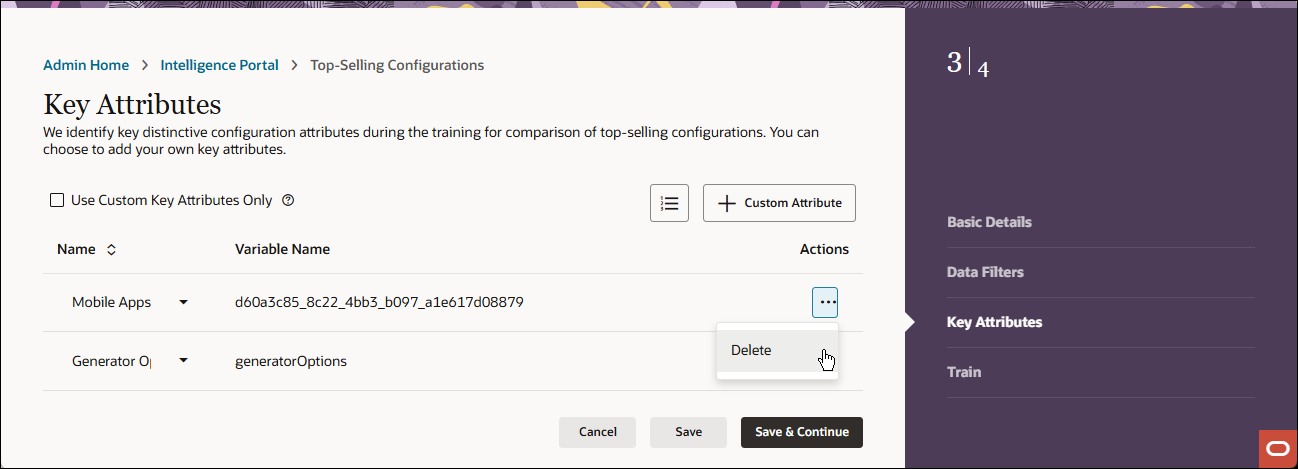
Key Attributes (This task step is only for Top Selling Configurations)
We identify key distinctive configuration attributes during the training for comparison of top-selling configurations. You can add your own custom key attributes and opt to use only custom attributes for comparison.
-
To add an attribute, click + Custom Attribute, then select the applicable attribute from the Name drop-down.
-
If desired, check Use Custom Key Attributes Only to use only custom attributes for comparison
-
To remove a key attribute, select Delete from the Actions ellipsis menu.
-
To change the order of the key attributes, click on the Reorder Attributes  icon.
icon.
Train & Preview
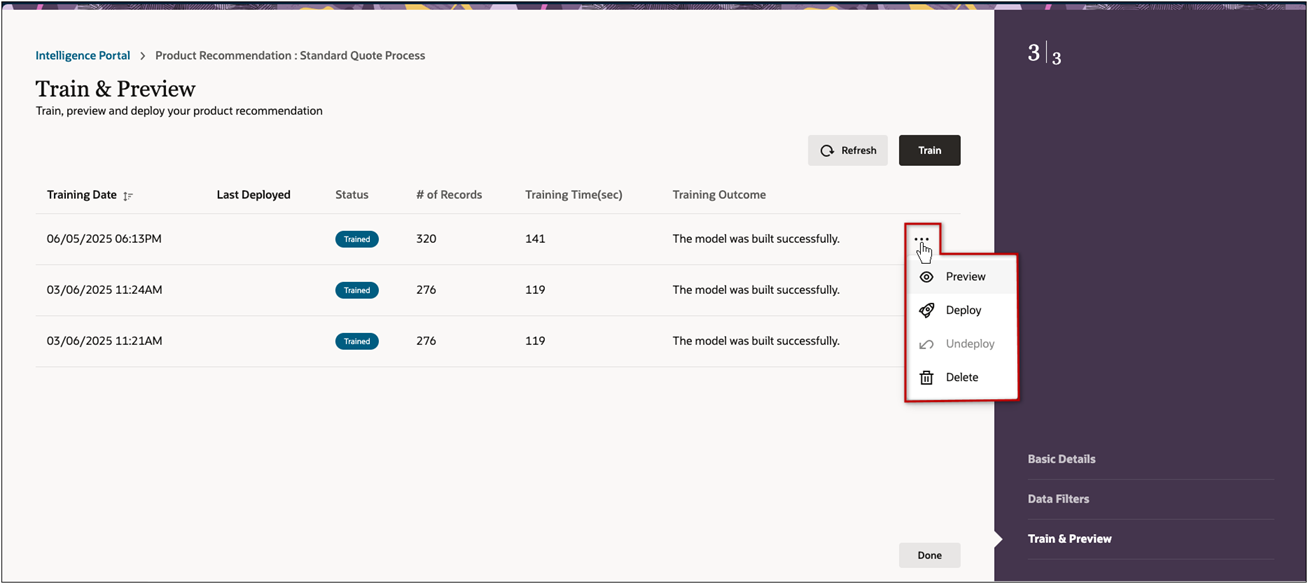
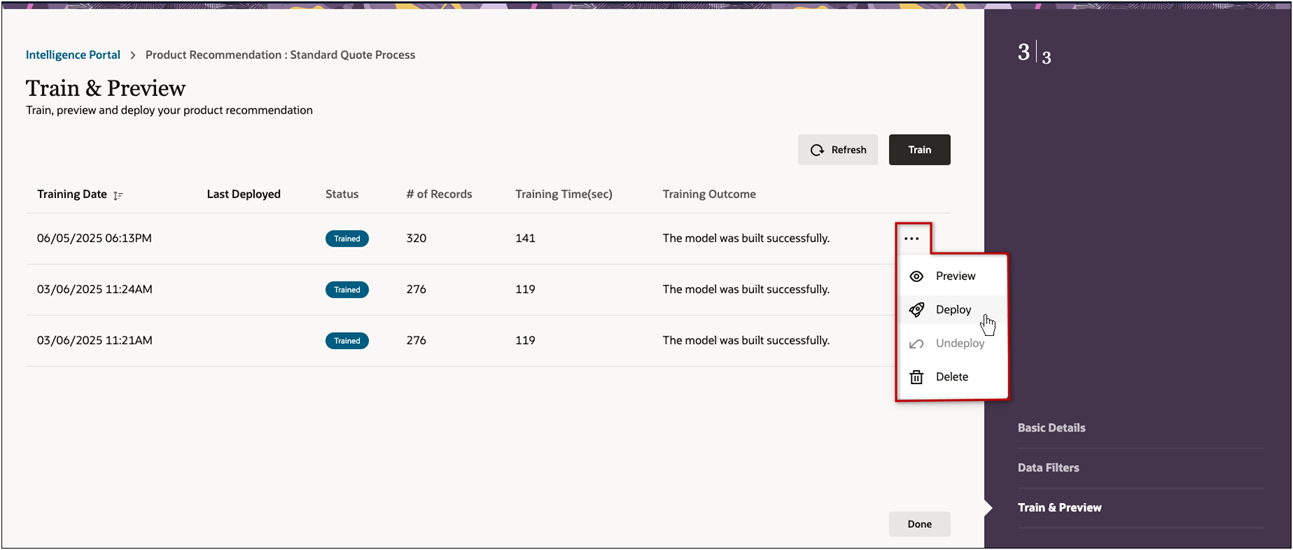
The Train & Preview page is used to add, delete, preview, deploy, and undeploy training sessions. This page displays the training date, last deployed date, status, number of records used, training time, and training outcome for each training session. The training session status can be:
-
Started: training is in progress.
-
Trained: the training session successfully completed. Only Trained sessions can be deployed.
-
Failed: the training session failed.
-
Deployed: the training session is deployed and the Intelligence Portal can generate recommendations when users add products.
-
A Deployed training session can be undeployed, the status will go back to Trained.
-
Only one training session can be deployed. As a result, deploying any other training session will automatically undeploy the previously deployed training session.
Administration
Train and Deploy a Product Recommendation Intelligence Model
Complete the following steps to train an intelligence model.
-
Log into Oracle CPQ as a Full Access user and navigate to the Admin home page.
-
Select Intelligence Portal from the Products card ellipsis menu.
-
Click on the Product Recommendations tab.
-
Click on the applicable intelligence model Name.
-
Define the Basic Details for the training session.
-
If desired, update the intelligence model Name.
-
If desired, update the intelligence model Description.
-
Enable Frequently Bought Together - Select this option to recommend products based on items commonly purchased together in the same quote.
-
Enable Customers Also Bought - Select this option to recommend products based on items frequently bought by the same customer, including purchases from different quotes.
-
Enter the Number of Recommended Items to Return.
-
Click Save & Continue.
-
Optional, define Data Filters for the training session.
-
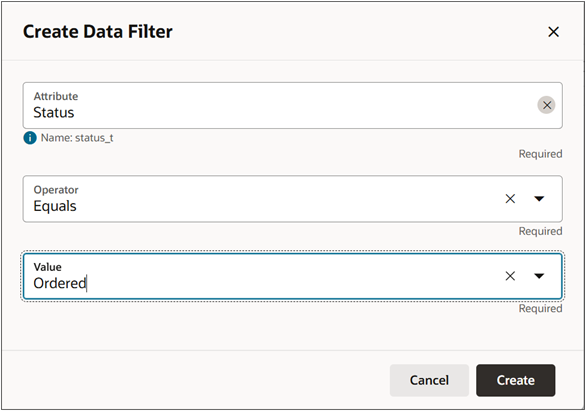
Click Add Data Filter to create a new filter.
-
Select the Attribute, Operator, and Value.
-
Click Create.
-
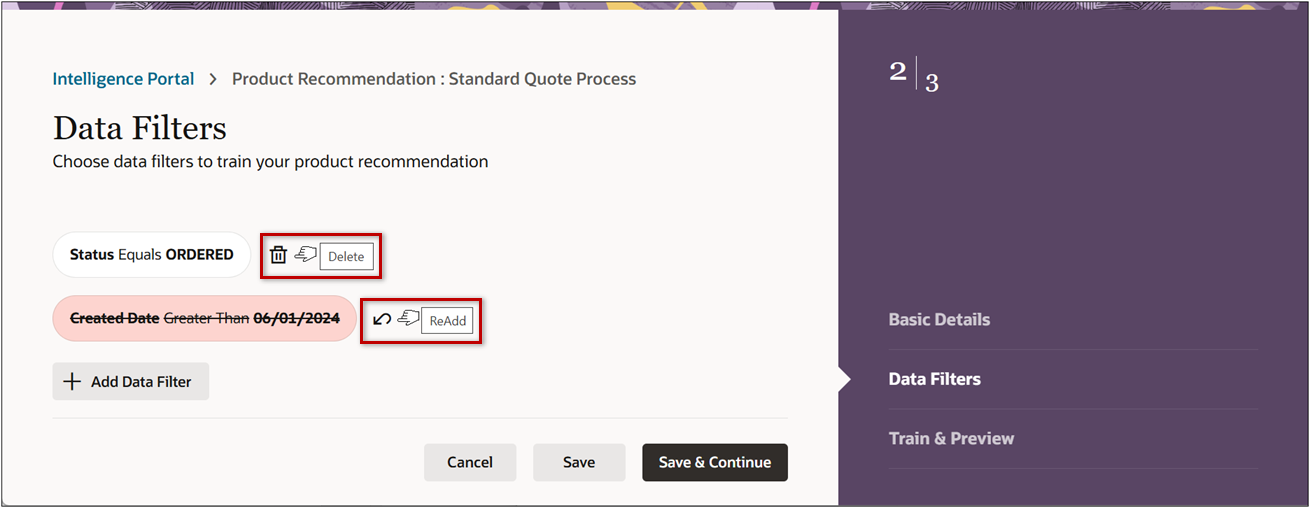
The Data Filters page will display available filters.
-
Click Save & Continue.
-
Train and deploy the intelligence model.
-
Click Train to add a new training session.
-
Select Deploy from the line ellipsis menu for the applicable training session.
You can only deploy training sessions with a Trained status.
-
To remove a training session, select Delete from the applicable line ellipsis menu.
-
To undeploy a training session, select Undeploy from the applicable line ellipsis menu.
-
Click Done.
Add Top-Selling Configuration Intelligence Model
Complete the following steps to create a Top-Selling Configuration in the Intelligence Portal.
-
Log into Oracle CPQ as a Full Access user and navigate to the Admin home page.
-
Select Intelligence Portal from the Products card ellipsis menu.
-
Click on the Top-Selling Configurations tab.
-
Click + Top-Selling Configuration or click on the applicable intelligence model Name to edit and existing item.
-
Define the Basic Details:
-
Enter a Name for the configuration.
-
Select the Configuration Model.
-
Select a Commerce Process.
-
Optional, enter a Description.
-
Click Save & Continue.
-
Optional, define Data Filters.
-
Click + Add Data Filter to create a new filter.
-
Select the Attribute, Operator, and Value.
-
Click Create.
-
The Data Filters page will display available filters.
-
Click Save & Continue.
-
Optional, add and manage custom Key Attributes.
-
To add an attribute, click + Custom Attribute, then select the applicable attribute from the Name drop-down.
-
If desired, check Use Custom Key Attributes Only to use only custom attributes for comparison
-
To remove a key attribute, select Delete from the Actions ellipsis menu.
-
To change the order of the key attributes, click on the Reorder Attributes icon.
-
Click Save & Continue.
-
Train and deploy the intelligence model.
-
Click Train to add a new training session.
-
Select Deploy from the line ellipsis menu for the applicable training session.
You can only deploy training sessions with a Trained status.
-
To remove a training session, select Delete from the applicable line ellipsis menu.
-
To undeploy a training session, select Undeploy from the applicable line ellipsis menu.
-
Click Done.
Related Topics
See Also


