Overview
Migration is the process of copying components from one Oracle CPQ site to another Oracle CPQ site. Migration saves admins time by eliminating the need to manually recreate components on a different site or to bulk upload and download components on multiple sites. Migration also eliminates error by ensuring that exact copies of all migrated components end up on the target site.
In Oracle CPQ, migrations are done as pulls, where the components are pulled from the source site to the target site. To perform a migration between sites, the admin must log into the target site, open the Migration Center, and connect to the source site that the components will be pulled from.
Migrations can be done between two Oracle CPQ sites, or between an Oracle CPQ site and a migration package. See the topic Migration Packages for more information on creating and applying migration packages.
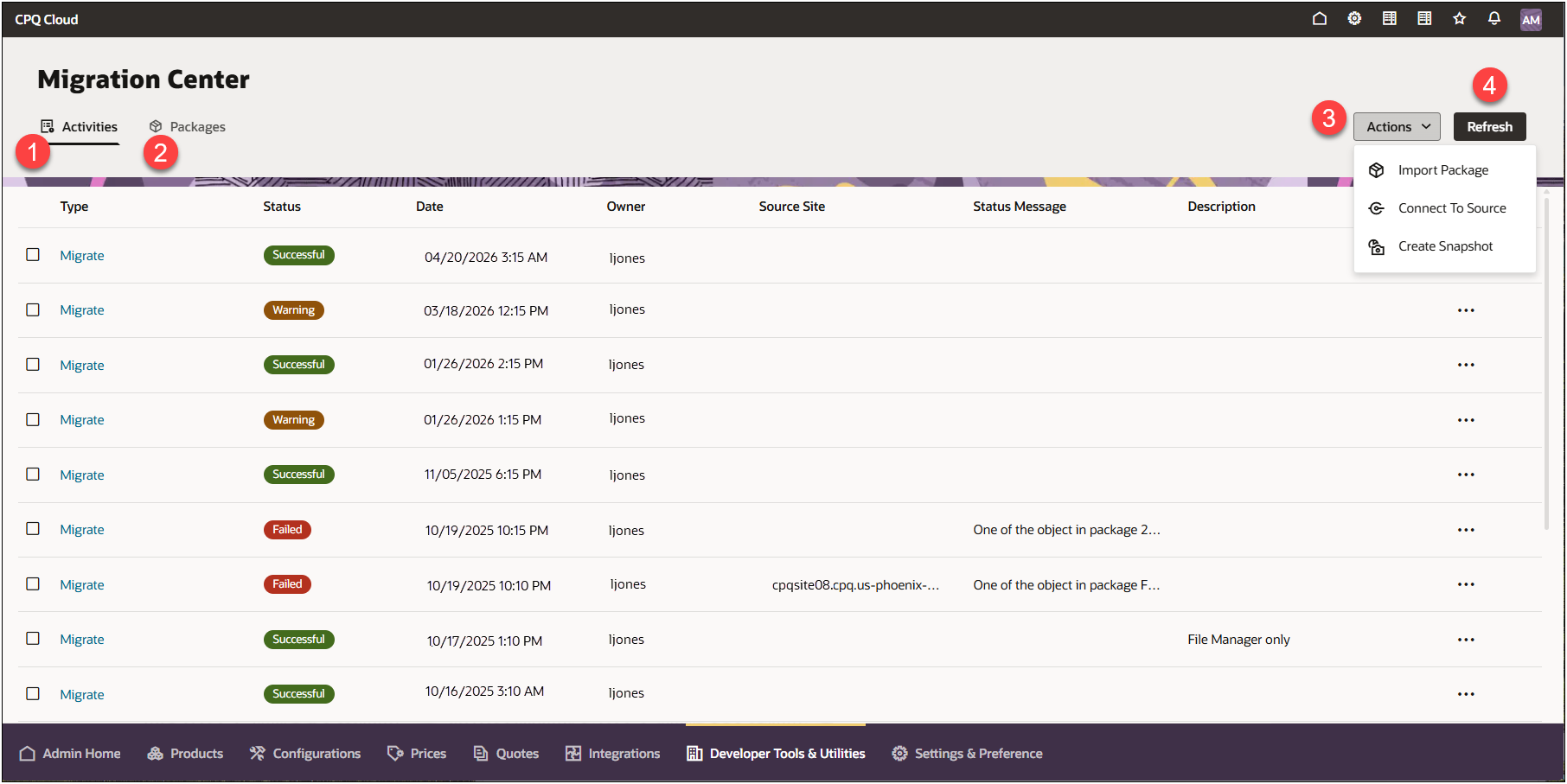
The Migration Center is the user-interface where all migration takes place within Oracle CPQ.
To access the Migration Center, navigate to: Admin Home > Developer Tools & Utilities > Migration
| Item | Description |
|---|---|
|
1 |
Click Activities to view recent migrations, migration status and details, and perform migration activity-related actions. The Migration Activities display by default. |
|
2 |
Click Packagesto create a new packages, view details of an existing migration package, version a n existing migration package, and delete a migration package. Refer to Migration Packages. |
|
3 |
Click the Actions drop-down to:
|
|
4 |
Click Refresh to refresh the current page. |
| Term | Definition | Related Topics |
|---|---|---|
|
Migration Center |
The Migration Center is the user-interface where all migration takes place within CPQ. |
|
|
Source Site |
The Oracle CPQ site that new and changed components are being pulled from. The admin must connect to the source site with appropriate credentials when in Import From Source mode in order to perform a migration. |
|
|
Target Site |
The Oracle CPQ site that new and changed components are being pulled to. To pull components to the target site, the admin must log into the target site, open the Migration Center, and connect to a source site. |
|
|
Migration Packages |
Migration packages are admin-defined packages of components that can easily be moved from site to site without the admin having to reselect components before each migration. |
|
|
Snapshot |
A Snapshot is a captured state of a site’s migratable objects. Admins can revert a site to the state captured in a Snapshot, if needed. Oracle CPQ recommends you take a snapshot of the target site before performing the migration. Snapshots can be taken at any time. |
|
|
Rollback |
Rollback is the action of undoing a migration to a target site. Rollbacks will restore the components on the target site that were updated by the migration to their previous state immediately before the migration took place. |
|
|
Migration Logs
|
A migration log provides a record (or log) of each previous migrations to the target site. Each migration log includes additional details about the migration status, any errors or warnings for the migration, and the migration package information. |
|
Migration Rollbacks allow you to undo the changes made to target sites by individual migrations. Immediately before a migration is initialized, Oracle CPQ will store a record of the state of all objects on the target site that will be affected by the migration. When a Rollback is performed, the objects on the target site that were affected by the migration will be reverted to their original state immediately before the migration. If any other changes were made to these objects by additional migrations after the migration that is undone, those changes will also be reverted.
Rollbacks will not affect Transactions.
Rollbacks do not delete Commerce Steps. If a Commerce Step exists on the target site in current state but does not exist in the migration selected to rollback to, the Commerce Step will remain on the target site with the following effects:
- All Transactions in the Commerce Step will remain untouched by the system.
-
Transition Rules and Forwarding Rules under the Commerce Step will remain untouched.
This will allow any Transaction in the Commerce Step to still transition out as it would have at the time Rollback was initiated.
-
Transition Rules and Forwarding Rules for all other Commerce Steps will be reverted to their state immediately before the migration..
- All Participant Profiles, User Access Rights, and Document Views for the Step will remain untouched by the system.
 Rollback & Data Tables/File Manager
Individual Data Tables or File Manager files are affected in Rollback only if a version is contained within any recorded state between current state and the state being rolled-back to.
- An individual Data Table will only be included in the data recorded immediately prior to a migration if it has been selected for that specific migration. Therefore, this Data Table may be contained within multiple potential Rollbacks, only one potential Rollback, or no potential Rollback at all. The same follows for an individual File Manager file.
A Data Table will be rolled-back if it is contained within a potential Rollback (if it has been migrated) between the present state and the selected migration that is being rolled-back. If a Data Table is contained within multiple potential Rollbacks, it will be rolled-back to the version stored within the oldest potential Rollback in this timespan.
A File Manager file will be rolled-back if it is contained within a potential Rollback (if it has been migrated) between the present state and the selected migration that is being rolled-back-to. If a File Manager file is contained within potential Rollbacks, it will be-rolled back to the version stored within the oldest potential Rollback in this timespan.
Rollback will remove a Data Column(s) if it is not contained within the Rollback.
- If a Data Column is removed via Rollback and was referenced in the Process Manager at the time Rollback is initiated, it will be removed from the Transaction Manager columns.
- If a Data Column is removed via Rollback and was referenced in the Process Manager at the time Rollback is initiated, it will be removed from any custom Transaction Manager Views.
- Affected views will be highlighted red in the drop-down.
- If a Data Column is removed via Rollback and was referenced in a Report prior to Rollback, the Report will become invalid.
- The invalid Report name will be highlighted red in the Report Manager.
- The creator must manually remove deleted Data Columns used in the Report before the Report can be saved, scheduled, or run.
- “[Attribute removed]”, highlighted in red, appears where a reference to a deleted Data Column was used.
- The system will send an email to the creator of any report that was made invalid by removed Data Columns during the Rollback process.
- Scheduled Report emails will notify the recipient that errors have occurred and they must contact their admin.
A Snapshot is a capture of the state of a site's migratable objects.
The data stored in a Snapshot differs from the data stored for a potential Rollback in that Snapshots objects available for a migration (such as Configuration, Commerce, Util Libraries, etc.) with the exception of Data Tables and File Manager, not just those that are queued for migration. Only Data Tables and File Manager files included in the present migration will be included in the Snapshot.
Oracle CPQ recommends you take a snapshot of the target site before performing a migration.
The admin can choose to revert the target site’s migratable components to their state at the time a Snapshot was created by performing a Revert to Snapshot.
The system will store up to 10 Snapshots at a time, whether or not they are Migration Snapshots or On Demand Snapshots. After an 11th Snapshot of either kind, the oldest Snapshot will be permanently deleted and the 10 most recent Snapshots will remain. This deletion will occur upon completion of the next successful migration.
Once a Snapshot is selected to be reverted to, that Snapshot and all other Snapshots that were taken after the selected Snapshot will be permanently deleted.
Migration logs include errors produced when taking a Snapshot.
Connect to Source for CPQ Running in Fusion
Oracle CPQ 26B Migration Center supports site-to-site migration between two Oracle CPQ sites running in Fusion via Oracle Cloud Infrastructure Identity and Access Management (IAM). IAM, previously known as Oracle Identity Cloud Service (IDCS), provides identity and access management features such as authentication, single sign-on (SSO), and identity lifecycle management for Oracle Cloud. Refer to Register an External Application Client in IAM for Oracle CPQ Running in Fusion for set up instructions.
The Migration Center allows you to easily create secure site connections using OAuth access tokens. CPQ site connection details including the Site URL, IAM/IDCS URL, Client ID, Client Secret, and Scope are retained in the CPQ Migration Center. When a Client Secret is regenerated per customer-defined business policies, administrators update the Client Secret value to maintain the secure site connection. Refer to Create or Update Migration Connection.
Once the secure connection is established between two Oracle CPQ sites running in Fusion, the CPQ Migration Center supports the following activities:
-
seamless site to site migration
-
import a migration package
-
view details of existing migration packages
-
create a snapshot of the entire site
Migration in a Development-Test-Production Setup
In a Development-Test-Production environment setup, administration would be done on the Development site, new or changed components would be migrated to the Test site for testing, and then the components would be migrated to the Production site where they would be live to sales users in the field.
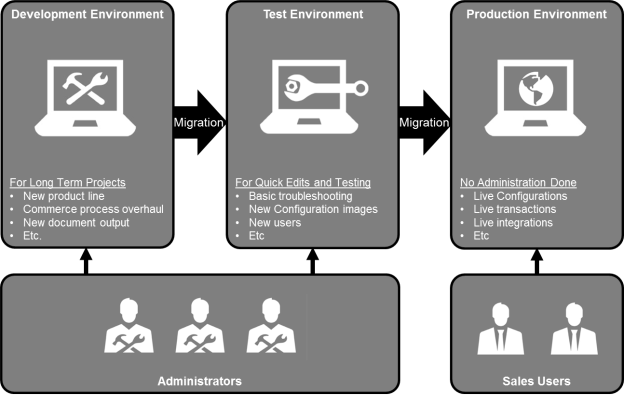
In the graphic above, in the first migration from the Development site to the Test site, the Development site is the source site and the Test site is the target site. In the second migration from the Test site to the Production site, the Test site is the source site and the Production site is the target site.
Environment setups will differ from implementation to implementation, but new or changed components must somehow be moved from the site they were developed on to the site where they can be used in the field. Migration is the fastest and safest way to move components from site to site.
Cross Process Migration removes the restriction of only importing data into a common process. This feature allows an administrator to perform a granular migration of data from a package into another process on the target site. The administrator importing the package on the target site identifies the target process for the migration.
The following Commerce elements can be migrated using a Cross Process Migration:
- Granular elements of a Commerce process
- Email Designer Templates
- Document Designer Templates
- Util Libraries, Product Definition, Catalog, Configuration, Data Tables, and File Manager are also permitted, as they are not part of a Commerce process.
This feature does NOT support the following functions:
- Cross Process Migration of Document Engine Documents
- Migration to a different Commerce process using "Import from Source" or "Connect to Destination" migration modes
-
Simultaneous Cross Process Migration to multiple Commerce processes
Note: Packages can be migrated to multiple processes if installed one at a time. -
Complete replacement of an existing target Commerce process using Cross Process Migration
Note: Granular data elements from a Commerce process must be selected and migrated. - Migration across Commerce processes where either the source or the target site contain more than one main document and one sub-document
-
Migration of non-granular Commerce objects across processes (i.e. layouts and complex conditionals)
- Granular objects from multiple Commerce processes combined into one Cross Process Migration package, this includes Document Designer documents from multiple processes.
-
Creation of a new target site Commerce process during Cross Process Migration
Note: Migration of granular data into a pre-existing Commerce process on the target site is allowed.
An administrator performs the following steps to complete a Cross Process Migration:
- Upload a migration package to the target site
- Select a target Commerce process
- Select the source process to view granular differences
- Select applicable elements
- Initiate the migration
Cross Process Migration Option
If the migration package contains eligible Cross Process Migration elements, the administrator will be presented with an option to select a target Commerce process upon import. The following image shows the eligible target Commerce processes for the uploaded package.
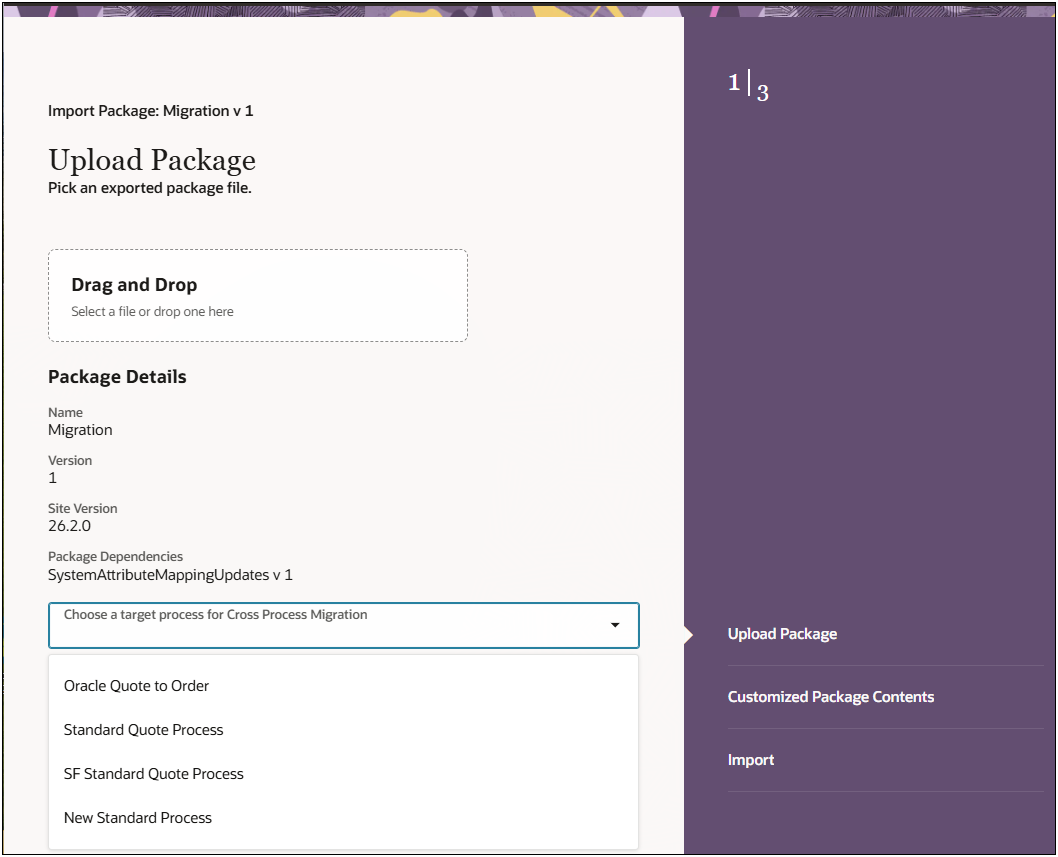
When a target Commerce process is selected during Cross Process Migration:
- The selected granular elements are migrated to the chosen target process.
- A complete process migration cannot be performed because some elements are not eligible for Cross Process Migration.
- When "Default Migration" is selected, a standard package migration is performed.
- The standard migration interface appears when the migration package does NOT contain any Cross Process Migration elements.
- Target Commerce processes are NOT listed for processes with multiple main sub-documents or new Commerce processes on the target site.
High Level and Low Level Differences
After selecting the target process, the Cross Process Migration will identify and display differences between the source and target processes. As shown in the following image:
- The Target Process is listed in the left View frame. The preceding icon and comment indicate a Cross Process Migration.
- The Source package is noted at the top right side of the Migration Preview frame.
- Granular Differences are listed in Migration Preview frame. For example: The following image displays the new attribute for migration.
-
When a Cross Process Migration is performed, checkboxes are displayed for available elements contained within the package. Migration actions are listed next to the migration elements.
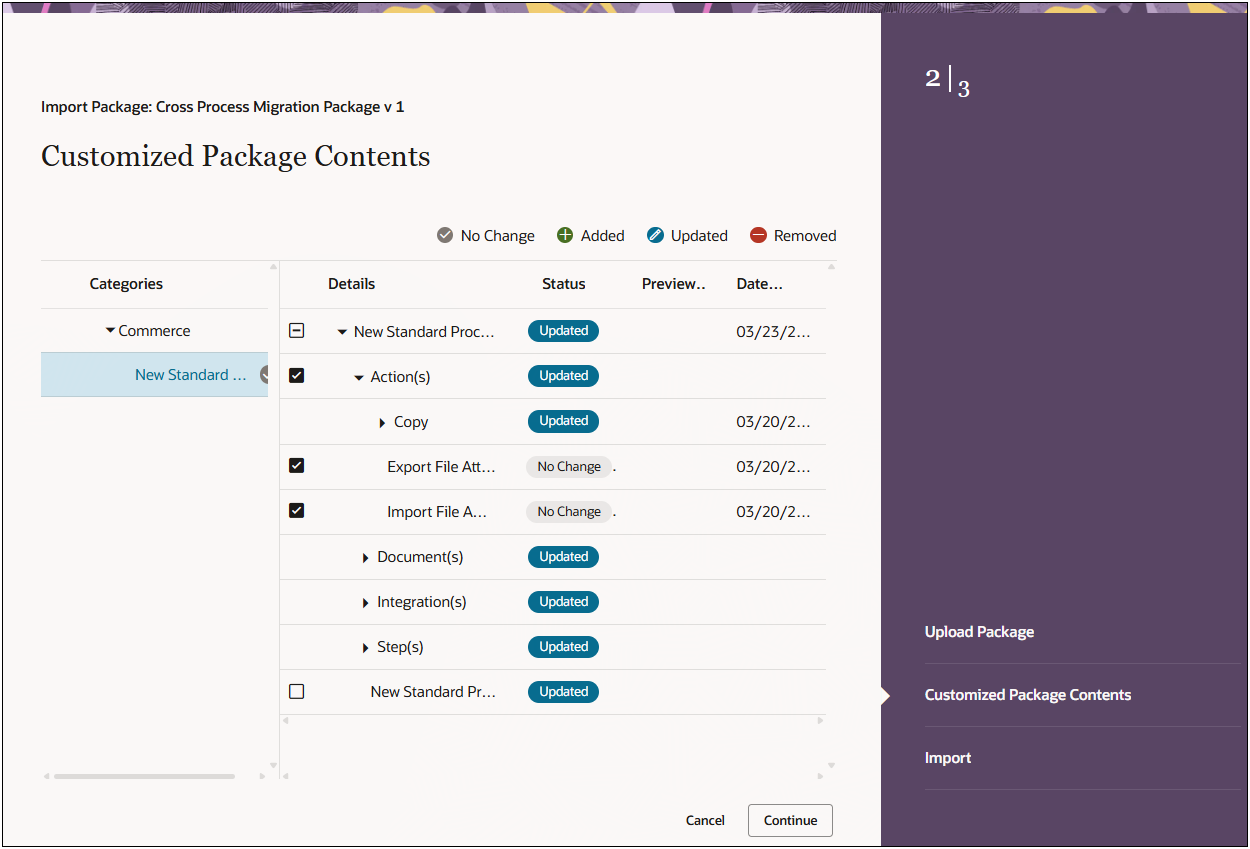
- When an item is not supported for Cross Process Migration, it is not shown in the low-level granular view.
-
Document Designer and Email Designer templates can be migrated even when there are not any matching templates in the target Commerce process.
Note: Cross Process Migration may overwrite target Commerce process templates.
When a Cross Process Migration is performed:
- If a low-level granular view is not opened, all high and low level objects are migrated for the selected high-level objects.
- When a low-level granular view is opened and individual items are selected, only the selected granular objects are migrated along with any other selected high-level objects.
- A low-level granular view can be opened for non-Commerce process objects, but only high-level objects can be selected.
Forward Version Package Migration
Migration packages allow administrators to create collections of components for repeated migrations that can be downloaded and uploaded to another site. Oracle also uses migration packages to distribute collections of components to customers to implement certain functionality on an Oracle CPQ site. In prior releases, migration packages could only be uploaded to sites on the same major release. Oracle CPQ 19D introduces Forward Version Package Migration which enables migration packages from 19A and forward to be uploaded to the latest site version.
When an administrator uploads a 19A, 19B, or 19C migration package to a 19D site, the package is transformed to be compatible with 19D. Migration packages with the same major site version bypass the transformation service and are uploaded directly to the site.
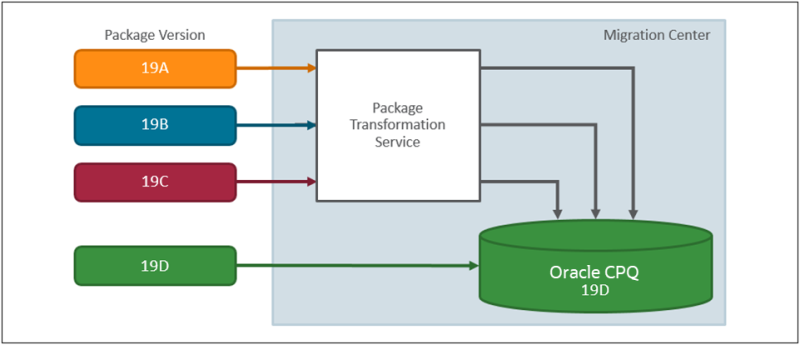
Going forward, Oracle CPQ will support migration from 19A through the current site version. For example, when Oracle CPQ 20A is released administrators will be able to upload migration packages from 19A through 20A.
Notes:
- Forward Version Package Migration does not support migration packages prior to Oracle CPQ 19A.
- Migration packages are not backwards compatible. For example, a 19C migration package can't be migrated to a 19B site.
- Forward Version Migration is only available for migration packages. Forward Version Migration is not supported for site migration modes, such as Import From Source and Connect To Destination.
- Administrators cannot upload a package when other migration tasks are in progress (e.g. revert to snapshot, creation of snapshot, or a migration).
Administration
Accessing the Migration Center
-
Log into Oracle CPQ as an Application Administrator or Full Access user and navigate to the Admin home page.
-
Select Migration from the Developer Tools & Utilities card ellipsis menu.
Notes
Notes:
- Oracle CPQ does not recommend migrating between blank and Standard Processes due to dependencies and validation issues. The following methods are recommended:
- The preferred method is to perform granular migration of only attributes and actions that don't exist in the Standard Process.
- The source attributes and actions should not have any customizations or dependencies with other attributes, actions, or rules.
- All customizations need to be manually added to the target Standard Process.
- The second and more secure option is to manually create everything from scratch in the Standard Process.
- The preferred method is to perform granular migration of only attributes and actions that don't exist in the Standard Process.
- Only one migration can be performed at a time.
- Note than the site you are currently logged into is referenced as the "target site". If you are connected to a site, that site is referenced as the "source site."


