Oracle Identity and Access Management (IAM) Integration

Overview

Customers can leverage Oracle Identity and Access Management (IAM)'s Identity Domains and Oracle Identity Cloud Service (IDCS), as an integrated identity management solution. The integration simplifies the identity services requirements common to Enterprise customers. With the integration, administrators delegate user management activities such as user creation, activation, revocation, and password management for host company users to IDCS.

The Oracle CPQ Administrative Online Help references IDCS, IAM/IDCS, or IAM to refer to the Oracle Identity and Access Management (IAM)'s Identity Domains and Oracle Identity Cloud Services (IDCS) platforms.

The following functionality is available in Oracle CPQ:

Administration

ClosedRegister an External Application Client in IAM for Oracle CPQ Running in Fusion
You must have the proper IAM credentials to complete this procedure.

Complete the following procedures to register an external application client in IAM (also known as IDCS).

  1. Navigate to the IAM console URL (for example, https://<your-idcs-domain>.identity.oraclecloud.com/ui/v1/adminconsole).

  2. Log in to IAM with your administrator credentials.

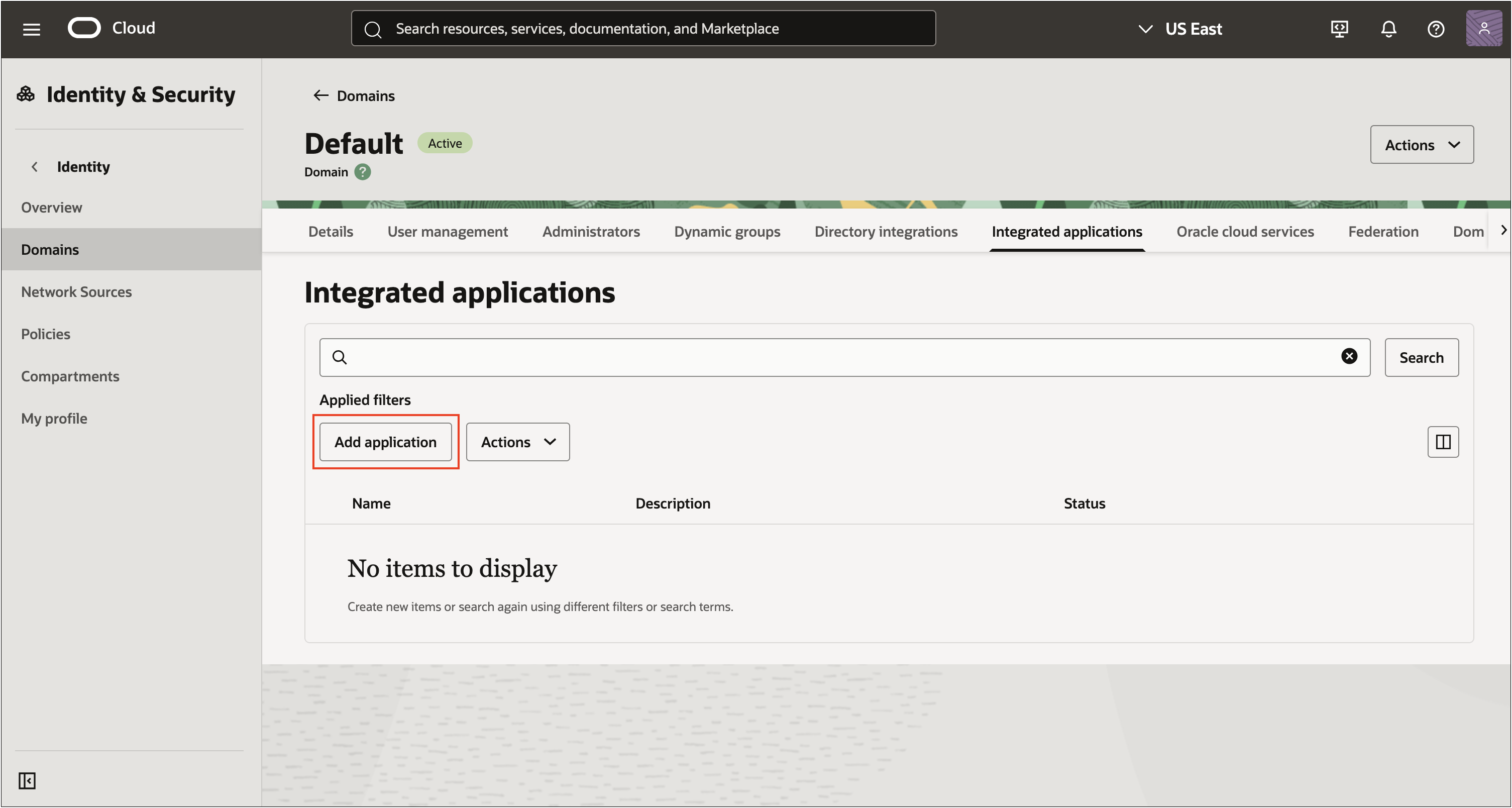
  1. Navigate to Identity and Security page > Domains > Integrated applications tab.

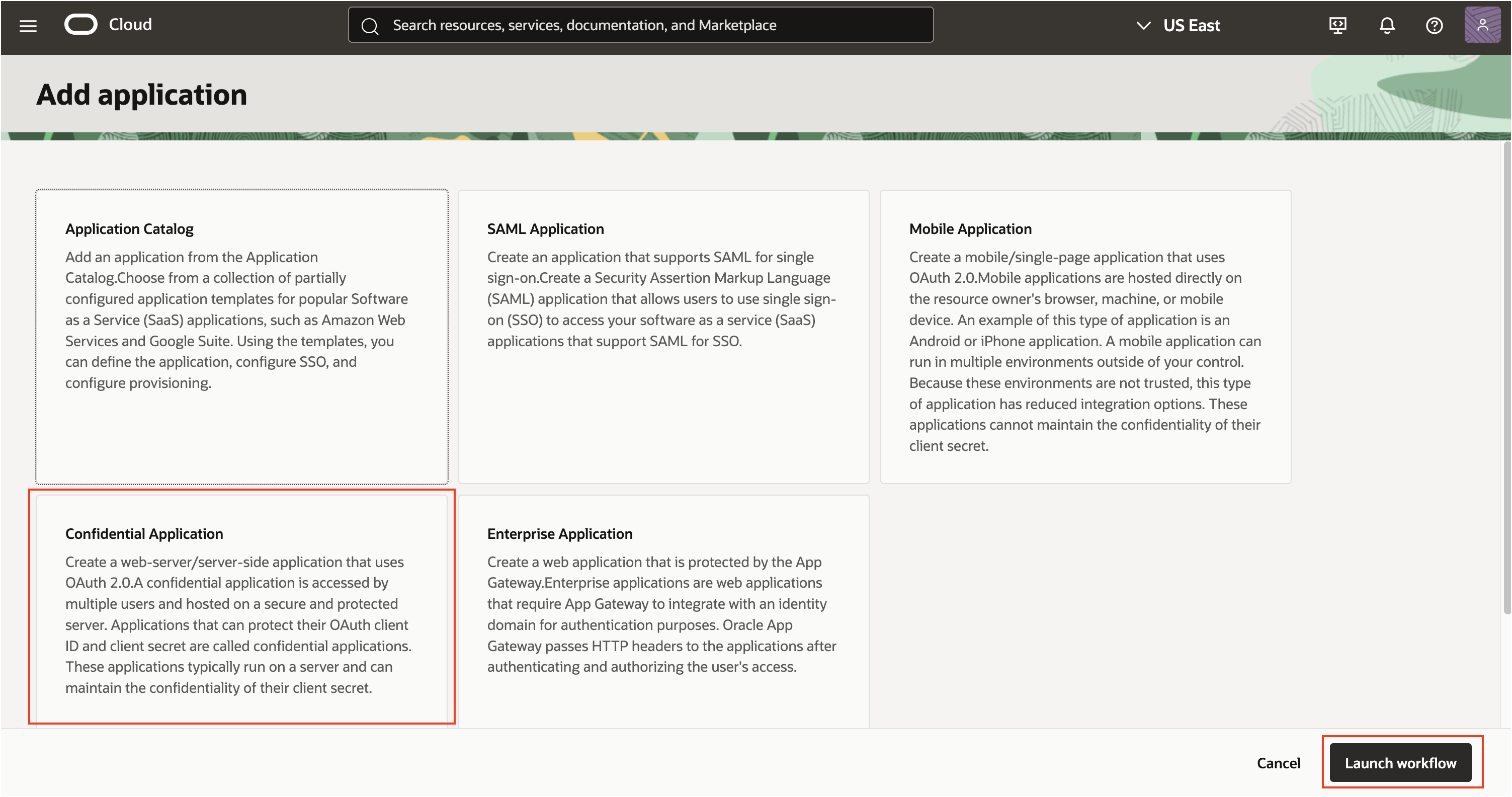
  2. Click Add application to create a new application.

    Add Integrated Application

  3. Select Confidential Application as the application type and click Launch Workflow.

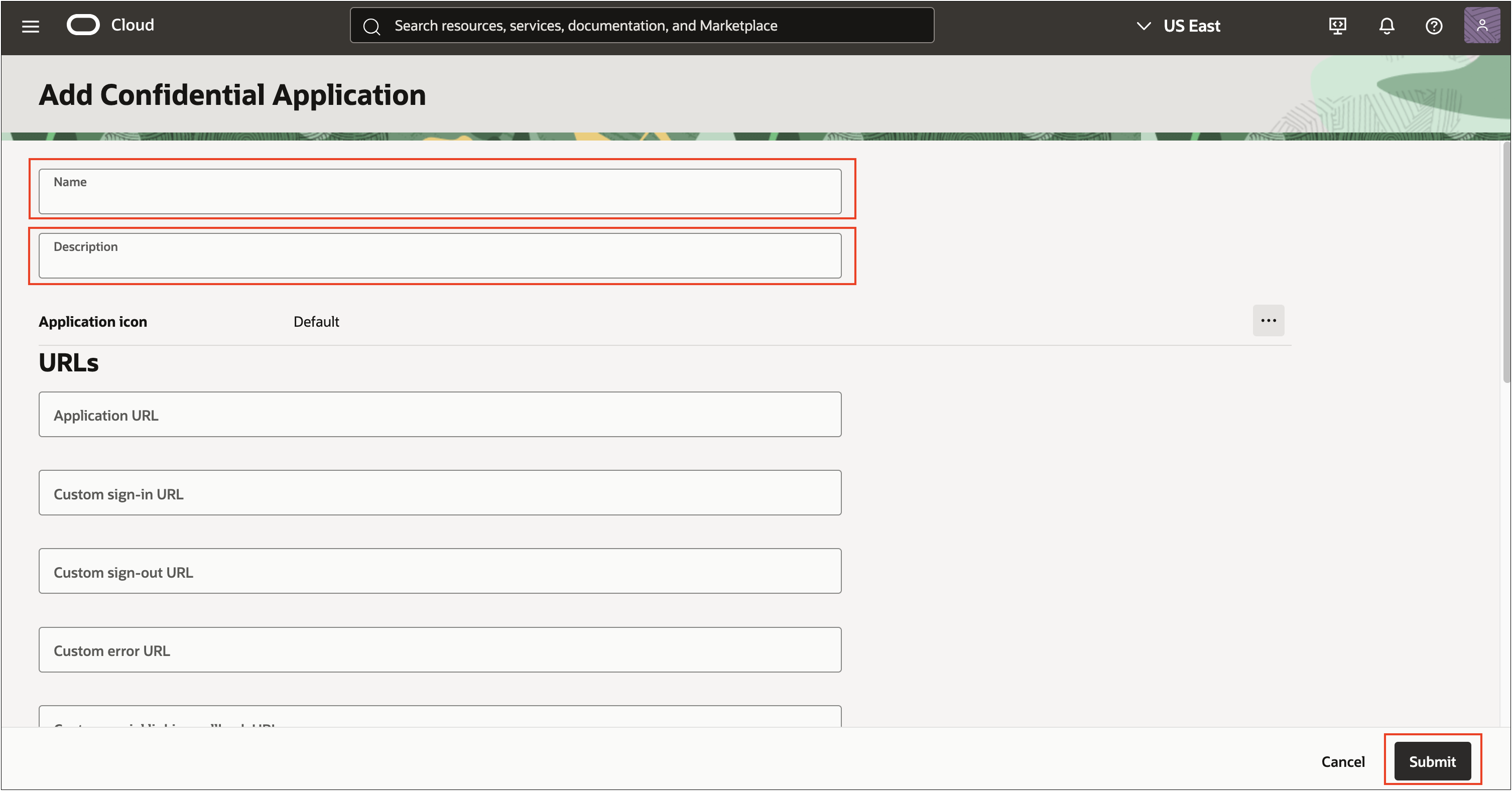
    Add a Confidential Application

  4. Enter a Name and Description for the OAuth client and click Submit.

    Add Confidential Application Information

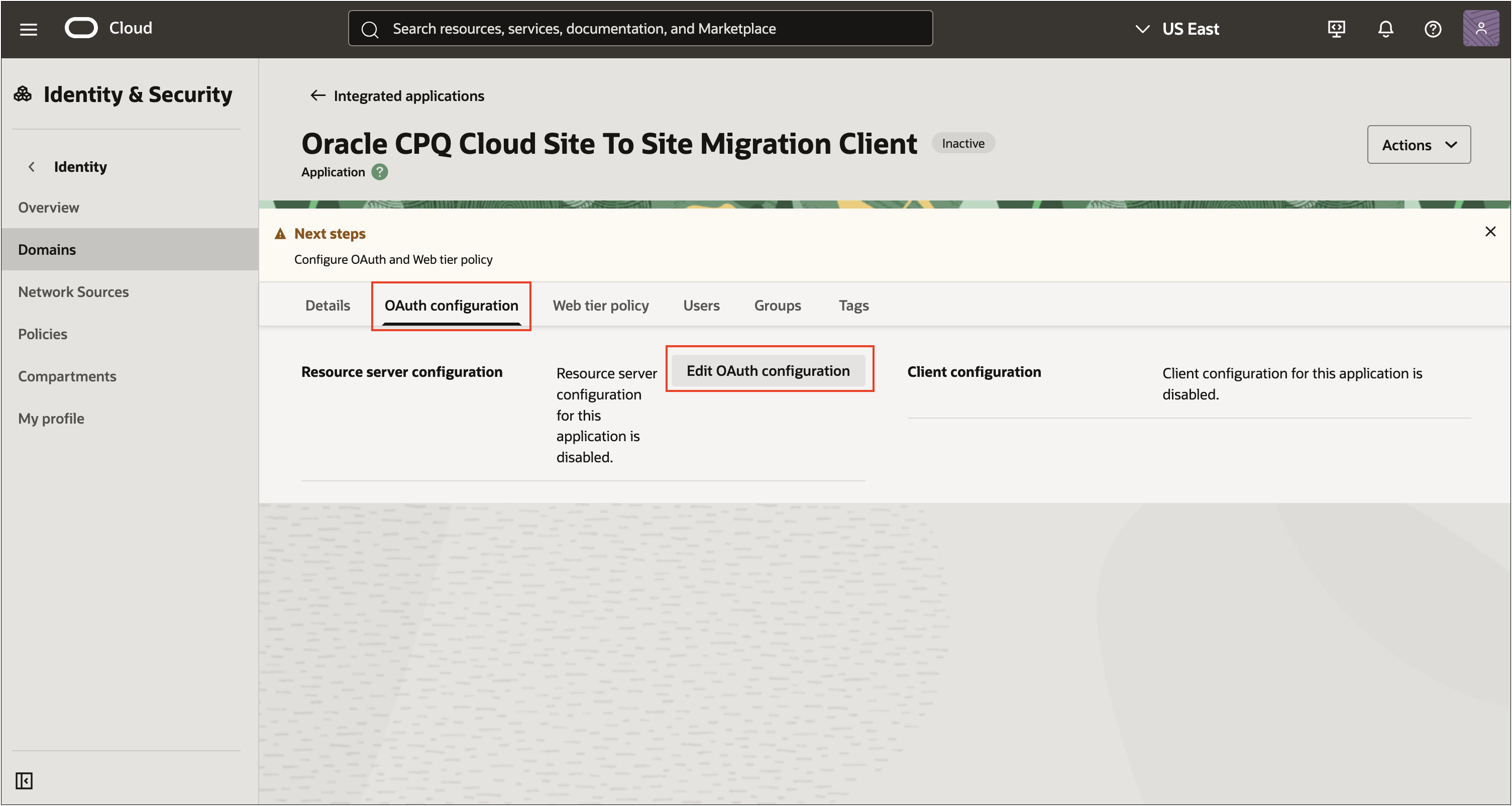
  5. Select the OAuth Configuration tab and click Edit OAuth Configuration.

    Edit OAuth Configuration

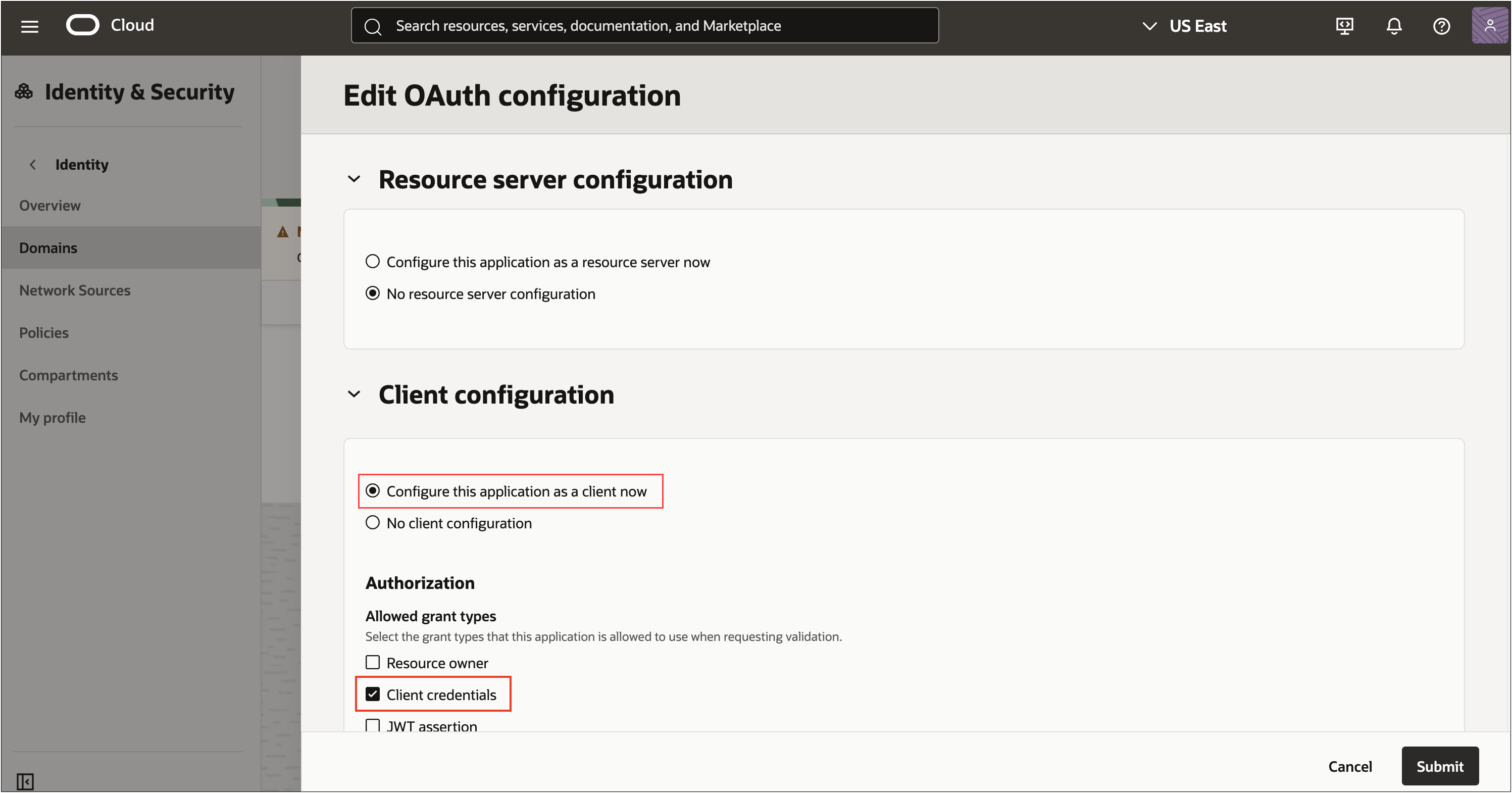
  6. Under Client configuration, select Configure this application as a client now.

  7. Under Authorization > Allowed grant types, select Client credentials.

    Edit Client Configuration

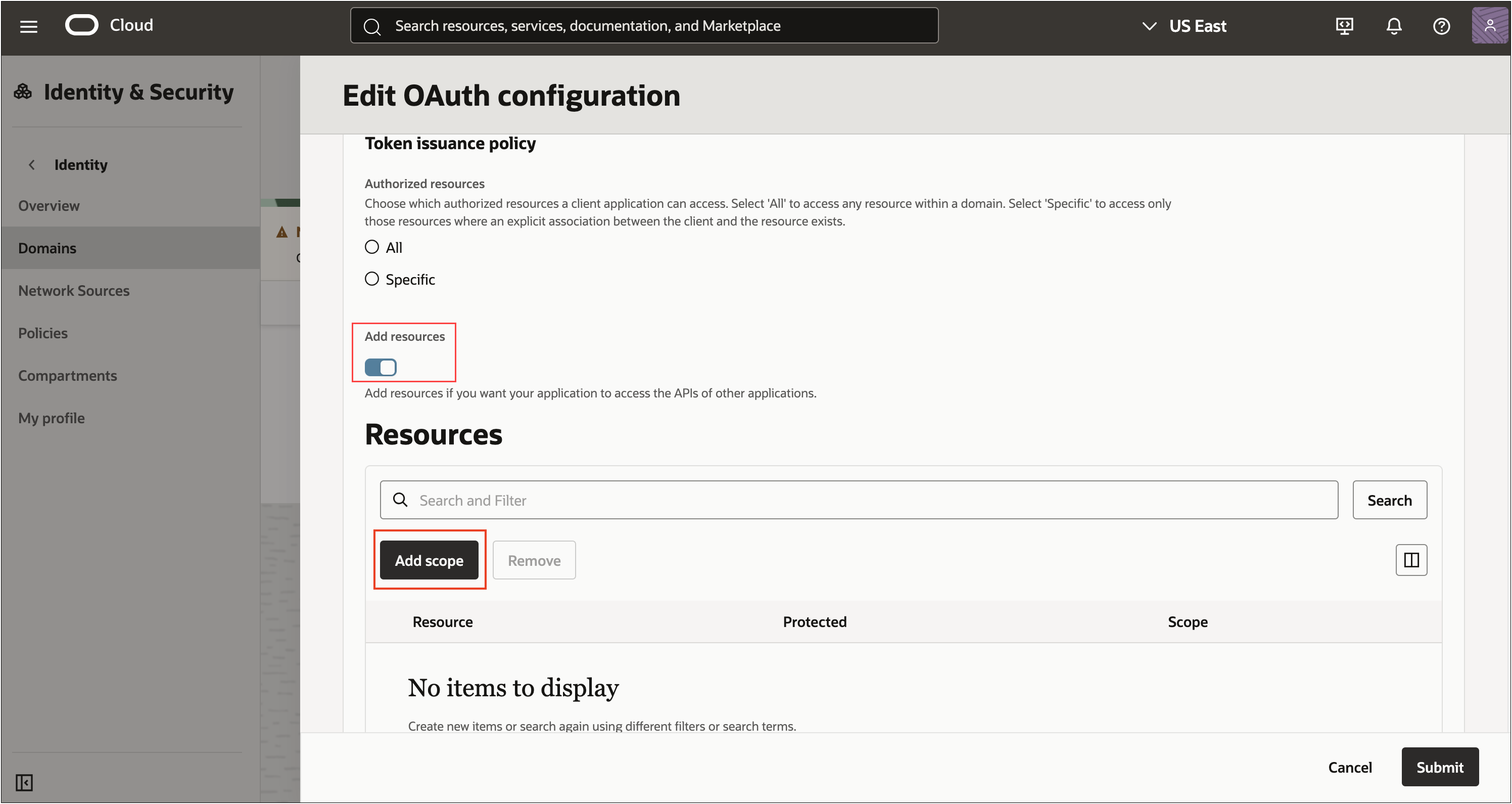
  8. Scroll down and enable the Add resources toggle.

  9. Click Add scope under Resources.

    Add Resources

    A list of resources registered with this IAM instances displays.

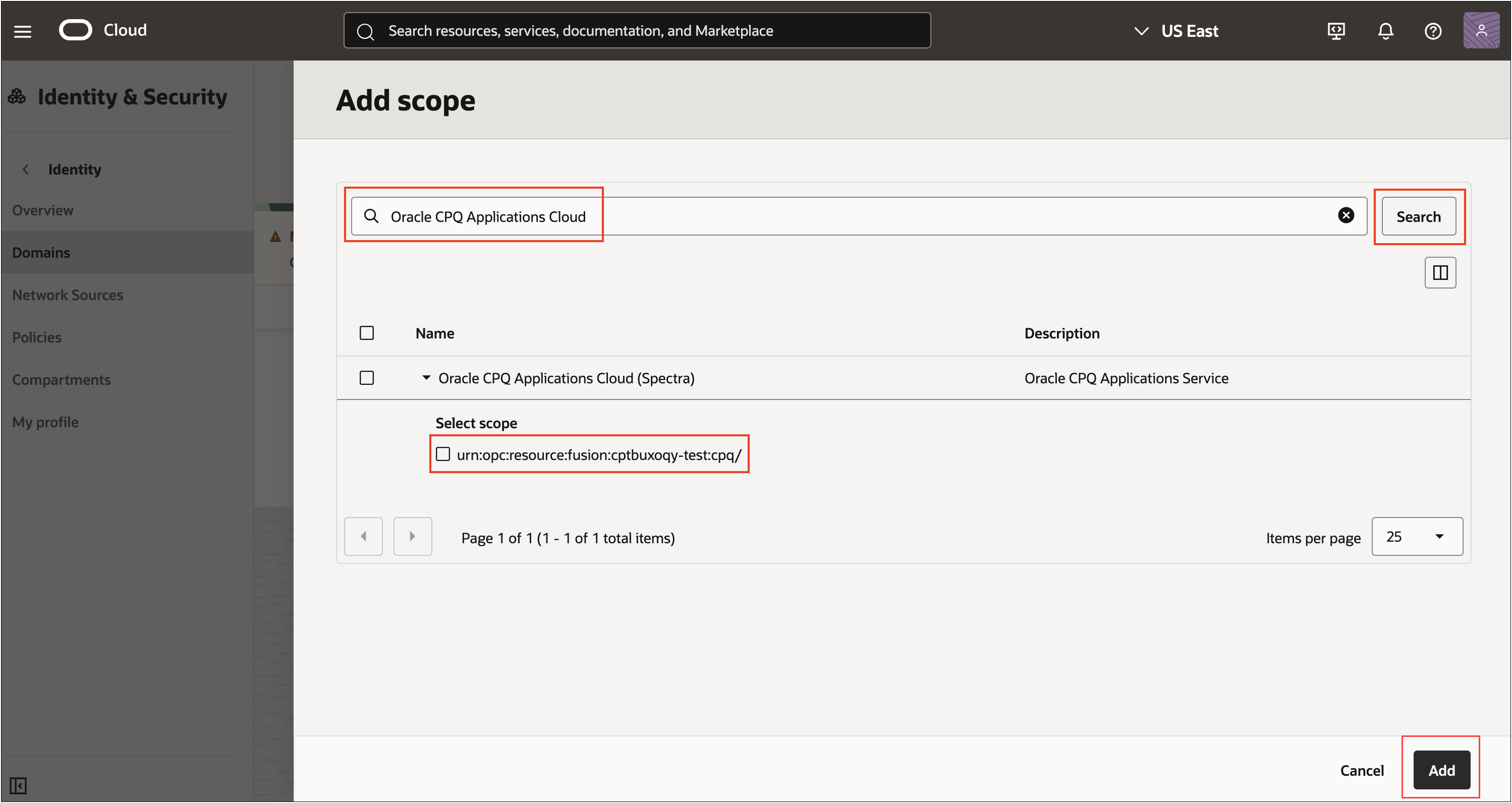
  10. Enter Oracle CPQ Applications Cloud in the search and click Search.

  11. Select the CPQ resource listed and click Add.

    Add Scope

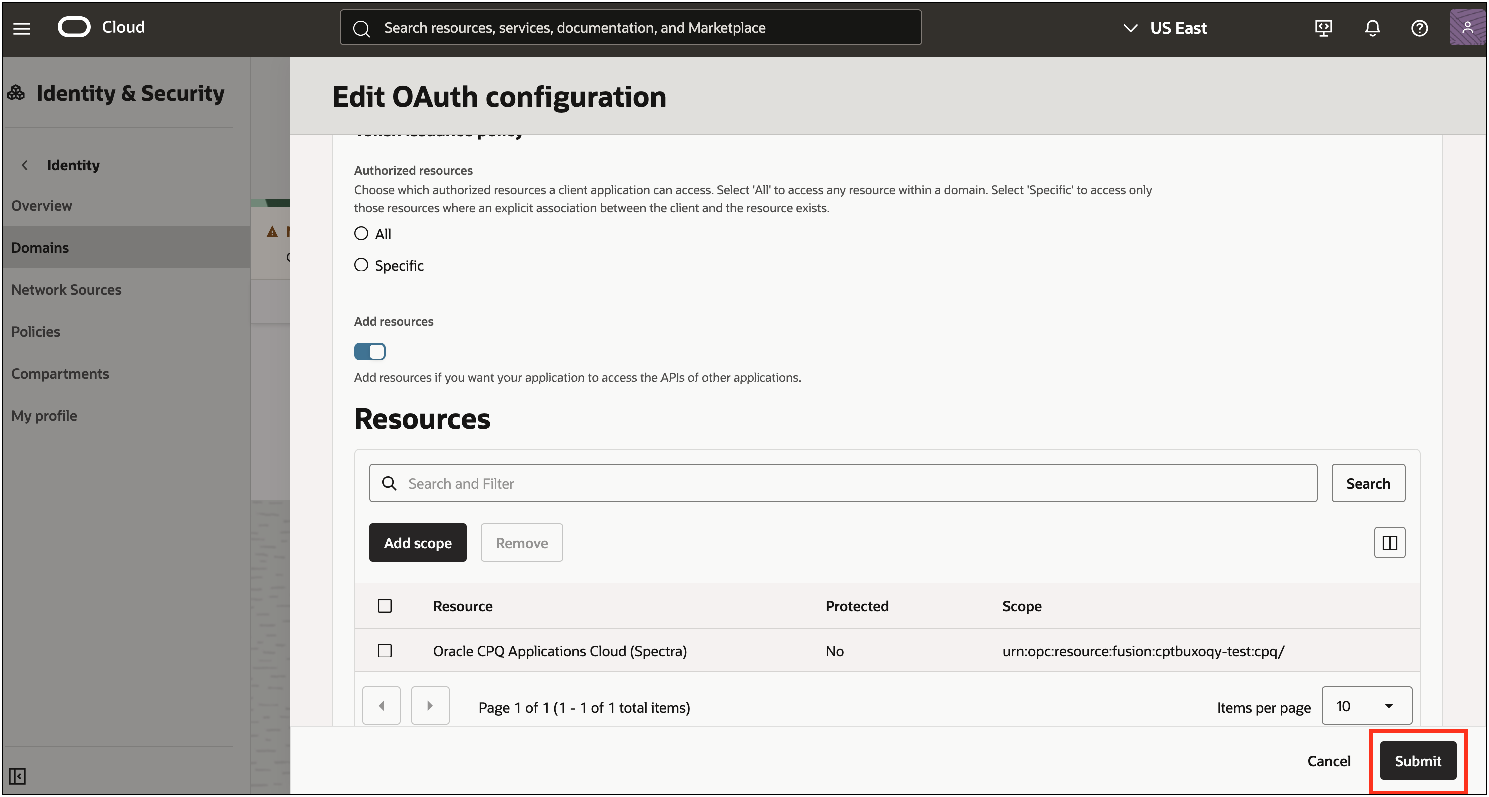
  12. Click Submit to save the changes to this application. The OAuth client is created successfully.

    Submit OAuth Client Configuration

    Take note of the Scope value as it is required later to obtain the OAuth token from IDC.
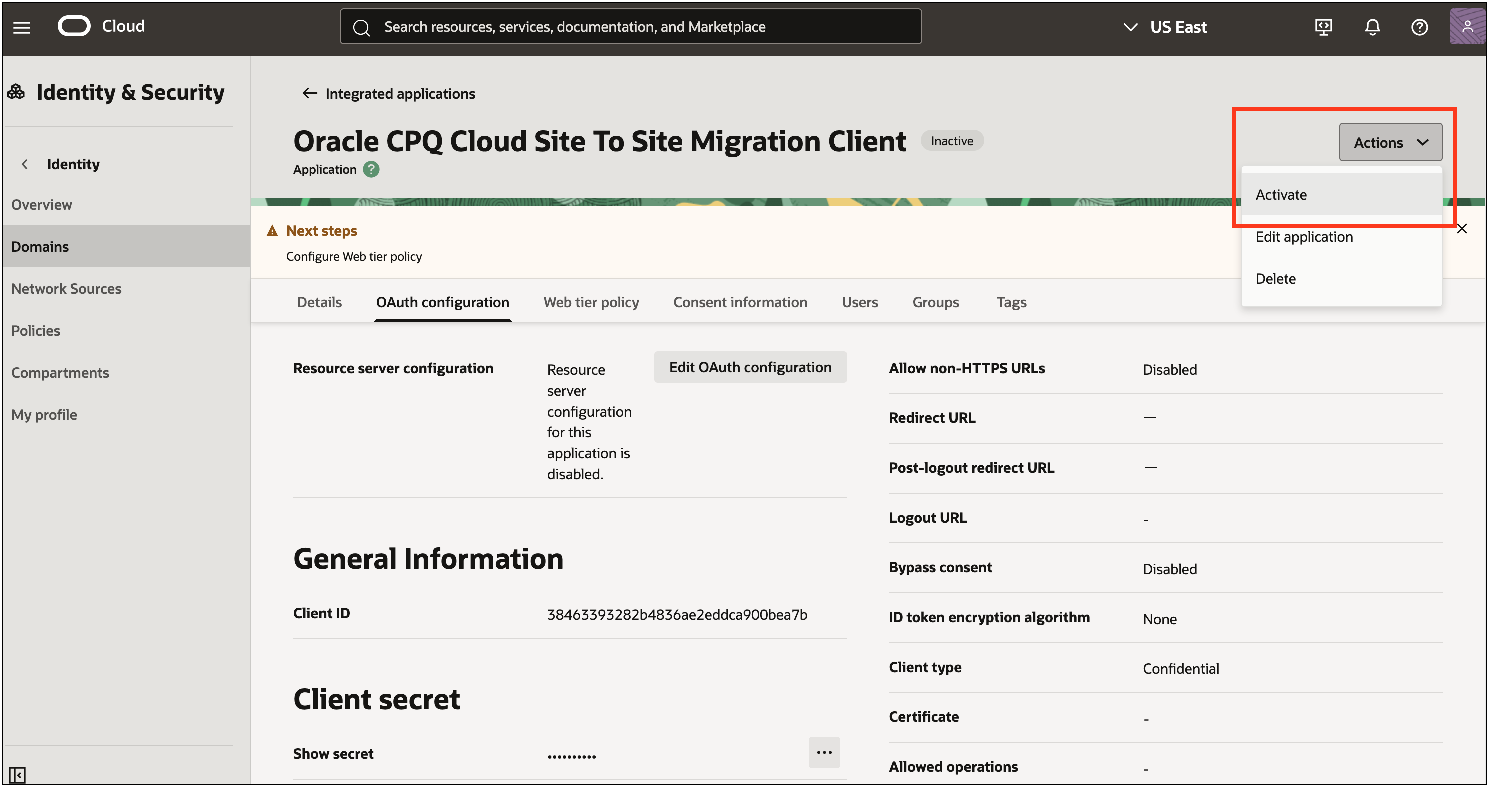
  13. From the Actions drop-down at top of the page and click Activate.

    Activate OAuth Client

  14. Select Activate application in the confirmation dialog.

    The OAuth client is active and ready for use.

  1. Select the OAuth configuration tab.

  2. Note the Client ID under General Information.

  3. For security, the Client secret is hidden. Click on the Client secret ellipsis and select Copy.

    The client secret is copied. Store the value in a secure location. This information is necessary when creating an integration user or migration center connection.

    The Client ID and Client secret are extremely sensitive information. They MUST be stored securely.

NOTES

For more information on Oracle CPQ - IDCS integration, refer to OAuth Provider Integration, IDCS and Oracle CPQ Integration documentation and the Oracle Identity Cloud Service web site.
Refer to OpenID Connect Single Sign-On for Oracle CPQ with Oracle Identity Cloud Service Integration Guide for the steps to setup OpenID Connect SSO between Oracle CPQ Cloud & Oracle Identity Cloud Service (IDCS).

Related Topics

Related Topics Link IconSee Also