Overview
This topic covers the Commerce Deployment Center for process administration using classic interface pages.
In Redwood process administration, the Deployment Center is incorporated with the Redwood process administration pages. Refer to Redwood Process Administration for Deployment Center information.
To access the Deployment Center, navigate to: Admin Home Page > Commerce and Documents > Process Definition > Deployment Center
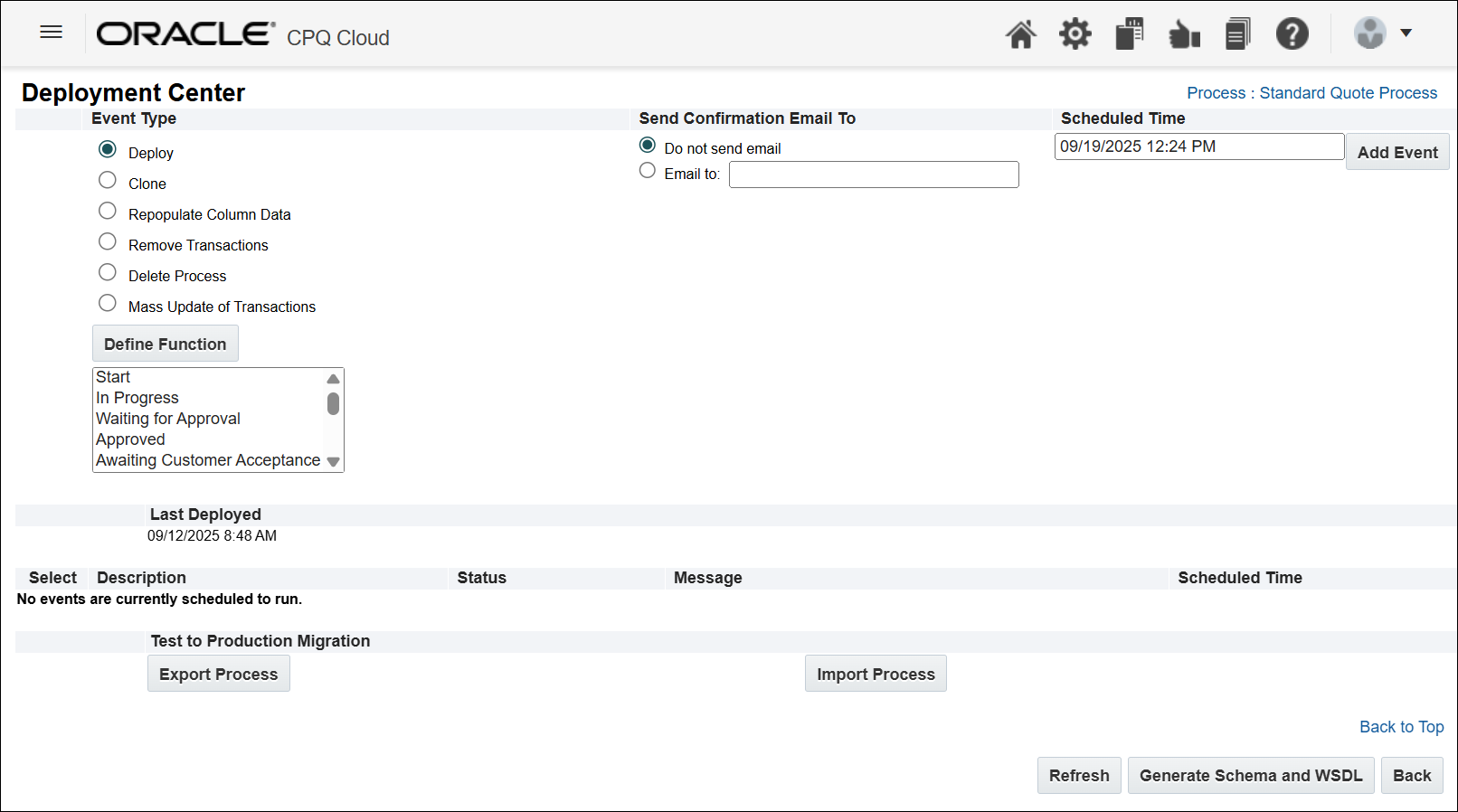
Note: For undeployed processes, "Deploy" is only event available. After deployment, other events displayed. You can verify a successful deploy when you Review the confirmation email. A confirmation email is sent to the email address specified for a deploy; it indicates whether a deploy happened successfully or not. It also contains the details of what was deployed.
| Event Type | Description |
|---|---|
| Deploy | This event ensures that a Commerce Process is ready for use on the commerce side. |
| Clone | This event creates a copy of the selected process on the admin side. The cloned process must be deployed for it to become active on the commerce-side. Visible based on the setting Allow Commerce Processes to be Cloned and Migrated on the Commerce Options page. Choose Admin Home Page > Commerce and Documents > Commerce Settings. |
| Repopulate Column Data | This event makes it possible for changes done in the Data Columns on a deployed process, to be available on the commerce side. This event is applicable for the transaction manager data. |
| Remove Transactions |
This event deletes all transactions from the Commerce side.
|
| Delete Process |
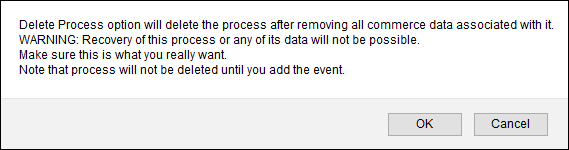
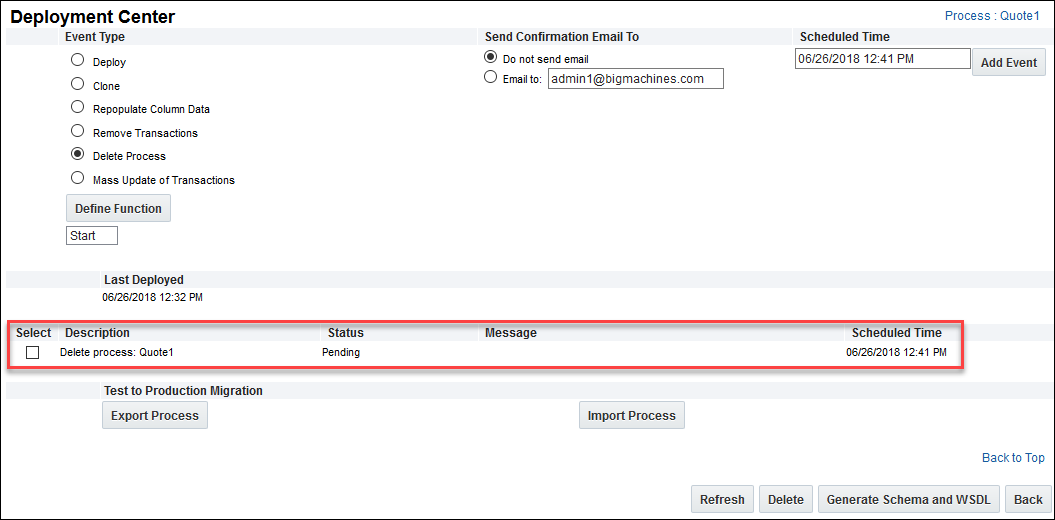
This event is used to delete a Commerce Process. Use caution when deleting a Commerce Process, because the deleted data cannot be recovered. Upon deletion, all documents, workflow and steps contained within the Process are also deleted. |
| Mass Update of Transactions |
Set-up a BML script which can be used to update all existing commerce transactions. For example, if a sales rep quits their job and all of their existing quotes have to be reassigned to another sales rep, then the admin user could write a mass update BML script to replace the old sales rep's name with the new one.
Mass Update of Transactions is not available when Collaborative Editing is enabled. To perform a Mass Update you can temporarily disable Collaborative Editing and re-enable it once you have finished. |
Deployment Status Messages
| Status | Description |
|---|---|
| In Progress | The component is deploying. Deployment cannot be stopped once it has begun. |
| Pending | The component has been scheduled for deployment and is waiting in the queue. Until it moves to In Progress, the task can be deleted. |
| Loaded | The task has been requested but it has not yet been moved to the queue. You will move from Loaded to Pending and can delete the task if necessary. |
Administration
 Deploy a Commerce Process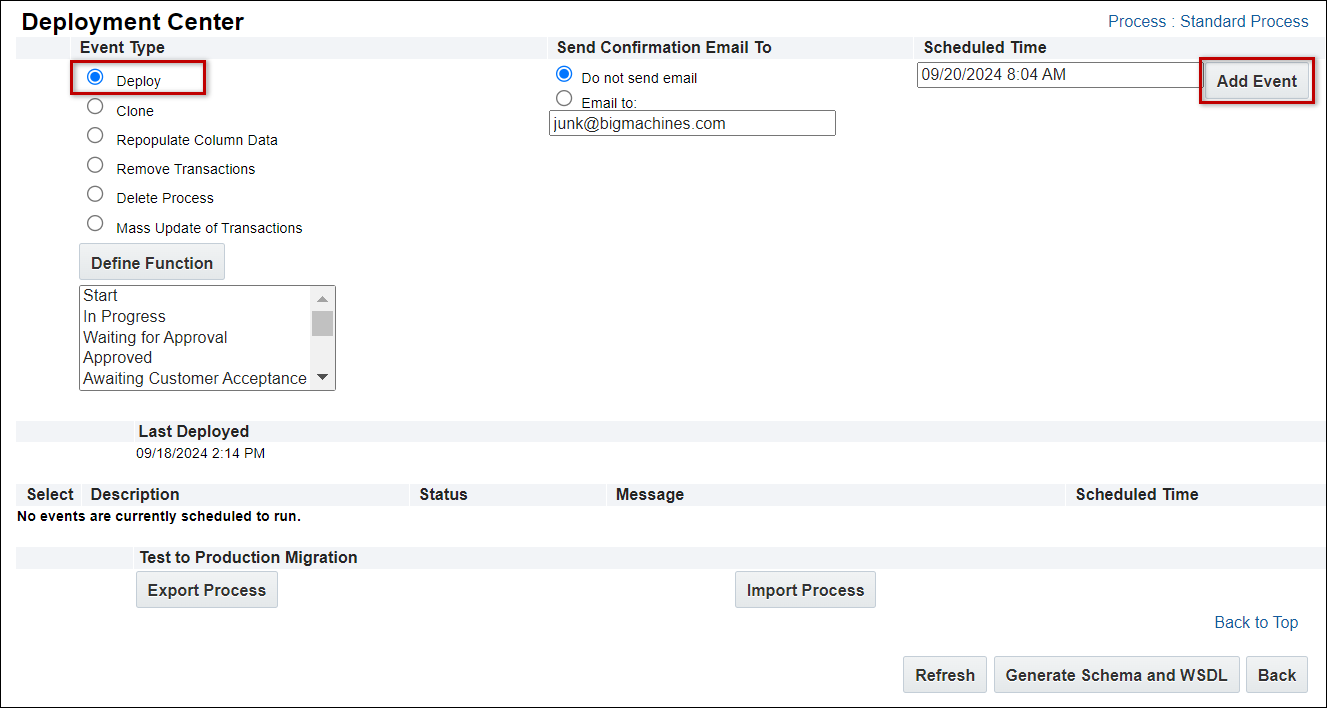
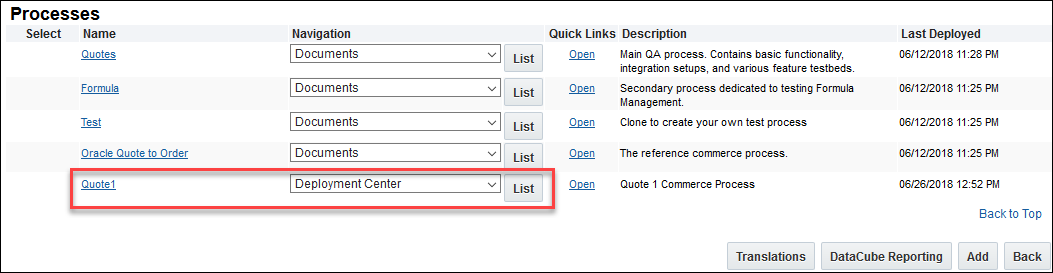
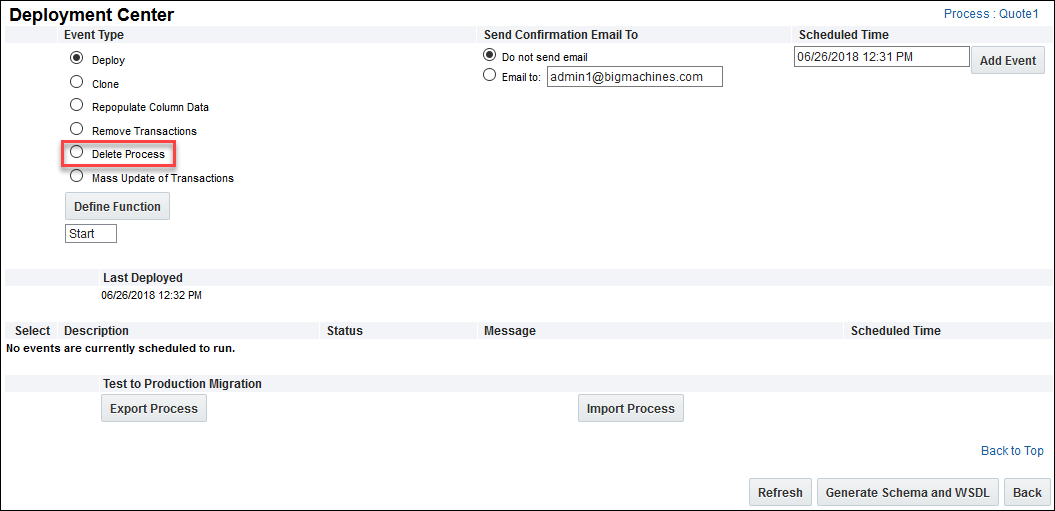
Notes
Use caution when deleting a Commerce Process, because the deleted data cannot be recovered. Upon deletion, all documents, workflow and steps contained within the Process are also deleted.
Notes:
- When performing a Mass Update, users can filter which steps the update applies to.
- Deploy dates and times are recorded in the Last Deployed column on the Process List page. Processes that have not been deployed have a blank timestamp in the Last Deployed column.
- Deploys should take place when there is little activity on your site, like weekends or after-business hours.
- For more information on closing a Commerce Process, see the topic Commerce Process.
- After a Commerce Process is deployed, some administrative functionality becomes hidden from view.


