Overview
This topic covers process administration using the Redwood interface pages. Refer to Process Administration for process administration using the classic interface pages.
Administration Pages
 Process List Page
The Processes list page displays a list of available processes, the status (if never deployed or pending deployment), descriptions, and actions for each process.
-
To access processes, navigate to: Admin Home > Quotes
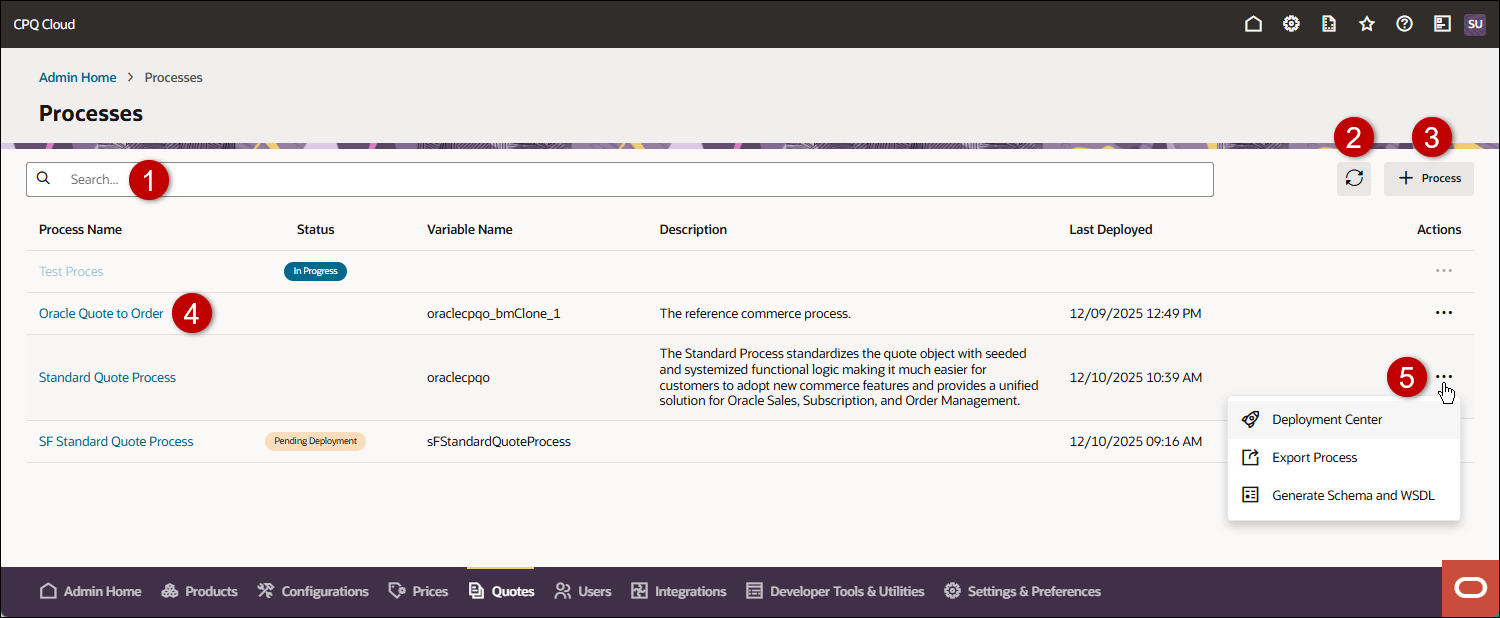
| Item | Description |
|---|---|
|
1 |
Enter search criteria to filter process results |
|
2 |
Refresh the Processes page |
|
3 |
Add a new Process |
|
4 |
Click on the desired Process Name to access the process administration page |
|
5 |
Click on the Actions ellipsis to access the Deployment Center, Export Process, or Generate Schema and WSDL. |
The Process page provides information and settings for a Commerce Process.
-
To access a Commerce Process Administration page, navigate to: Admin Home > Quotes > Process
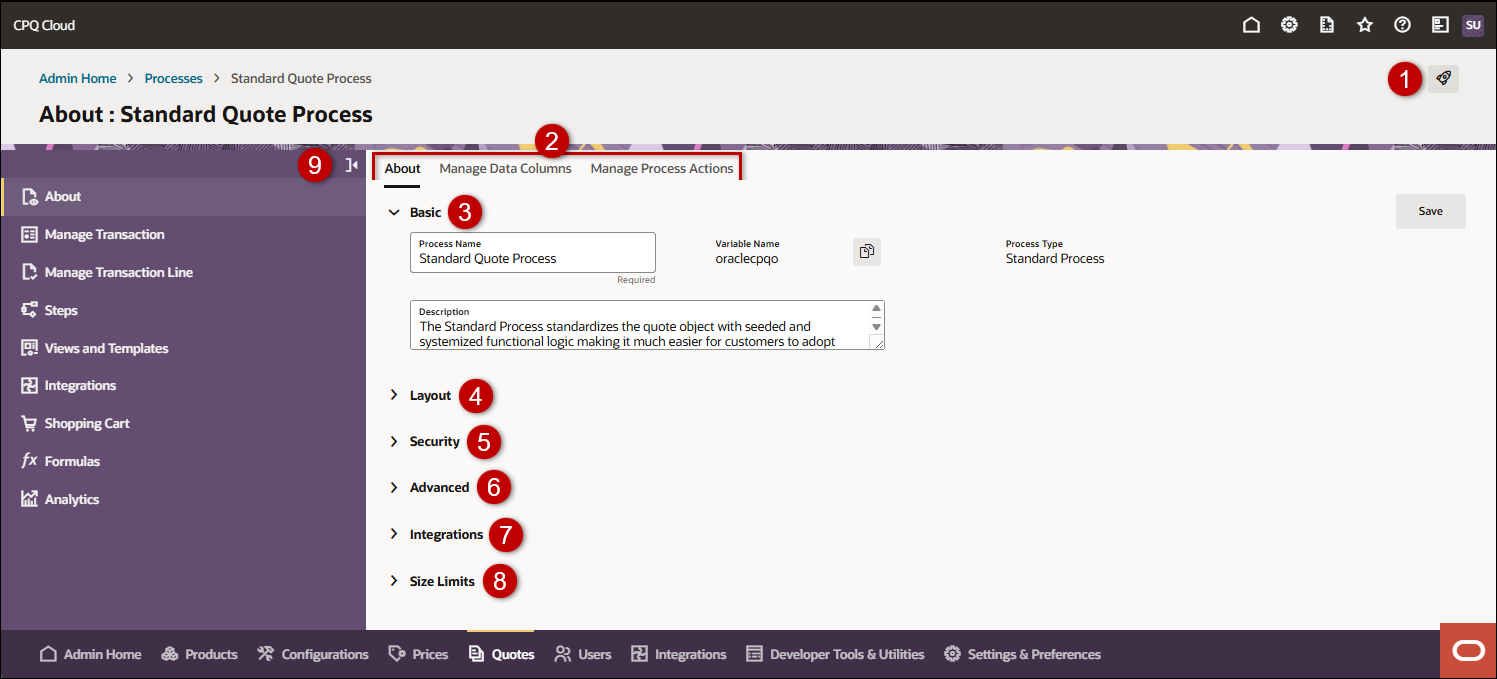
| Item | Description |
|---|---|
|
1 |
Access the Deployment Center |
|
2 |
Process tabs:
|
|
3 |
Basic: Manage the process Name, Variable Name, Description, and Process Type |
|
4 |
Layout: Manage the layout for the user side quote / transaction interface pages
|
|
5 |
Security: Manage the public key for secure attributes
|
|
6 |
Advanced: Manage the process stage, autofill, editing mode, integration timeout, and fiscal year options.
|
|
7 |
Integrations Manage which Commerce integrations you want to import data from when creating a quote / transaction from an integrated CRM sites, such as Oracle Sales, Microsoft Dynamics 365, or Salesforce.
|
|
8 |
Size Limits provide the ability to limit attribute size for potentially large attributes on a transaction. Size limits can be implemented for Rich Text, Text Area, History, and File Attachment attributes. Additional size limitations can be implemented to limit total allowed size of large attributes for a transaction and a transaction line When large attribute size limitations are implemented for a CPQ site the individual attribute value size limits, transaction size limit, and transaction line limit are displayed on the Commerce Process Administration page. User errors are also displayed for the following user actions:
The following large attribute size limitations are automatically provisioned for new site implementations:
Note: Customers can submit a Service Request (SR) on My Oracle Support to implement large attribute size limitations for existing sites. |
|
9 |
To access various process components, click the applicable item in the left-hand navigation section.
|


In Redwood process administration, the Deployment Center is incorporated with the Redwood process administration pages.
-
To access the Deployment Center from the Processes page:
Navigate to: Admin Home > Quotes, then select Deployment Center for the applicable Process ellipsis drop-down. -
To access the Deployment Center from the Process page:
Navigate to: Admin Home > Quotes > Process then click on the Deployment Center icon.
icon.
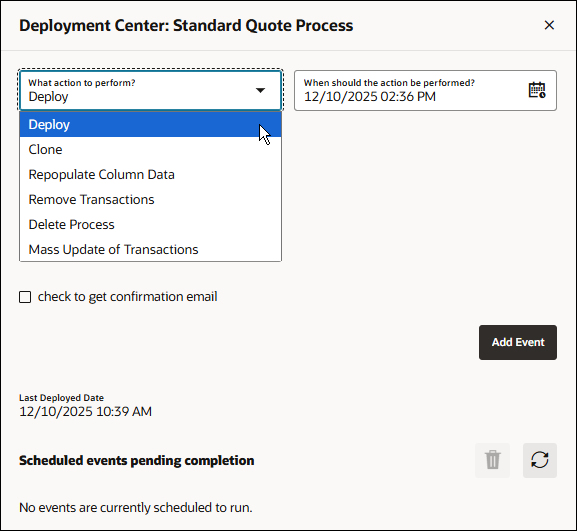
| Event Type | Description |
|---|---|
| Deploy | This event ensures that a Commerce Process is ready for use on the commerce side. |
| Clone | This event creates a copy of the selected process on the admin side. The cloned process must be deployed for it to become active on the commerce-side. Visible based on the setting Allow Commerce Processes to be Cloned and Migrated on the Commerce Options page. Choose Admin Home Page > Commerce and Documents > Commerce Settings. |
| Repopulate Column Data | This event makes it possible for changes done in the Data Columns on a deployed process, to be available on the commerce side. This event is applicable for the transaction manager data. |
| Remove Transactions |
This event deletes all transactions from the Commerce side.
|
| Delete Process |
This event is used to delete a Commerce Process. Use caution when deleting a Commerce Process, because the deleted data cannot be recovered. Upon deletion, all documents, workflow and steps contained within the Process are also deleted. |
| Mass Update of Transactions |
Set-up a BML script which can be used to update all existing commerce transactions. For example, if a sales rep quits their job and all of their existing quotes have to be reassigned to another sales rep, then the admin user could write a mass update BML script to replace the old sales rep's name with the new one.
Mass Update of Transactions is not available when Collaborative Editing is enabled. To perform a Mass Update you can temporarily disable Collaborative Editing and re-enable it once you have finished. |
Deployment Status Messages
| Status | Description |
|---|---|
| In Progress | The component is deploying. Deployment cannot be stopped once it has begun. |
| Pending | The component has been scheduled for deployment and is waiting in the queue. Until it moves to In Progress, the task can be deleted. |
| Loaded | The task has been requested but it has not yet been moved to the queue. You will move from Loaded to Pending and can delete the task if necessary. |
Administration
Complete the following steps to create a new process.
-
Navigate to Admin Home > Quotes.
-
Click + Process.
-
Enter the Process Name.
The Process name you enter is used as the navigation link within admin and user side interfaces.
-
Enter a unique Variable Name.
The Variable Name field populates automatically. Variable names can only contain alpha-numeric characters and underscores. The entry can be changed before saving, but after saving the value is read-only.
-
Enter a Description for the process being added.
-
Open the Advanced section to manage the following settings:
-
Select the Fiscal Year Start Month and Fiscal Year State Date fields.
-
Select the Block Autofill options for new quotes.
- None: New quotes are NOT auto-populated with user or accounts information.
- User Information: New quotes are auto-populated with user information.
- Accounts Information: New quotes are auto-populated with accounts information.
-
If applicable, select the Agreement Stage to enable agreement phase of the transaction lifecycle.
- Quote - the default phase of the transaction lifecycle.
- Order - enables the ordering phase of the transaction lifecycle.
- Agreement - enables the agreement phase of the transaction lifecycle.
Note: The Quote and Order stages are automatically enabled when a new Process is created.
- Select the Transaction Editing Mode:
- Collaborative Editing - Multiple users can edit a quote at the same time.
- Transaction Locking - Single user can edit a quote at a time and it is locked when opened. Additional users can view the locked quote but cannot edit.
- Single User - Single user can edit a quote at a time. Additional users are not blocked from starting a new editing session which supersedes existing sessions.
-
If applicable, select Let Other Users Perform Unlock Actions to allow users who did not lock a transaction to unlock the transaction using the auto unlock actions.
*This option is only displayed when Collaborative Editing or Transaction Locking are enabled.
-
If applicable, select actions from the Actions to Automatically Unlock Transaction drop-down to define actions that automatically unlock a transaction.
*This option is only displayed when Collaborative Editing or Transaction Locking are enabled.
-
-
Click Create to save the process or Cancel to return to the Processes page without saving your changes.
Note:
- After you create a new process, the Status displays In Progress.
- When the process creation completes the status is updated to Never Deployed. You must deploy this process to create the process links in site navigation and make this process visible to sales users.
- If you modify a process or any of it's process components the status is changed to Pending Deployment. You must deploy this process to make process changes visible to sales users.
Complete the following steps to modify a process.
- Navigate to Admin Home > Quotes.
- Select the applicable Process.
-
. If desired, modify the Process Name.
-
If desired, modify the Description.
-
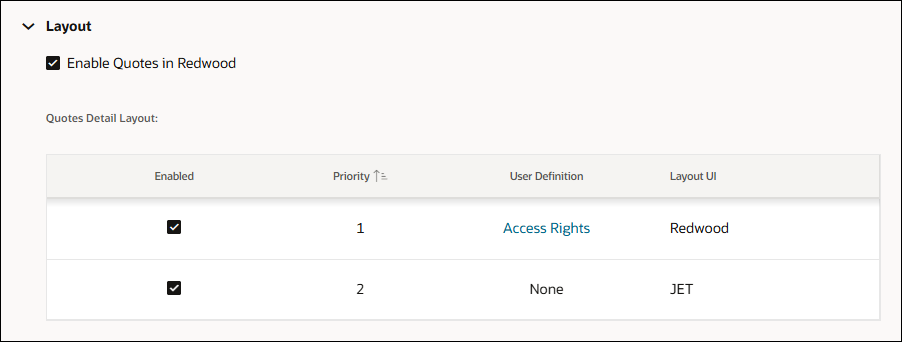
Open the Layout section manage the layouts for the user side quote / transaction interface pages.
-
Check the Enable Quotes in Redwood option to enable the Redwood Quote List UI.
-
Quotes Detail Layout: Use these options to enable, prioritize, and set user access for the quote / transaction UI layout(s).
-
Select Enabled layouts
-
Check Redwood to enable the Redwood Quote layout
-
Check JET to enable the JET Transaction layout.
-
If applicable, check Legacy to enable the Legacy Transaction layout
-
-
Click inside the Priority field to change the preferred order of layouts.
-
If applicable, click the Access Rights to select which users will view this UI
-
Place the Company User Types into Show for following Company: User Types to allow the selected company user types to view the UI
Use the (>) and (<) buttons to move the user types between the Hide and Show sections to change access rights.
-
Place the Groups into Show for Groups to allow the selected groups to view the UI
Use the (>) and (<) buttons to move the groups between the Hide and Show sections to change access rights.
-
Click Apply to save your changes, Update to save changes and return to the Process page, or Back return to the Process page without saving changes.
-
-
-
- Open the Security section to manage the public key for secure attributes.
If desired, upload a .CER format public key in the Security Attribute Encryption Key field. You can click Browse to navigate and select the file, or drag-and-drop the applicable file into this field.
*Delete Attribute Encryption Key: Use this option to delete the public key for encrypting secure attributes.
*This option is only displayed if the process has a valid encryption key certificate.
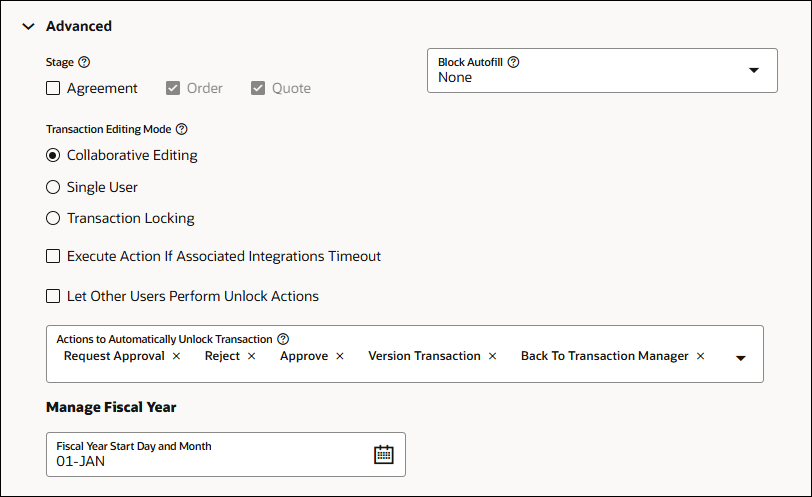
- Open the Advanced section to manage the process stage, autofill, editing mode, integration timeout, and fiscal year options.
If applicable, select the following stages to enable subsets of transactions within different phases of the transaction lifecycle.
- Quote is the default phase of the transaction lifecycle, this stage can't be disabled.
- Check the Order option to enable the ordering phase of the transaction lifecycle. Once the Order stage is enabled for a Standard Process it can't be disabled.
- Check the Agreement option to enable the agreement phase of the transaction lifecycle.
If applicable, select the Block Autofill option to set to auto-fill options for new transactions.
Select None if you do not want new transactions auto-populated with user or accounts information.
Select User Information to auto-populate new transactions with user information.
Select Accounts Information to auto-populate new transactions with Accounts information.
If applicable, use the Page Length drop-down to select the number of transactions you want to display on the Transaction Manager.
*This option is only displayed when the Redwood Quote List UI is disabled.
If applicable, select the Transaction Editing Mode.
Select Collaborative Editing to allow multiple users to edit a transaction at the same time. Refer to Collaborative Editing for more information.
Select Transaction Locking to only allow a single user to edit a transaction at a time. When a user opens a transaction, it is locked and additional users can only view the locked transaction. Refer to Transaction Locking for more information.
Select Single User to only allow a single user can edit a transaction at a time. Additional users are not blocked from starting a new editing session which supersedes existing sessions.
If applicable, check Execute Action If Associated Integrations Timeout to allow an action to execute when an integration XSL or a middleware integration times out.
By default, this checkbox is unselected. When selected, the action continues regardless of any associated integration timeout. A warning message displays to the end user, and Oracle CPQ logs information about the integration that timed out.If applicable, check Let Other Users Perform Unlock Actions to allow users who did not lock a transaction to unlock the transaction using auto unlock actions.
*This option is only displayed when Collaborative Editing or Transaction Locking are enabled.
If applicable, use the Actions to Automatically Unlock Transaction drop-down to select actions that automatically unlock a transaction.
*This option is only displayed when Collaborative Editing or Transaction Locking are enabled.
If applicable, click inside the Fiscal Start Day and Month field to select when the fiscal year starts for this process.
If applicable, check Execute Action If Associated Integrations Timeout to allow an action to execute when an integration XSL or a middleware integration times out.
By default, this checkbox is unselected. When selected, the action continues regardless of any associated integration timeout. A warning message displays to the end user, and Oracle CPQ logs information about the integration that timed out.If applicable, select an attribute from the Tab Label drop-down.
*This option is only displayed for Blank processes.
-
Open the Integrations section to manage which Commerce integrations you want to import data from when creating a quote / transaction from an integrated CRM sites, such as Oracle Sales, Microsoft Dynamics 365, or Salesforce.
-
Click Save to apply your changes to the process.
Note: If you modify a process or any of it's process components the status is changed to Pending Deployment. You must deploy this process to make process changes visible to sales users.
Complete the following steps to clone a process.
-
Navigate to Admin Home > Quotes.
-
Click on the Action ellipsis for applicable process, and then select Deployment Center.
-
Select Clone from the What action to perform? drop-down.
-
To schedule the event, enter the desired date and time (in mm/dd/yyyy hr:mm AM/PM format) in the When should the action be performed? field.
-
If desired, complete the following to send a confirmation email:
-
Check Do you want to send a confirmation email ?
-
Enter the email address in the Who you do you want to send it to? field.
-
-
Click Add Event.
-
If desired, you can cancel a scheduled event by selecting the new event and clicking the Delete
 icon.
icon.You cannot remove an event if it has already started.
-
Click Refresh to display the updated information on the page.
Complete the following steps to deploy a process.
-
Navigate to Admin Home > Quotes.
-
Click on the Action ellipsis for applicable process, and then select Deployment Center.
-
Select Deploy from the What action to perform? drop-down.
-
To schedule a deployment, enter the desired date and time (in mm/dd/yyyy hr:mm AM/PM format) in the When should the action be performed? field.
-
If desired, complete the following to send a confirmation email:
-
Check Do you want to send a confirmation email ?
-
Enter the email address in the Who you do you want to send it to? field.
-
-
Click Add Event.
-
If desired, you can cancel an event by selecting the new event and clicking the Delete
icon.You cannot remove an event if it has already started.
-
Click Refresh to display the updated information on the page.
Complete the following steps to delete a process.
Use caution when deleting a process, because the deleted data cannot be recovered. Upon deletion, all documents, workflow and steps contained within the process are also deleted.
-
Navigate to Admin Home > Quotes.
-
Click on the Action ellipsis for applicable process, and then select Deployment Center.
-
Select Delete from the What action to perform? drop-down.
-
To schedule the event, enter the desired date and time (in mm/dd/yyyy hr:mm AM/PM format) in the When should the action be performed? field.
-
If desired, complete the following to send a confirmation email:
-
Check Do you want to send a confirmation email ?
-
Enter the email address in the Who you do you want to send it to? field.
-
-
Click Add Event.
-
If desired, you can an event by selecting the new event and clicking the Delete
icon.You cannot remove an event if it has already started.
-
Click Refresh to display the updated information on the page.
Complete the following steps to make Data Column changes on a deployed process available on the user side. This event is applicable for the transaction manager data.
-
Navigate to Admin Home > Quotes.
-
Click on the Action ellipsis for applicable process, and then select Deployment Center.
-
Select Repopulate Column Data from the What action to perform? drop-down.
-
To schedule the event, enter the desired date and time (in mm/dd/yyyy hr:mm AM/PM format) in the When should the action be performed? field.
-
If desired, complete the following to send a confirmation email:
-
Check Do you want to send a confirmation email ?
-
Enter the email address in the Who you do you want to send it to? field.
-
-
Click Add Event.
-
If desired, you can cancel the scheduled event by selecting the new event and clicking the Delete
icon.You cannot remove an event if it has already started.
-
Click Refresh to display the updated information on the page.
Complete the following steps to make Data Column changes on a deployed process available on the user side.
-
Navigate to Admin Home > Quotes.
-
Click on the Action ellipsis for applicable process, and then select Deployment Center.
-
Select Remove Transactions from the What action to perform? drop-down.
-
To schedule the event, enter the desired date and time (in mm/dd/yyyy hr:mm AM/PM format) in the When should the action be performed? field.
-
If desired, complete the following to send a confirmation email:
-
Check Do you want to send a confirmation email ?
-
Enter the email address in the Who you do you want to send it to? field.
-
-
Click Add Event.
-
If desired, you can cancel the scheduled event by selecting the new event and clicking the Delete
icon.You cannot remove an event if it has already started.
-
Click Refresh to display the updated information on the page.
Complete the following steps to create a function which can be used to update all existing transactions.
For example, if a sales rep quits their job and all of their existing quotes have to be reassigned to another sales rep, then the admin user could write a mass update BML script to replace the old sales rep's name with the new one.
-
Navigate to Admin Home > Quotes.
-
Click on the Action ellipsis for applicable process, and then select Deployment Center.
-
Select Mass Update of Transactions from the What action to perform? drop-down.
-
To schedule the event, enter the desired date and time (in mm/dd/yyyy hr:mm AM/PM format) in the When should the action be performed? field.
-
If desired, complete the following to send a confirmation email:
-
Check Do you want to send a confirmation email ?
-
Enter the email address in the Who you do you want to send it to? field.
-
-
Click Define Function to select attributes and define the script.
-
If applicable, select workflow steps from the Select steps for mass update drop-down.
-
Click Add Event.
-
If desired, you can cancel the scheduled event by selecting the new event and clicking the Delete
icon.You cannot remove an event if it has already started.
-
Click Refresh to display the updated information on the page.
Notes:
- Mass Update of Transactions is not available when Collaborative Editing is enabled. To perform a Mass Update you can temporarily disable Collaborative Editing and re-enable it once you have finished.
- This will be recorded in the document history as a System Mass Update action. You should find what you’re looking for in the History XML.
-
The return type for this function is :
document_number~variable_name~value[ |document_number~variable_name~value]* - The admin side also provides a log that updates when the mass update function runs. Be careful when running mass update functions so that historical data in transactions is not improperly updated.
Notes
Warnings:
- Use caution when deleting a process, because the deleted data cannot be recovered. Upon deletion, all documents, workflow and steps contained within the process are also deleted.
- When a main document (Transaction) is removed, the associated Transaction Manager on the user side will be removed from view.
Notes:
- When choosing to auto fill documents with Account data, make sure to set up mapping rules for the Auto Fill Commerce action.
- When performing a Mass Update, users can filter which steps the update applies to.
- Adding a Process:
- Processes are created in a pending state. After all components of a process have been configured, deploy the process.
Processes can be added one at a time.
The page length affects how fast the Process page loads in the Transaction Manager. Short page lengths load more quickly than long page lengths. Document sets can be viewed by iterating through list pages.
Advanced Reports can be created with MicroStrategy Enterprise Reporting (third-party Reporting Software). The Transaction data can be automatically mapped to the relevant fields in MicroStrategy through an Integrate action. Contact your Engagement Manager for more information.


