Manage BOMs
Overview
In Oracle, a Bill of Materials (BOM) is called a structure. When you add an item to a parent item, you create a simple structure. As items are added, the structure is always named and referred to by its top-level item. A structure holds all the items that make up an assembly or sub-assembly.
In Oracle CPQ, the product structures are stored in BOM definition tables. BOM Configuration rules are used to link the BOM definitions to the Oracle CPQ Configuration attribute selections. When a customer generates a quote, Oracle CPQ uses the BOM Mapping rules to create a BOM instance that represents a hierarchy of Commerce transaction lines, containing the BOM items and attributes associated with Configuration selections.
The type of structure determines if customers can configure child items for a BOM.
-
Standard Structures are the most common type and lists the required components, the required quantity of each component. Examples include structures for manufacturing assemblies, pick-to-order bills, and kit bills.
-
Model Structures define the list of options and option classes that you can select when ordering a product that can be configured. A model structure also specifies required components or included items that are required for each configuration of that model. You don't order or build the model itself; you order and build configurations of the model.
-
Option Class Structures An option class is an item that groups optional components on a structure. An option class is an item that becomes a level in your model structure. Option classes can also have required components that apply for all of its options. For example, when you order a computer, the monitor is an option class, and the specific type of monitor that you order is an option within that option class.
Manage BOM Pages
 Manage BOM
The BOM Item Definition page is used to manage the hierarchical items store in the BOM Item Definition data table.
-
To access the BOM management pages, navigate to: Admin Home > Products, click on the BOM product's actions ellipsis, the select Manage BOM
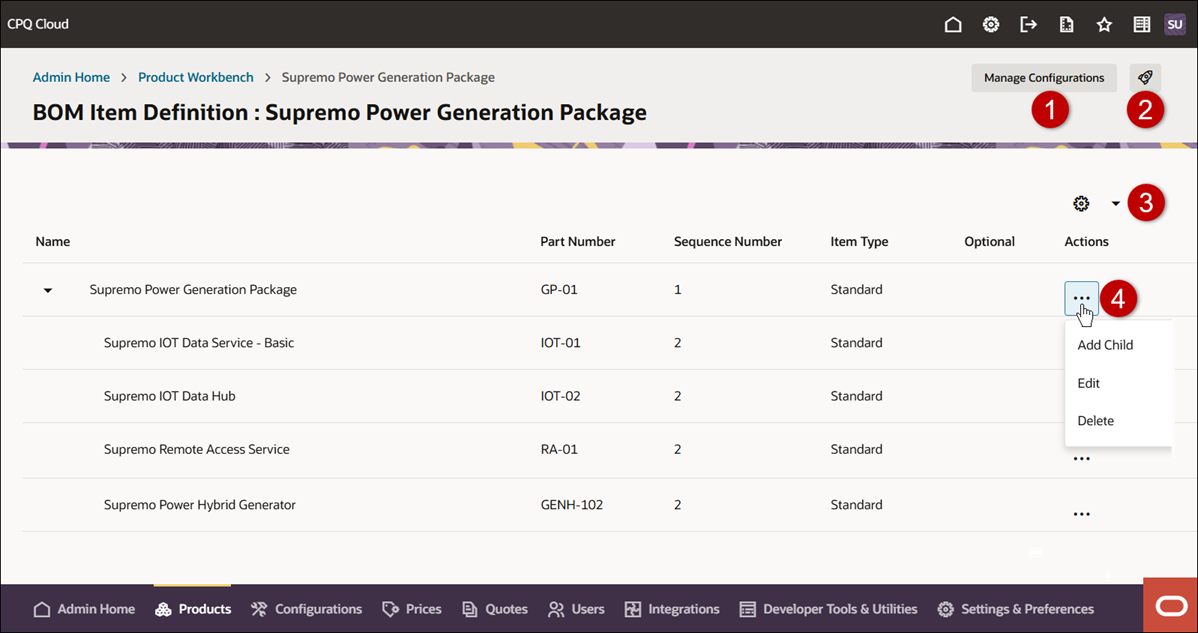
| Item |
Description |
|
1
|
Click Manage Configurations to view configurations related to the BOM.
|
|
2
|
Click on the Deploy  icon to deploy the BOM tables.
|
|
3
|
Click on the Settings  menu to expand or collapse the BOM structure.
|
|
4
|
Add a child item, Edit, or Delete the BOM item. |
Manage Configurations
The Manage Configuration page is used to view and manage configuration models.
To access the BOM configurations:
- Navigate to: Admin Home > Products
- Click on the BOM product's Actions ellipsis, the select Manage BOM.
- Click Manage Configurations
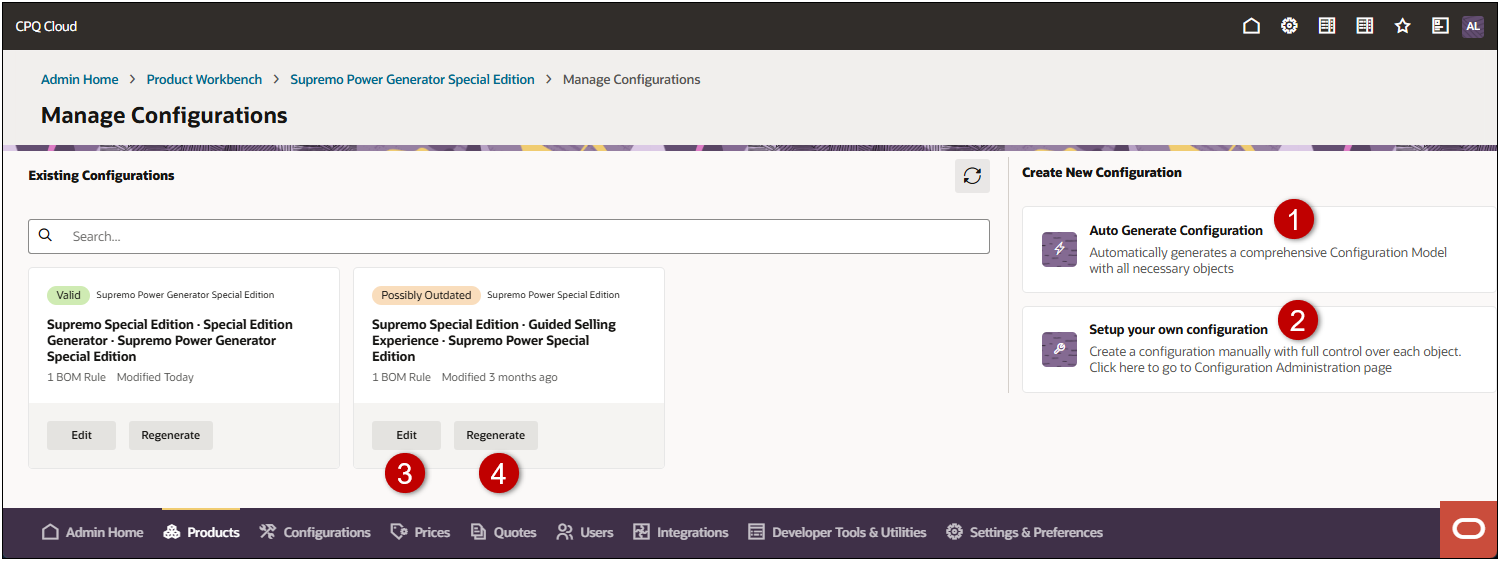
| Item |
Description |
|
1
|
Automatically generates a comprehensive configuration model with all of the necessary objects.
-
Configurable attributes are automatically defined at the Model level based on optional items and BOM Mapping conditions are automatically created.
-
A new layout is generated with the previously auto-generated attributes.
-
Configuration rules including Hiding and BOM Mapping are created for the model.
|
|
2
|
Manually create a configuration. For more information, refer to Configuration Administration.
|
|
3
|
Access the current BOM Mapping Rules and respective mappings.
|
|
4
|
Update possibly outdated configurations.
|
Administration
Auto Generate a BOM Configuration Model
Complete the following steps to generate a BOM configuration model based on the optional items defined in the product structure.
-
Navigate to: Admin Home > Products
-
Click on the BOM product's actions ellipsis, then select Manage BOM
-
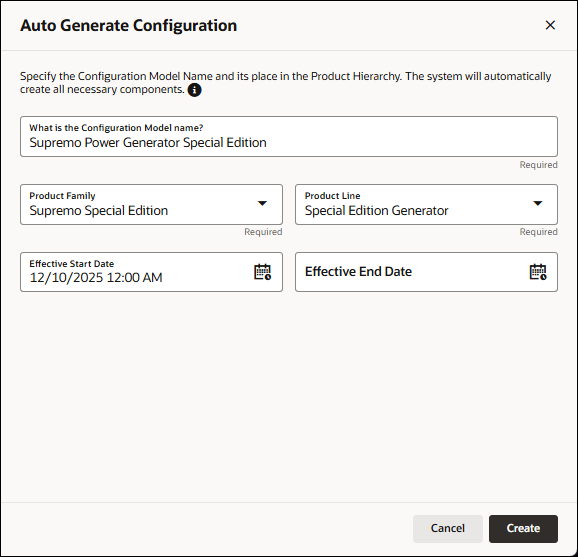
Click Manage Configurations, then click Auto Generate Configuration.
-
Specify the hierarchy for the new Model Configuration:
-
Select an existing Product Family or enter a new Product Family name.
-
Select an existing Product Line or enter a new Product Line name.
-
If applicable, specify the effective dates for the new Model Configuration.
-
Click Create.
Update a BOM Configuration Model
Complete the following steps to update a BOM Configuration Model.
- Navigate to Admin > Products.
- Click on the BOM product's actions ellipsis, then select Manage BOM
- Click Manage Configurations
-
Click Regenerate to update a configuration model.
The following example scenarios describe what will occur when the definition of the product changes and the configuration model needs to be updated:
-
When new option was added to an Option Class, an update will add a new menu item value to the correspondent configurable attribute.
-
When new items or Option Classes were added to the structure, an update will automatically create the new attributes to represent those additions.
Add or Edit BOM Child Item
Complete the following steps to add or edit a child item to a BOM product structure.
- Navigate to Admin > Products.
- Click on the BOM product's actions ellipsis, then select Manage BOM.
- To add a child item, click on the BOM product's actions ellipsis, then select Add Child.
- To edit a child item, click on the BOM product's actions ellipsis, then select Edit.
-
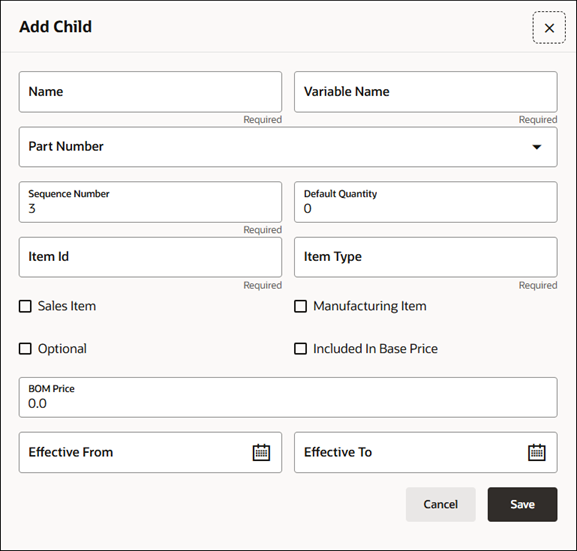
Enter or update the following information:
-
Name: The display name for the BOM item.
-
Variable Name: The primary key for the BOM item.
-
Parent Variable Name: The variable name of the hierarchical parent BOM item. Null for the root Item. If defined, the parent BOM item definition must exist, otherwise it is a validation error.
-
Part Number: The part number of the BOM item.
-
Sequence Number: The BOM item sequence
-
Default Quantity: The default quantity of the BOM item.
-
Item Id: The BOM item Id.
- Item Type: The BOM item type.
- Standard Item
- Model
- Option Class
-
Sales Item: Indicates whether the item is a sales item. Oracle CPQ uses sales items to create a BOM instance during Configuration, sales items are used for quotes, and the BOM instance used during reconfiguration contains sales items. In other words, only sales items are used inside CPQ.
-
Manufacturing Item: Indicates whether the item is a manufacturing item. Manufacturing items are only used when Oracle CPQ submits a Manufacturing BOM to a back-end Fulfillment system.
-
Optional: Indicates whether the BOM item is optional.
- Only "Optional" parts can be deleted from a Transaction
- When an "Optional" part is deleted all child items of that part are also deleted. This includes models that are defined as child items of the part.
-
Included in Base Price: Indicates whether the item is included in the base price.
-
BOM Price: This field is used to associate BOM prices to Configuration attribute values using BOM Mapping
-
Effective From: The effective from date. Formatted as: YYYY-MM-DD HH:mm:ss
-
Effective To: The effective to date. Formatted as: YYYY-MM-DD HH:mm:ss
Click Save.
Delete a Child Item from a BOM Structure
Complete the following steps to delete a child item to a BOM product structure.
- Navigate to Admin > Products.
- Click on the BOM product's actions ellipsis, then select Manage BOM.
- Click on the child item's actions ellipsis, then select Delete.
- Click Delete in the confirmation dialog.
Manage BOM Errors
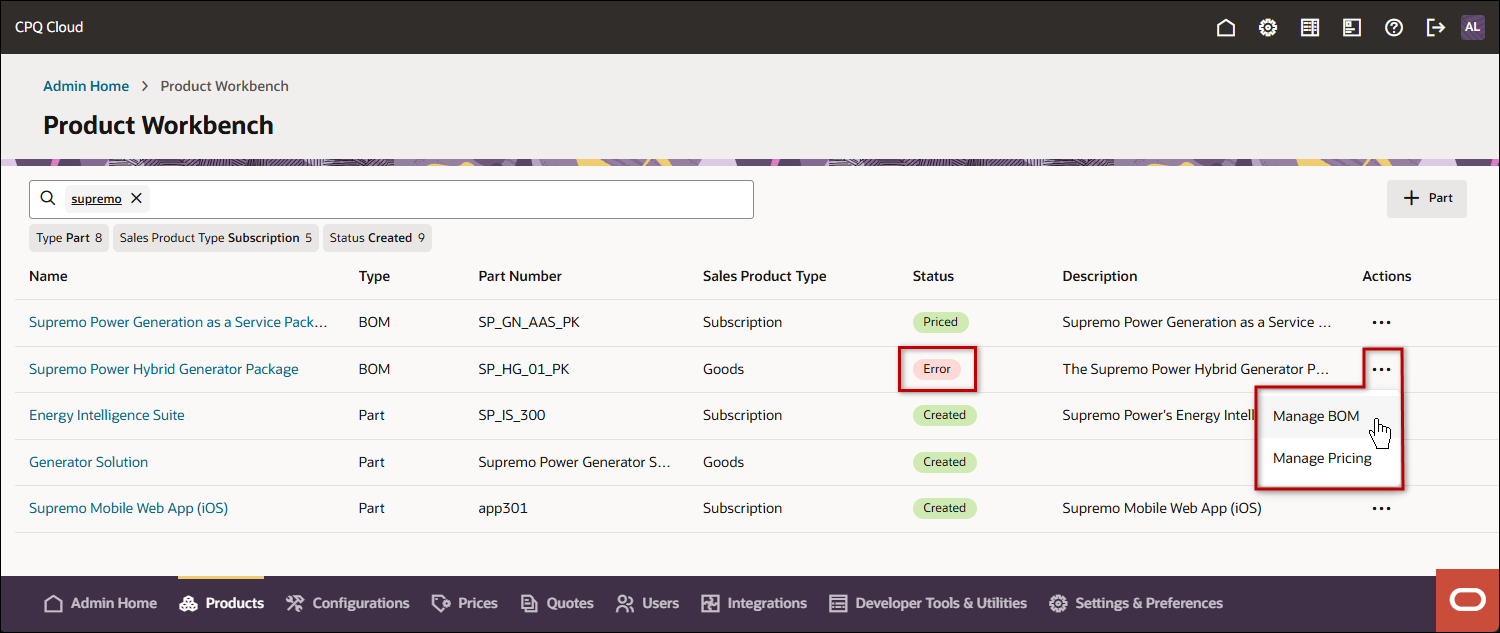
The Product Workbench displays an Error status when the is an issue with a BOM structure.
-
To view the error, click on the BOM item's actions ellipsis, the select Manage BOM.
-
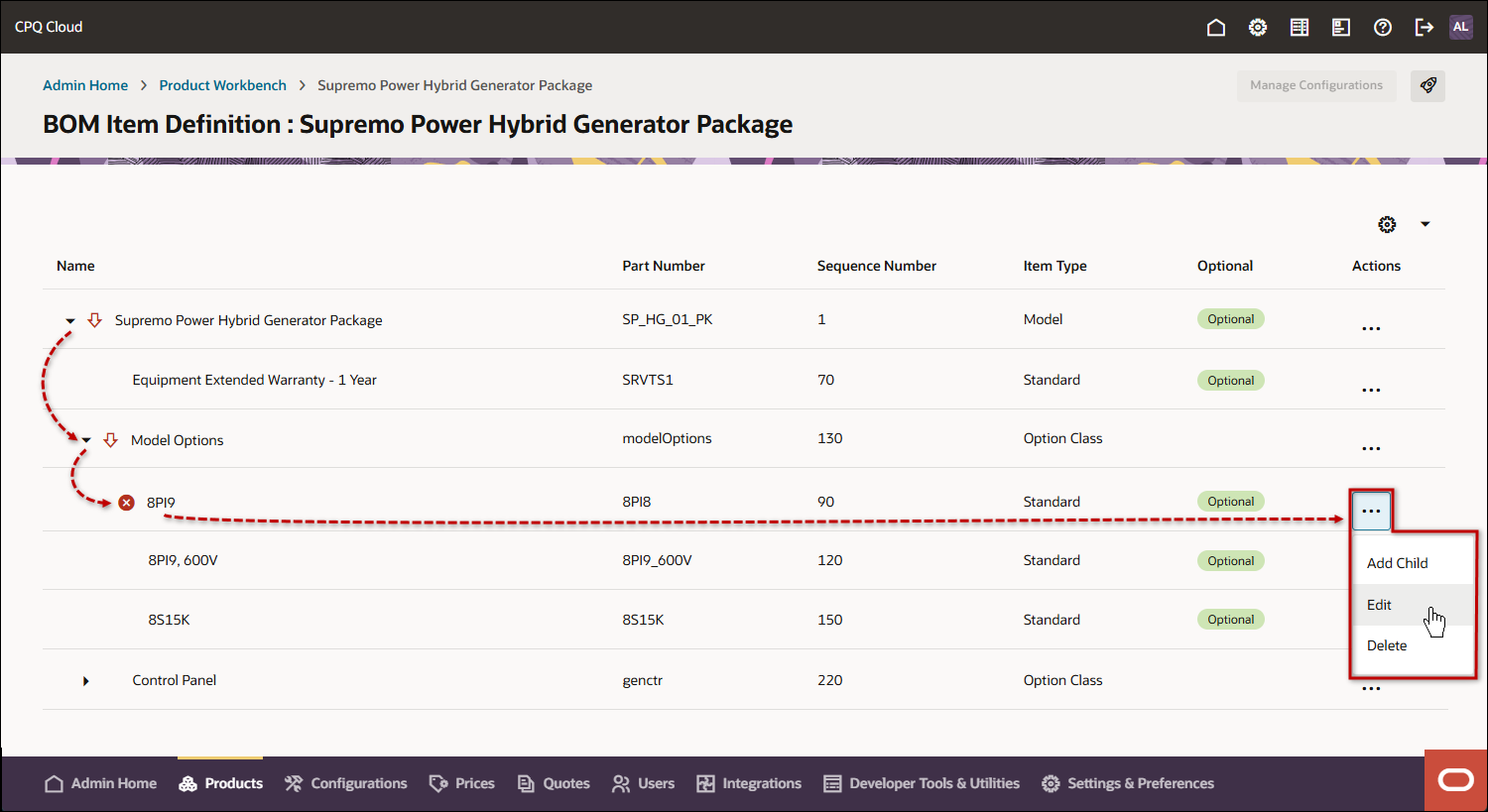
Expand the BOM levels to locate the error, click on the BOM item's actions ellipsis, the select Edit
-
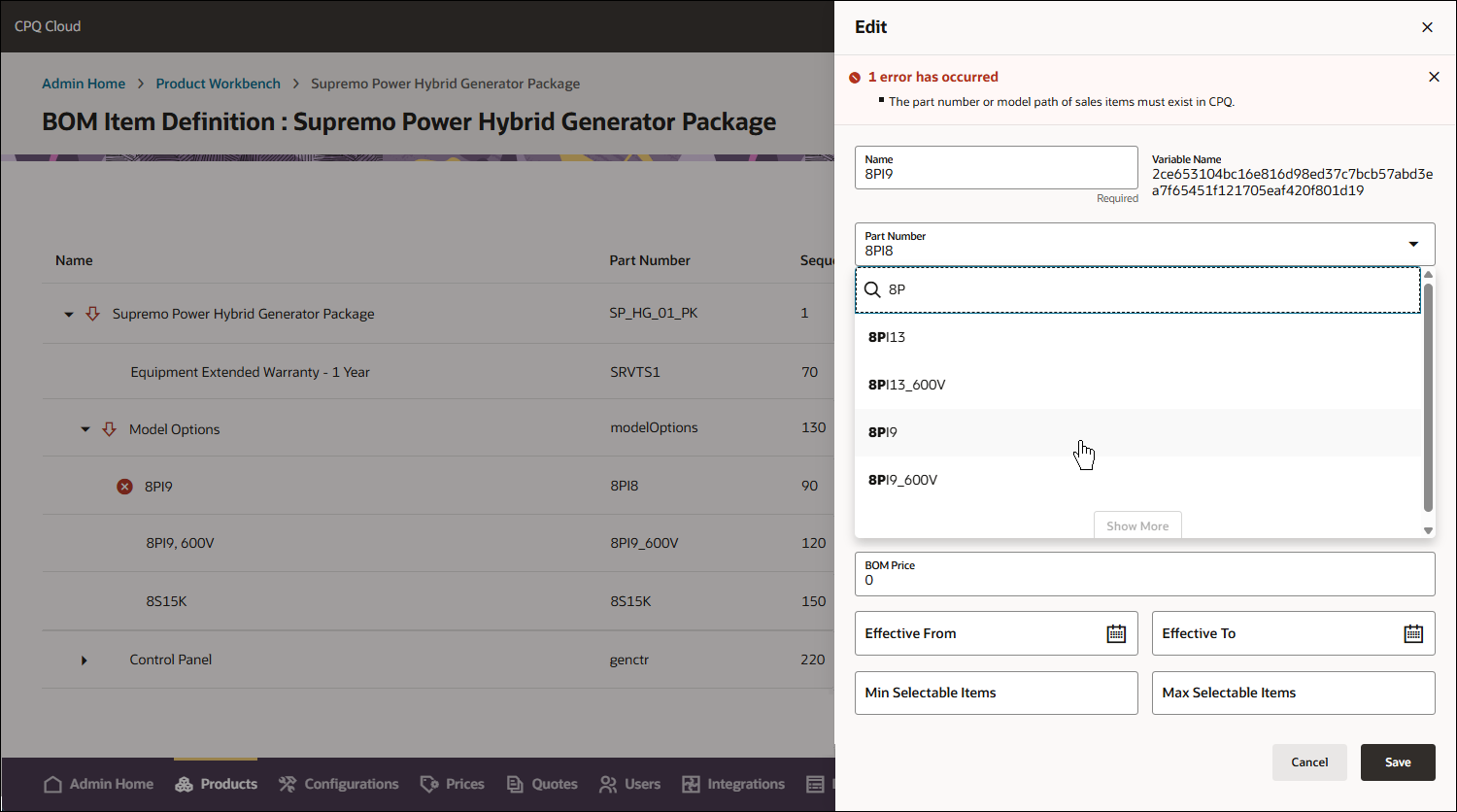
In the following example a part number error is displayed. You can then search and select a valid part number using the Part Number menu. This will update the entry in the BOM Item Definition table.
-
After correcting the issue, you can Deploy your changes. This will deploy the updated BOM Item Definition table.

Related Topics
See Also


