Overview
This topic covers setting up products using Redwood interface pages. Refer to Set Up Product Families for product definition using the classic interface pages.
The configuration administration pages are used to manage all product families, product family, product line, and model configurations; including the product definitions and catalogs. The Redwood-style administration pages provide:
-
Quickly see and navigate to product families that need to be deployed.
-
Click on the Quick Links icon to quickly navigate within the product family.
-
Powerful search and filter to see attributes and rules created for the selected context and inherited.
-
Side menu navigation to quickly view configurable components, such as attributes, rules, and flows.
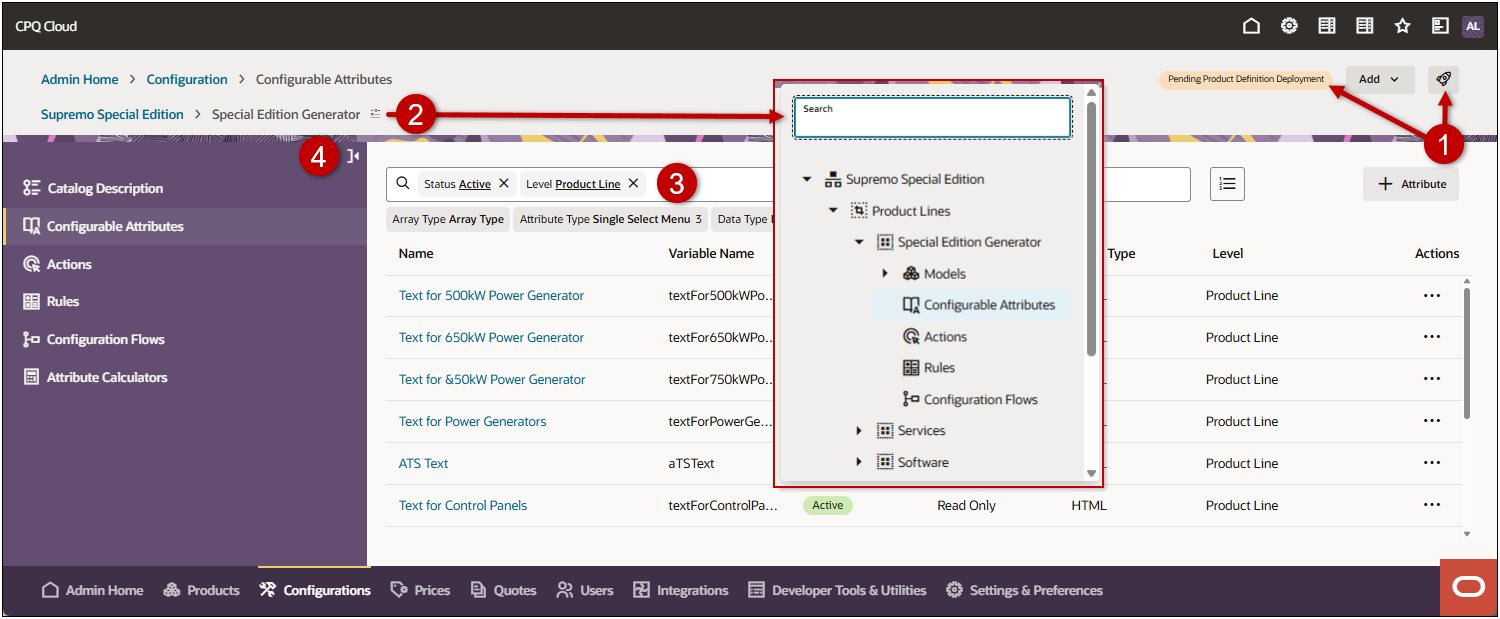
Administration Pages
 Configure All Product Families
Configure All Product Families lets you navigate through product hierarchies. All Product Families is at the top of the hierarchy and can be used to configure rules and attributes accessible to all families. Select a specific product family to see it’s product lines and models or enter a keyword to search across all product families, product lines, and models.
-
To access this page, navigate to: Admin Home > Configurations
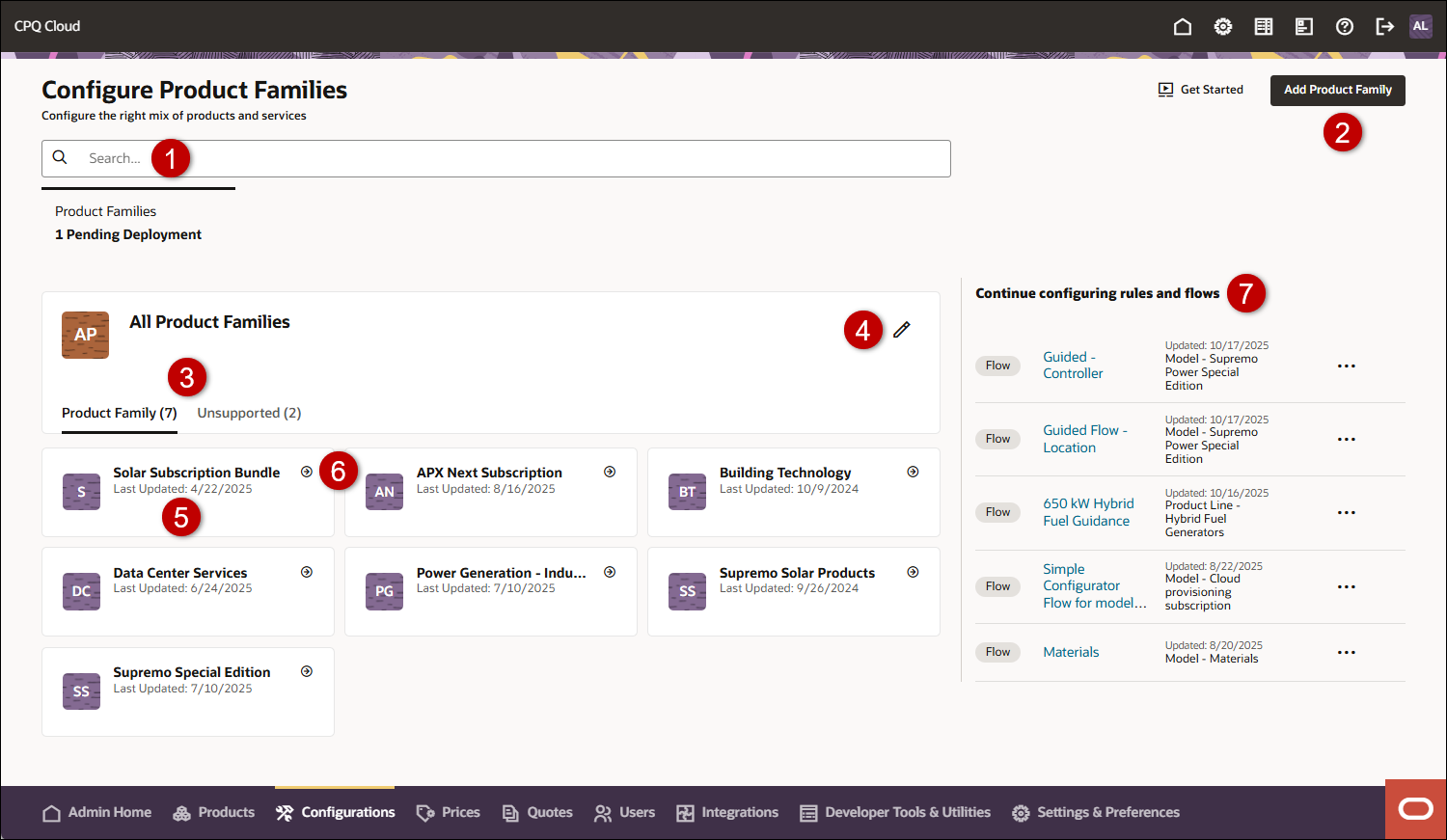
| Item | Description |
|---|---|
|
1 |
Search for product families, product lines, and models. |
|
2 |
Add a new product family and product definition |
|
3 |
View product families in the catalog and unsupported product families. Unsupported product families are families that aren’t in the catalog; either support has been removed or it’s a new family that hasn’t been added yet. |
|
4 |
Click the Edit |
|
5 |
Click on a product family to access the product family configuration |
|
6 |
Click on a product family Edit |
|
7 |
quickly access recently edited rules and flows |
When you select a product family, it becomes the focus card and you can access actions for product families, such as deploy or remove catalog support.
-
To access this page, navigate to: Admin Home > Configurations > Product Family
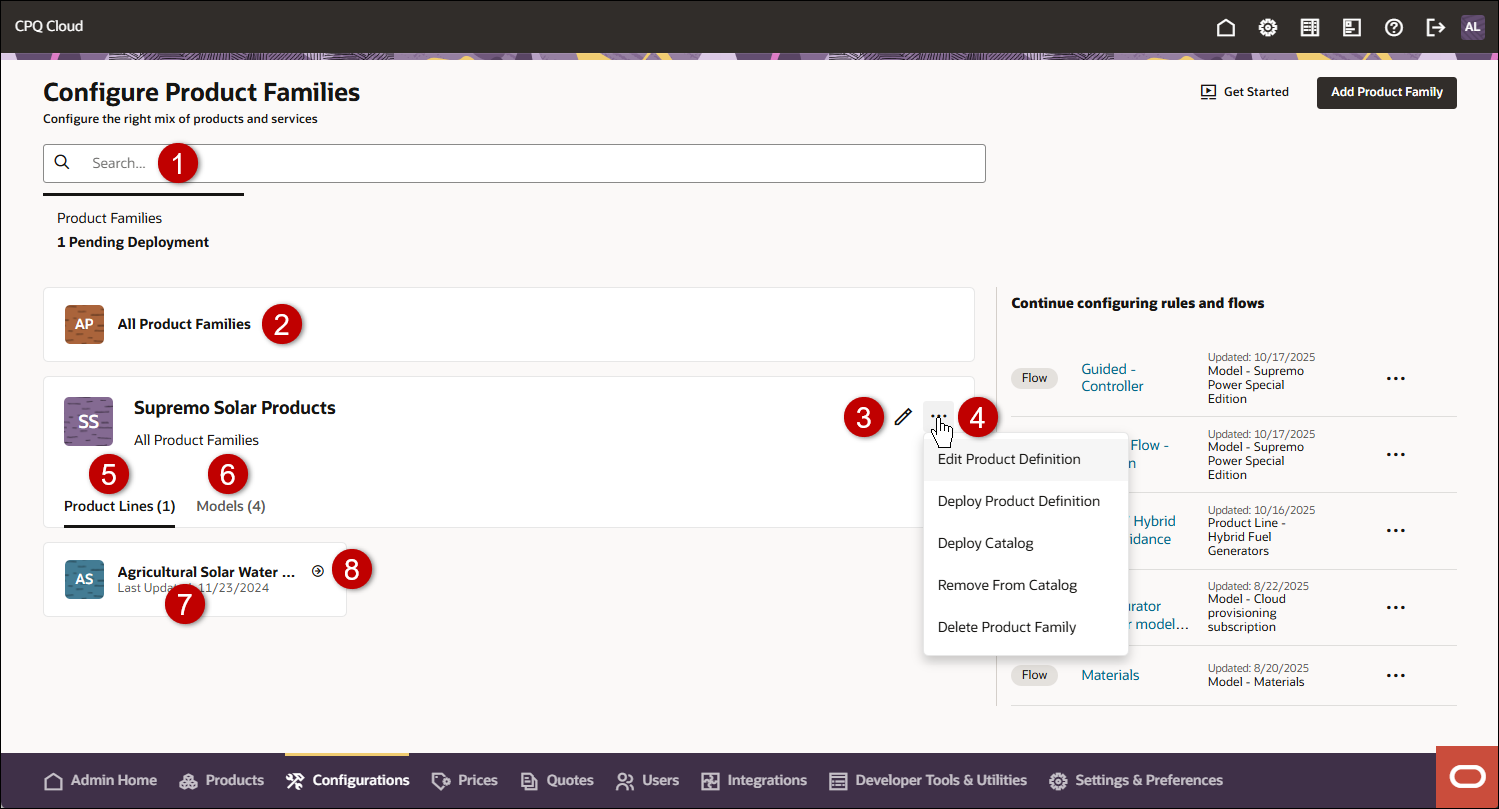
| Item | Description |
|---|---|
|
1 |
Search for product lines within the selected product family |
|
2 |
Navigate to the parent, All Product Families |
|
3 |
Click the Edit  icon to manage configurable attributes, actions, rules, flows, integration, and layout access for the product family icon to manage configurable attributes, actions, rules, flows, integration, and layout access for the product family |
|
4 |
Click the product family's actions ellipsis to edit or deploy the product definition, remove the product family from the catalog, deploy the catalog, or delete the product family |
|
5 |
View child product lines |
|
6 |
View child models |
|
7 |
Click on a product line or model to access the associated product line or model configuration |
|
8 |
Click on a product line or model Edit  icon to manage the catalog description, configurable attributes, actions, rules, or configuration flows for the associated product line or model icon to manage the catalog description, configurable attributes, actions, rules, or configuration flows for the associated product line or model |
When you select a product line, it becomes the focus card and you can access actions, such as edit product definition or deploy catalog.
-
To access this page, navigate to: Admin Home > Configurations > Product Family > Product Line
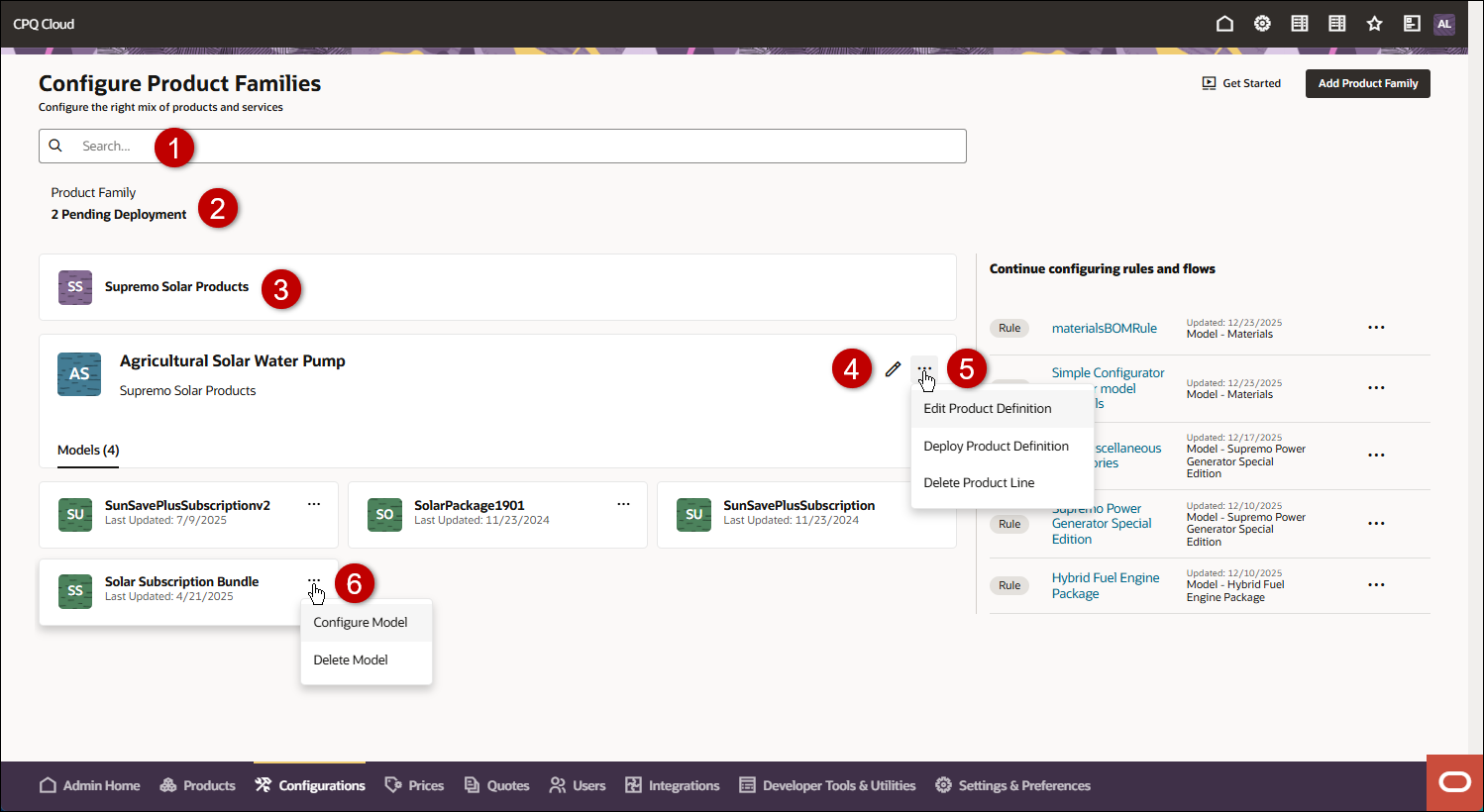
| Item | Description |
|---|---|
|
1 |
Search for models within the selected product line |
|
2 |
Click to reset the page to All Product Families |
|
3 |
Navigate to the parent product family |
|
4 |
Click the Edit icon to manage the catalog description, configurable attributes, actions, rules, or configuration flows for a product line |
|
5 |
Click the product line's actions ellipsis to edit the product definition, deploy the product definition, or delete the product line |
|
6 |
Click a model's actions ellipsis to configure or delete the model |
Administration
Product Definition & Catalog
Complete the following steps to create a new product family.
- Navigate to: Admin Home > Configurations.
-
Click Add Product Family.
-
Enter the Product Family Name and Variable Name.
-
Click Create, then click Update.
Complete the following steps to deploy a product definition.
- Navigate to: Admin Home > Configurations.
- Click the Unsupported tab.
- Click the desired Product family.
-
Click the Deploy
 icon, then select Product Definition.
 -
(Optional) Send a confirmation email:
- Enable Do you want to send a confirmation email?
- Enter a valid email address.
-
(Optional) Schedule a time for future deployment:
-
Click inside the When do you want to deploy? field.
-
Select the Date and Time, and then click Done.
-
-
Click Deploy.
Add a Product Family to the Catalog
Complete the following steps to add a product family to the catalog.
- Navigate to: Admin Home > Configurations.
- Click the Unsupported tab.
- Click the desired Product Family.
-
Click Add to Catalog.
Remove a Product Family from the Catalog
Complete the following steps to remove a product family from the catalog.
- Navigate to: Admin Home > Configurations.
- Click the desired Product family.
- Click on the product family's actions ellipsis, then select Remove From Catalog.
-
Click Continue.
Complete the following steps to deploy the catalog to make configurations ready for the home page.
- Navigate to: Admin Home > Configurations.
- Click the desired Product family.
- Select Deploy Catalog from the product family's actions menu.
-
(Optional) Send a confirmation email:
- Enable Do you want to send a confirmation email?
- Enter a valid email address.
-
(Optional) Schedule a time for future deployment:
-
Click inside the When do you want to deploy? field.
-
Select the Date and Time, and then click Done.
-
-
Click Deploy.
Product Configuration
Complete the following steps to add a product line to a product family.
- Navigate to: Admin Home > Configurations.
- Click the desired Product Family.
- Click the Edit icon.
- Select Product Line from the Add menu.
- Enter the product Line Name, Variable Name, and Description.
-
Click Create.
Complete the following steps to add a model to a product Line.
- Navigate to: Admin Home > Configurations.
- Click the desired Product Family.
- Click the Edit icon.
- Select Model from the Add menu.
- Select the desired Product Line from What is the Configuration Level?.
- Enter the Model Name, Variable Name, and Description.
-
Click Create.
Complete the following steps to delete a product family.
- Navigate to: Admin Home > Configurations.
- Click the desired Product Family.
- Click the product family's action ellipsis, then select Delete Product Family.
- Click Delete in the confirmation dialog.
Complete the following steps to delete a product line.
- Navigate to: Admin Home > Configurations.
- Click the desired Product Family.
- Click the product family Product Lines tab.
- Click on the desired Product Line.
- Click on the product line's actions ellipsis, then select Delete Product Line.
- Click Delete in the confirmation dialog.
Complete the following steps to delete a Model.
- Navigate to: Admin Home > Configurations.
- Click the desired Product Family.
- Click the product family Models tab.
- Click on the Model's actions ellipsis, then select Delete Model.
- Click Delete in the confirmation dialog.


