Configuration Rules
Overview
This topic covers administration of configuration rules using the Redwood interface pages. Refer to Configuration Rule Overview for administration using the classic interface pages.
Configuration rules enable you to set specific configuration information for your products. For example, you can suggest configured values to buyers, hide specified attributes from certain user types, recommend items to buyers, prevent sales users from selecting opposing values on attributes, and display additional price information. Configuration rules are comprised of conditions and actions. The conditions are always evaluated first. If the conditions are met, then the rule is fired and the actions will occur.
 Types of Configuration Rules
The following rule types are available in Configuration:
Rule Precedence
Order of Operations
Configuration rules are evaluated in the following order:
- Configuration Flow Rules
- Constraint Rules
- Recommendation Rules
- Constraint Rules (again)
- Message Only Rules
- BOM Mapping Rules
- Hiding Rules
- Recommended Item Rules
- Bill of Materials Rules
Attribute Order
The order of configuration attributes affects rule order in the following ways:
- Configuration rules with "True" conditions are reviewed.
- The rules that reference the first configuration attribute are run.
-
The rules that reference the second configuration attributes are run. Rules on subsequent attributes are run.
Order becomes important when there are dependent Recommendation Rules that need to be calculated in a specific sequence.
For example: D is the sum of B and C; C = A*2. If C appears after D within the Attribute List, D's calculation will use a stale value for C, resulting in an incorrect value for D.
Rule Elements
A configuration rule is comprised of conditions and actions. The conditions are always evaluated first. If the conditions are met, the rule is fired and the actions are applied.
Conditions (When)
Rule conditions are specified in the When section.
There are three options: Always True, Simple Condition and Advanced Condition.
Actions (Then)
Rule actions are specified in the Then section.
How actions are specified where the rule is applied varies depending on the rule type.
-
Bill of Materials - No action attributes are defined. The action will be a BOM string that is returned to an ERP.
-
BOM Mapping - Define the Target BOM and Target Commerce Process.
-
Constraint - Define which attribute(s) will have value(s) constrained or allowed.
-
Hiding - Define which attributes will be hidden.
-
Pricing - No action attributes are defined. The action will be the price that is returned.
-
Recommendation - Define which attribute(s) will have it's value(s) set or modified.
-
Recommended Items - No action attributes defined. The action will return mandatory or optional part numbers and quantities.
Administration Pages
The Redwood-style Rule Editor aims to develop a cutting-edge, user-centric rule-authoring tool for CPQ systems. This new editor will replace the existing rule management interface, providing enhanced functionality, improved usability, and greater efficiency for users at all levels.
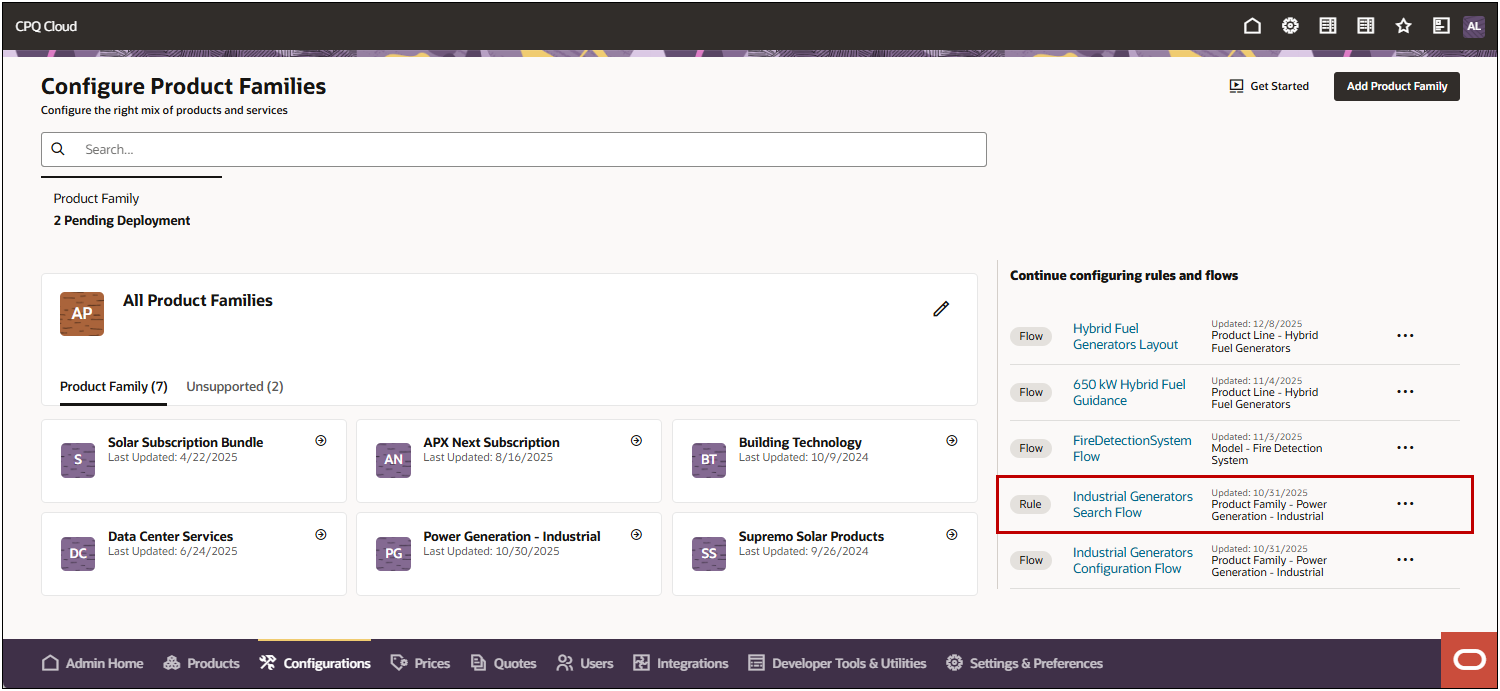
Quick Access: Use the Dashboard one-click links to pick up where you left off configuring rules.
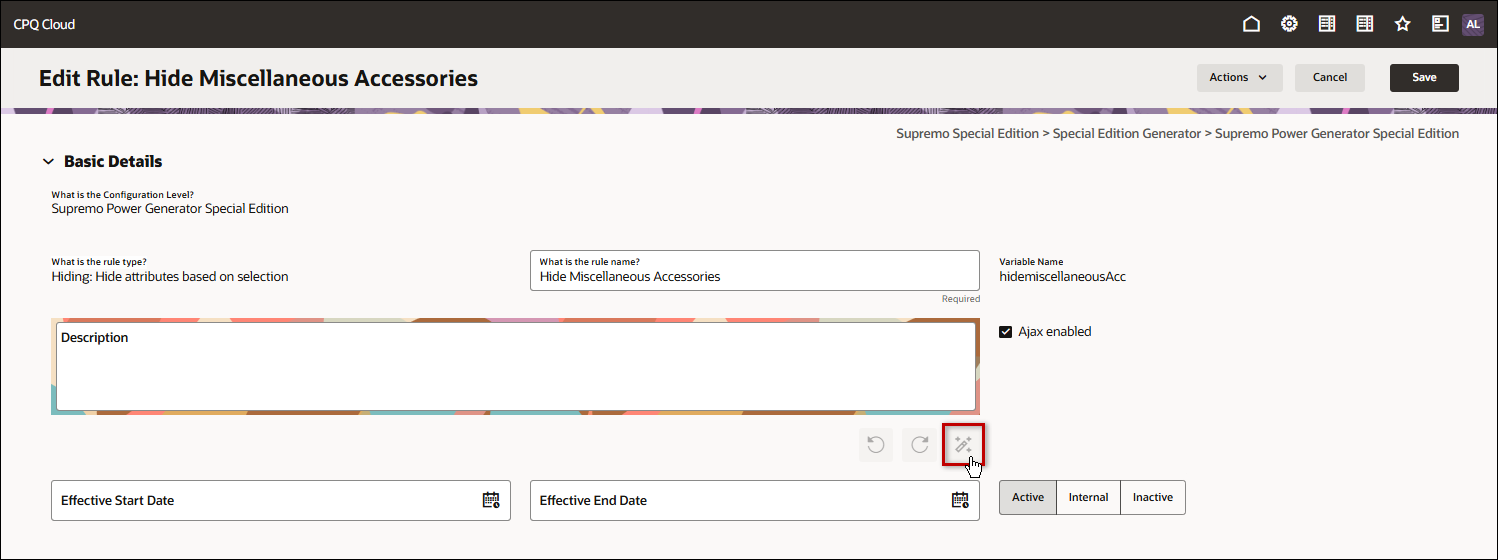
AI-Generated Rule Descriptions: Redwood Configuration rules leverage generative AI to automatically produce human-readable summaries.
AI-generated descriptions improve rule management, understanding, and usability for CPQ administrators. This feature leverages generative AI to automatically produce human-readable summaries of rule logic, helping administrators quickly grasp the purpose and impact of rules without parsing complex expressions or condition sets. It enhances transparency, accelerates troubleshooting, and improves onboarding for new administrators.
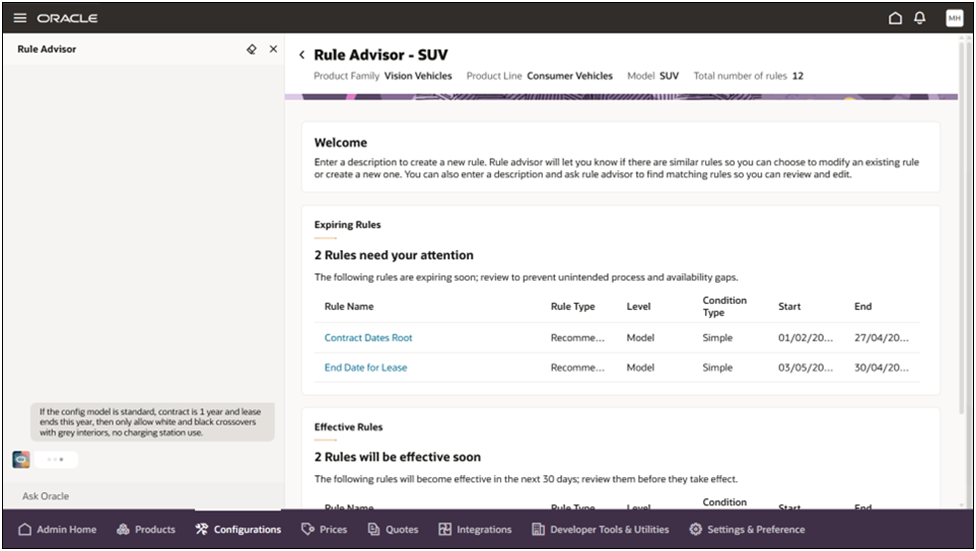
Rule Advisor for CPQ Running in Fusion
Oracle CPQ running in Fusion supports an agent-based experience for rule authoring in CPQ Configurator. Administrators can use the advisor to generate and refine CPQ rule text, review rules expiring in 90 days and/or becoming effective in the next 30 days, and search for rules using one or more attributes.
When creating a new rule, the advisor surfaces similar existing rules (including inherited rules), and lets administrators adjust operators and values inline before saving. When matches are found, you can review the top ranked rule and compare additional ranked results. After reviewing results, you can create a new rule or open an existing rule for edit.
The similar rules results are ranked using the following criteria:
-
Duplicate rule type, condition, and action
-
Rule type matches
-
Similar conditions and rule type matches
-
Contains some of the attributes in the condition (operators may not match) and rule type matches
Feature highlights include:
-
Administrators can generate a new rule in sentence format from a typed description, review it, and then save.
-
The experience checks for similar rules so users can review existing logic before creating a new rule. This helps reduce duplicate or conflicting rules by promoting reuse of existing rules when possible.
-
Rule operators and values can be adjusted inline, through Ask Oracle interactions, or by opening the rule editor.
-
Coverage includes key rule scenarios validated through associated work items across filter, constraint, validation, access, and recommended-items contexts.
-
Brings forward inherited rules that are expiring or becoming effective.
-
Supports better decision making with ranked comparisons before rule creation.
To use the Rule Advisor, complete the following steps:
-
Navigate to CPQ Admin Home> Configuration.
- Navigate to the desired configuration product level:
- All Product Families: Admin Home > Configurations
- Product Family: Admin Home > Configurations > Product Family
- Product Line: Admin Home > Configurations > Product Family > Product Line
- Model: Admin Home > Configurations > Product Family > Product Line > Model
-
Click Rules in the left-side navigation.
-
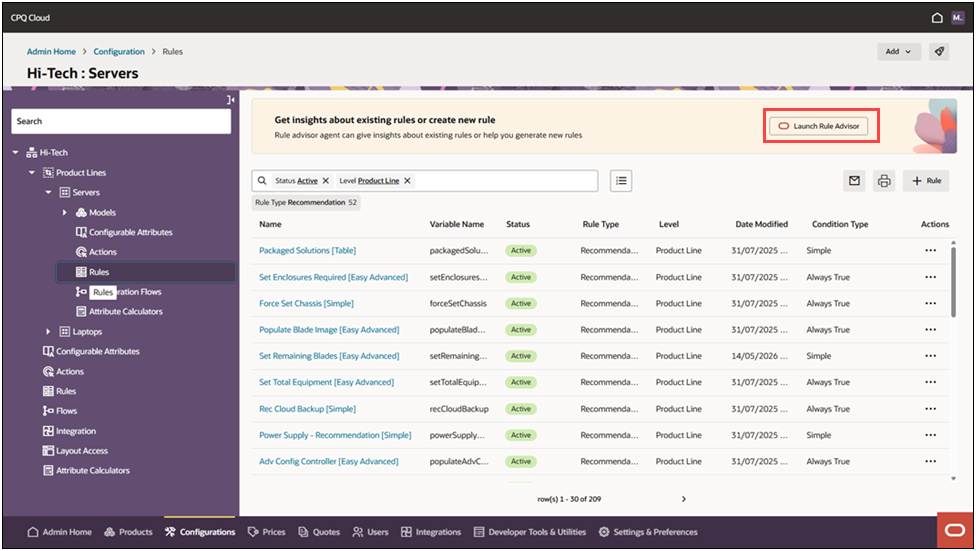
Click Launch Rule Advisor in the Rule Advisor banner at the top of the page.
-
Enter a prompt in rule advisor to create a new rule or search for an existing rule by one or more attributes.
Rules List Page
These pages are used to manage rules for the all Product Families, Product Family, Product Line, or Model level.
To access configuration rules:
- Navigate to the desired configuration product level:
- All Product Families: Admin Home > Configurations
- Product Family: Admin Home > Configurations > Product Family
- Product Line: Admin Home > Configurations > Product Family > Product Line
- Model: Admin Home > Configurations > Product Family > Product Line > Model
- Click the Edit
 icon for the desired level.
- Click Rules in the left navigation.
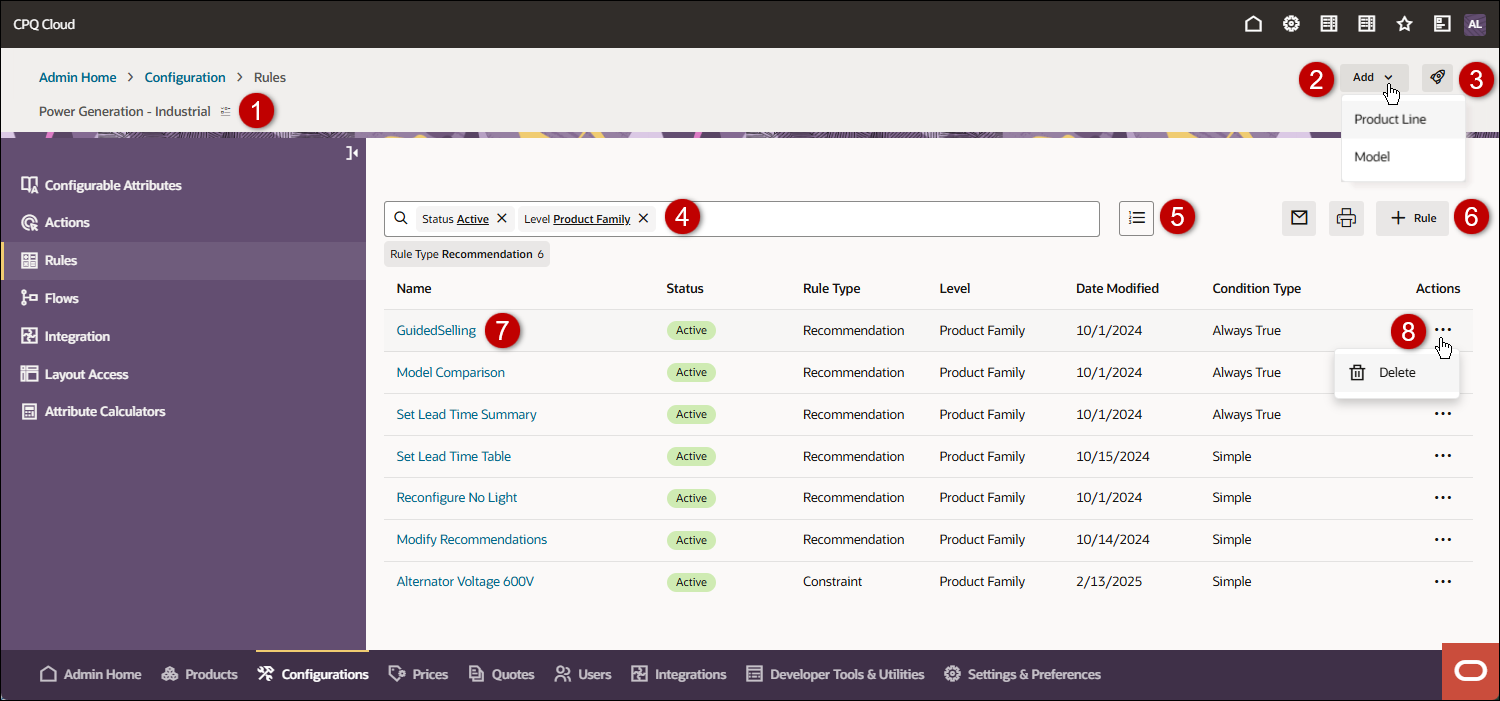
|
1
|
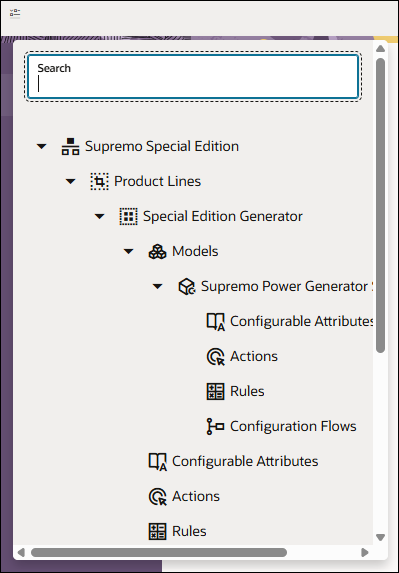
Click on the Quick Links  icon to quickly navigate within the product family. View example
|
|
2
|
Add a new product line or model |
|
3
|
Deploy the catalog or the product definition |
|
4
|
Search and filter
-
To search items, click inside the search field and type your search criteria.
-
To filter items, click on the predefined filters below the search field.
-
To remove an applied filter, click on the filter Delete X icon.
-
Right-click in the search field and to search for a specific rule type, level, or status.
|
|
5
|
Reorder configuration rules |
|
6
|
Add a new configuration rule
|
|
7
|
Manage an existing rule
|
|
8
|
Click the rule's action ellipsis to delete the rule
|
Administration
Delete a Rule
Complete the following steps to delete a configuration rule.
-
Navigate to the desired product level:
- All Product Families: Admin Home > Configurations
- Product Family: Admin Home > Configurations > Product Family
- Product Line: Admin Home > Configurations > Product Family > Product Line
- Model: Admin Home > Configurations > Product Family > Product Line > Model
- Click the Edit icon for the desired level.
- Select Rules in the left navigation.
- Right click on the configuration rule's actions ellipsis, then select Delete.
- Click Delete in the confirmation dialog.
Reorder Rules
Complete the following steps to reorder configuration rules.
-
Navigate to the desired product level:
- All Product Families: Admin Home > Configurations
- Product Family: Admin Home > Configurations > Product Family
- Product Line: Admin Home > Configurations > Product Family > Product Line
- Model: Admin Home > Configurations > Product Family > Product Line > Model
- Click the Edit icon for the desired level.
- Select Rules in the left navigation.
-
Click the Reorder  icon.
-
Select the rule type you want to reorder.
-
Select the desired step and drag and drop it to the desired location.
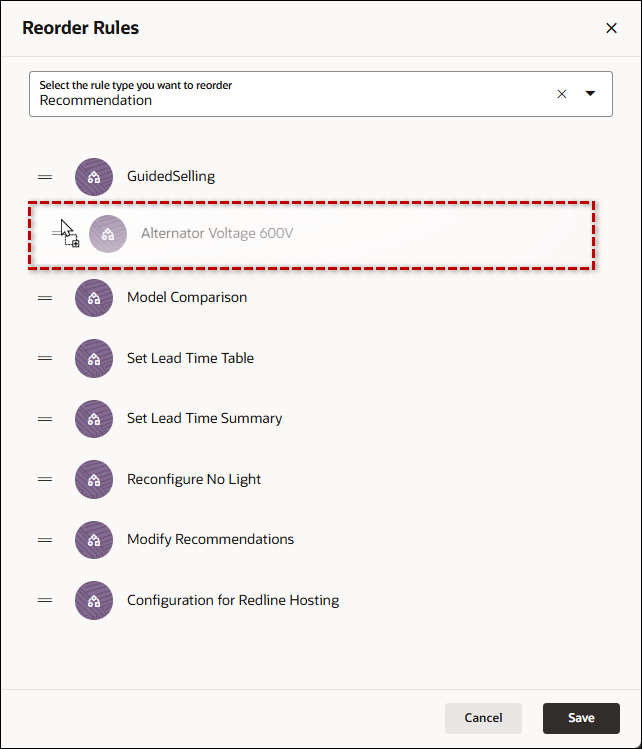
- Click Save.
To add and edit rules, refer to the following topics:
Notes
Warning: Deleted rules cannot be recovered.
Note: Rules can only be deleted at the level of the hierarchy in which they were created.
Related Topics
See Also


