Overview
What are they?
A configurable Bill of Materials is a set of parts specific to a certain product configuration. For each configuration, where a product has a different set of parts, you can create a Bill of Materials.
How do they work?
When a Bill of Materials triggers, it appears to buyers on commerce document line item pages. If the parts contained in the Bill of Materials link up with the parts in the parts database, then parts pricing also appears on line item pages. Buyers see multiple BOMs when several apply to a given configuration. When the system triggers multiple advanced BOMs, which are created as strings, all of the strings appear concatenated in the order they were generated.
A Bill of Materials rule has a condition and an action. The values of the attribute(s) selected as the condition attribute(s) determine the result of the condition, which when true triggers an action. The action here is to display a list showing the parts description and their quantities. This list is shown in a separate tab in the pipeline viewer or in the commerce document.
Administration Pages
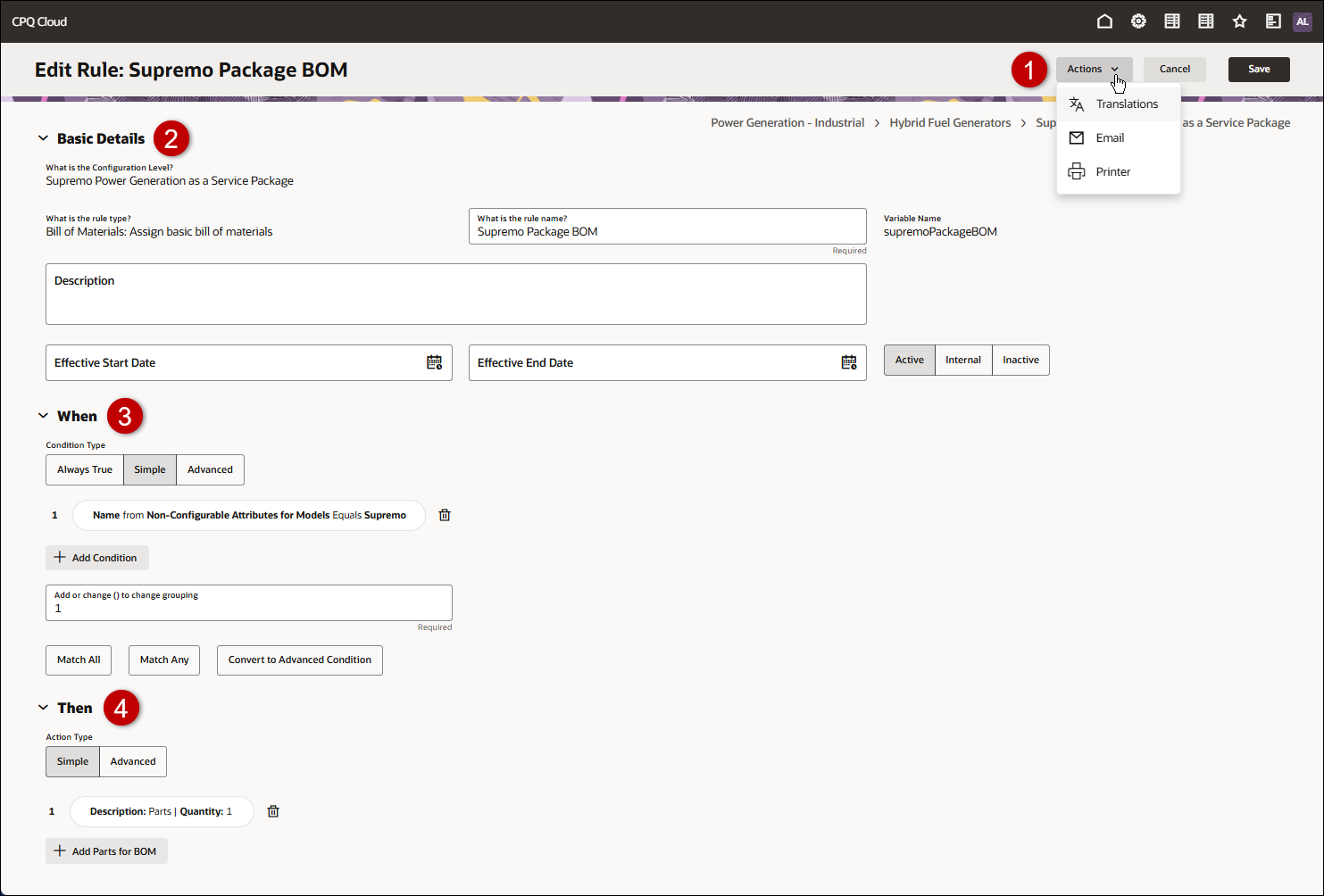
| Item | Description |
|---|---|
|
1 |
The rule Actions menu provides the following functions:
|
|
2 |
The Basic Details section contains general information about the rule.
|
|
3 |
The When section is used to define the conditions that specify when a rule should run. There are three options: Always True, Simple, and Advanced. Always True: The rule will fire automatically, every time, because there are not any conditions to be met.
Add conditions to select the necessary condition attributes and define the conditional values.
The order in which the conditions are evaluated in are defined in the Add or change () to change grouping field.
|
|
4 |
The Then section is used to define actions (i.e. what will happen if the conditions are met).
|
Administration
 Add / Edit a Bill of Materials Rule
Complete the following steps to add or edit a Bill of Materials Rule.
-
Navigate to the desired product level:
- All Product Families: Admin Home > Configurations
- Product Family: Admin Home > Configurations > Product Family
- Product Line: Admin Home > Configurations > Product Family > Product Line
- Model: Admin Home > Configurations > Product Family > Product Line > Model
-
Click the Edit
 icon for the desired item, then select Rules in the left navigation.
-
Create or edit a rule:
-
To create a new rule click + Rule.
-
To edit an existing rule, click on the desired rule.
-
-
Define or edit the Basic Details options:
- What is the rule type? Bill of Materials.
-
What is the rule name? Enter the name of the rule.
-
Variable Name: Enter a variable name for the rule. The Variable Name field populates automatically. The entry can be changed before saving, but after saving the value is read-only. Variable names can only contain alpha-numeric characters and underscores.
-
Description: If desired, enter a rule description.
-
Set the Effective Start Date and Effective End Date to specify how long the rule will remain in the chosen status.
If no duration is specified, the rule maintains its status until an administrator changes it. -
Set the status:
- Active: Rule is fired when the condition is met.
- Internal: Rule is active only for FullAccess users; it is inactive for all other users.
- Inactive: Rule is not fired, even if the condition is met.
-
Set the Condition Type and add conditions in the What section.
Always True The rule fires automatically.-
If applicable, set Condition Type to Always True
-
No conditions are defined.
Simple Select attributes and define simple conditions.- Set Condition Type to Simple.
- To add a condition, click +Add Condition.
- Select an attribute from What is the attribute to associate to this condition?
- Set the Operator for the condition.
- Enter or select the Value.
- Click Create.
- Repeat this step to add additional conditions.
- Click the Delete
 icon to remove a condition.
- Set the match criteria:
- Match All if all of the conditions must be met.
- Match Any if any condition needs to be met.
- Click in the Add or change () to grouping field to define custom grouping.
For example,(1 OR 2) AND 3 - Select Convert to Advanced Condition to convert the simple condition to an advanced condition.
Advanced Use the function editor to select attributes and define advanced conditions.- Set Condition Type to Advanced.
- Click Define BML Function.
- Enter the Function Script.
- Click Save.
-
-
Set the Action Type and add actions in the Then section.
Simple Use the rule editor to define parts and quantities- Set Action Type to Simple.
- Click + Add Parts for BOM.
- Specify individual parts for the BOM in the Description field.
- Enter the Quantity.
- Click Create.
- Click the Delete icon to remove a part.
Advanced Use the function editor to define parts and quantities.- Set Action Type to Advanced.
- Click Define BML Function, enter the Function Script, then click Save.
-
To add translations, select Translations from the Actions menu.
-
Click Create or Save.
Warning: Deleted rules cannot be recovered.
Complete the following steps to delete a configuration rule.
-
Navigate to the desired product level:
- All Product Families: Admin Home > Configurations
- Product Family: Admin Home > Configurations > Product Family
- Product Line: Admin Home > Configurations > Product Family > Product Line
- Model: Admin Home > Configurations > Product Family > Product Line > Model
- Click the Edit icon for the desired item.
- Select Rules in the left navigation.
- Right click on the configuration rule's actions ellipsis, then select Delete.
- Click Delete in the confirmation dialog.


