Util Function Editor (Redwood)

Overview

This topic covers the Util Funtion Editor using the Redwood interface pages. Refer to Library Functions, Function Editor Basics, and Function Wizard for process administration using the classic interface pages.

The Function Editor contains a list of pre-defined BML functions that are available for use in advanced scripting. There are some variations in the Function Editor, depending on where you are located within the application: Commerce, Configuration, Commerce Library, or Util Library. The Function Editor allows you to create a new function or edit an existing function. You can access the Create Util Function page or Edit Util Function page from the Util BML Library Functions List.

Util and Commerce Library Function Editors use Function to Function calls. Function to Function calls allow admins to compartmentalize BML when dealing with complicated configuration or quoting scenarios. This feature will assist with the organization of BML and provides a solution to the compiled Java class size-limit issue. Function to function calls mimic the behavior of a Modify function calling a Library function.

To access the Util Function Editor, navigate to: Admin Home > Developer Tools & Utilities > BML Library

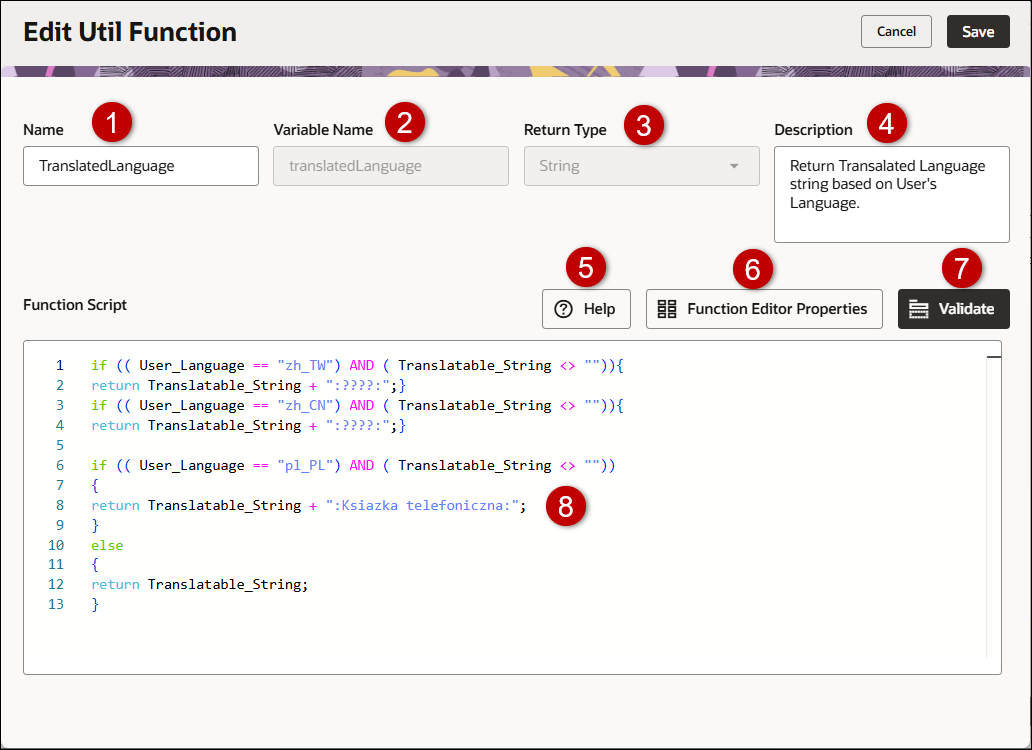
Item Description

1

The function name.

2

The function variable name.

3

The category type the function script will return. For example, array, boolean, date, dictionary, math, etc. Refer to BML Functions List for category function links.

4

The description of the function.

5

Displays a complete list of the out-of-the-box functions. Refer to BML Functions List for a description of the functions.

6

Manages the function properties and runs a test the function script.

7

Validates the function script.

8

The function script definition area. Refer to Script Definition and Syntax Colors.

ClosedScript Definition and Syntax Colors

BML can be typed directly into the Script Definition Area. Save your changes after writing/editing the script.

The box on the left defines the position of the character based on its line and index. Character indexes begin with 0.
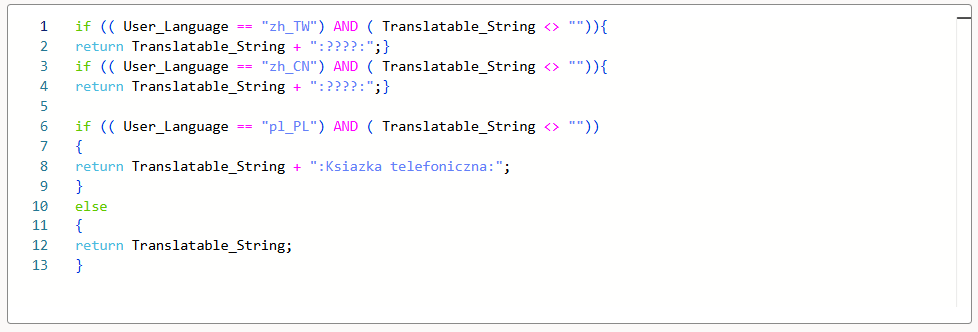
The code is displayed in different colors. For example:

Code sample with syntax colors

Administration

ClosedCreate or Edit a Library Function

To add a Commerce Library Function using the Redwood UI, refer to Commerce Library Functions.

Complete the following steps to create a library function.

  1. Navigate to: Admin Home > Developer Tools & Utilities > BML Library and select one of the following:

    1. To create a library function,click Create.

    2. To edit an existing library function, click the name of the function link under the Name column.

  2. Enter the Name, Variable Name, Description and select a Return Type.

  3. Enter your script into the Function Script section.

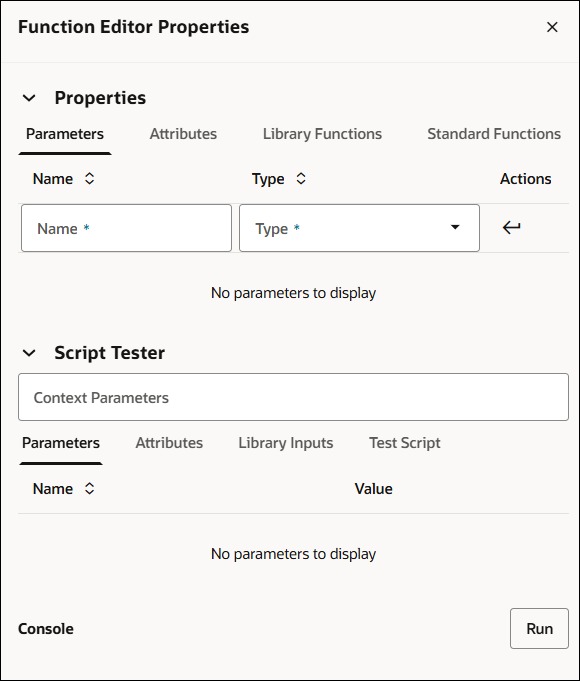
  4. Click Function Editor Properties to select and enter Parameters, Attributes, Library Functions or Standard Functions for the function script.

    Function Editor Properties

    ClosedParameters

    In the function editor, you can select parameters to include within your code. To enter a parameter:

    1. Open the Properties section and click on the Parameters tab.

      insert pic

    2. Enter the Name and select the Type. Navigate through the Type drop-down list to find the desired function category or start typing the parameter name. The type list will filter for you.
    3. Click the SubmitInsert icon icon to enter the parameter into the Function Script.
    4. Click the Delete Trash icon icon to remove a parameter from the properties list.

    ClosedAttributes

    In the function editor, you can select attributes to include within your code. These attributes are specific to the product family that you are working in. For example, when you are in Configuration, you can select from a standard product line, model, account, user or configuration attributes.
    To enter an attribute:

    1. Open the Properties section and click on the Attributes tab.
    2. Enter the Name of the attribute. Navigate through the drop-down list to find the desired attribute or start typing the attribute name. The attribute list will filter for you.
    3. Click the SubmitInsert icon icon to enter the attribute into the Function Script.
    4. Click the DeleteTrash icon icon to remove an attribute from the properties list.

    ClosedLibrary Functions

    Once a Util Library Function has been defined, it's available for use in the Library Function(s) tab within the Function Editor.

    To enter a Library function:

    1. Open the Properties section and click on the Library Functions tab.
    2. Select the applicable library function from the Name menu. Navigate through the Util Library folder to find the desired library function or start typing the function name. The library function list will filter for you.
    3. Click the SubmitInsert icon icon to enter the library function into the Function Script.
    4. Click the DeleteTrash icon icon to remove a library function from the properties list.

    ClosedStandard Functions

    Util and Commerce Library Function Editor use Function to Function calls. Function to Function calls allow admins to compartmentalize BML when dealing with complicated configuration or quoting scenarios. This feature will assist with the organization of BML and provides a solution to the compiled Java class size-limit issue. Function to function calls mimic the behavior of a Modify function calling a Library function.

    To enter a standard function:

    1. Open the Properties section and click on the Standard Functions tab.
    2. Select the standard function Category. Navigate through the drop-down list to find the desired category or start typing the category name. The category list will filter for you.
    3. Select the Function. Navigate through the drop-down list to find the desired standard function or start typing the function name. The function list will filter for you.

      A description, the syntax, and an example of the standard function displays.

    4. Click Move arrow icon Insert into editor to enter the standard function into the Function Script.

  5. Test and debug the function script.

    The test script provides a way to test a BML Library function when array type attributes are input parameters. Within the Test Script, you can populate your own complex data objects and pass it to the library functions to analyze the results. Test Scripts can also be used to compute multiple iterations of the library functions and print each.

    1. Open the Script Tester section.
    2. Enter applicable Context Parameters.
    3. Click on the Parameters, Attributes, and Library Inputs tabs to view the designated function properties.
    4. Click on the Test Script tab and enter the function script to test into the Test Script.
    5. Click on the Use Test Script radio button to test the function script entered into the Test Script.
    6. Click Run.
    7. The results of the test are displayed in the Console section. If the script has errors, a message indicating the error displays.

    8. Click Move arrow icon Insert into editor to enter the standard function into the Function Script.
  6. To test your Function Script, click Validate. A "Validation Successful" message or error message displays at the bottom of the page.

  7. Click Save.

    The Util BML Library Functions List page is displayed.

  8. Click Deploy to deploy the new library function.


NOTES:

Library functions must be created before they can be added.

Util and Commerce Library functions cannot self-reference. Recursive calling of the same Util and Commerce Library functions will fail and result in a compilation error when called at any point in the reference chain. Util and Commerce Library functions will not appear in the Import list for themselves.

Recursive validation is performed during the following for Util and Commerce Library Functions: Validate, adding, applying, or updating a function.
Changes can be made to the copied function, since it is a new and independent function. This allows admins to manage versions and build new functions based on existing ones
Note the function name and variable name of the copied function must be different from the existing function.

Custom Variable Name Conventions Oracle CPQ appends the "_c" suffix to custom variable names to provide more consistency for integrations with Oracle Sales.

Customers can submit a Service Request (SR) on My Oracle Support to disable the "_c" suffix on variable names for custom Commerce entities

  • When the "_c" is disabled, the "_c" variable name suffix will not be required for newly created custom Commerce entities.
  • Disabling the "_c" variable name suffix for custom Commerce entities will not change existing variable names.
  • The "_c" suffix setting will not impact existing variable names when cloning a Commerce process or migrating Commerce items. Target variable names will be the same as the variable names from the source Commerce process.
  • Commerce Library functions can call other Commerce Library functions. Commerce Library functions can call Util Library functions.

  • Util Library functions can call other Util Library functions. Util Library functions cannot call Commerce Library functions.

Related Topics

Related Topics Link IconSee Also