Overview
This topic covers managing Commerce library functions using the Redwood interface pages. Refer to Library Functions for process administration using the classic interface pages.
The Commerce Library Functions are only accessible only to a main document. Each Commerce BML library has a 1:1 relationship with a main document and sub-document pair.
Commerce Library Functions
The Library Functions tab is used to manage Commerce library functions.
-
To access Commerce library functions, navigate to: Admin Home > Quotes > Process > Manage Transaction > Library Functions
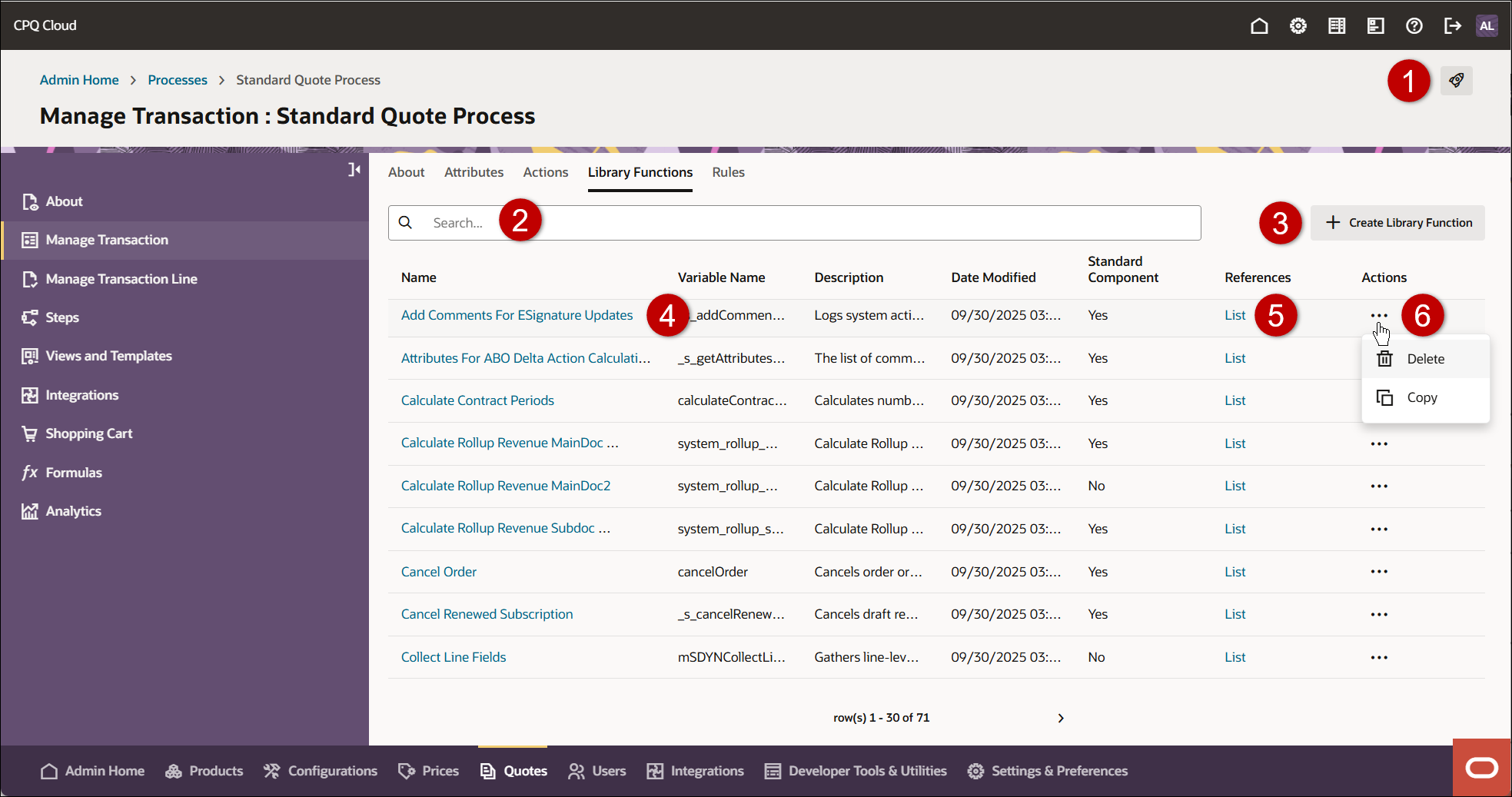
| Item | Description |
|---|---|
|
1 |
Access the Deployment Center |
|
2 |
Search for library functions |
|
3 |
Add a new library function |
|
4 |
View or edit a library function |
|
5 |
View items referenced to this library function |
|
6 |
Delete or copy a library function. You cannot delete Standard Process library functions. |
Function Editor
The Library Function Editor tab is used to add, edit, or view a Commerce library function.
To access Commerce library functions,
- Navigate to: Admin Home > Quotes > Process > Manage Transaction > Library Functions
- To edit or view an existing function, click on the applicable function
- To add a new function, click + Create Library Function.
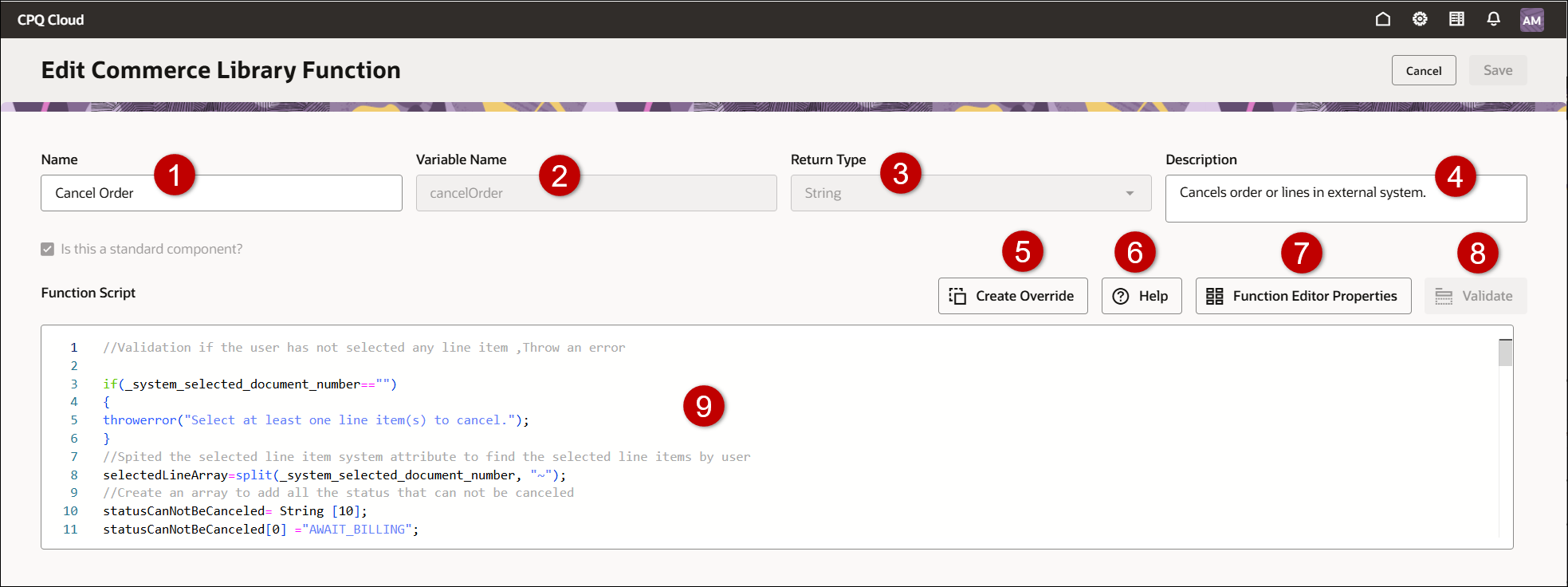
| Item | Description |
|---|---|
|
1 |
The function name |
|
2 |
The function variable name |
|
3 |
The data type of the function delivers |
|
4 |
The function description |
|
5 |
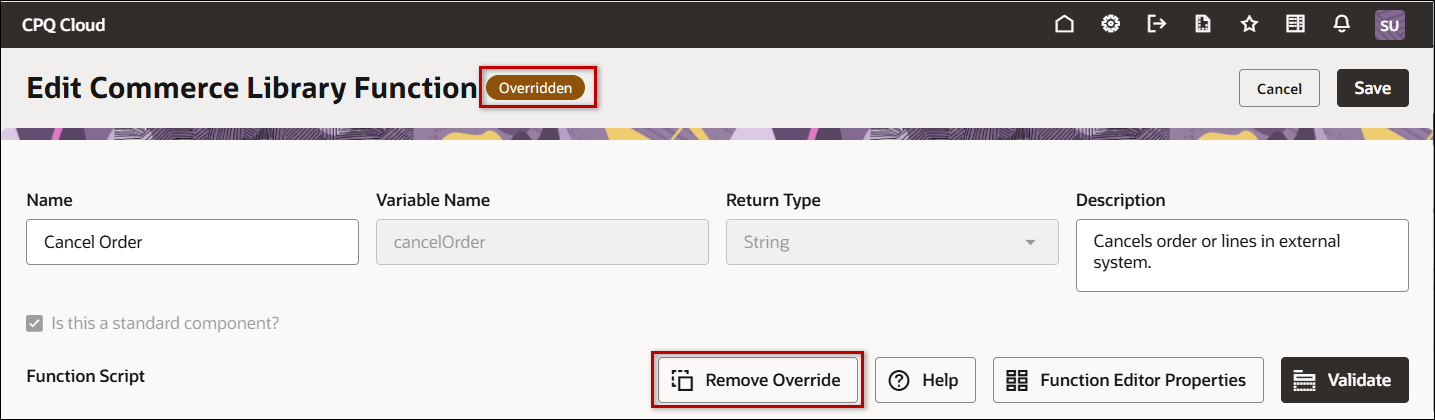
Create Override is shown for Standard Process functions.
|
|
6 |
Displays help information for BML functions, statements, operators, time zones, and Commerce rules. |
|
7 |
Manage function properties and test the function. |
|
8 |
Validate the function script. |
|
9 |
Enter the script into the Function Script section. Save your changes after writing or editing a script. |
Administration
 Add a Commerce Library Function
 icon to enter the parameter into the Function Script.
 Insert into editor to enter the standard function into the Function Script.
Notes
Notes:
- Library functions can be created if there isn't a pre-defined function for what you are trying to accomplish.
- Importing a main document Commerce Library Function which imports sub-doc attributes into a BML script on the sub-doc level, will force a loop over all line items.
-
Commerce Library functions can call other Commerce Library functions. Commerce Library functions can call Util Library functions.
-
Util Library functions can call other Util Library functions. Util Library functions cannot call Commerce Library functions.


