Customize Array Sets
Administration
This topic describes customizing array sets in Redwood quote sections.
 Access Customize 'Array Set' Field
To access Customize Field for an array set:
-
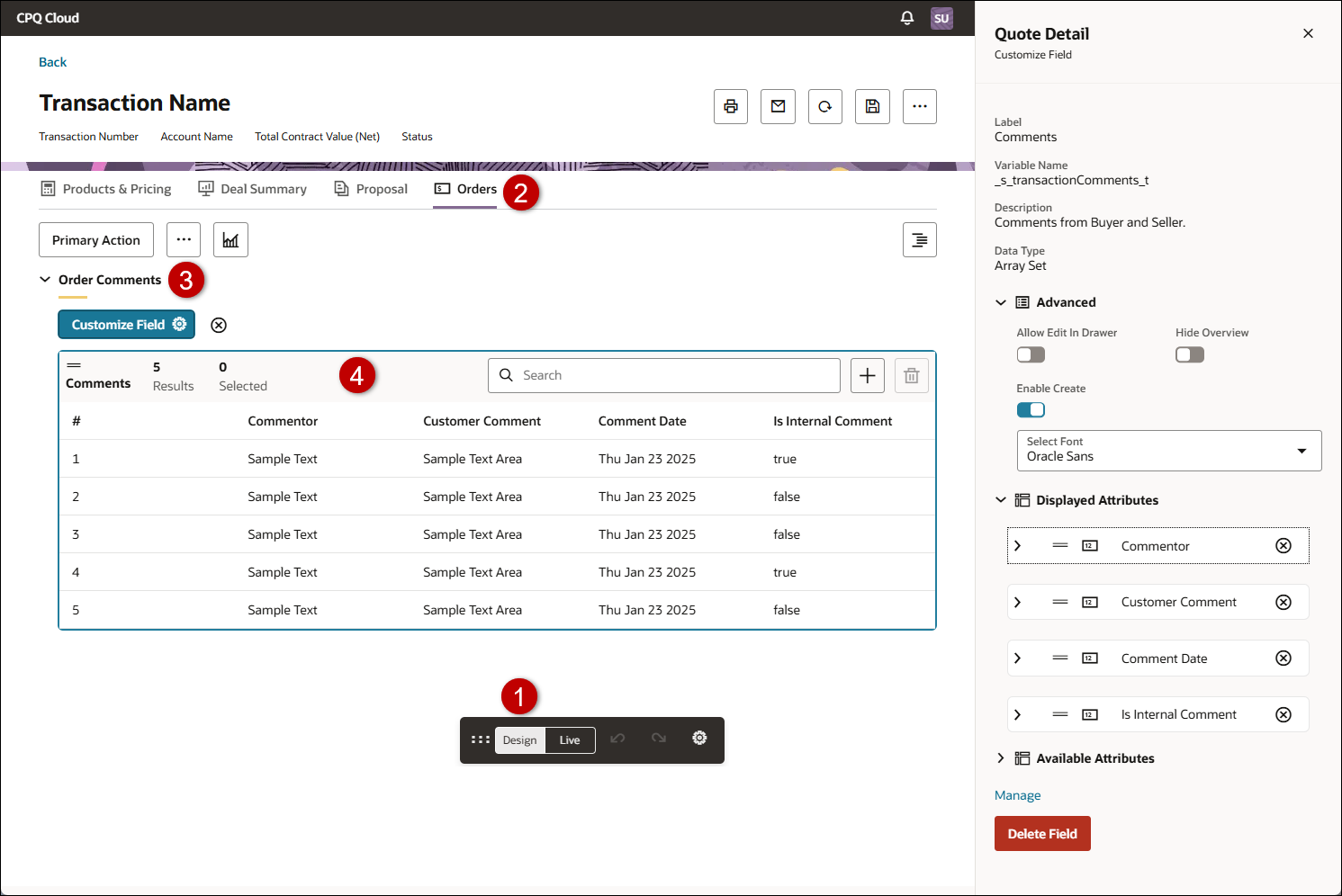
Open or create a Redwood quote, then click Design.
-
Click the applicable view.
-
Click the applicable section.
-
Click on the applicable array set.
-
Click Customize Field 
Customize Array Set Settings
-
Click Advanced.
-
Enable Allow Edit in Drawer to open a drawer to edit an individual array set row, versus editing items in the array set view.
-
Enable the Hide Overview option to hide the array set overview.
-
Enable the Enable Create option to allow users to add rows to the array set.
-
Choose a font from Select Font to customize the font for the array set.
Manage Array Set
-
Click the Manage link to navigate to the Commerce Attribute Array Set Editor.
-
To update the label for an array set, click the Manage link.
Notes: Attribute labels are modified in Commerce administration.
- The applicable commerce process must be deployed before array set label changes are available to sales users on the Redwood Quote UI.
- Refer to Commerce Transaction Arrays for Commerce array set administration.
Remove an Array Set
Customize and Array Set Attribute
-
Click Displayed Attributes.
-
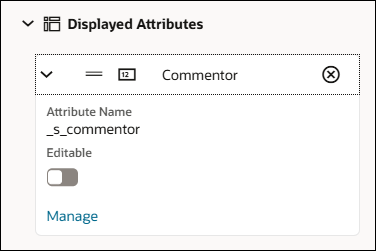
Click on the applicable array set attribute.
-
Enable the Editable option to allow users to edit an array set attribute.
Manage Array Set Attribute
-
Click the Manage link to navigate to the Commerce Attribute Editor.
To update the label for an attribute, click the Manage link.
Notes: Attribute labels are modified in Commerce administration.
- The applicable commerce process must be deployed before attribute label changes are available to sales users on the Redwood Quote UI.
- Refer to Commerce Attributes for Commerce attribute administration.
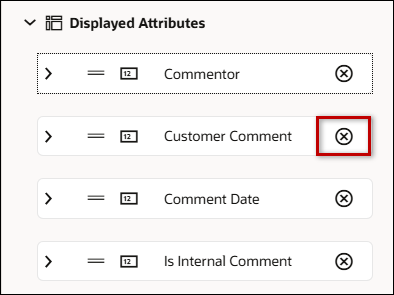
Remove an Array Set Attribute from View
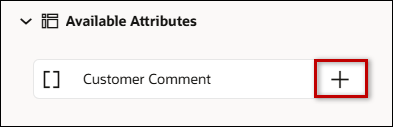
Add an Array Set Attribute to View
Add an Array Set to a Redwood Quote Section
-
Open or create a Redwood quote, then click Design.
-
Click the applicable view.
-
Click the applicable section.
-
Click Customize Section
-
Click Available Attributes to view and search for an array set to add to the section.
-
Click the Add + icon to add the associated array set.
Notes
Notes: Attribute labels are modified in Commerce administration.
- The applicable commerce process must be deployed before attribute label changes are available to sales users on the Redwood Quote UI.
- Refer to Commerce Attributes for Commerce attribute administration.
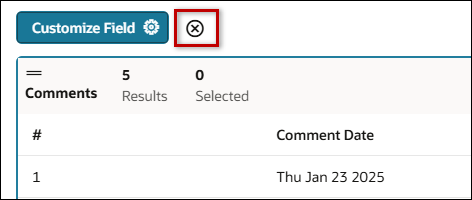
 icon to remove an attribute from the view layout.