Overview
Implementations with large numbers of Transactions may choose to allow a site’s Application Administrator to archive Transactions. When Transaction archiving is enabled, an Application Administrator can select Transactions for archiving (deletion).
This differs from sending a Transaction to the Trash folder in the Transaction Manager, where the Transaction can be viewed and restored after being trashed. Archiving a Transaction, and then a subsequent archive cleanup, completely wipes the Transaction from the server so that it can never be accessed again and there is no record of the Transaction.
If a company has a large amount of Transactions that were never finalized, never turned into revenue, and will not be modified in the future, it may choose to archive these Transactions to reduce clutter and server storage.
Only an Application Administrator can archive Transactions, and archiving Transactions can only be done in a Transaction Manager View other than the default view.
Additionally, an internal property must be enabled for Transactions to be archived. By default this property is turned off. To enable this property, open a ticket on My Oracle Support and request for Commerce Transaction archiving to be enabled.
Archive Cleanup
Transactions that are archived will not immediately be wiped from the server. While the Transaction cannot be retrieved or unarchived by the admin (a ticket must be submitted on My Oracle Support to unarchive a Transaction), it will not be cleaned-up and erased forever until a certain number of days, set by an internal Archive Expiration Days property, have passed.
The default setting for cleaning up archived Transactions is 30 days after the Transaction was archived. To change the number of days in this setting, open a ticket on My Oracle Support.
Administration
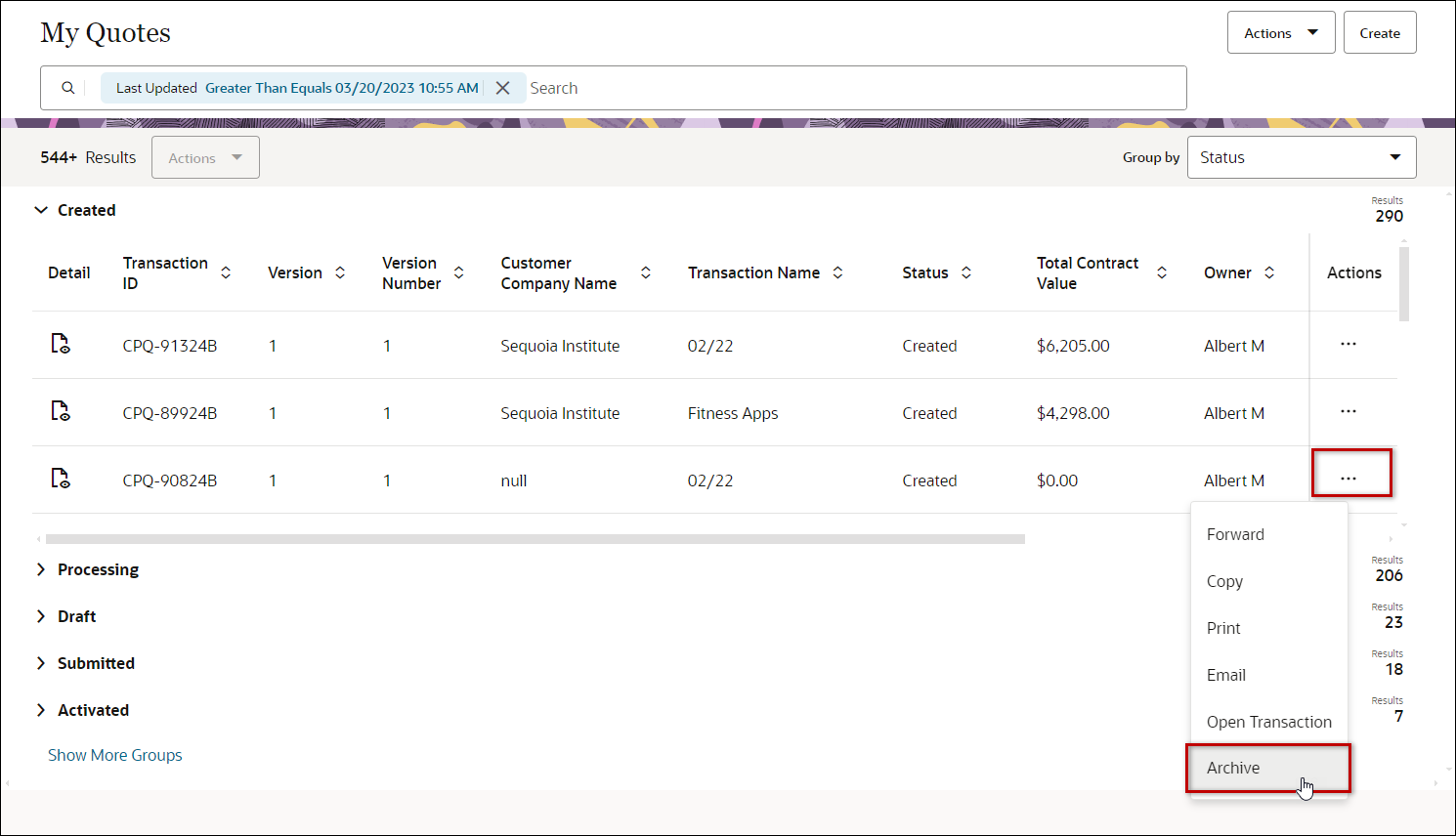
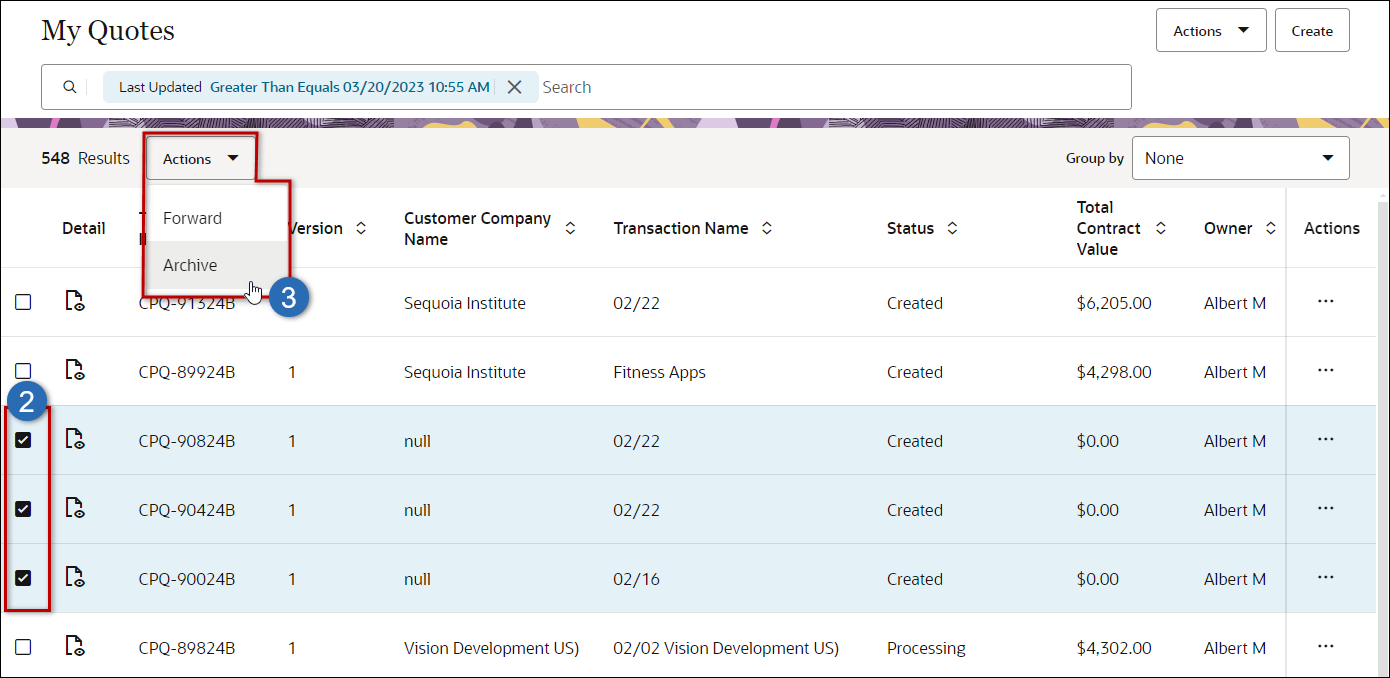
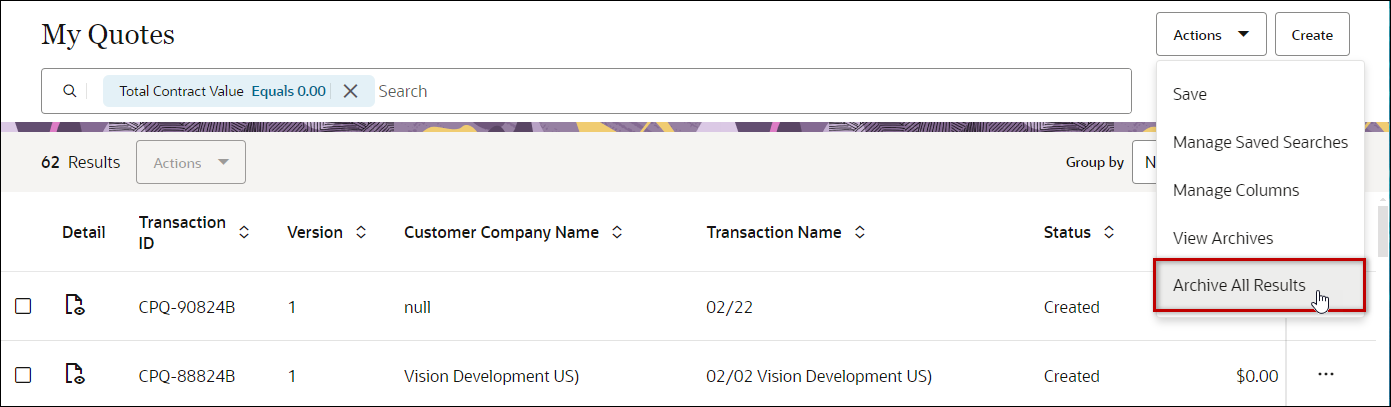
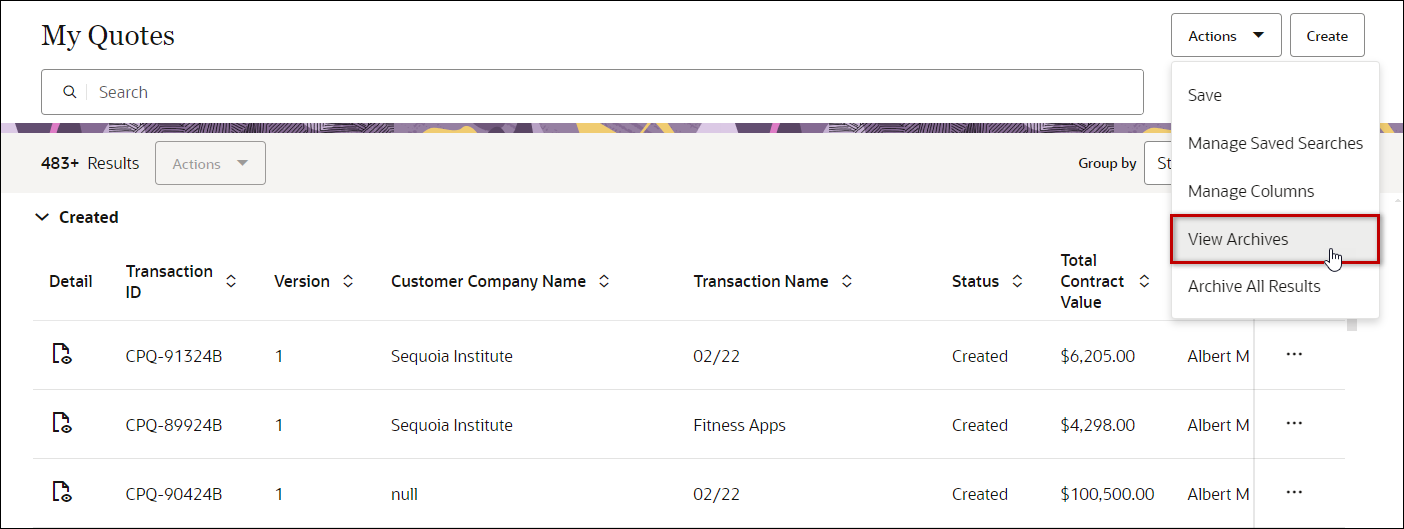
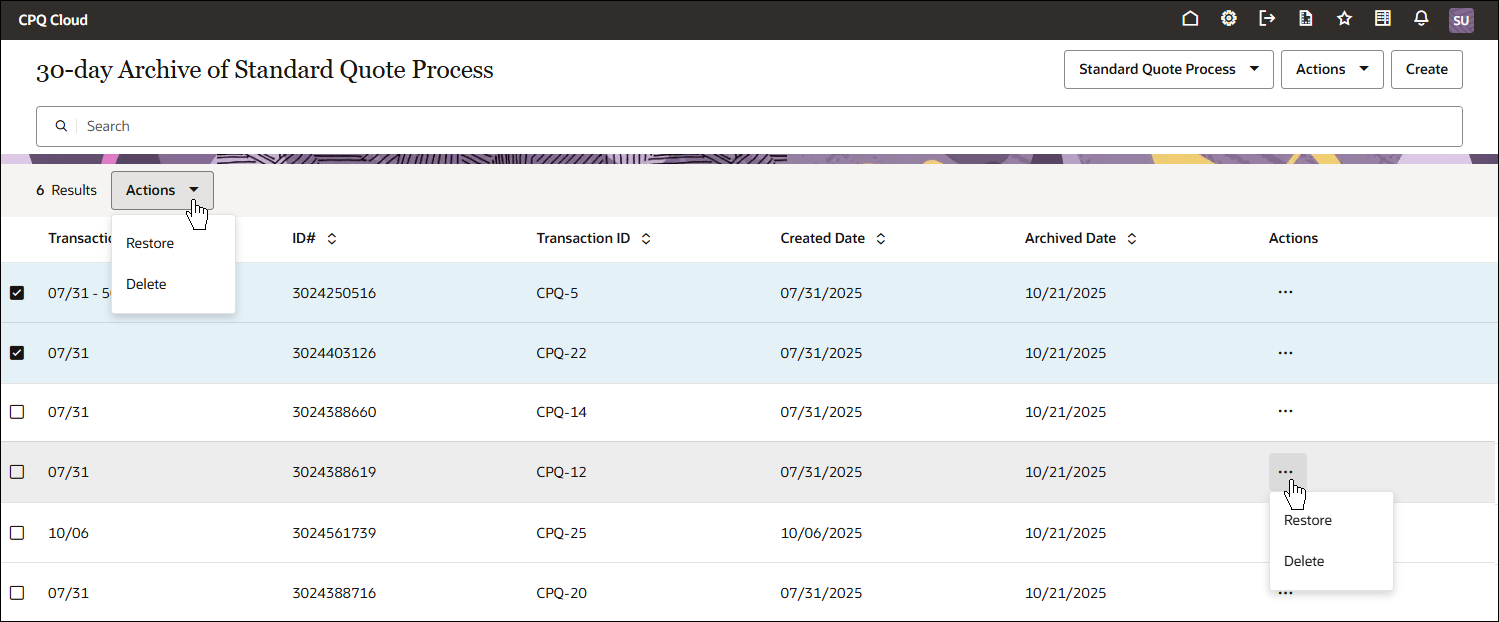
 Manage Transaction Archives View, restore, or permanently delete archived transactions
Notes
Notes:
-
After a Transaction is archived, it can no longer be accessed from within the CPQ Cloud admin interface, and all record of it will eventually be erased from the server. Archive Transactions with caution.
-
If Transaction archiving is disabled on your site open a Service Request (SR) on My Oracle Support to enable Transaction archiving.
-
The default setting for cleaning up archived Transactions is 30 days after the Transaction was archived. Open a ticket on My Oracle Support to change this setting,
-
Transaction data is stored indefinitely unless archived. This includes file attachments, which are treated the same as transaction data.


