Digital Assistant Integration
Overview
The Integration Center contains a Digital Assistant Integration type. This integration defines the connection details for an external chatbot/messaging service. Once defined, the details can be retrieved via BML and used to send a message to the external service.
Oracle CPQ 26D removes visibility of the Digital Assistant integration type from the Integration Center for Oracle CPQ running in Fusion.
By default, new Oracle CPQ 26D running in Fusion implementations will not allow visibility and creation of this integration type. Administrators will need to log a Service Request (SR) to enable visibility and creation of this integration.
Upon upgrade to Oracle CPQ 26D, the following occurs:
-
If no existing integration data exists for the integration type, the integration type is not visible and new integrations for that type cannot be created.
-
If existing integration data exists for the integration type, the integration type remains visible and edits to existing integrations is supported but creation of new integrations is not allowed.
Administration
 Set Up the Digital Assistant Integration
To create a Digital Assistant integration type, complete the following steps:
- Navigate to the Integration Center.
- Click Admin to go to the Admin Home Page.
Click Integration Center in the Integration Platform section.
The Integration Center page opens.
- Click Create Integration.
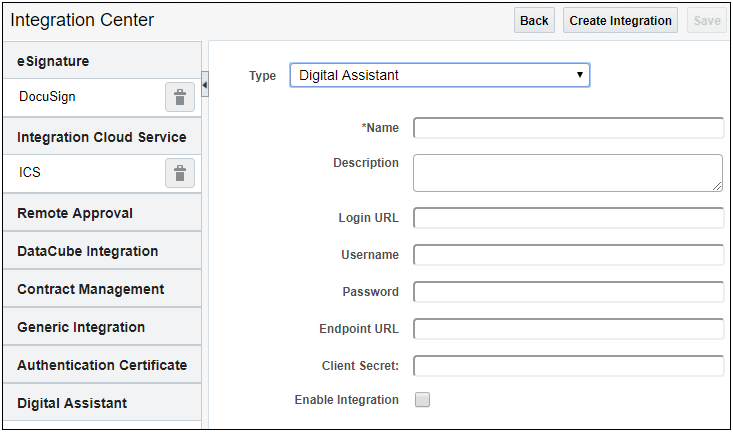
- Select Digital Assistant from the Type drop-down. The Digital Assistant Integration field entries display.
-
Enter a unique Name. This name will be the variable name for this integration.
-
Enter a Description for the integration.
-
Enter the Login URL for the external chatbot/messaging service
When the Digital Assistant is enabled, the Login Domain URL is validated against the allowed_partner_domains list. If additional domains need to be added to the Allow List, please create a SR on
My Oracle Support to add your domain to the allowed_partner_domians.
-
Enter the Username and Password to access the external chatbot/messaging service.
-
Enter the Endpoint URL. This is defined as the Inbound URL field within the external chatbot/messaging service.
-
Enter the Client Secret. This is defined as the Secret Key field within the external chatbot/messaging service.
-
Check the Enable Integration checkbox.
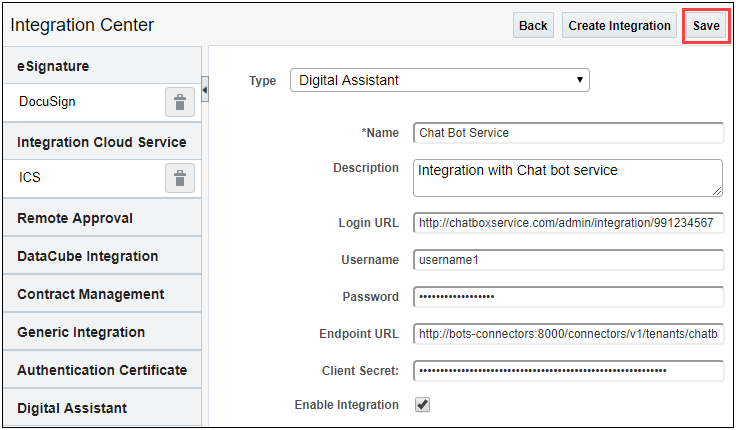
- Click Save.
After the Digital Assistant integration has been created, the details can be retrieved using BMQL and used in a BML integration to send messages to an external chatbot/messaging service. Example BMQL is provided below.
botSettings = bmql("SELECT username,endPointURI, clientSecret, description FROM integration.digitalAssistant WHERE name = $botName");
Related Topics
See Also


